
Best Docking Stations for Dual Monitors
One cable to two screens, power and the desk's peripherals — read by video output type and count, per-display resolution, power delivery and Windows or Mac support.
Dual-monitor docking stations in stock at Uniqcli
How to choose →A curated selection with live pricing — in-stock lines first, then back-ordered lines with a typical lead time. Every line is sourced through US distribution and screened for NDAA §889 status before checkout, with TAA verified on request.
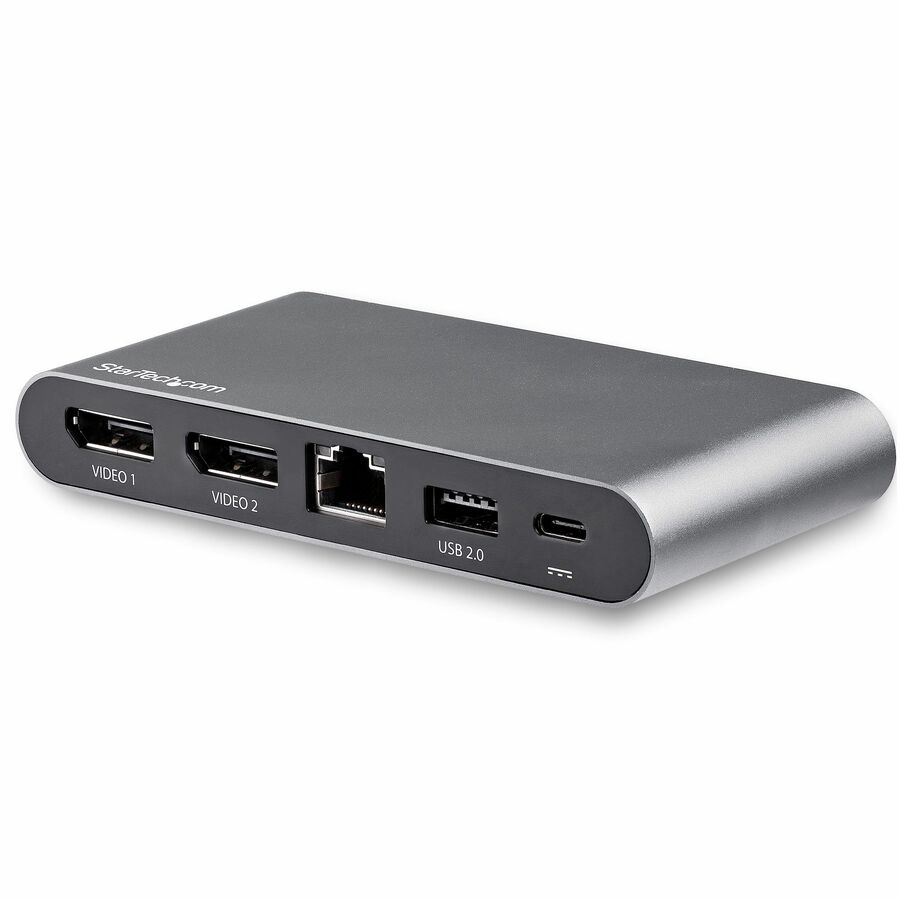
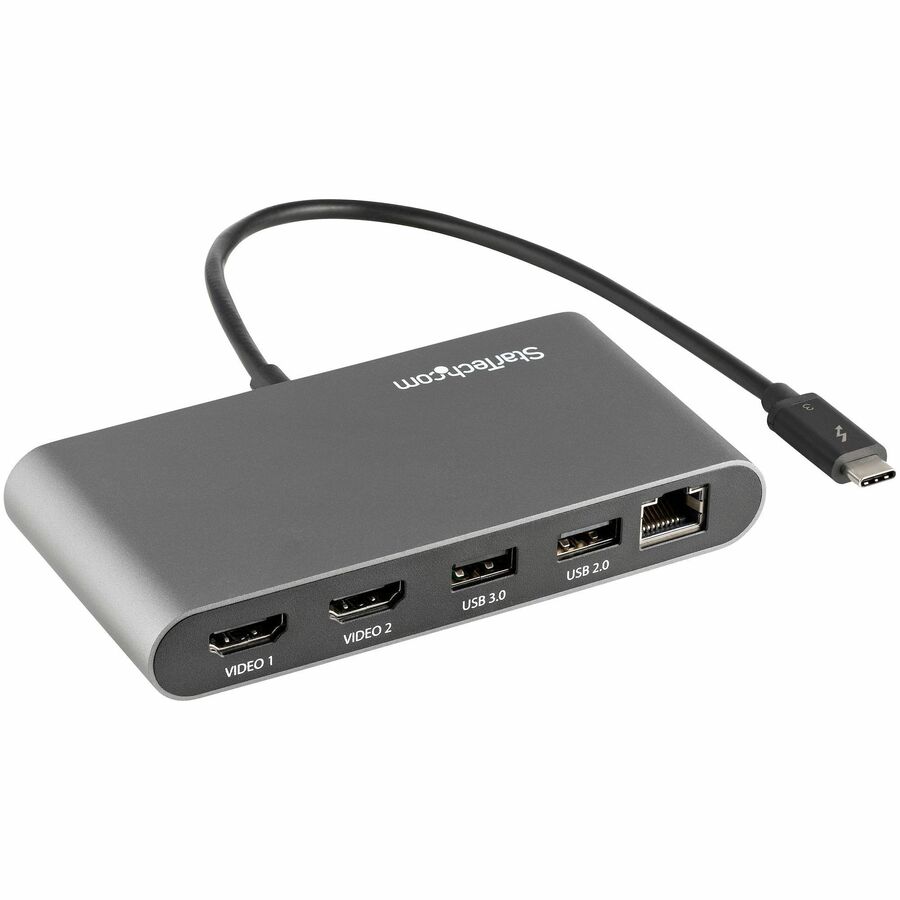
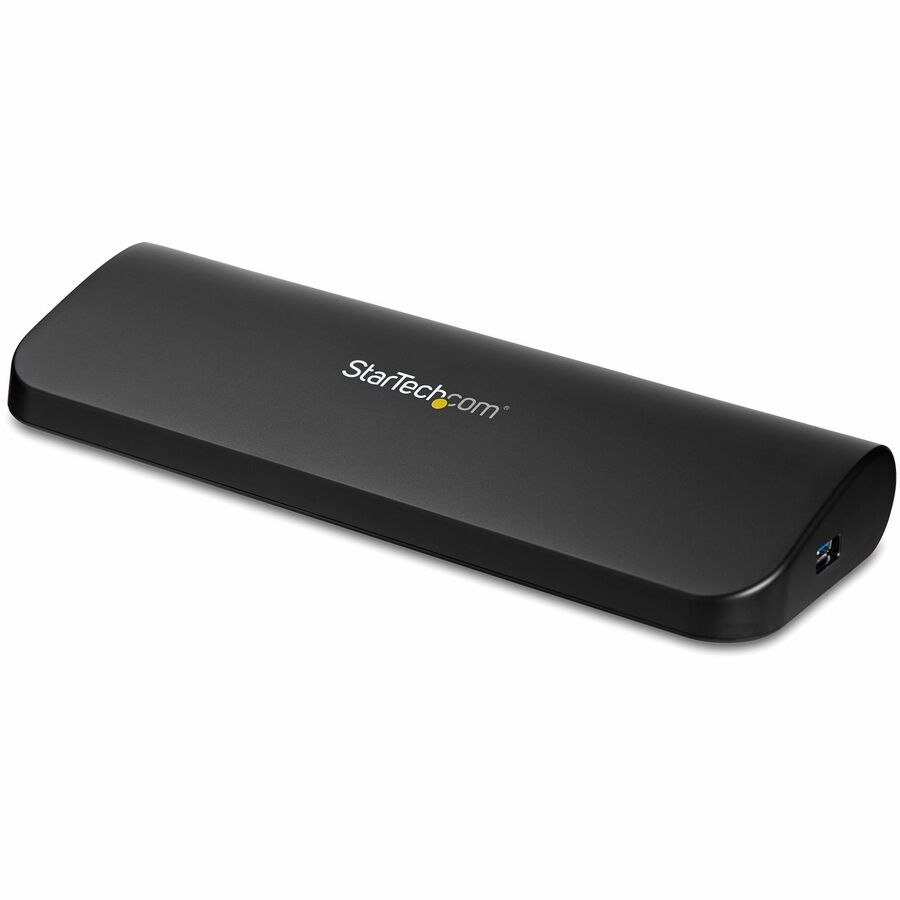
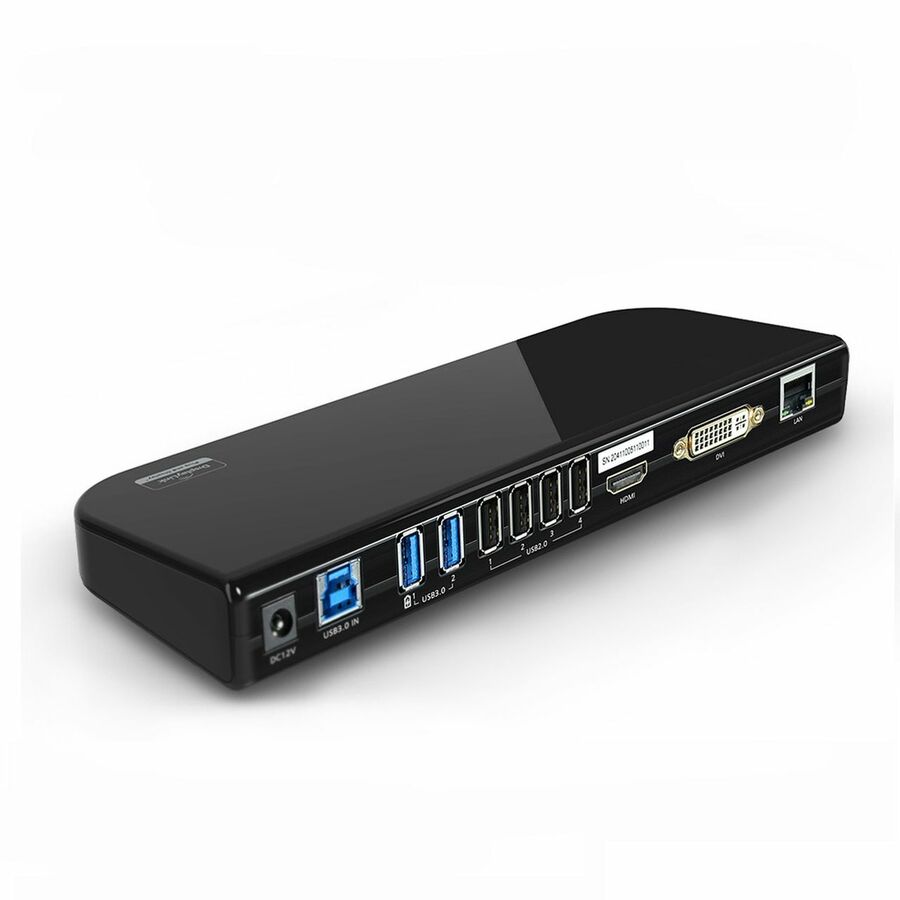
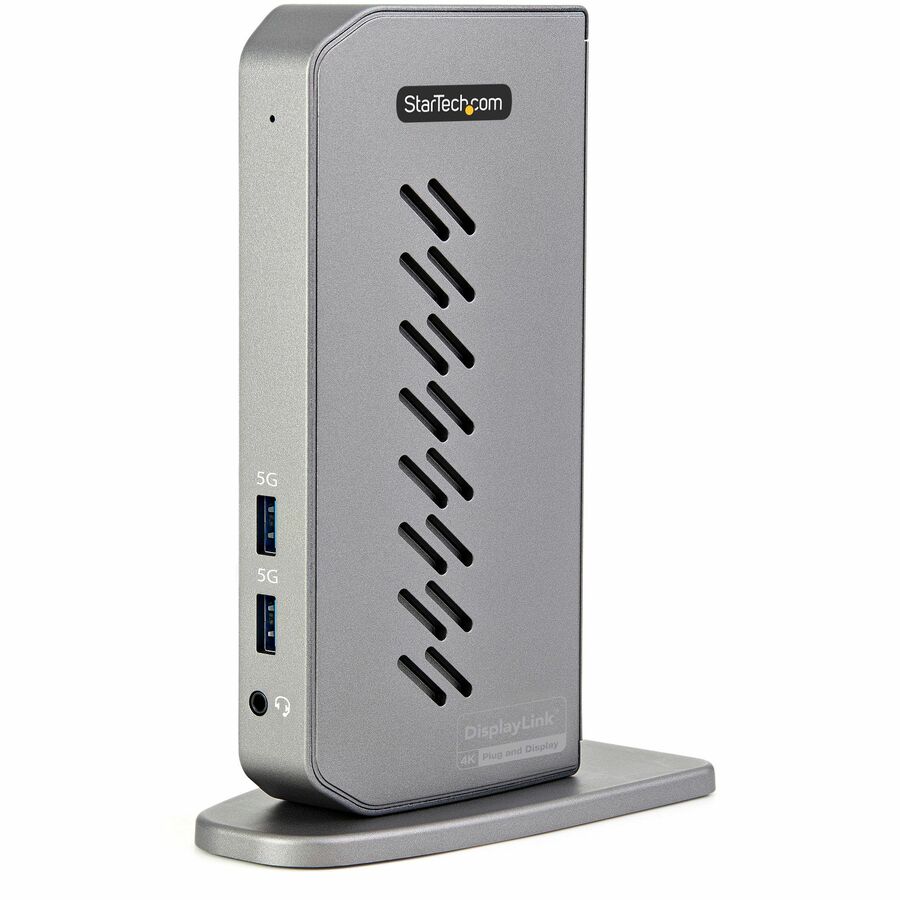
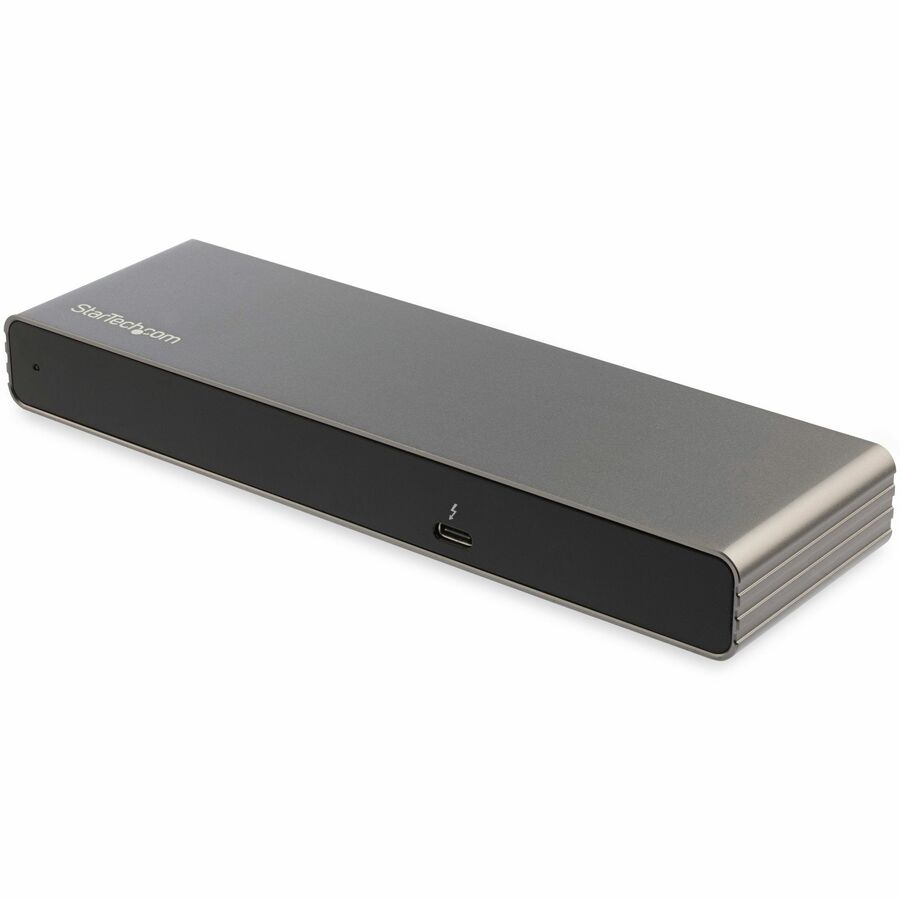
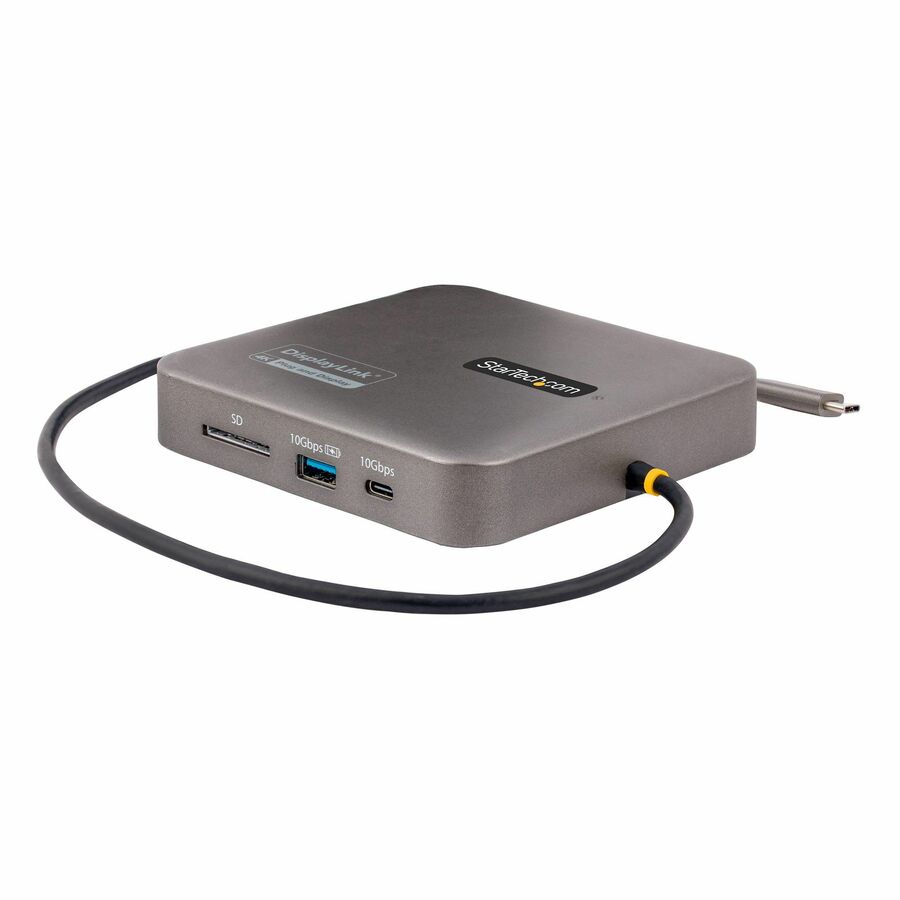
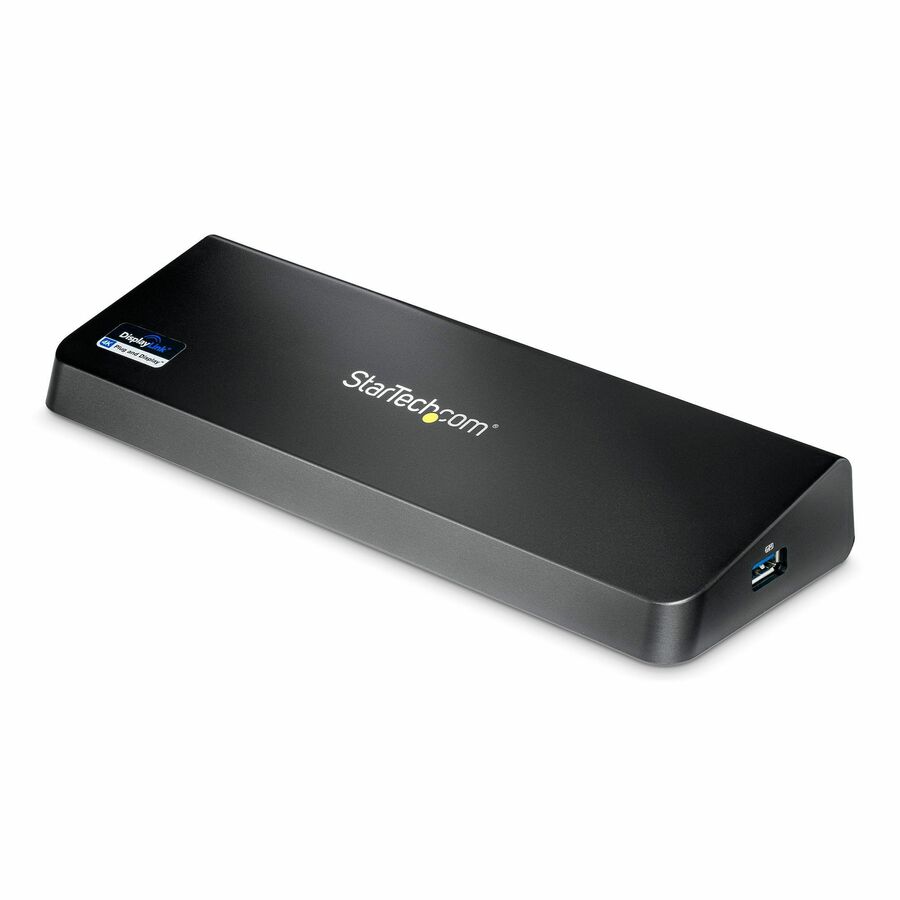
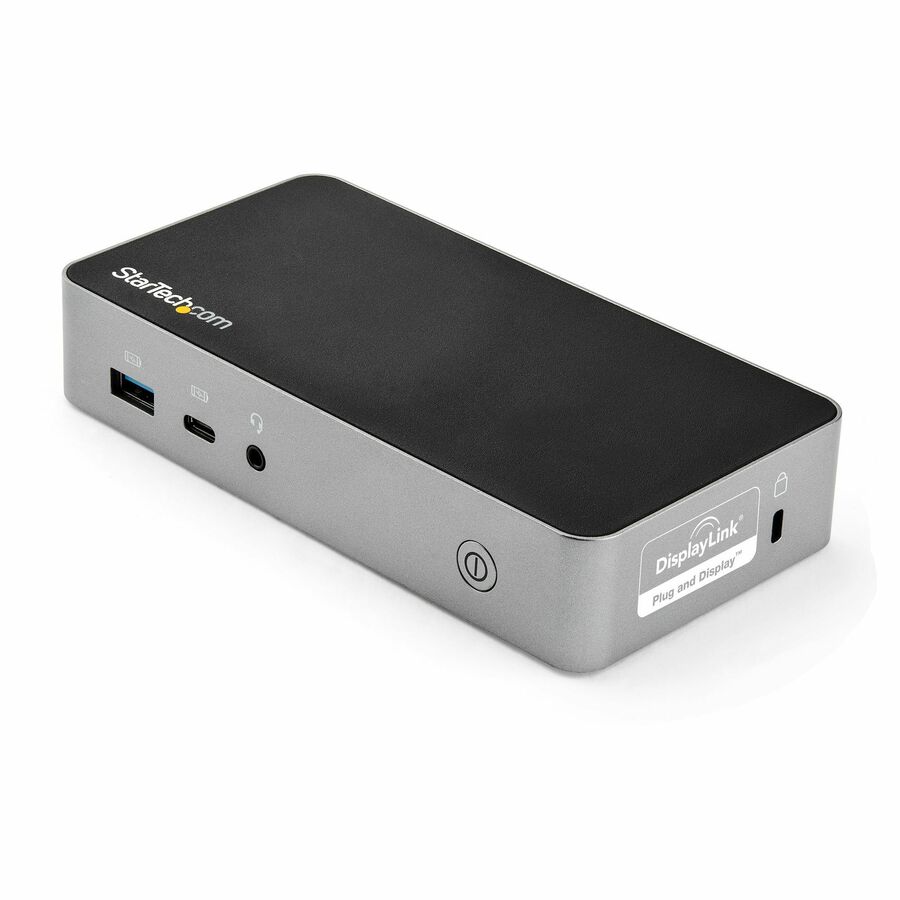
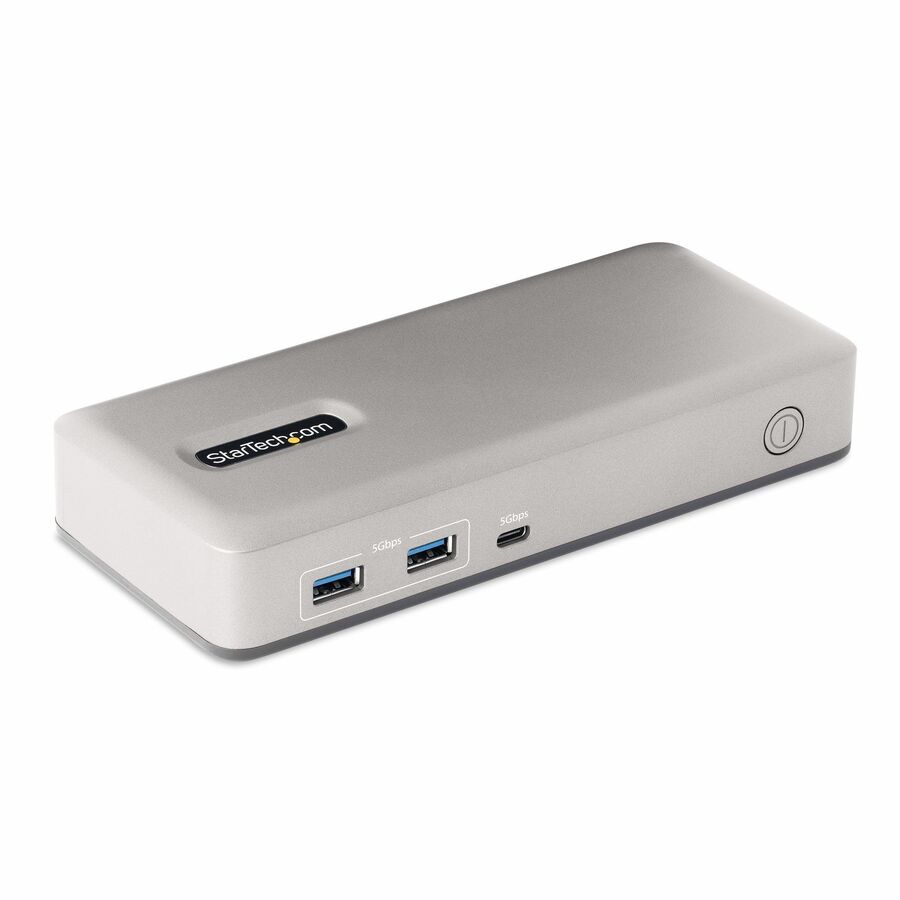
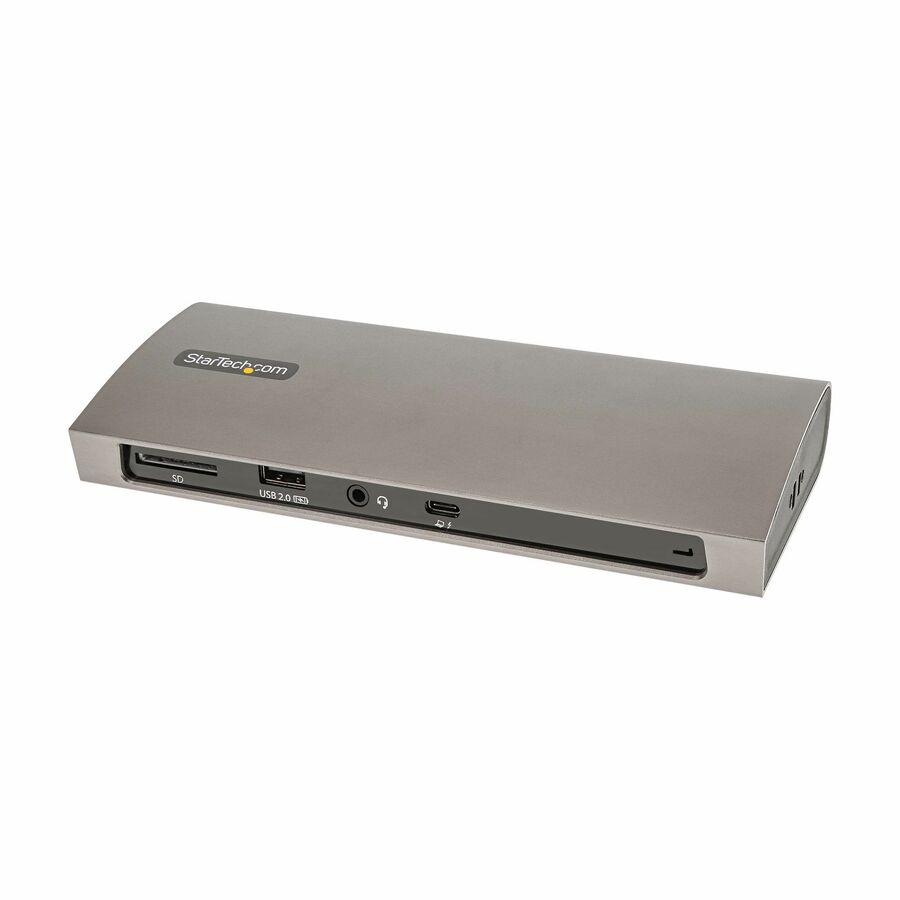
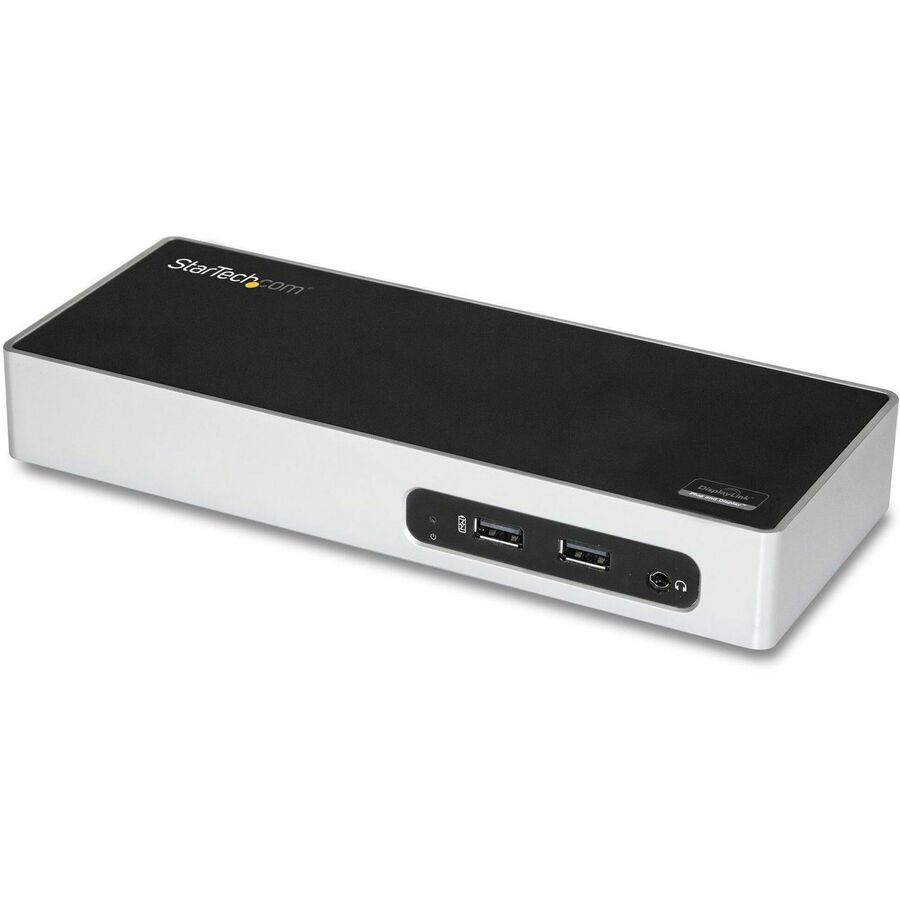
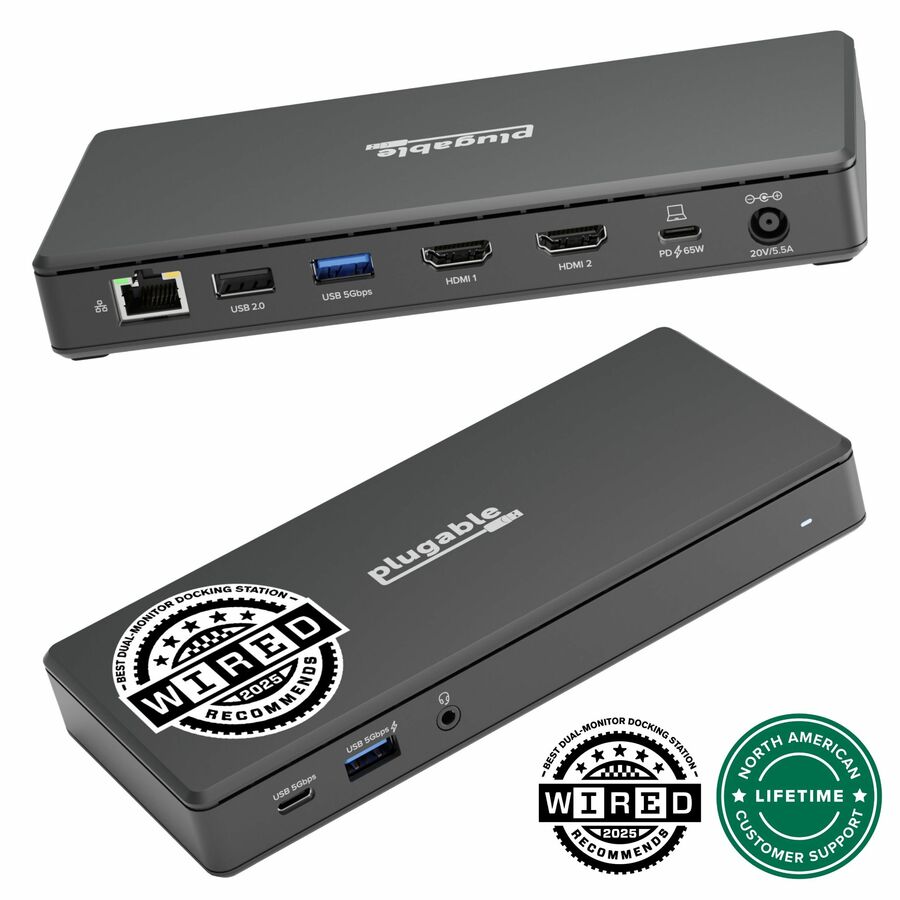
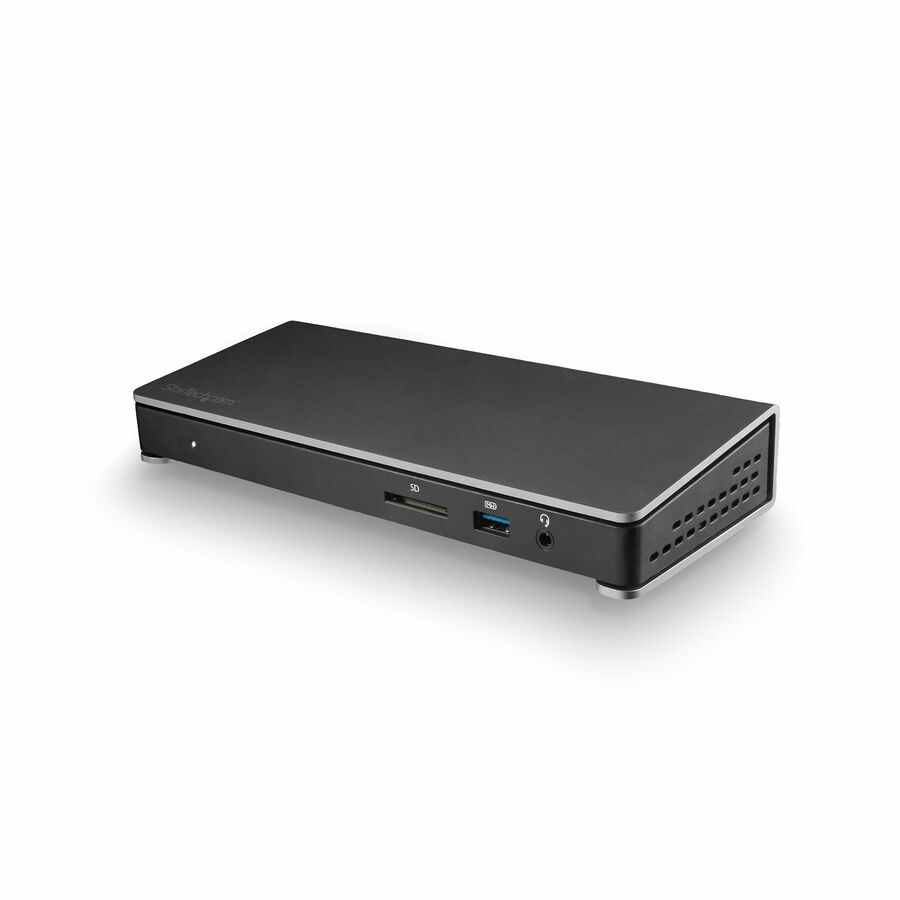
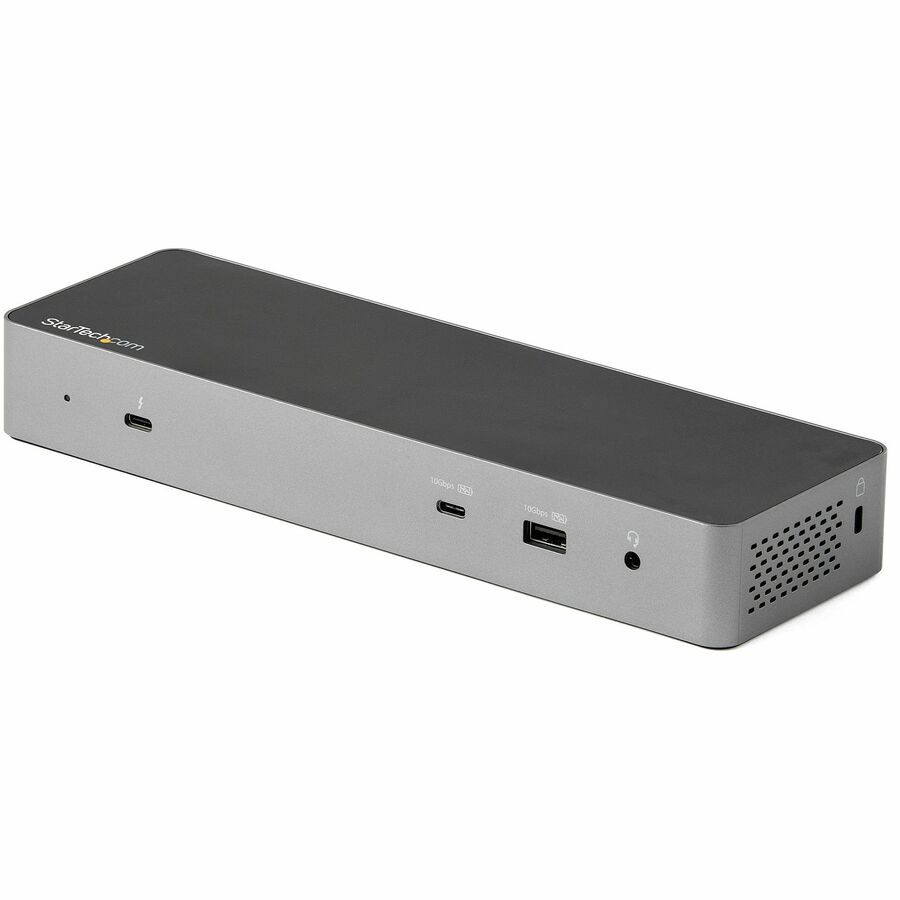
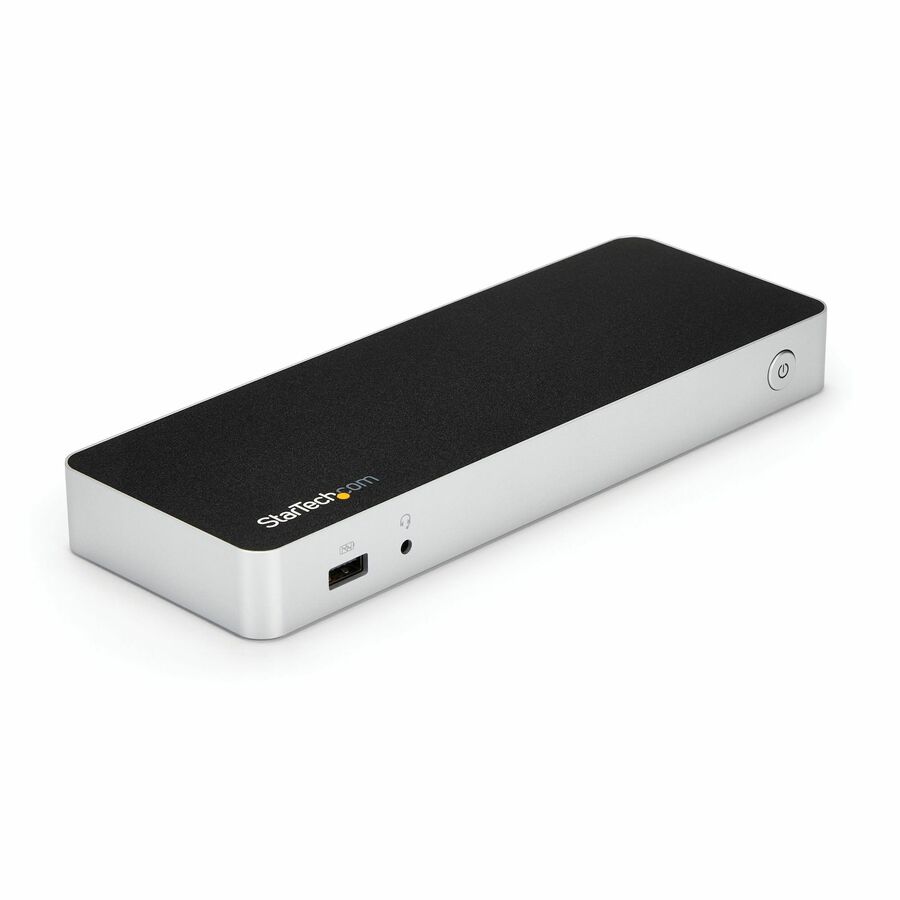
- StarTech.comStarTech USB C Docking Station, Dual 4K 60Hz HDMI, compatible with MacBook Pro (M1/M2/M3/M4) and Windows, 10Gbps USB Hub, GbE, 100W PD - Compact USB C dock Dual 4K 60Hz HDMI - Dual monitors on a MacBook Air/Pro M1/M2/M3 - Works w/ USB-C, USB4, Thunderbolt laptops; Windows, macOS, Ubuntu, ChromeOS - 100W PD pass-through (18W dock, 82W laptop) - USB-IF, VESA & DisplayLink certified102B-USBC-MULTIPORT
$128.99
$118.67
780 in stock
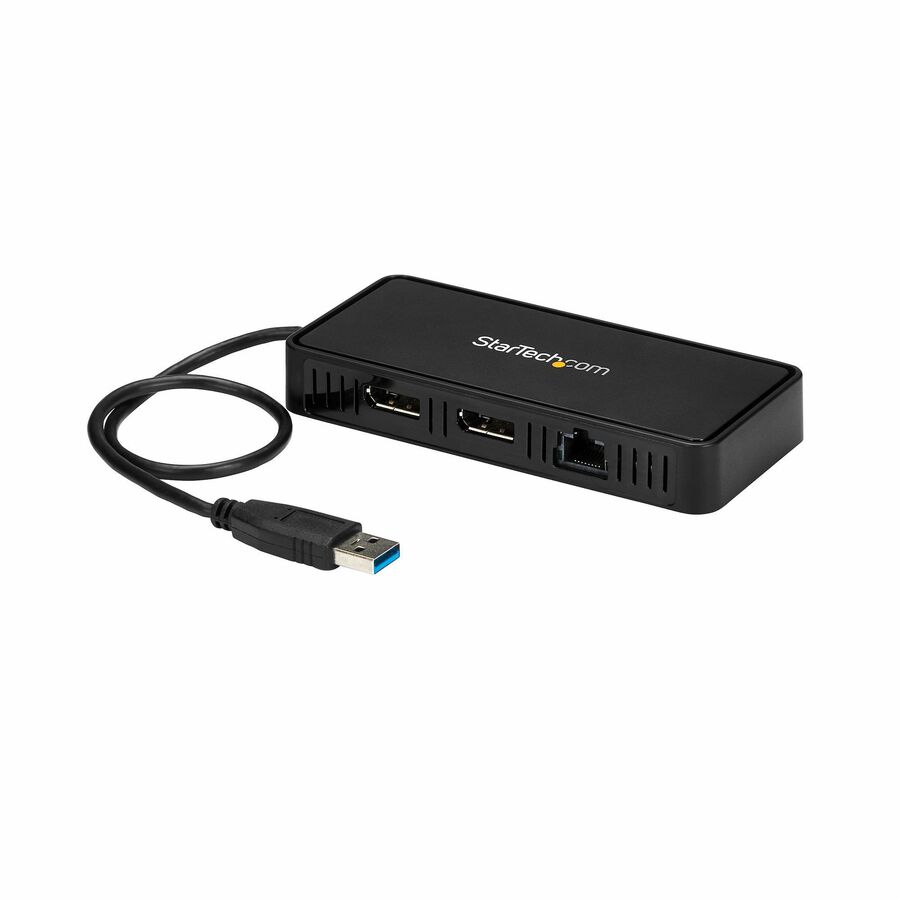

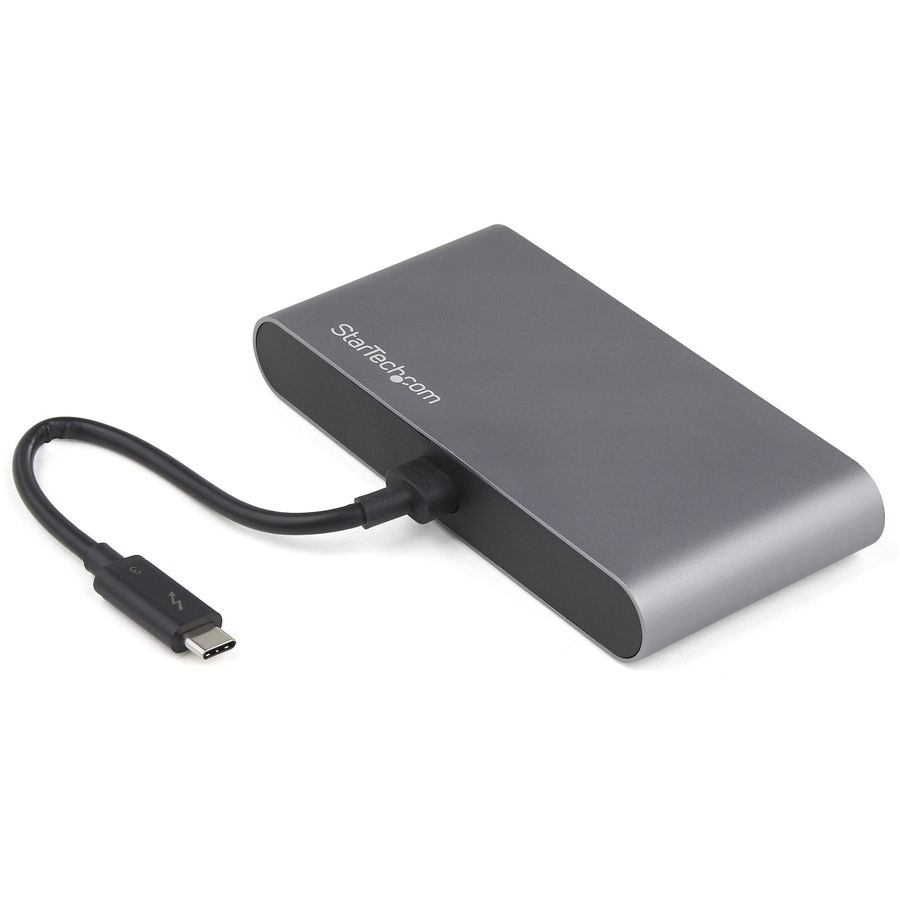
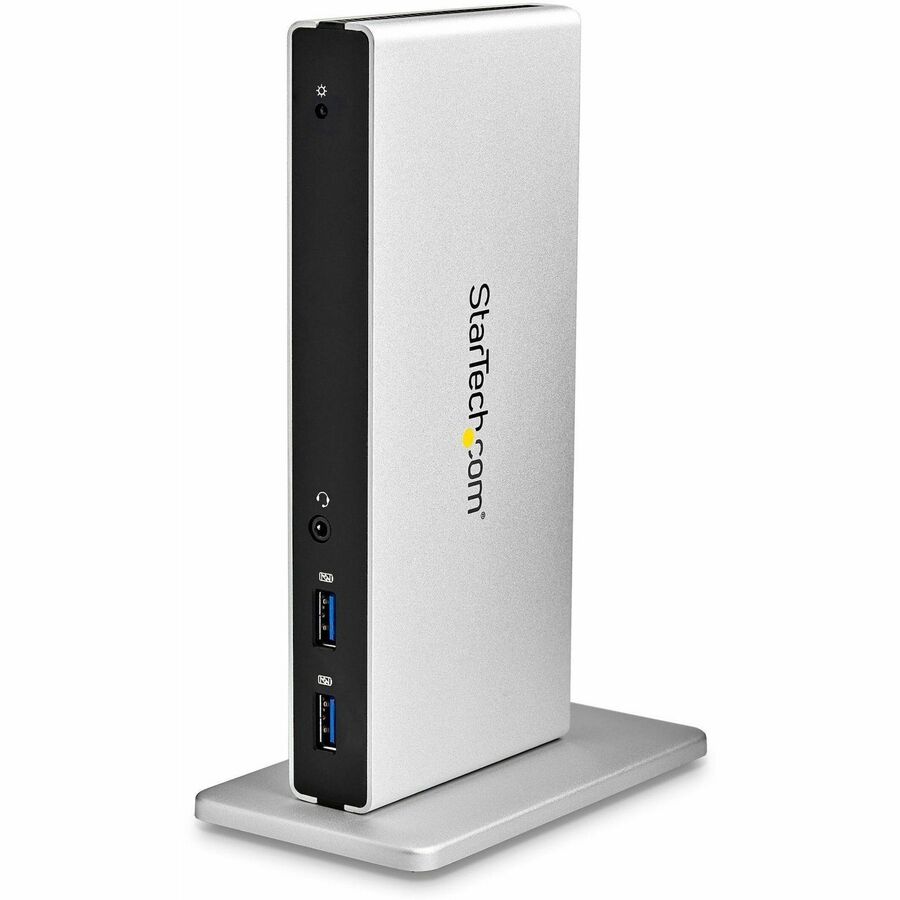
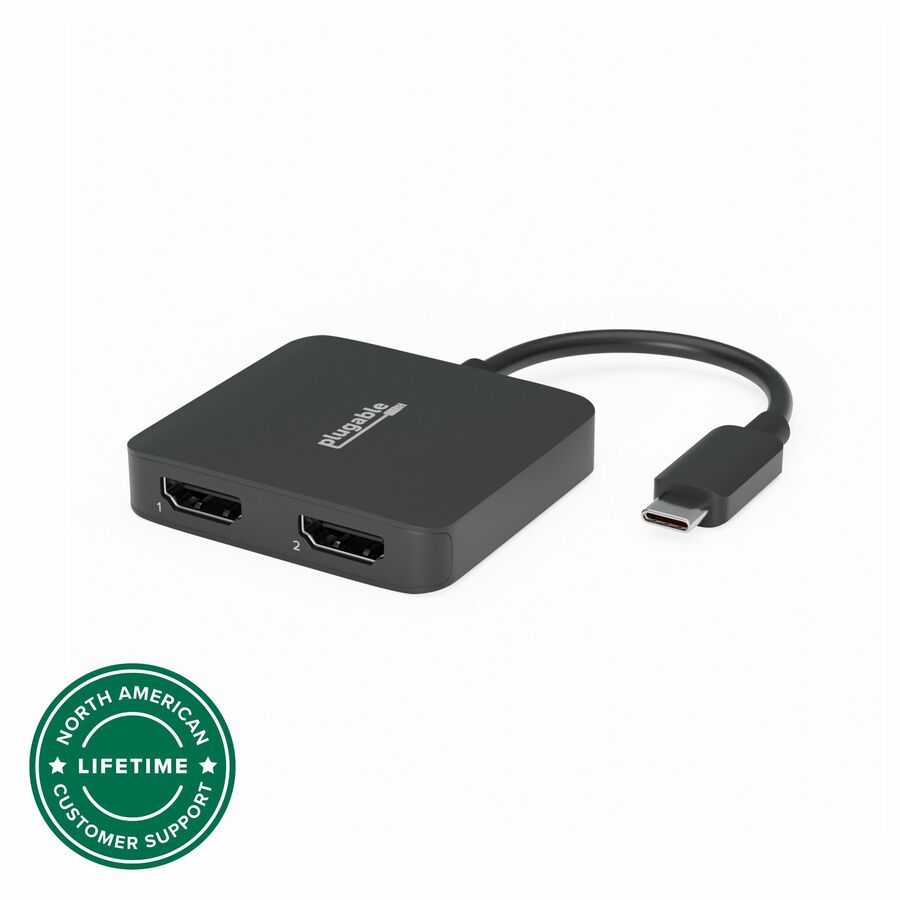





USB-C multiport
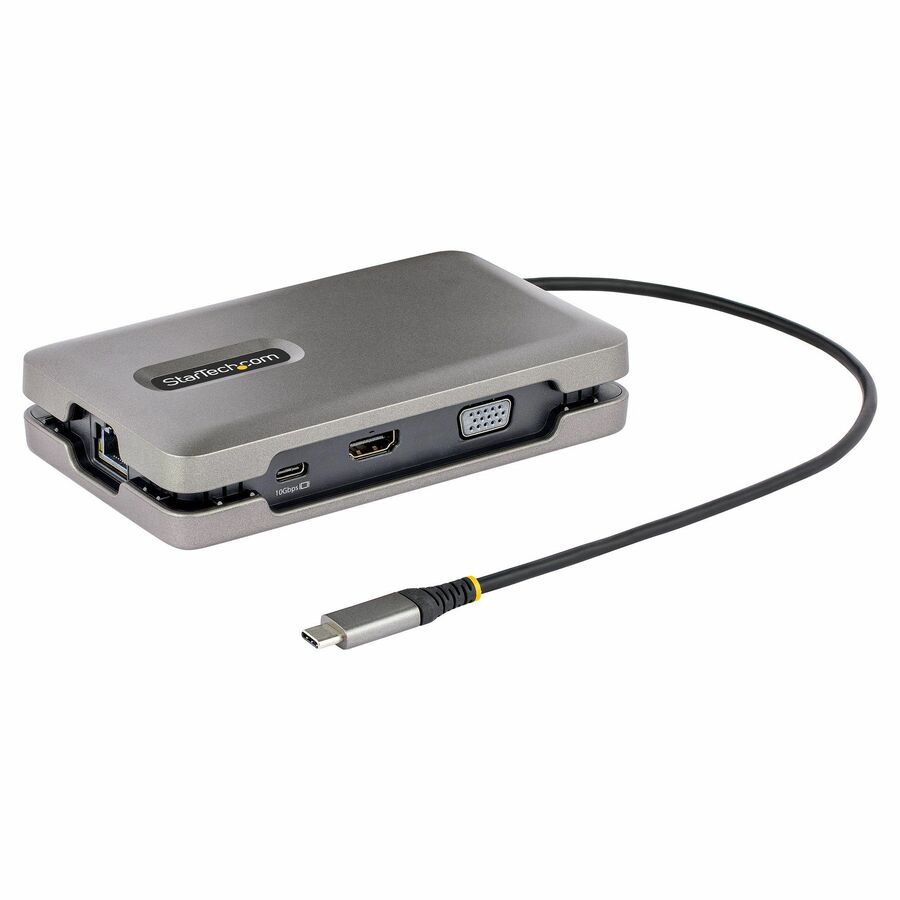
StarTech.com
StarTech USB-C Multiport Adapter w/USB-C DP Alt Mode Video/4K HDMI/VGA…
DKM31C3HVCPD
A compact USB-C multiport adapter with DisplayPort Alt Mode video, 4K HDMI and VGA for a dual-monitor setup with power pass-through — the smallest step to two screens on a modern laptop.
Request pricingUSB-C, dual 1080p
StarTech.com
StarTech USB-C Dock
DK30CHHPD
A USB-C dock driving two 1080p HDMI displays with 65 W power delivery — the mainstream office configuration where the screens are Full HD and the laptop charges over the same cable.
$121.43In stockDual-laptop KVM
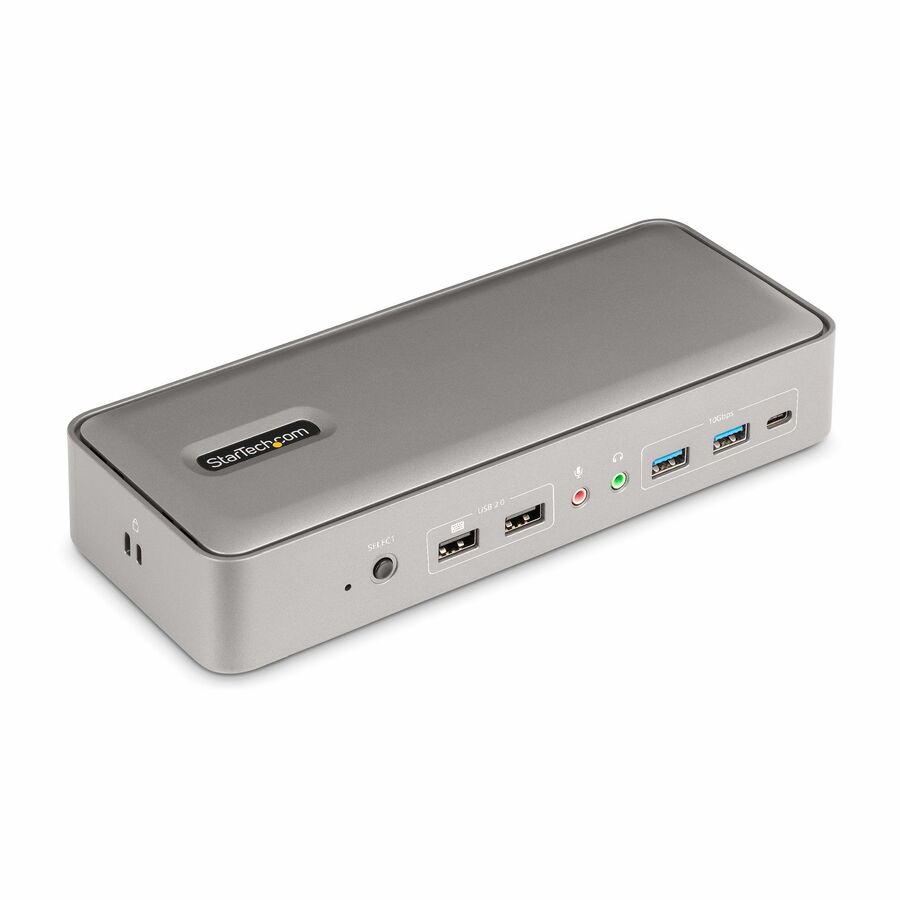
StarTech.com
StarTech Dual-Laptop USB-C KVM Docking Station, Dual Monitor 4K 60Hz…
129N-USBC-KVM-DOCK
A USB-C KVM docking station that shares two 4K 60 Hz DisplayPort monitors and the desk's peripherals between two laptops, for a hot desk or a dual-machine role.
$297.03*In stock11-in-1 USB-C
Plugable Technologies
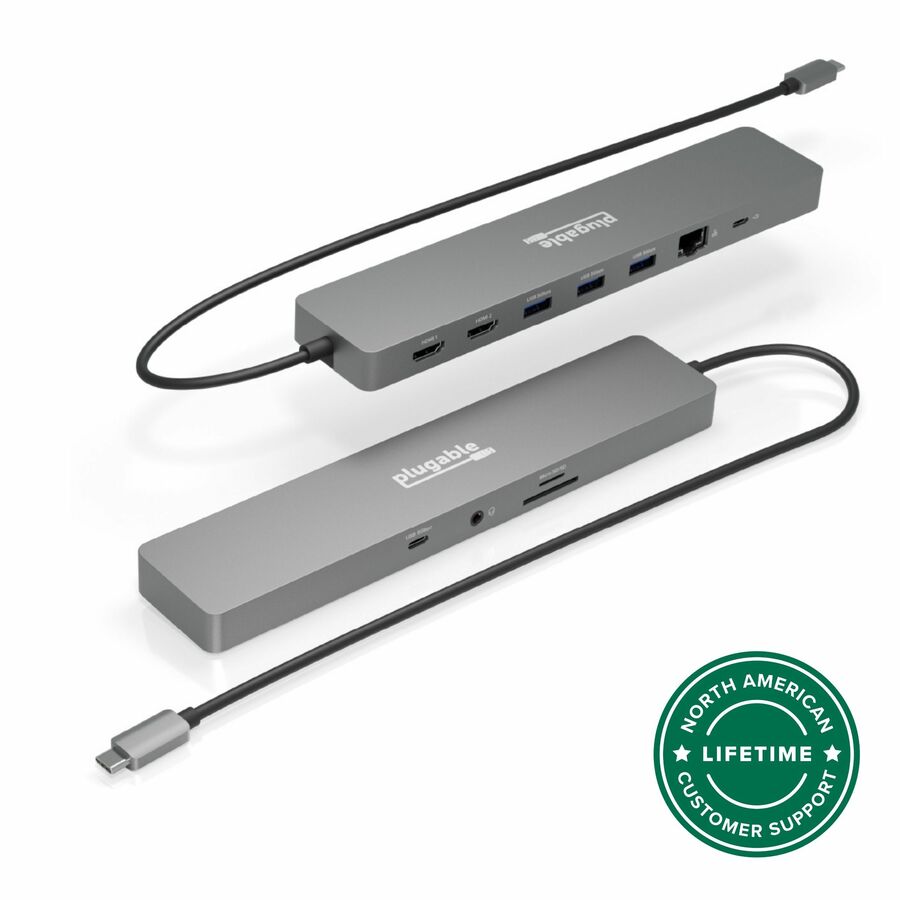
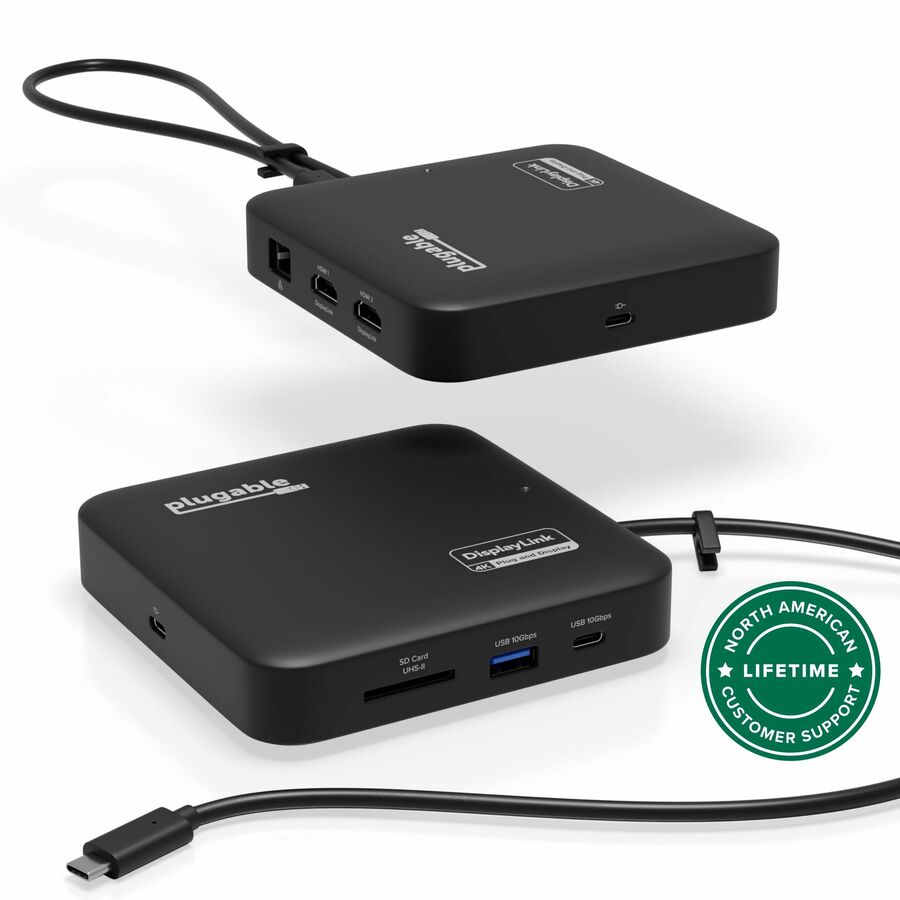
Plugable 11-in-1 USB-C Hub 100W USB-C Pass-through, Laptop Docking…
USBC-11IN1E
An 11-in-1 USB-C hub and dock with dual-monitor 4K output and 100 W USB-C pass-through, for a laptop that needs two screens and the full complement of desk ports from one cable.
$126.45In stockUSB-C, dual 4K Mac
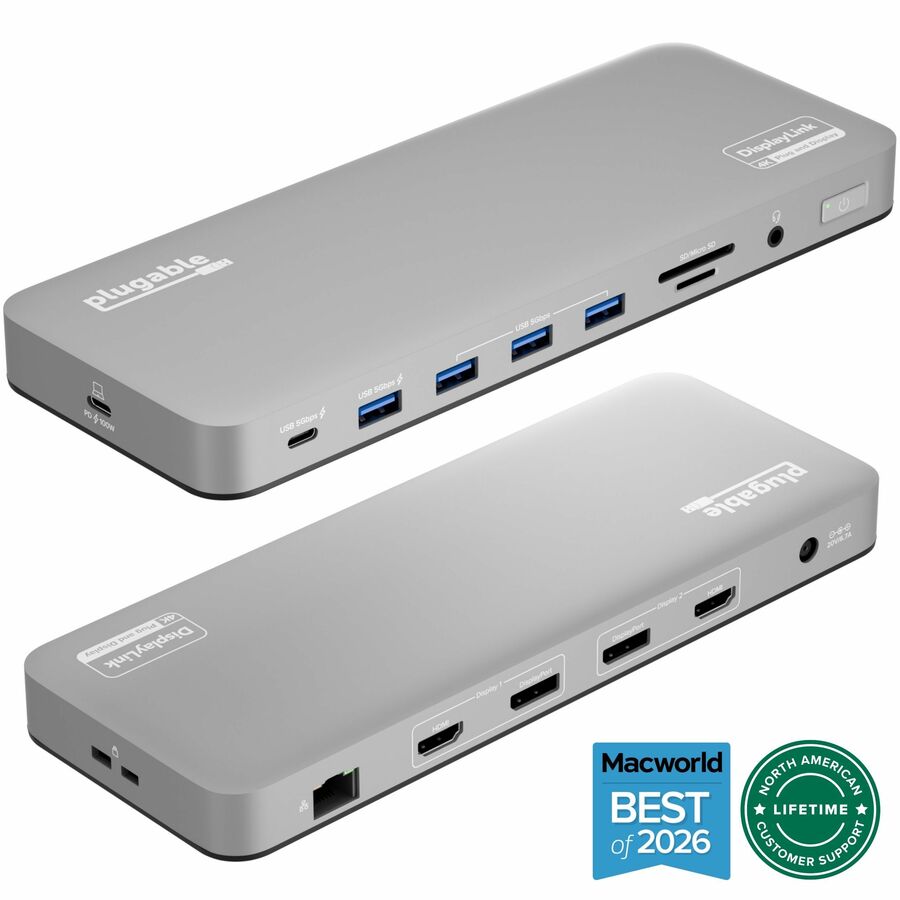
Plugable Technologies
Plugable USB C Laptop Docking Station, Dual Monitor 4K 60Hz for Apple…
UD-6950PDH
A USB-C dock driving two 4K 60 Hz monitors and stated compatible with Apple silicon Macs, for a mixed fleet where the two-screen dock has to work on both platforms.
$275.23In stockThunderbolt 4 dock
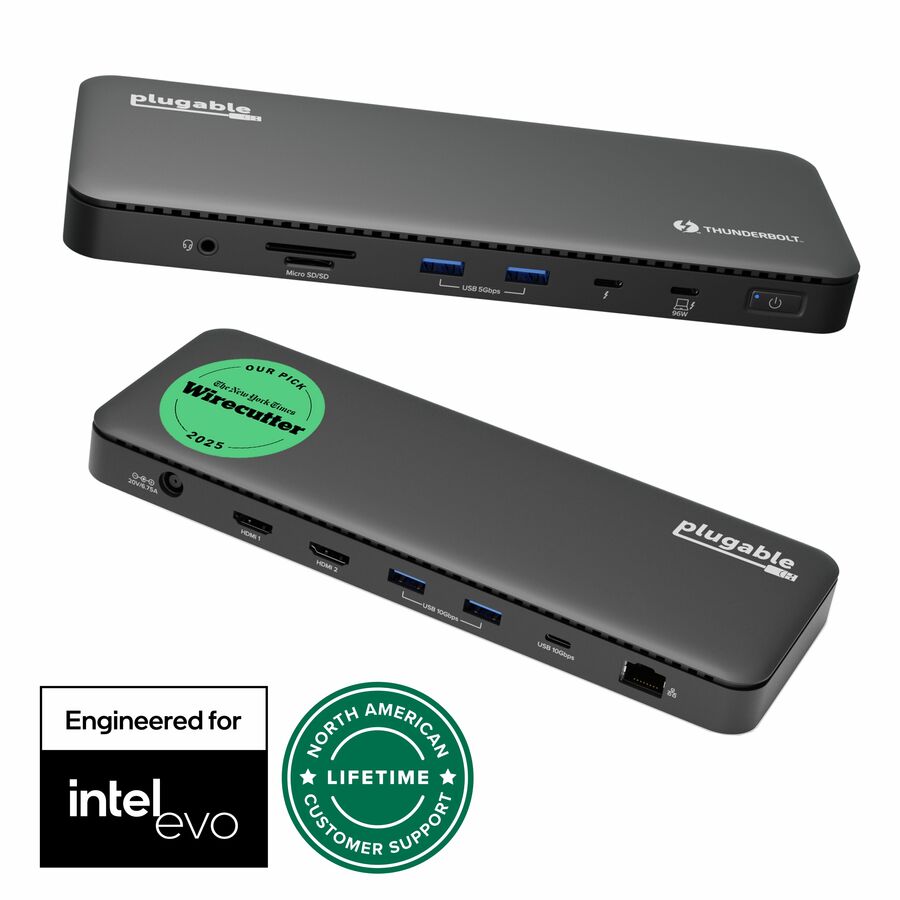
Plugable Technologies
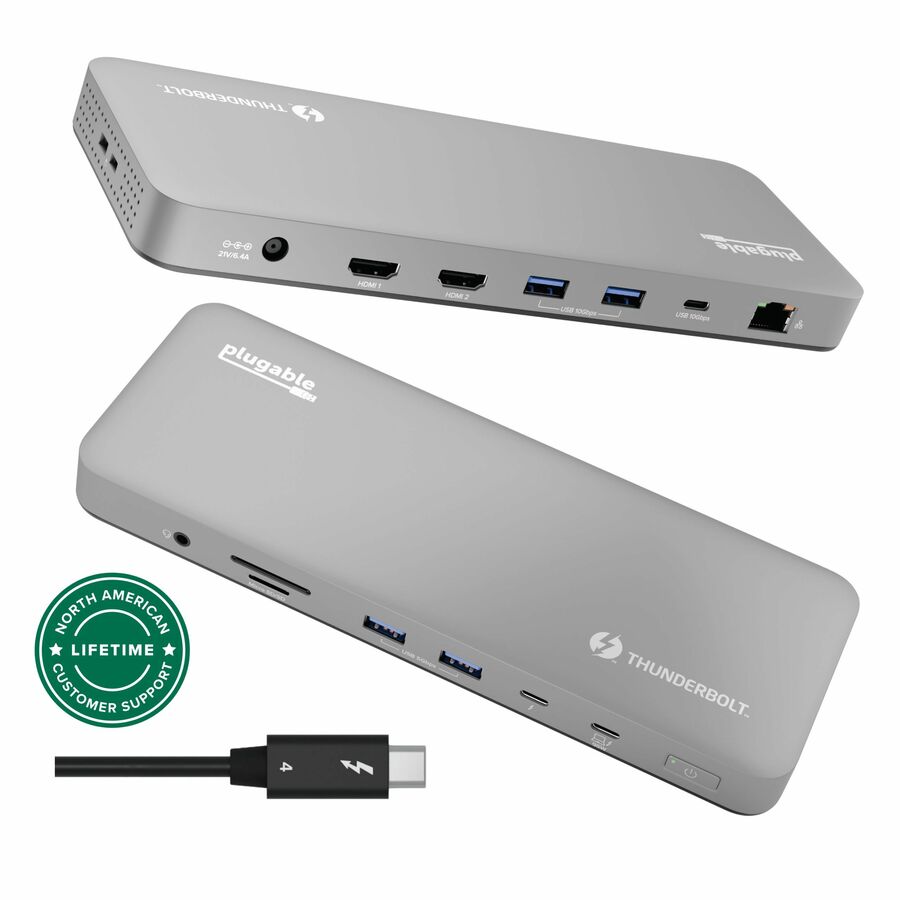
Plugable Thunderbolt 4 Dock, 100W Charging (96W Certified), Dual HDMI…
TBT4-UD5
A Thunderbolt-certified dock with 100 W charging and dual-monitor output, using Thunderbolt's bandwidth for the highest dual-display resolutions on a Thunderbolt laptop.
$273.60In stockThunderbolt 3, 8K/4K
Eaton
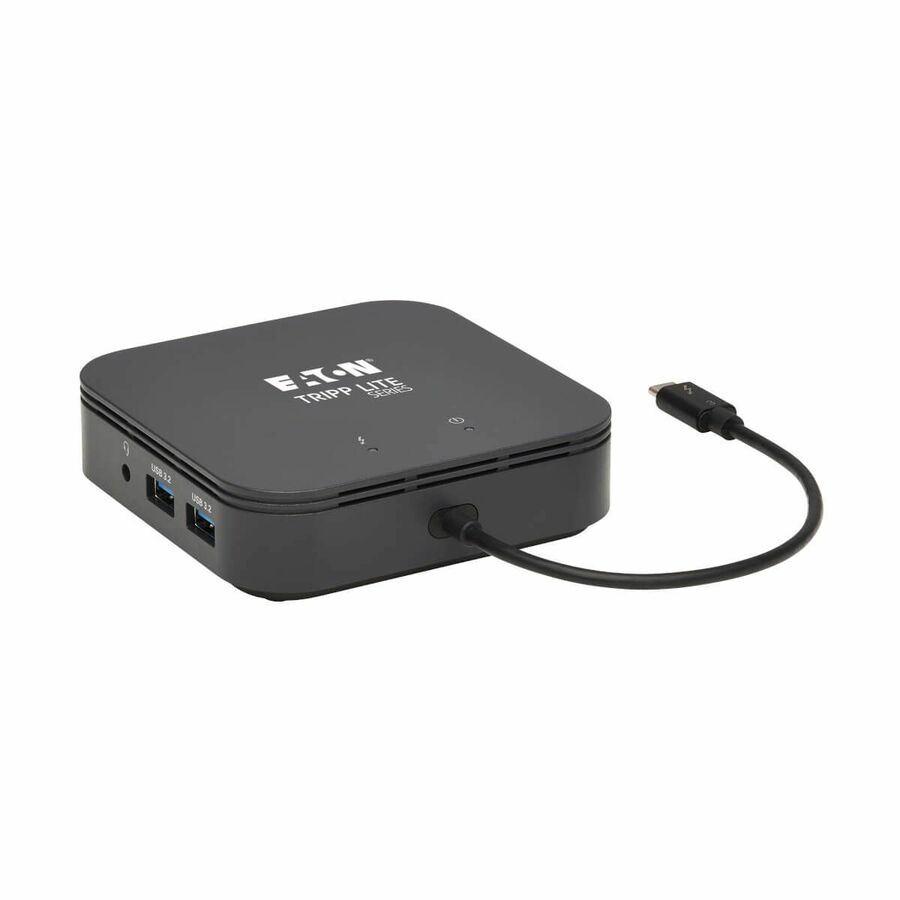
Tripp Lite by Eaton Thunderbolt 3 Dual Monitor Docking Station
MTB3-DOCK-04
A Thunderbolt 3 dual-monitor dock stated to drive 8K at 30 Hz over DisplayPort or 4K at 60 Hz, for a visual workstation where screen resolution is the priority.
$171.12In stockUSB-C, HDMI+DP+VGA
Legrand
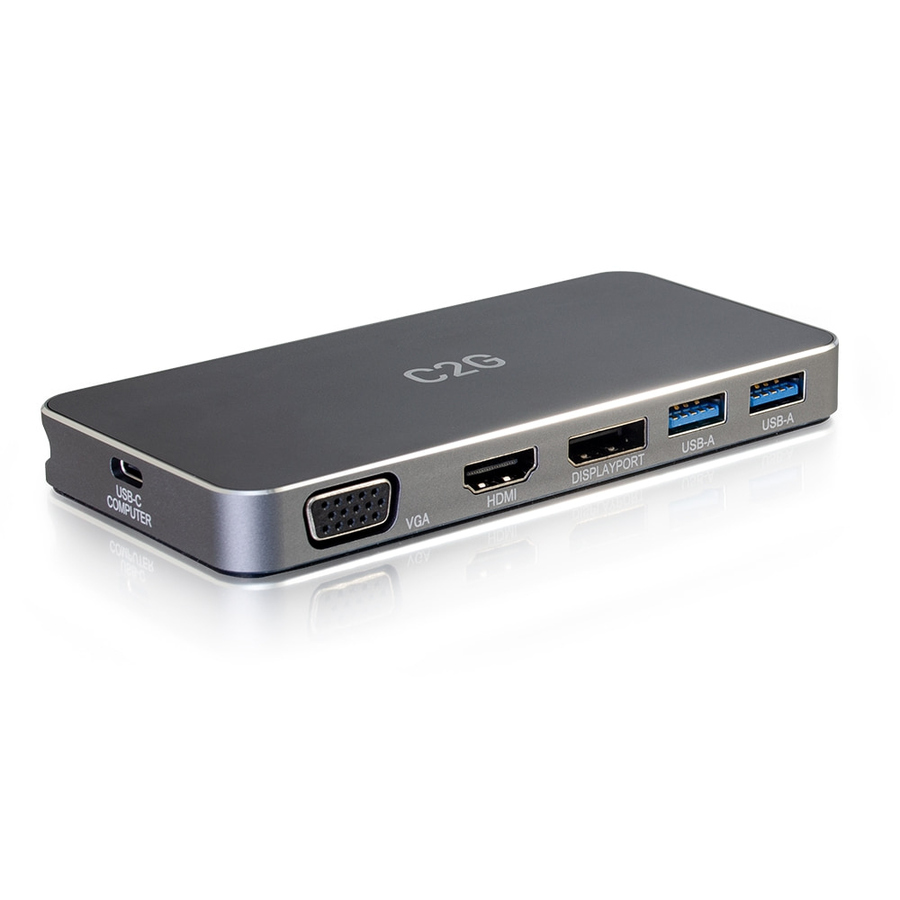
C2G Dual Monitor Docking Station
54439
A USB-C dual-monitor dock with 4K HDMI, DisplayPort and VGA on an MST engine, covering a desk that mixes a modern screen with an older VGA display without a separate adapter.
$171.39In stockUSB-C, dual + AUX
Legrand
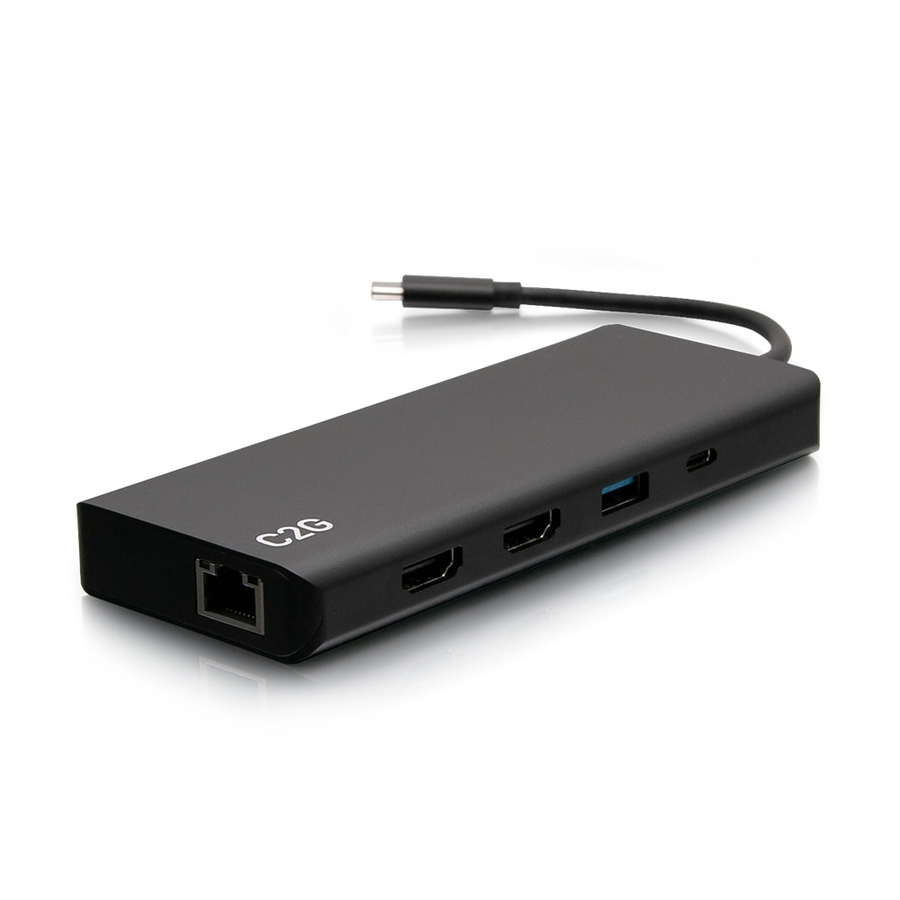
C2G USB C Docking Station
C2G54488
A USB-C dual-monitor dock with 4K HDMI, Ethernet, an audio jack and power delivery, for a full single-cable desk where the second screen and the network port arrive together.
$185.42*In stockThunderbolt 3, dual 4K
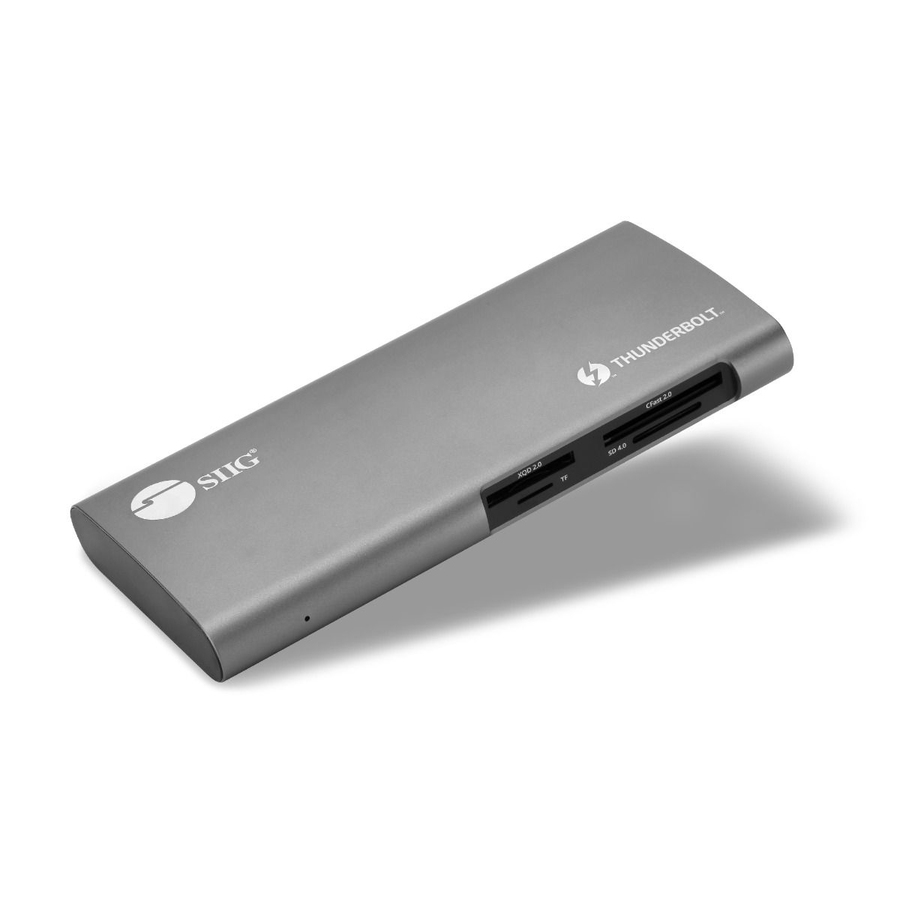
SIIG
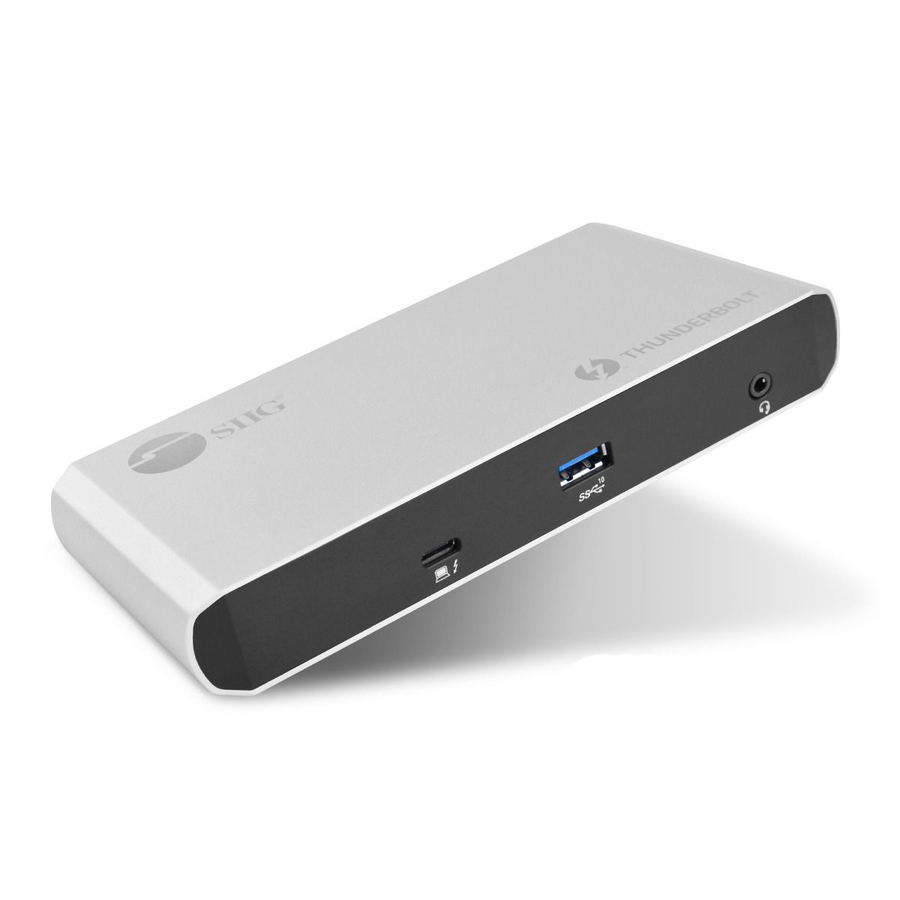
SIIG Thunderbolt 3 to Dual 4K Monitor Docking Station with PD
JU-DK0G11-S1
A Thunderbolt 3 dock driving two 4K monitors with power delivery over USB-C DisplayPort Alt Mode, for a Thunderbolt laptop that needs two high-resolution screens.
$276.64In stockUSB 3.0 universal
4XEM
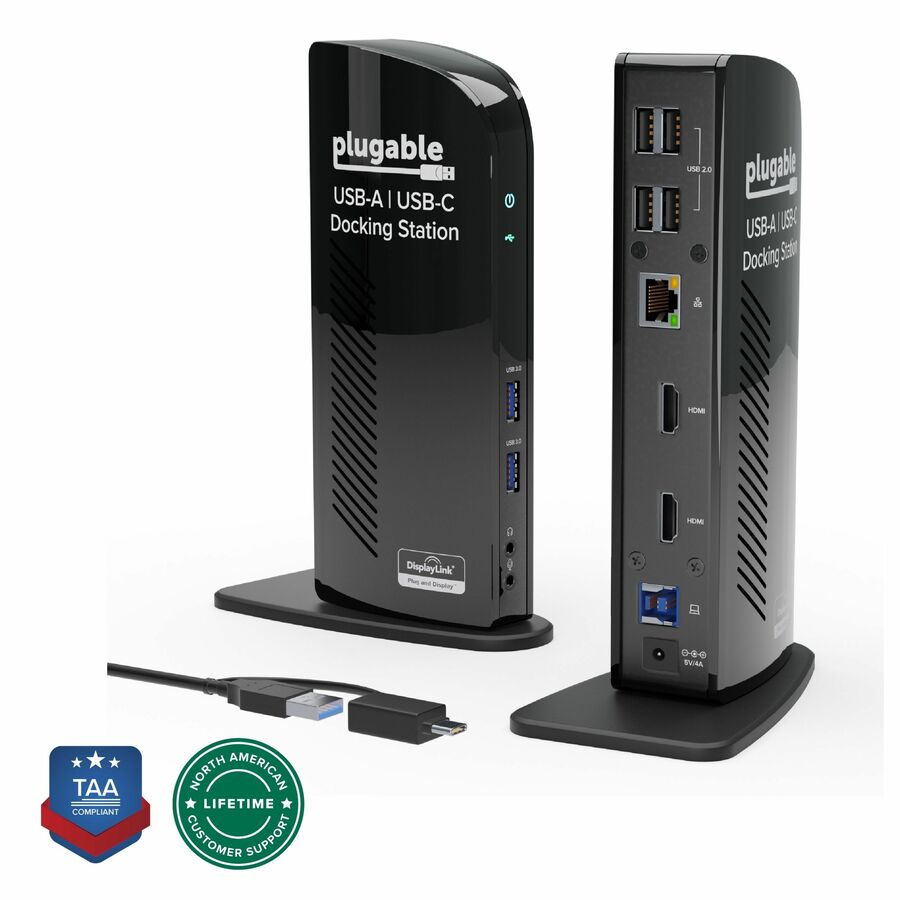
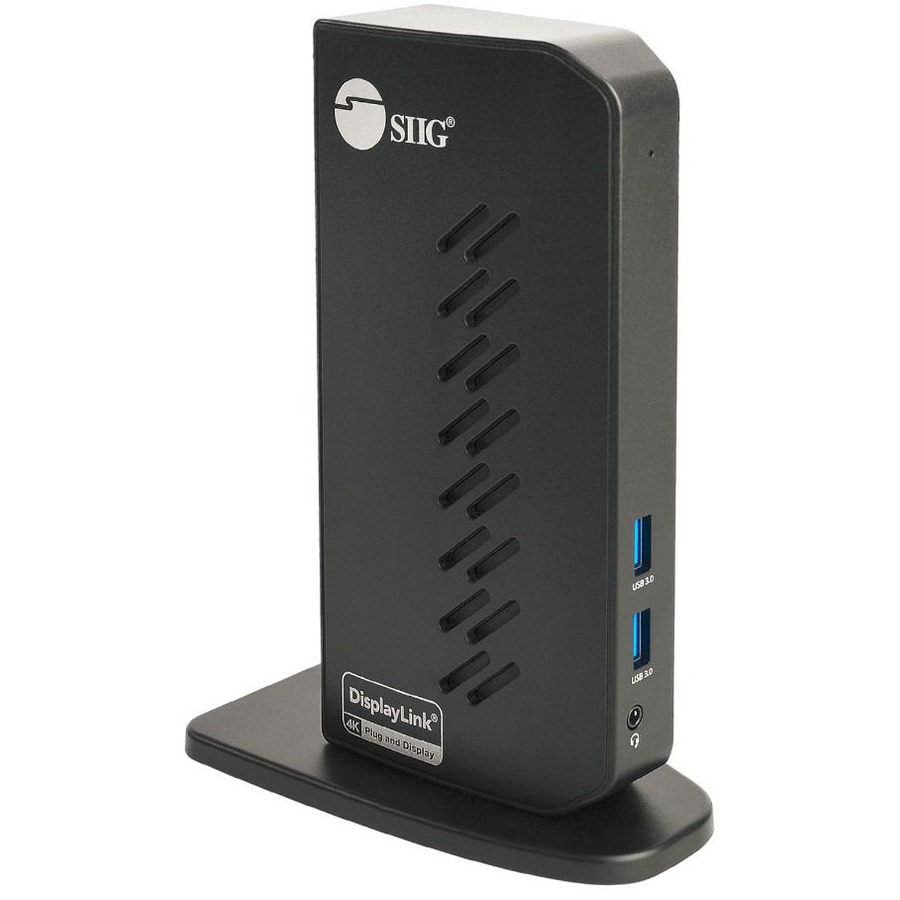
4XEM USB 3.0 Universal Docking Station with Dual Monitor Capabilities
4XUG39DK1
A USB 3.0 universal docking station with dual-monitor capability that drives two screens from almost any host over standard USB, the pragmatic answer for a mixed or older fleet.
$90.38In stockUSB-C DisplayLink
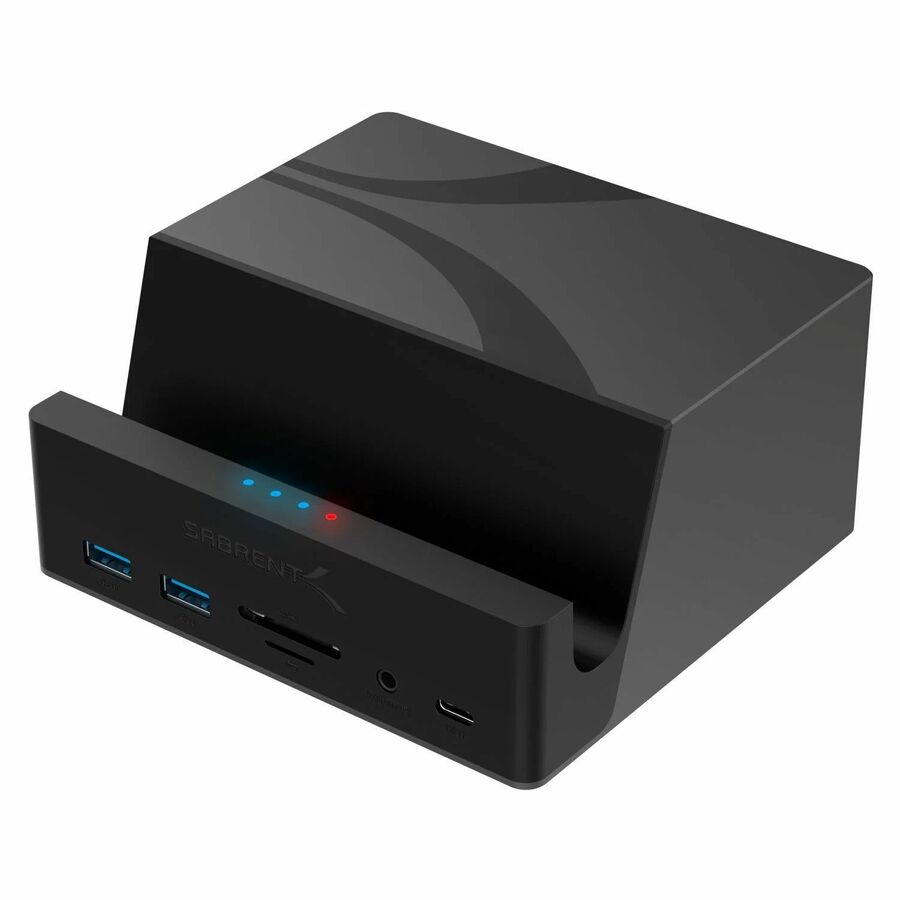
Sabrent
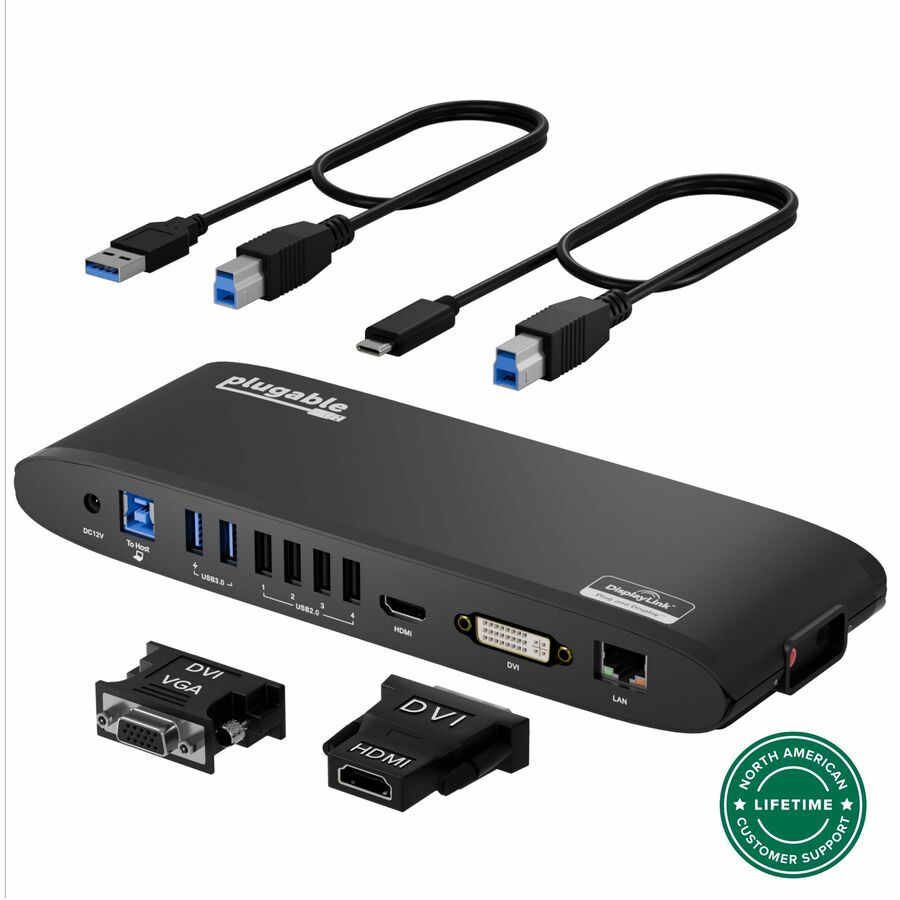
Sabrent USB-C Universal Docking Station, Dual Monitor Displaylink Dock
DS-UICA
A USB-C DisplayLink dual-monitor dock that drives two displays without depending on the laptop's own video engine, for machines whose USB-C port will not extend two screens on its own.
Every row this page renders states Dual Monitor in the manufacturer's own title, as this one does.
$222.81Back-orderedMore docking stations in the Uniqcli catalog
See all 1,162 docking stationsMore from across this category. In-stock lines lead, and a back-ordered line carries the same estimated availability its product page does — with live pricing throughout, NDAA §889 screening before checkout and TAA verified on request.
- StarTech.comStarTech Dual-Laptop USB-C KVM Docking Station, Dual Monitor 4K 60Hz DisplayPort Dock, 5x USB Hub, GbE, 90W/45W PD, Windows/Mac, TAA - Dual-Laptop KVM Dock switches between 2 USB Type-C hosts w/ toggle button - Charge 2 laptops (90W to active, 45W to standby PC) - Dual Monitor 4K 60Hz including on base M-Series MacBook Pro/Air - 5x USB Hub & GbE - Windows/Mac/Chrome (mixed OS)129N-USBC-KVM-DOCK
$322.86
$297.03*
159 in stock Back-ordered — estimated OEM lead time 3–8 weeks (Nov 21 – Dec 26 if ordered today).
Back-ordered — estimated OEM lead time 3–8 weeks (Nov 21 – Dec 26 if ordered today).
Back-ordered — estimated OEM lead time 3–8 weeks (Nov 21 – Dec 26 if ordered today).
Back-ordered — estimated OEM lead time 3–8 weeks (Nov 21 – Dec 26 if ordered today).
Back-ordered — estimated OEM lead time 3–8 weeks (Nov 21 – Dec 26 if ordered today).


Need pricing on dual-monitor docking stations?
Tell us where to reach you and a Uniqcli specialist will follow up by email with current pricing, availability and lead time for the quantities you need — including parts that aren’t shown on this page.
Buying for an organization or for yourself — both work. No payment up front.
The host connection decides a dual-monitor dock, not the port count. Thunderbolt reaches the highest dual-4K resolutions and refresh rates. A USB-C DisplayPort Alt Mode dock covers most modern laptops, but dual-display support is a host capability — a machine without it mirrors the outputs. A USB-A DisplayLink dock drives two screens from almost any machine, at the cost of a driver.
A dual-monitor dock exists to turn a laptop into a two-screen workstation with a single connection, and the specification that decides whether it works is not the number of ports on the box — it is the match between the dock's video engine and the laptop it plugs into. A USB-C dock that drives two independent 4K displays relies on the host supporting DisplayPort Alt Mode or DisplayLink, and a machine that supports neither at the resolution you want will mirror the two outputs or drop one entirely. Reading that compatibility on the title, and against the laptop fleet, is the whole job; the rest is which video connectors the monitors already have.
Every row on this page states Dual Monitor in the manufacturer's own catalog title, so nothing here is a single-output adapter reframed as a two-screen dock. Within that, the page is scoped to the facts a fleet buyer actually standardises on: how the dock connects to the host — USB-C, Thunderbolt or legacy USB-A — how many displays it drives and at what resolution and refresh, and how much power it delivers back up the cable to charge the laptop while it works. The titles below state each of those, and the choice changes which laptops the dock is right for.
Two decisions carry most of the weight. The host connection sets the ceiling: a Thunderbolt dock reaches the highest dual-display resolutions and refresh rates, a USB-C DisplayPort Alt Mode dock covers the mainstream, and a USB-A dock using DisplayLink drives two screens from almost any machine including older ones, at the cost of a driver. The output connectors set the compatibility with what is already on the desk — HDMI, DisplayPort, DVI or VGA — and a dock with the wrong outputs means an adapter per monitor. Send the laptop models and the monitors' inputs together and the right dock is one line rather than a returns problem.
Buyer's checklist
How to choose a dual-monitor docking station
- Start from the host connection, not the dock. Thunderbolt reaches the highest dual-4K resolutions and refresh rates; USB-C DisplayPort Alt Mode covers most modern laptops; a USB-A DisplayLink dock drives two screens from almost any machine, including older ones, at the cost of installing a driver.
- Confirm the laptop actually supports two displays over its USB-C port. Alt Mode dual-display support is a host capability, not a dock one — a machine that lacks it will mirror the outputs, so read the dock's requirements against the fleet before standardising.
- Match the video outputs to the monitors you already own. A dock with dual HDMI, dual DisplayPort or a mix decides whether each screen plugs straight in or needs an adapter; the titles state the output type and count per unit.
- Read the per-display resolution and refresh, not just '4K'. Two 4K screens at 60 Hz is a different requirement from two at 30 Hz, and some docks reach 4K on one output and a lower resolution on the second — the title says which.
- Size the power delivery to the laptop. A dock that charges the machine over the same cable removes the second power brick from the desk; check the wattage against what the laptop needs under load, since an under-powered dock charges slowly or not at all while working.
- Check Windows and Mac support explicitly where the fleet is mixed. Several of these state Mac compatibility and driverless operation in the title; a DisplayLink dock needs its driver on both platforms and behaves differently under each.
- Standardise on one or two docks across the fleet. A single model keeps the driver image, the spares pool and the helpdesk script small, which is where the real saving on a two-screen rollout sits.
How the dock drives two screens, and why the host decides
There are three ways a dock puts a second monitor on the desk, and they are not interchangeable. DisplayPort Alt Mode carries native video over the USB-C cable and is the cleanest path, but it depends entirely on the laptop supporting two independent streams — a capability that varies by machine and is the single most common reason a dual-monitor dock disappoints. Thunderbolt extends that with far more bandwidth, which is what lets a Thunderbolt dock drive two 4K displays at 60 Hz or a single 8K, and is the right choice where the screens are large and the work is visual. DisplayLink takes a third route: it compresses the video and sends it over ordinary USB, which means it drives two screens from almost any host including legacy USB-A machines, at the cost of a driver and a little CPU.
The practical consequence is that the dock is only half of the purchase — the laptop is the other half. A USB-C Alt Mode dock on a machine that only outputs one display stream will mirror, not extend, no matter how many ports the dock has. A DisplayLink dock sidesteps that by not depending on the host's video engine at all, which is why it remains the pragmatic answer for a mixed or ageing fleet. The titles on this page state the connection type and, on many rows, the host support and driverless operation, so the match to the fleet is a fact to read rather than a gamble to take.
Outputs, resolution and the power on the cable
The output connectors decide whether the monitors plug straight in. A dock with dual HDMI suits the great majority of business displays; dual DisplayPort suits higher-resolution and daisy-chained setups; a mixed dock with HDMI plus DisplayPort or a legacy DVI or VGA output covers a desk with older screens without an adapter per monitor. Reading the outputs against what is already on the desk is what keeps a two-screen upgrade from becoming a small pile of dongles, and the titles state the connector type and count on every row.
Power delivery is the part that decides whether the dock replaces the laptop charger or sits beside it. A dock rated to deliver enough wattage over USB-C charges the machine while it drives the screens and the peripherals, which is the whole point of one cable to the desk; an under-rated dock leaves the laptop trickle-charging or on its own brick, which defeats the tidiness the dock was bought for. Match the wattage to what the laptop draws under load, confirm the two-display support on the host, and the dock, the cables and the adapters — where any are still needed — can be quoted for the whole fleet on one document.
FAQ
Common questions
- Will any dual-monitor dock drive two screens from my laptop?
- Not necessarily, and this is the most important thing to check. Driving two independent displays over USB-C DisplayPort Alt Mode is a capability of the laptop, not the dock — a machine that only outputs a single display stream will mirror the two outputs rather than extend them, however many ports the dock has. The exceptions are Thunderbolt docks on Thunderbolt laptops, which have the bandwidth for two high-resolution screens, and DisplayLink docks, which compress video over ordinary USB and therefore drive two screens from almost any host including older USB-A machines, at the cost of a driver. Read the dock's requirements against the fleet before standardising.
- What is the difference between a Thunderbolt, USB-C and DisplayLink dock?
- They differ in how much video bandwidth they have and what they demand of the host. Thunderbolt carries the most, which is what lets a Thunderbolt dock drive two 4K displays at 60 Hz or a single 8K, and it needs a Thunderbolt laptop. A USB-C DisplayPort Alt Mode dock uses the laptop's own video output over USB-C and covers most modern machines, provided they support dual-display Alt Mode. DisplayLink compresses the video and sends it over standard USB, so it works from almost any host including legacy USB-A ports, but it installs a driver and uses a little CPU. Match the type to the laptops you actually have.
- How much power delivery does a docking station need?
- Enough to charge the laptop under load, which is the whole reason to run one cable to the desk. A dock's power-delivery wattage should meet or exceed what the laptop draws while working — a thin-and-light machine needs far less than a mobile workstation — or it will trickle-charge or drain while it drives the screens. The wattage is stated in the title on the docks here that deliver power. Where the laptop is a high-draw workstation, confirm the figure against the machine's own charger rating rather than assuming, because an under-powered dock is a support ticket that looks like a battery problem.
- Do I need HDMI or DisplayPort outputs on the dock?
- Match the outputs to the monitors you already own. Dual HDMI suits the majority of business displays and is the simplest plug-in; dual DisplayPort suits higher-resolution screens and daisy-chained arrangements; a mixed dock with HDMI plus DisplayPort, or a legacy DVI or VGA output, covers a desk with older monitors without an adapter per screen. The output type and count are stated in each title on this page. Buying a dock whose outputs match the desk's inputs is what keeps a two-screen upgrade from turning into a drawer of adapters.
- Do I need a docking station for two monitors?
- Not always — some laptops carry two video outputs and will drive two screens directly. A dock earns its place when the laptop has one usable video port, when you want one cable to carry video, data and charging, or when the machine cannot drive two independent displays over its own USB-C port. Check the laptop's own specification for dual-display support before assuming either way.
- Can business, government and education buyers order these?
- Every line Uniqcli quotes is sourced through US distribution and screened for TAA country-of-origin and NDAA §889 status before checkout — with documentation tied to the specific part number, not a product family.
Need dual-monitor docking stations pricing?
Send a bill of materials or part numbers — we confirm stock and a below-market total, with TAA verified on request. No payment up front.