
Best Docking Stations for MacBook Fleets in Business
USB-C and Thunderbolt docks whose makers list MacBook compatibility in the part's own title — read by how many displays they drive, how much power they deliver back, and the port mix.
MacBook docking stations in stock at Uniqcli
How to choose →A curated selection with live pricing — in-stock lines first, then back-ordered lines with a typical lead time. Every line is sourced through US distribution and screened for NDAA §889 status before checkout, with TAA verified on request.
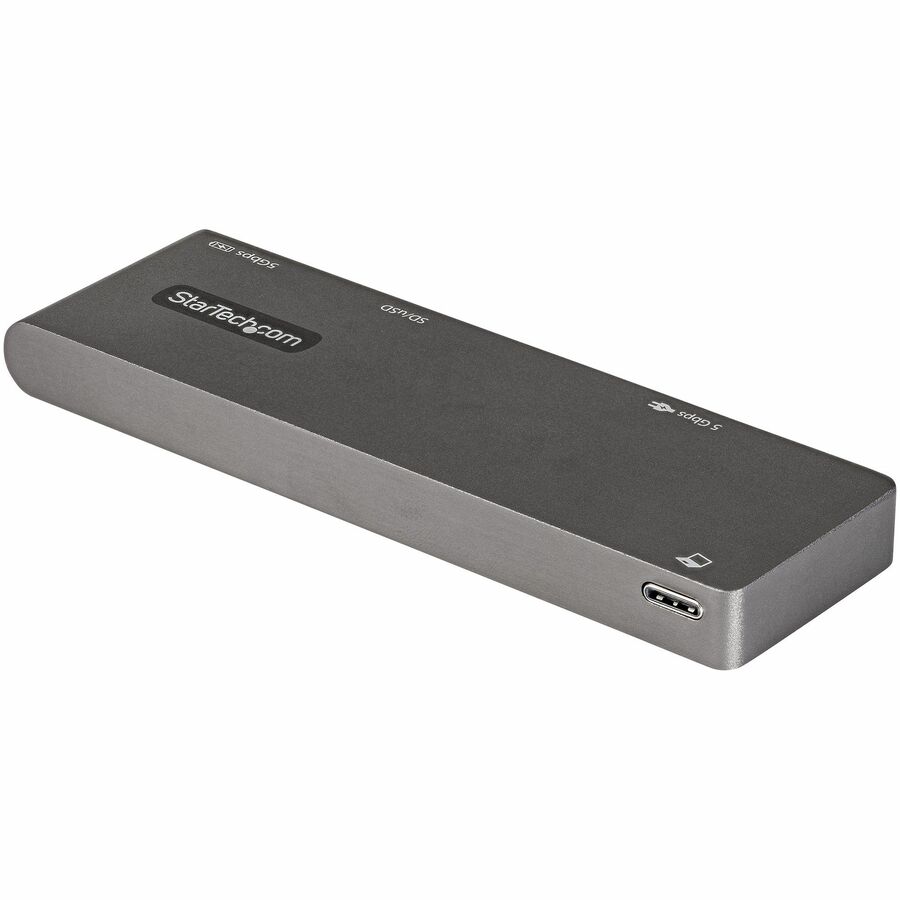
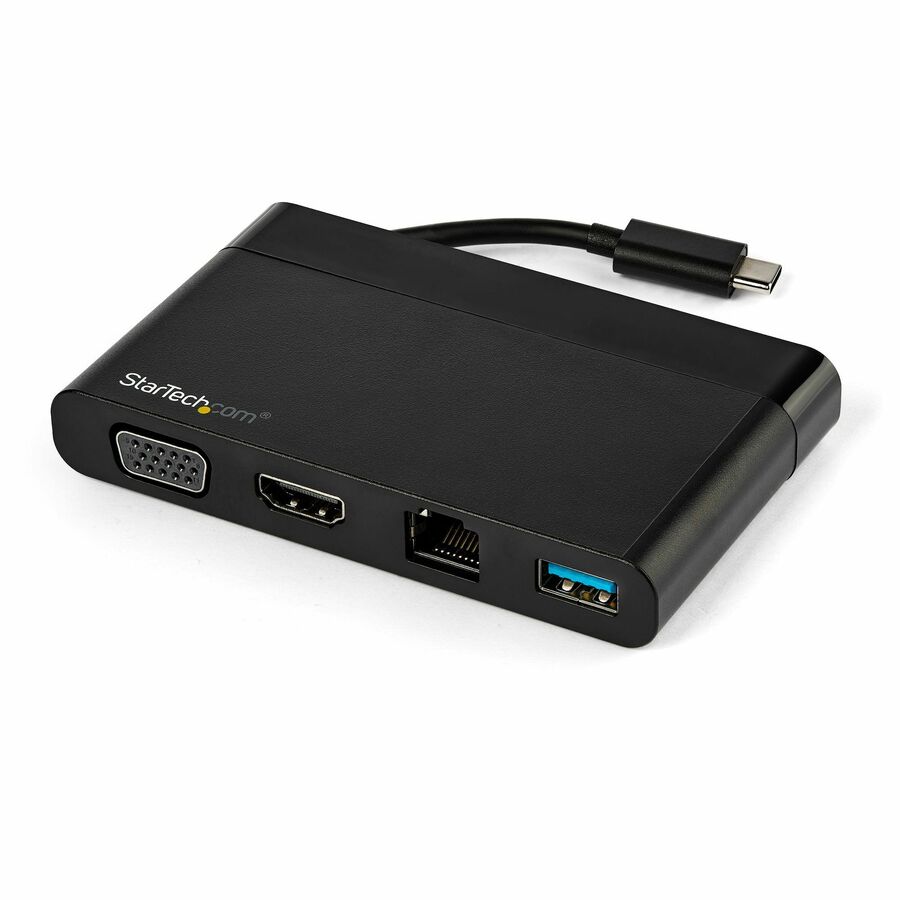
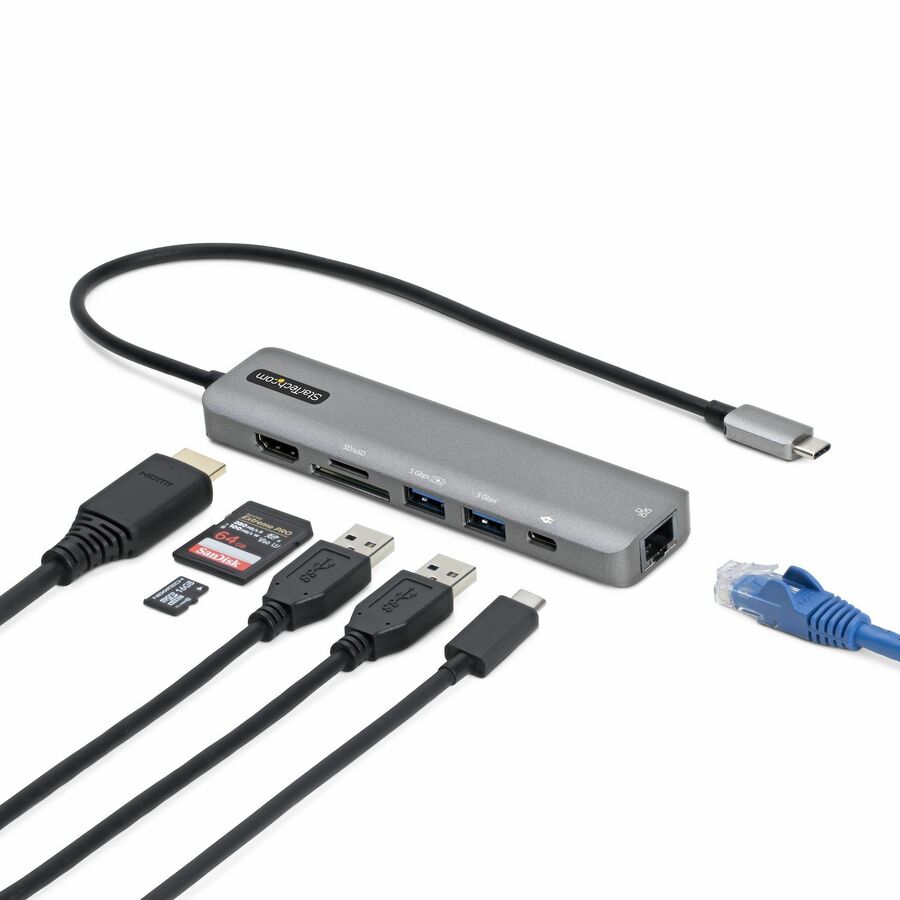
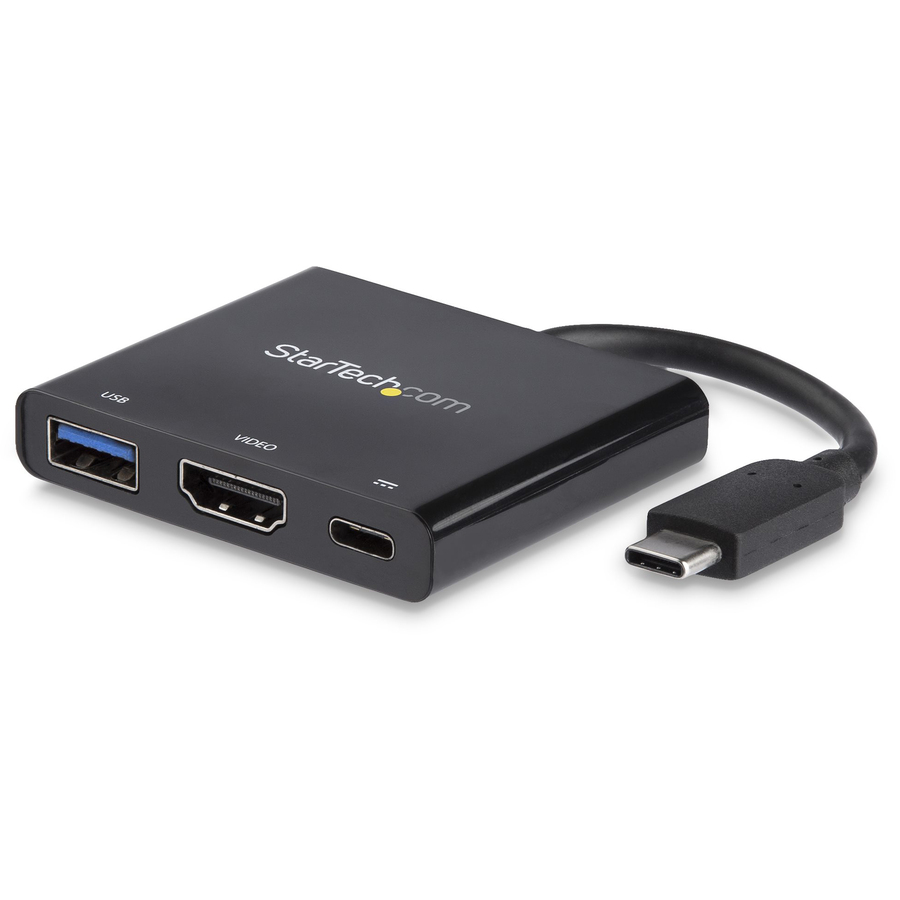
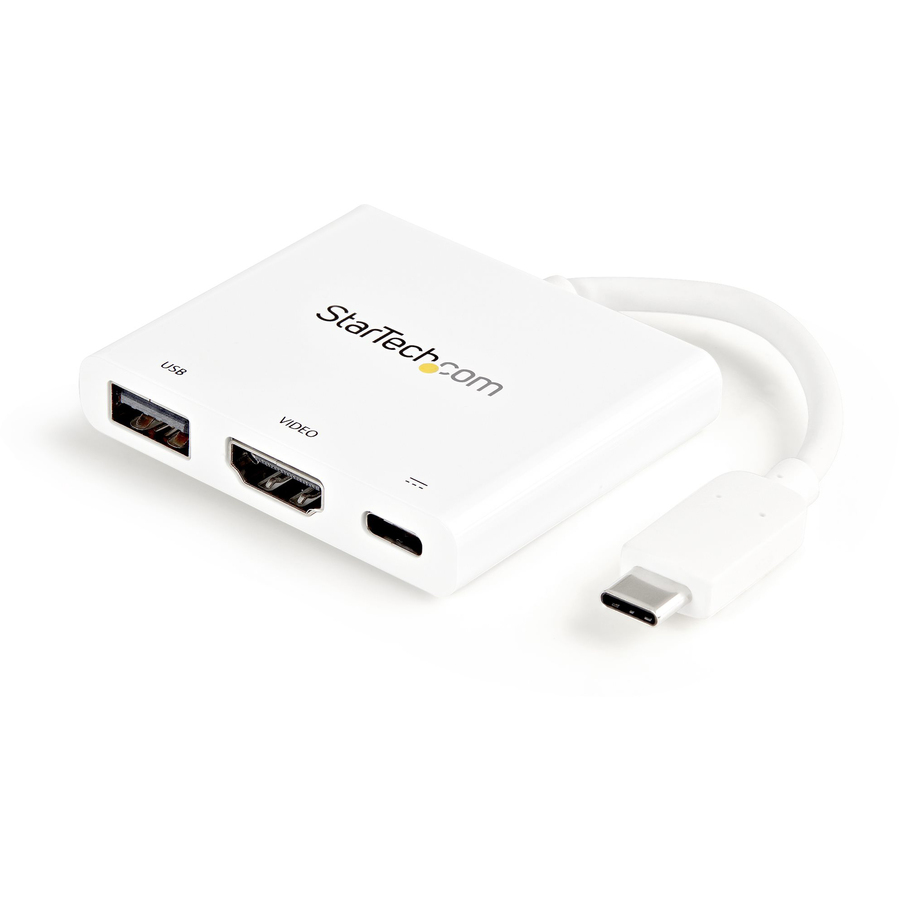
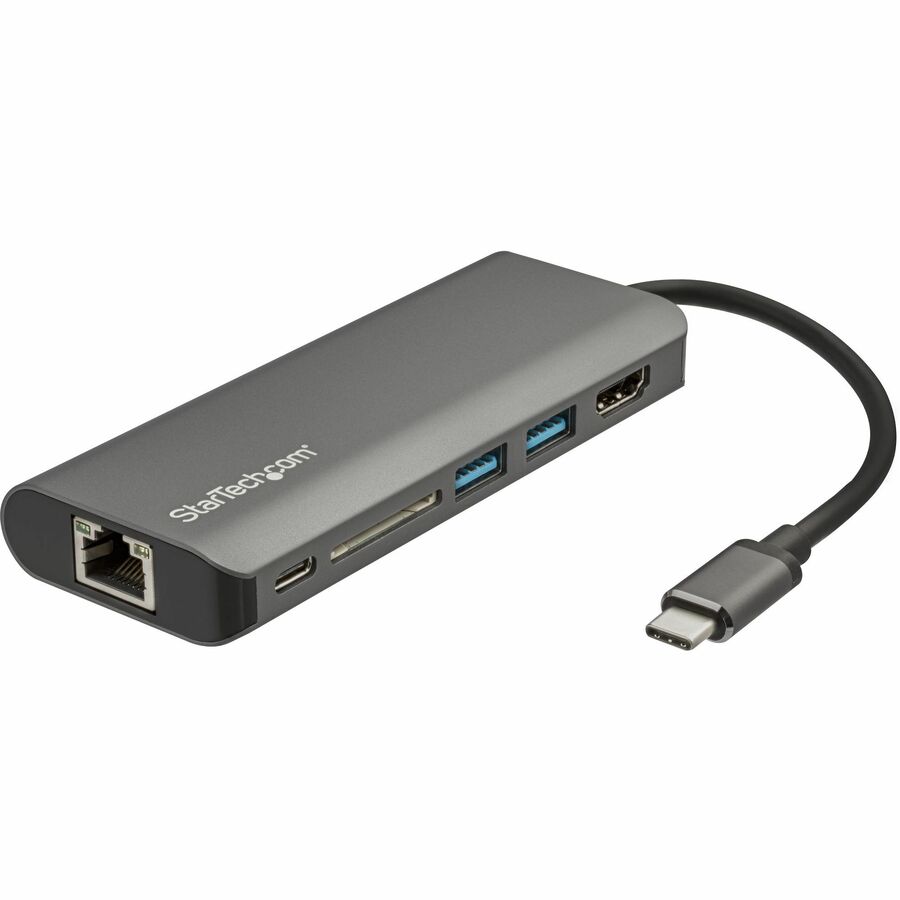
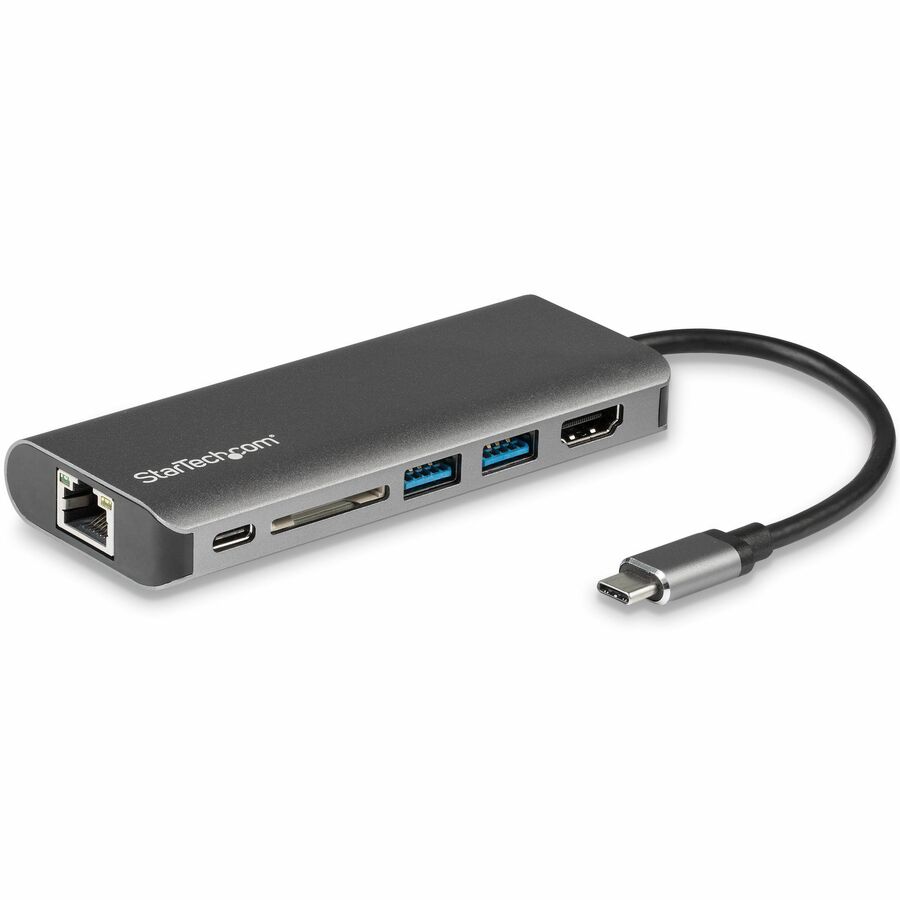
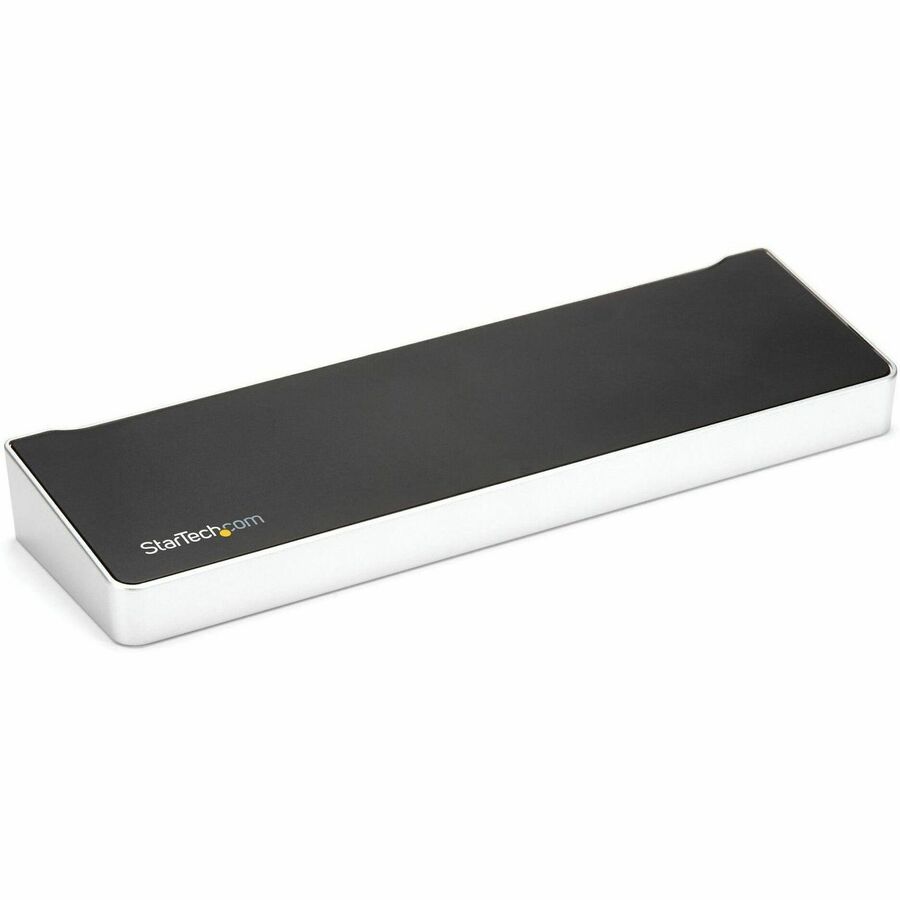
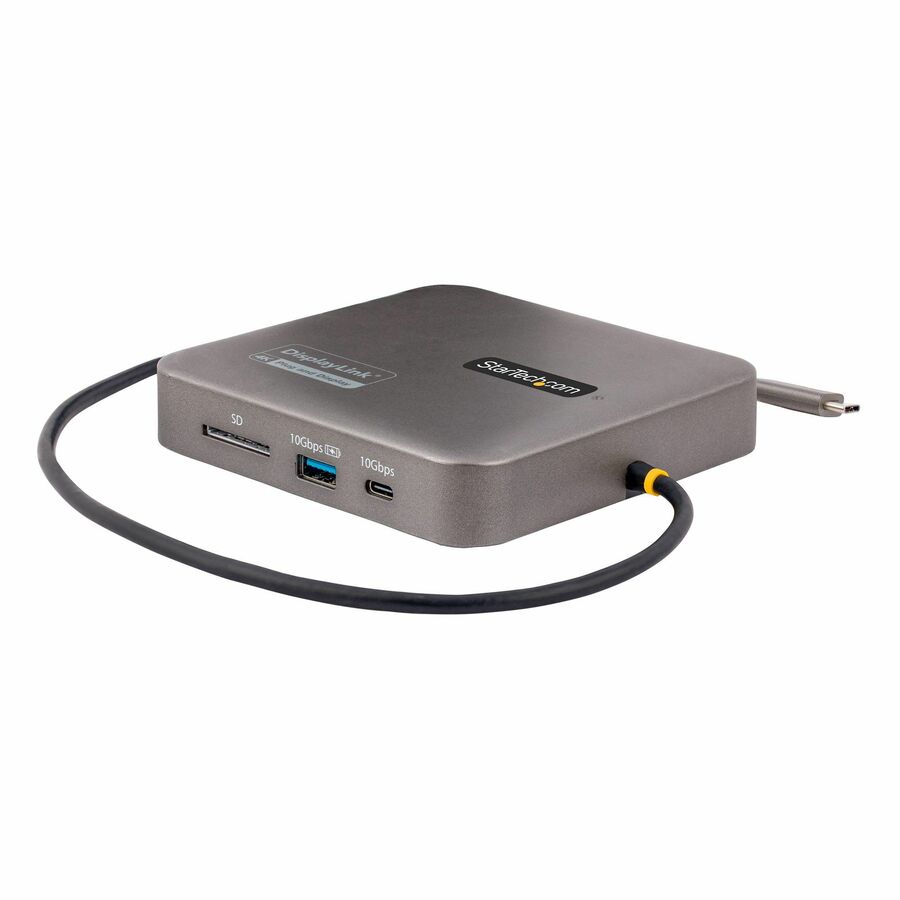
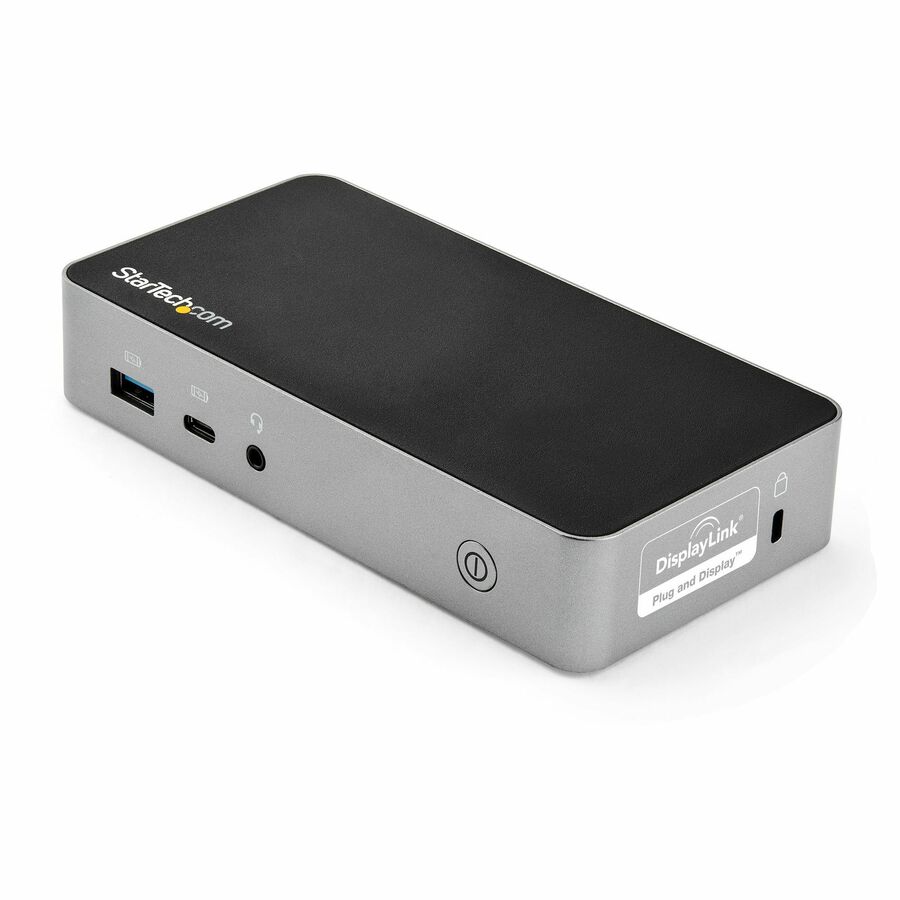
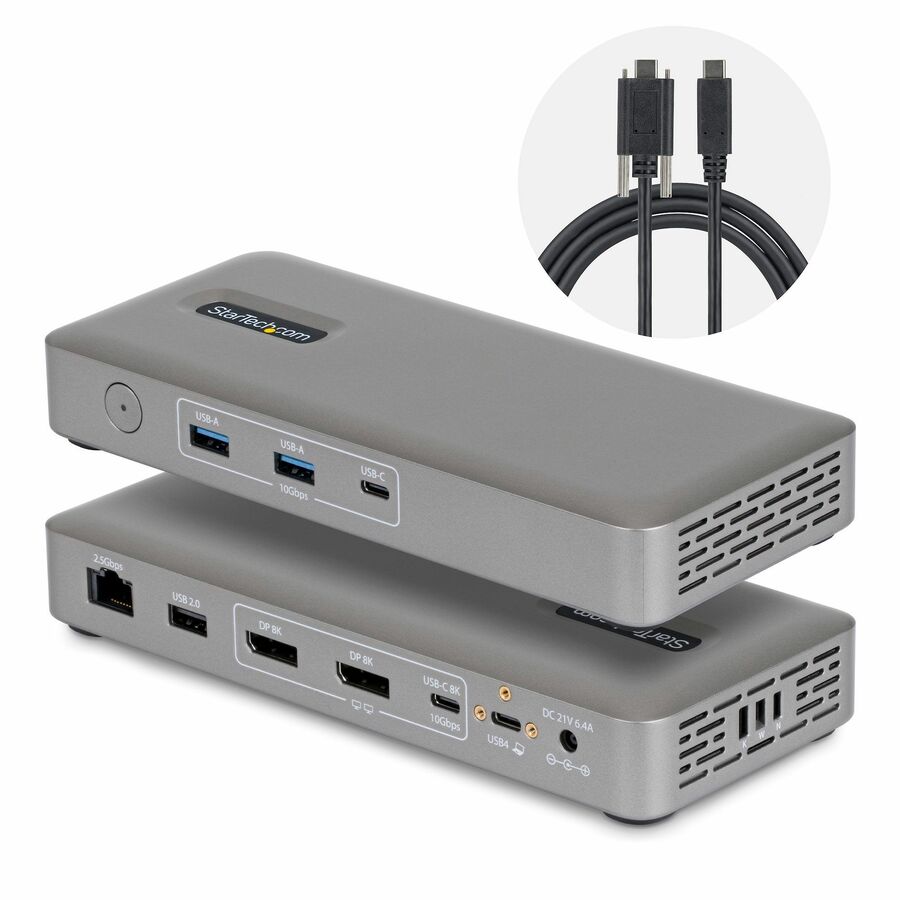
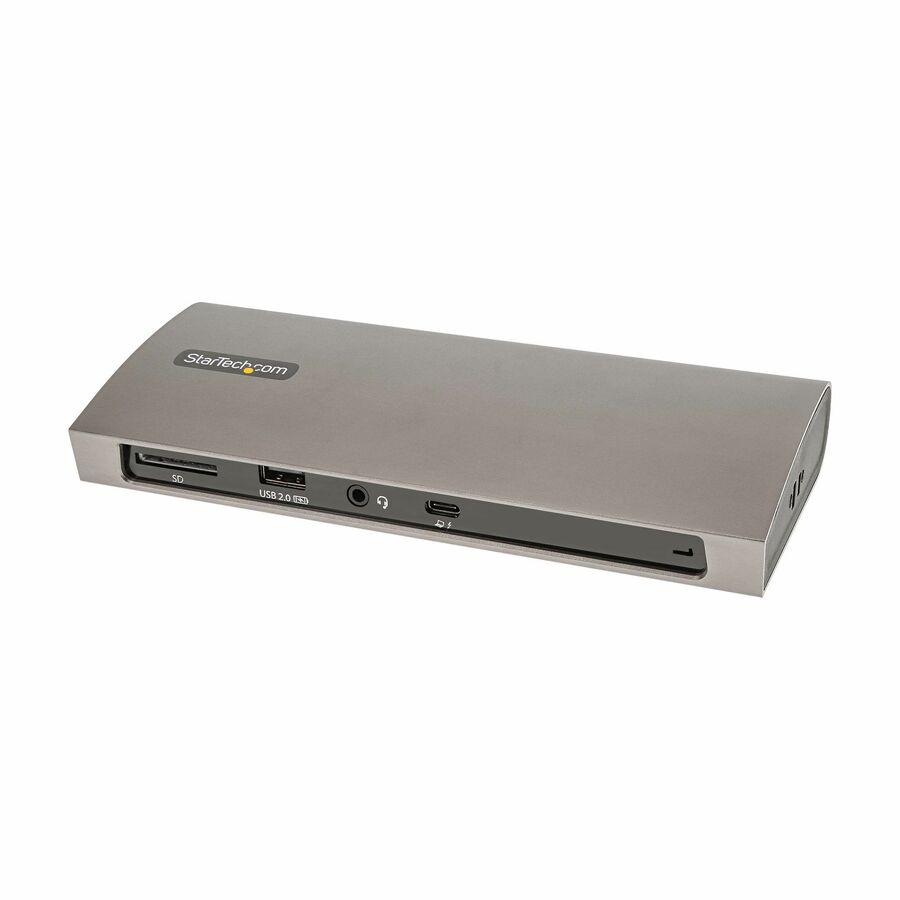
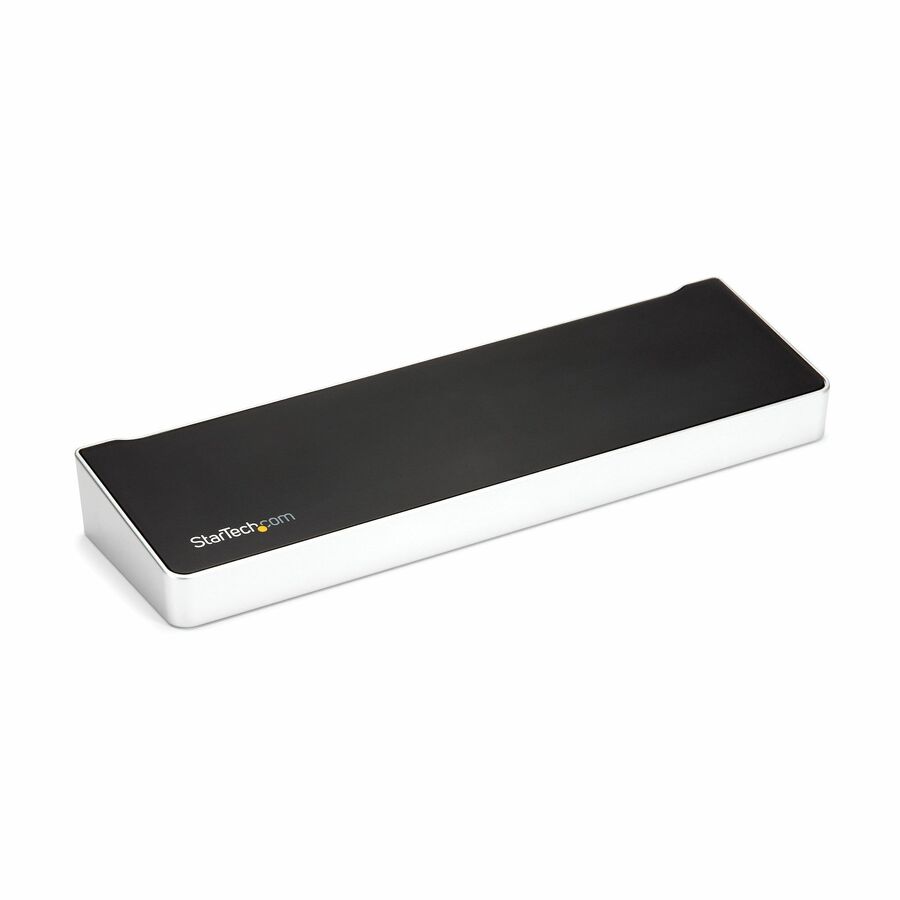
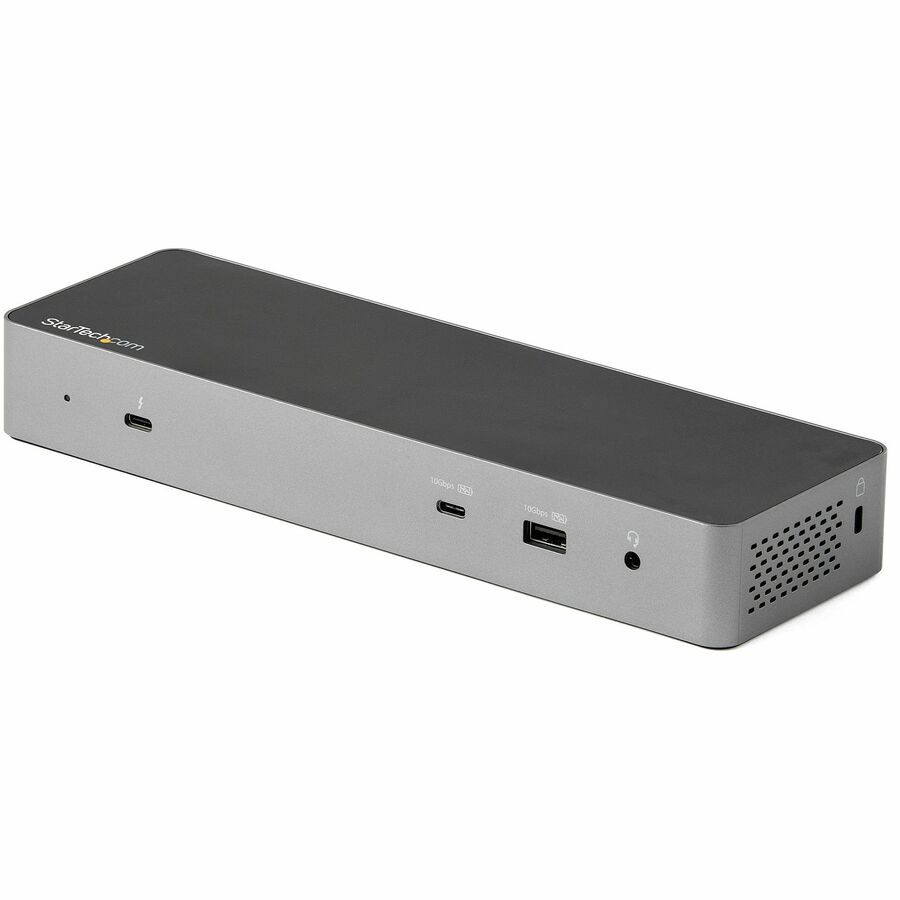
- StarTech.comStarTech USB C Docking Station, Dual 4K 60Hz HDMI, compatible with MacBook Pro (M1/M2/M3/M4) and Windows, 10Gbps USB Hub, GbE, 100W PD - Compact USB C dock Dual 4K 60Hz HDMI - Dual monitors on a MacBook Air/Pro M1/M2/M3 - Works w/ USB-C, USB4, Thunderbolt laptops; Windows, macOS, Ubuntu, ChromeOS - 100W PD pass-through (18W dock, 82W laptop) - USB-IF, VESA & DisplayLink certified102B-USBC-MULTIPORT
$128.99
$118.67
780 in stock




USB-C, dual 4K HDMI
StarTech.com
StarTech USB C Docking Station, Dual 4K 60Hz HDMI, compatible…
102B-USBC-MULTIPORT
A USB-C docking station with dual 4K 60Hz HDMI, listed as compatible with MacBook Pro — the two-screen answer where the Mac supports it natively.
$118.67In stockThunderbolt, MacBook
StarTech.com
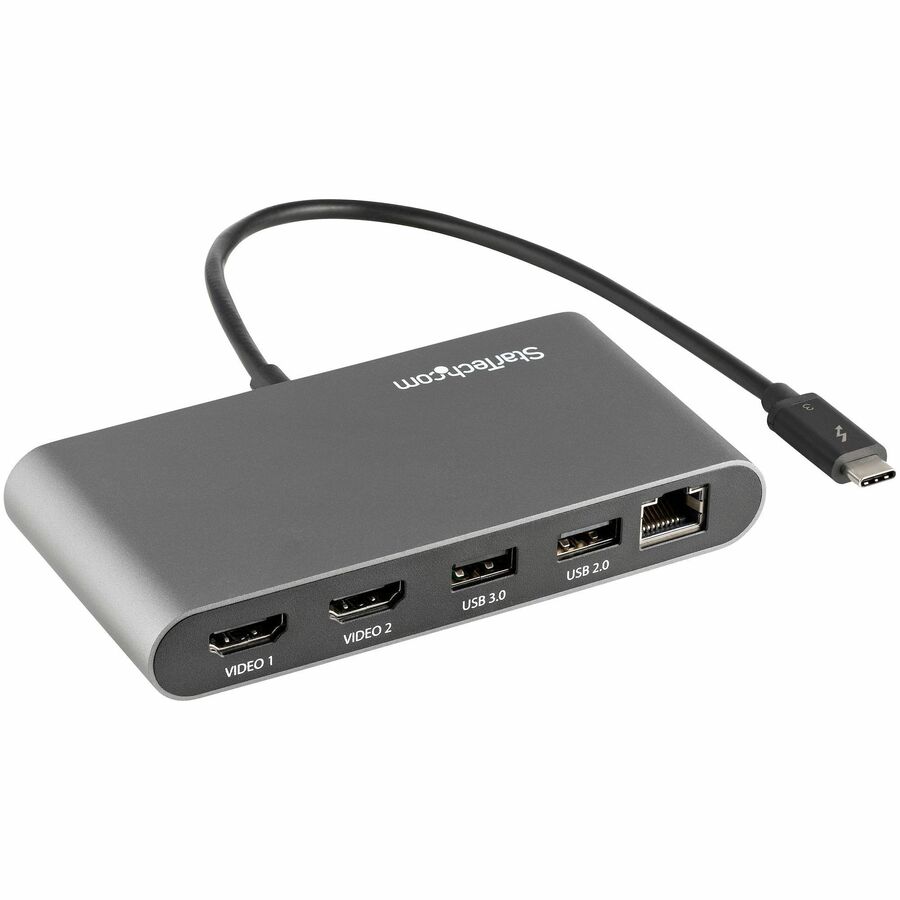
StarTech USB C Docking Station for MacBook Pro/Air-M1/M2/M3/M4…
TB3CDK2DH
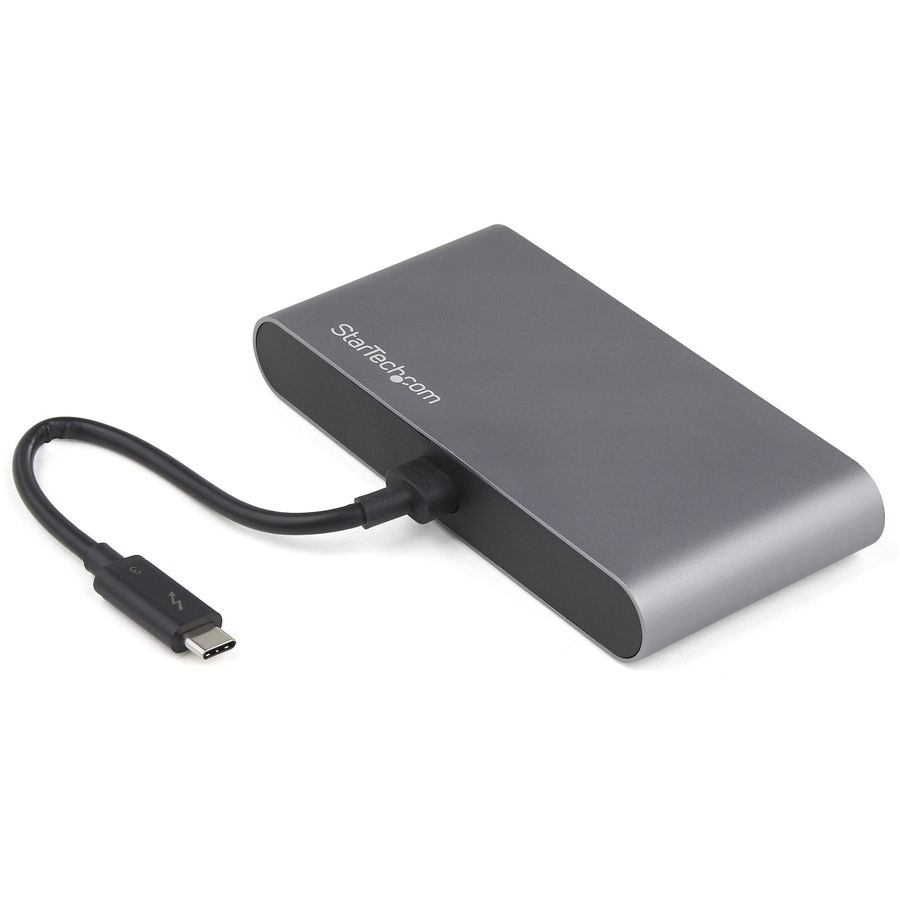
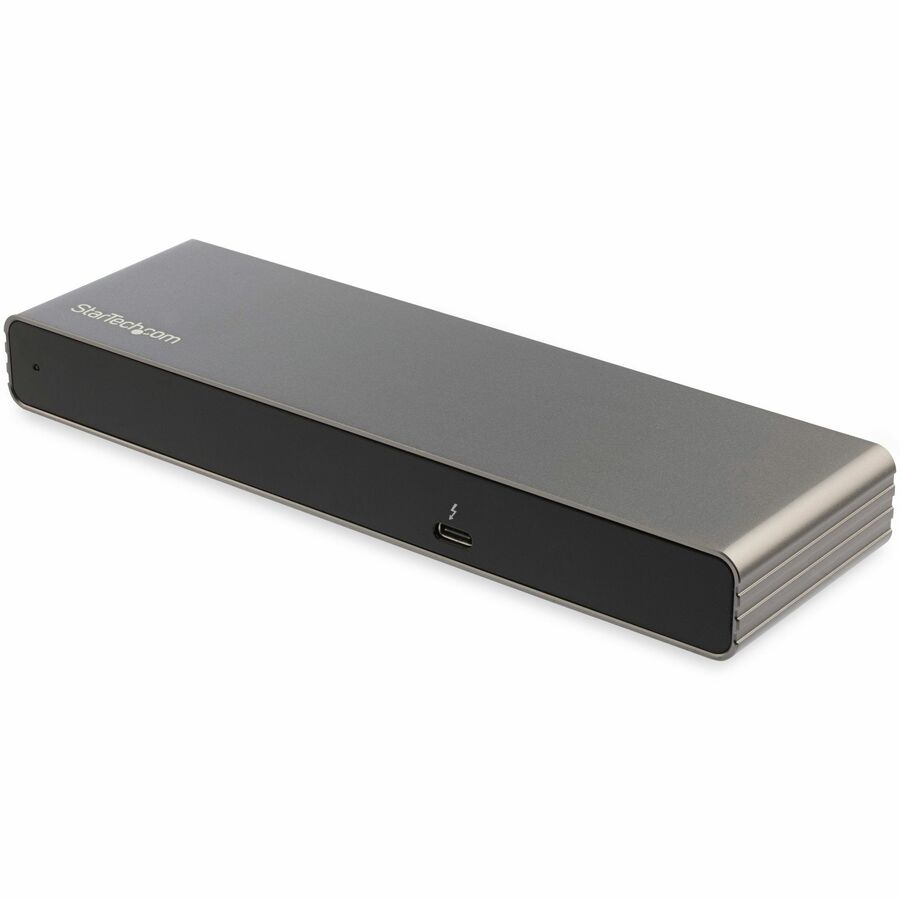
A USB-C docking station listed for MacBook Pro and Air across the M1 through M4 generations, driving dual 4K 60Hz displays over a Thunderbolt-compatible connection.
$210.67In stockUSB4, dual 4K
StarTech.com
StarTech USB4 Docking Station, Driverless Dual 4K for macOS…
208N-USB4-DOCK
A driverless USB4 docking station for dual 4K on macOS and Windows — a universal desk dock that names Mac support in its own title.
$139.83In stockThunderbolt 4, M4
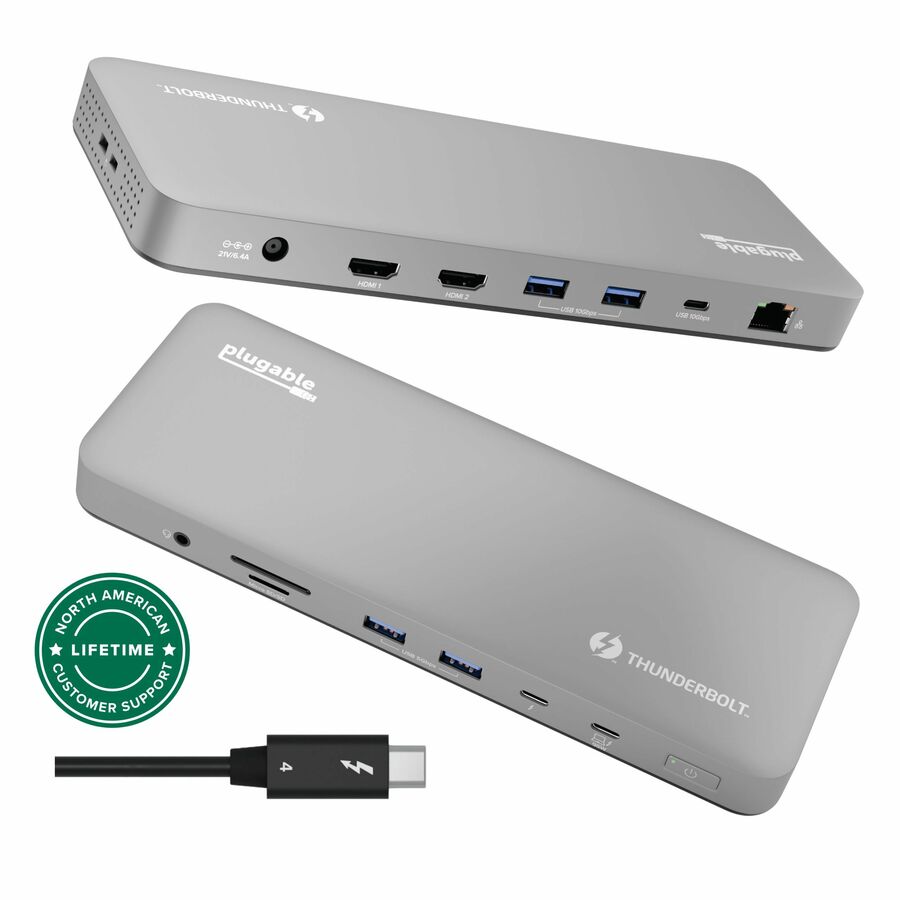
Plugable Technologies
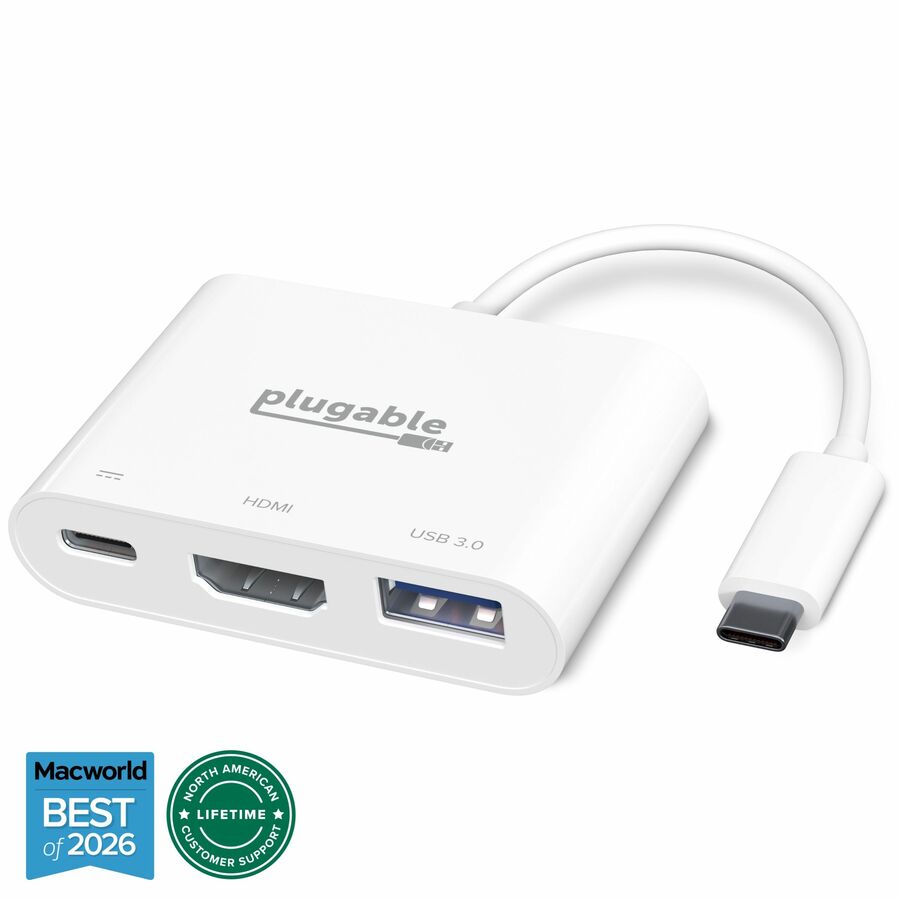
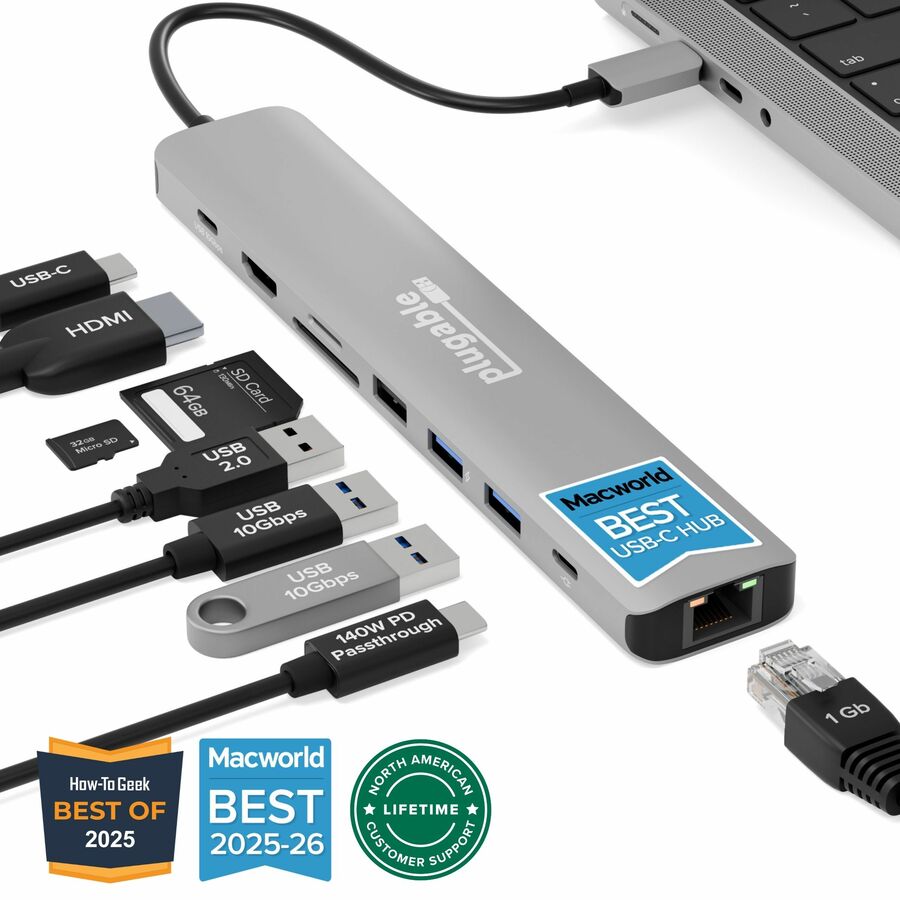
Plugable Thunderbolt 4 Dock for M4 MacBook Air & Pro: 100W Charging…
TBT-UDM
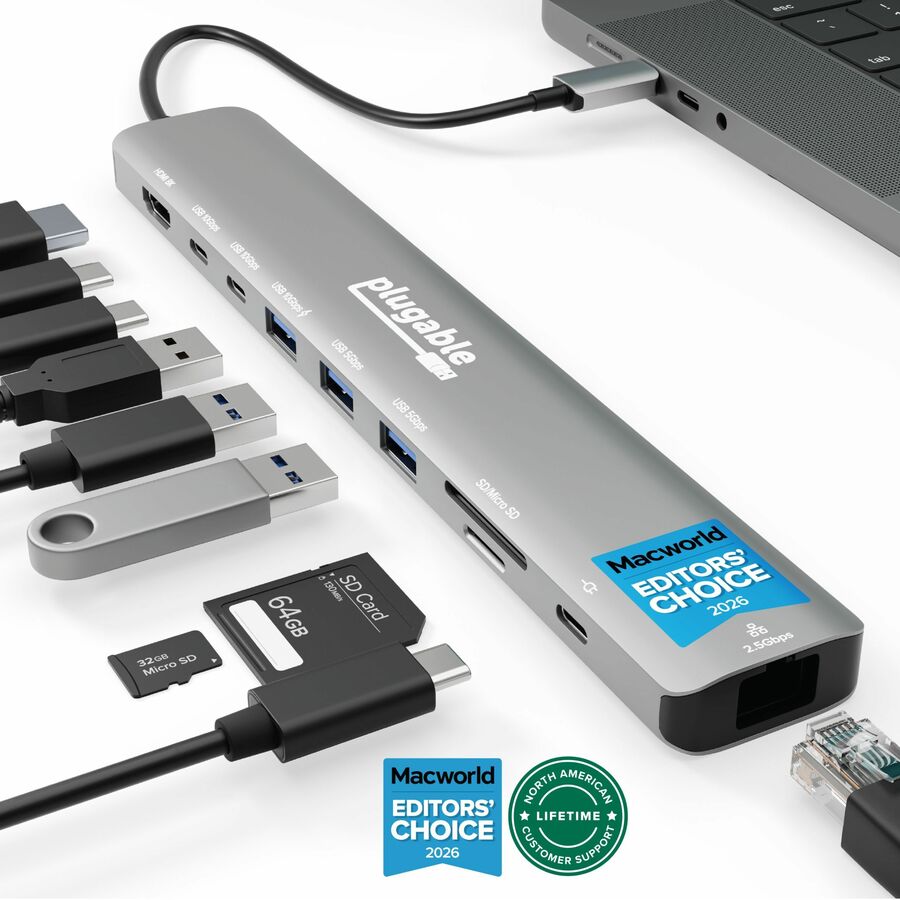
A Thunderbolt 4 dock listed for the M4 MacBook Air and Pro, driverless, delivering 100W of charging back up the single cable.
$275.23In stockUSB-C, Apple M1/M2
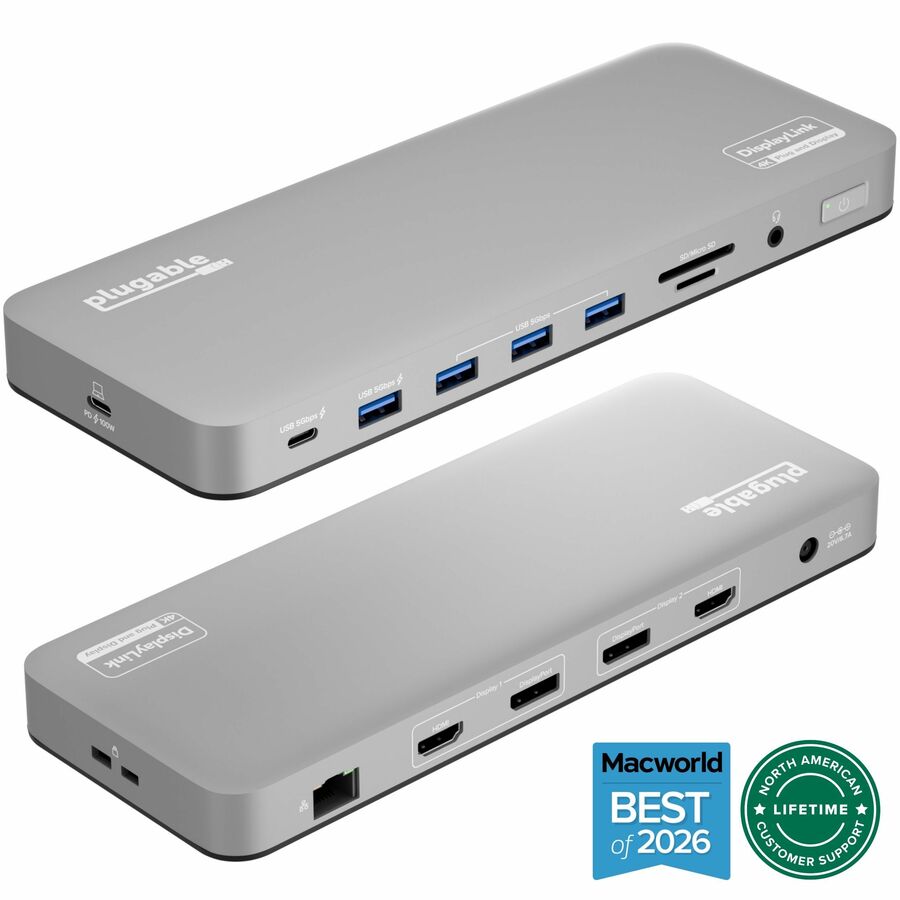
Plugable Technologies
Plugable USB C Laptop Docking Station, Dual Monitor 4K 60Hz for Apple…
UD-6950PDH
A USB-C laptop docking station listed for Apple Mac M1 and M2, driving dual monitors at 4K 60Hz from one connection.
$275.23In stockThunderbolt 5, MacBook
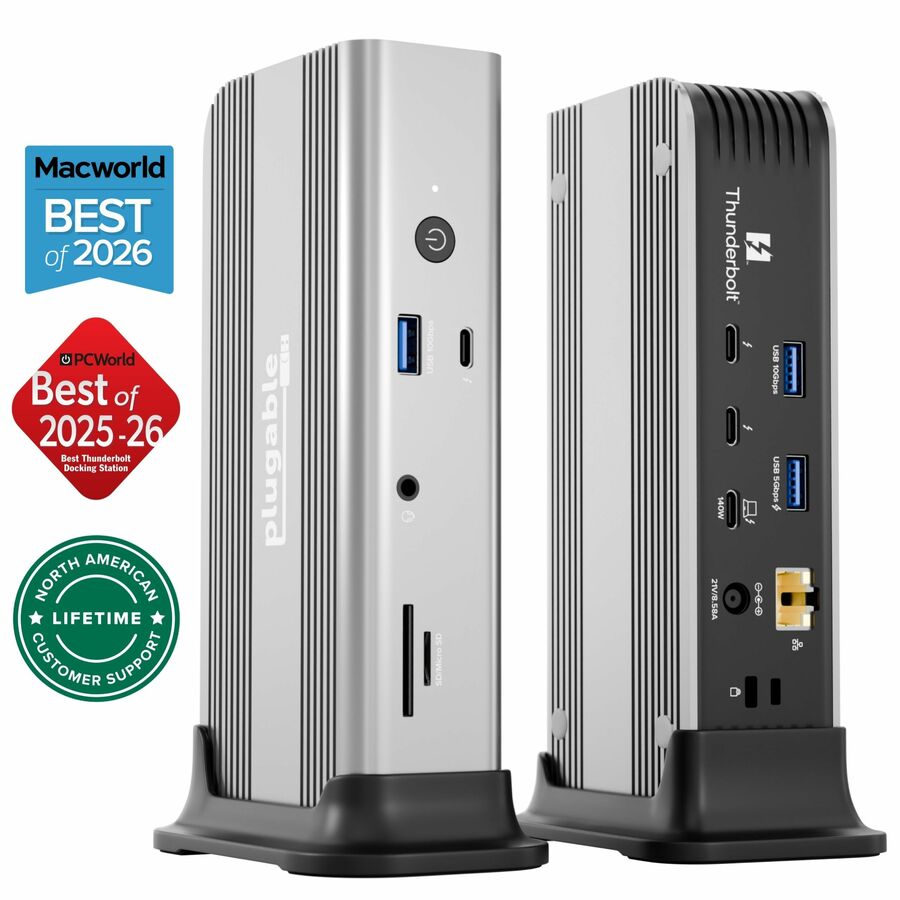
Plugable Technologies
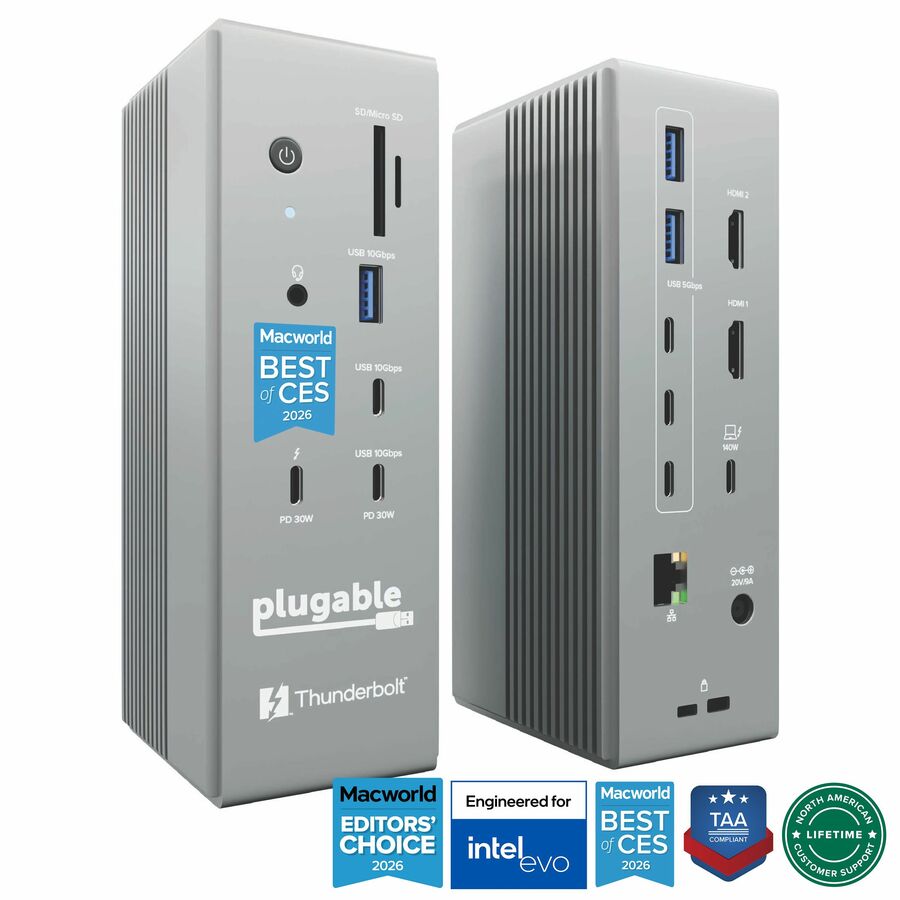
Plugable Thunderbolt 5 Docking Station for MacBook Pro and Windows…
TBT-UDT3
A Thunderbolt 5 docking station listed for MacBook Pro and Windows with 140W charging — the newest, highest-bandwidth desk dock on this page.
$422.68In stockUSB-C hub, MacBook
ANKER
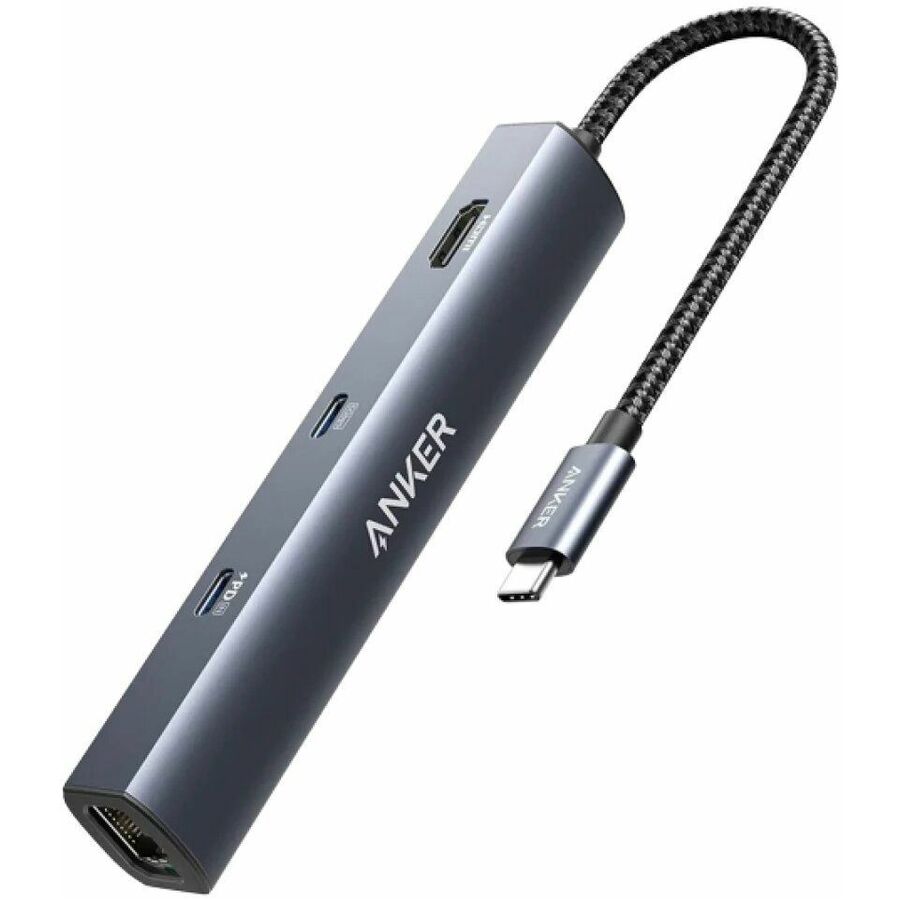
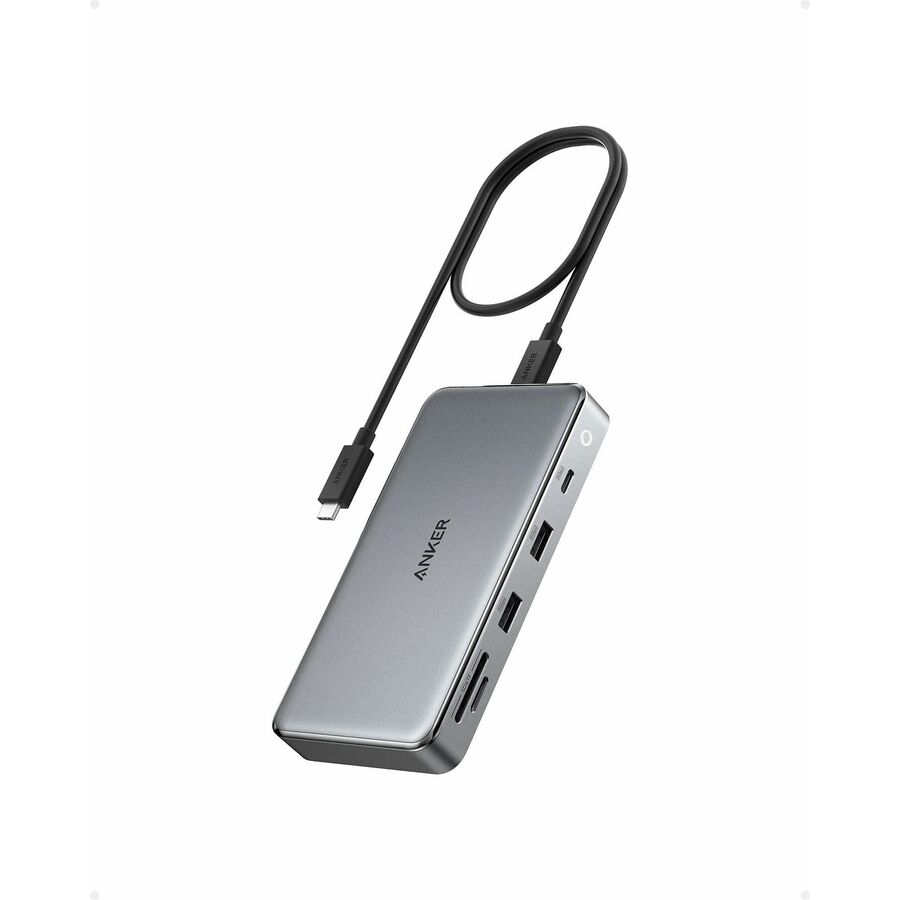
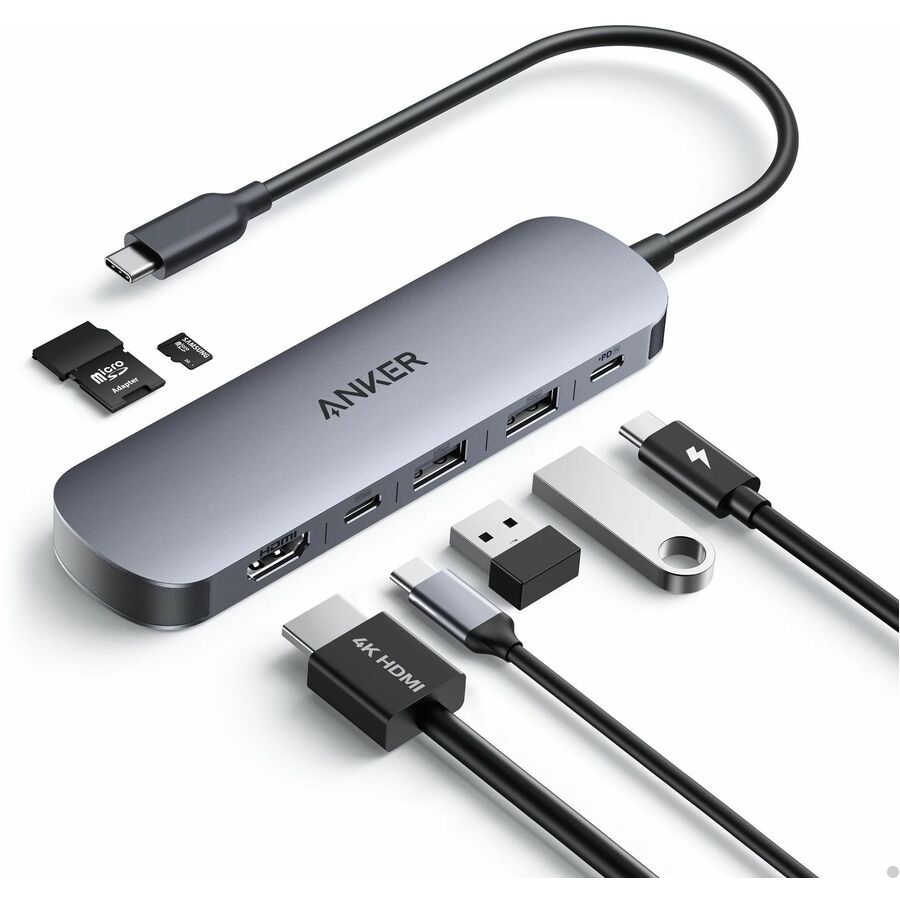
ANKER 543 USB-C Hub (6-in-1, Slim)
A83650A1
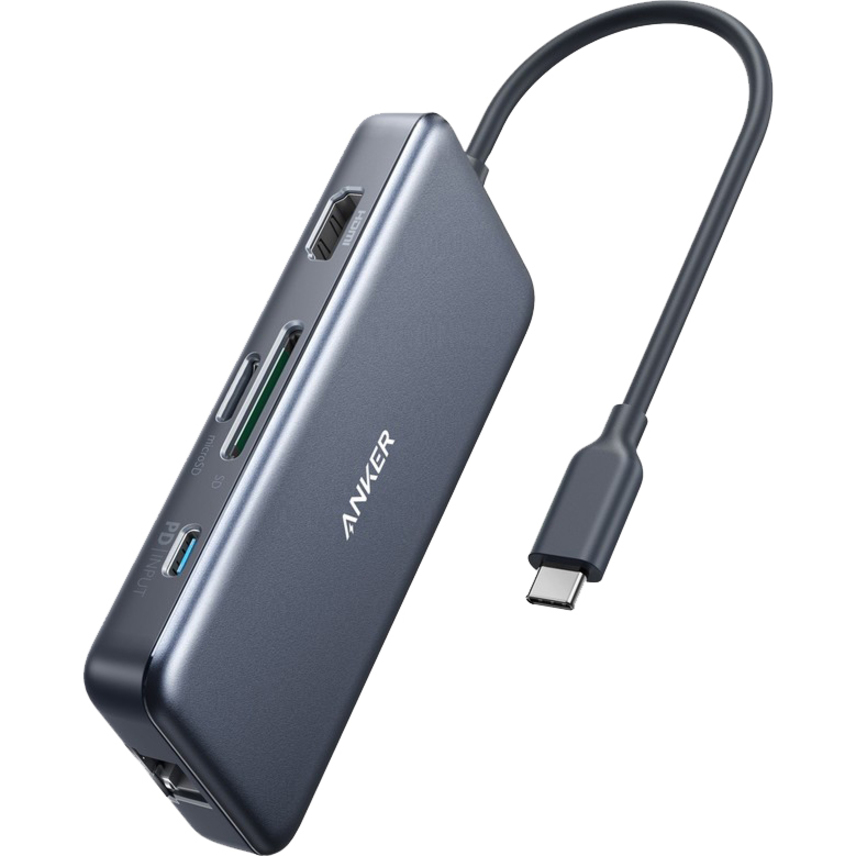
A slim 6-in-1 USB-C hub listed for MacBook, notebook and iPad with pass-through charging — the travel shape for a screen and a few ports on the road.
$39.99In stockUSB-C, dual 4K, MacBook
ANKER
ANKER 563 USB-C Hub (10-in-1, Dual 4K HDMI, For MacBook)
A83860A1
A 10-in-1 USB-C hub with dual 4K HDMI listed for MacBook — a compact desk hub that reaches two screens where the Mac supports them.
$89.99In stockThunderbolt 4 dock
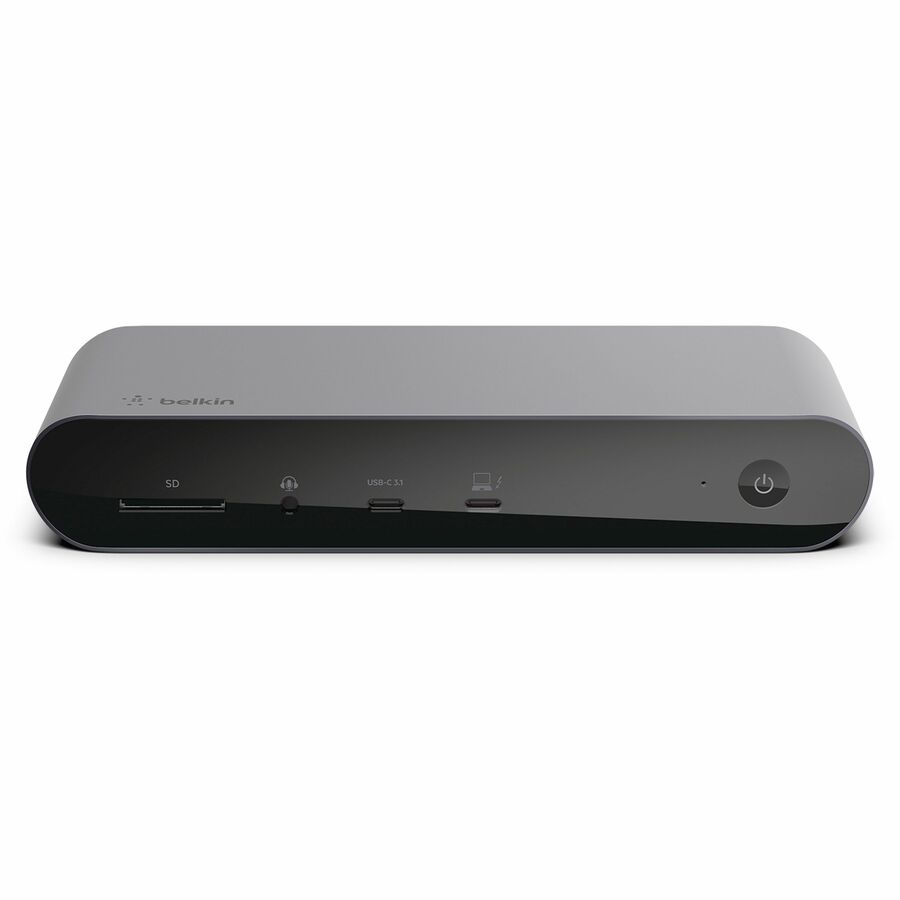
Belkin International
Belkin Thunderbolt 4 Laptop Docking Station
INC006TTSGY
A Thunderbolt 4 laptop docking station listing MacBook support, for a full desk on a single high-bandwidth connection.
Request pricingUSB-C, dual display
Belkin International
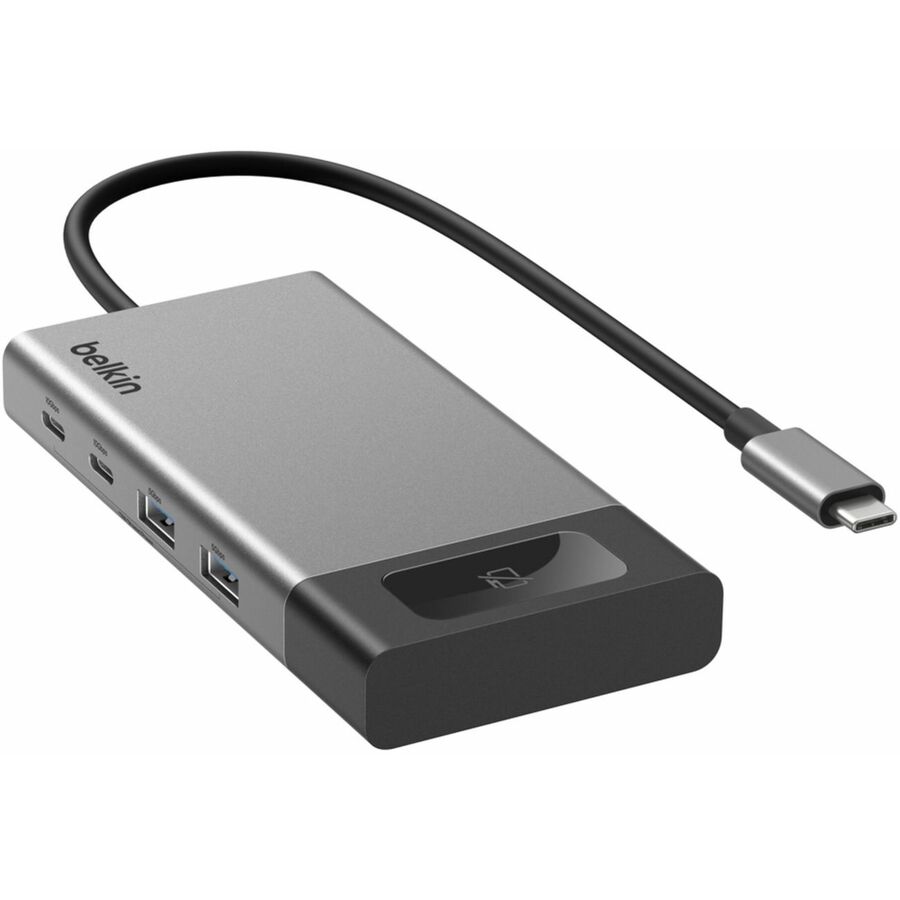
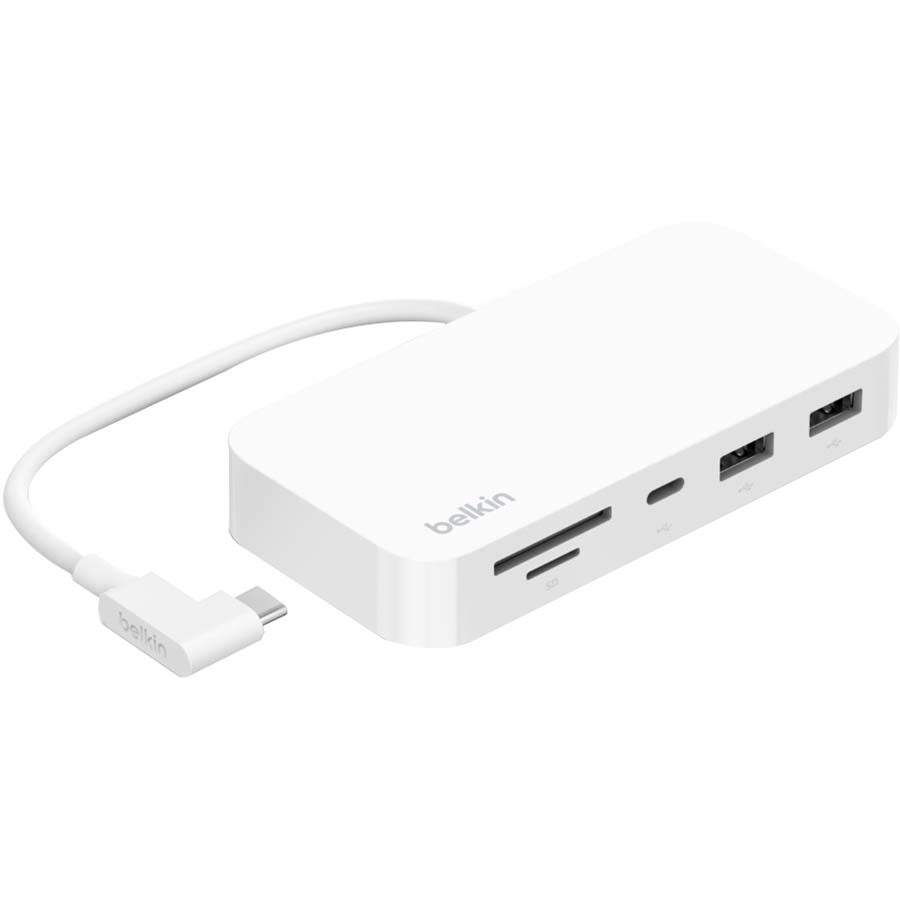
Belkin Connect 8-Port Dual Display USB-C Hub
INC027DQSGY
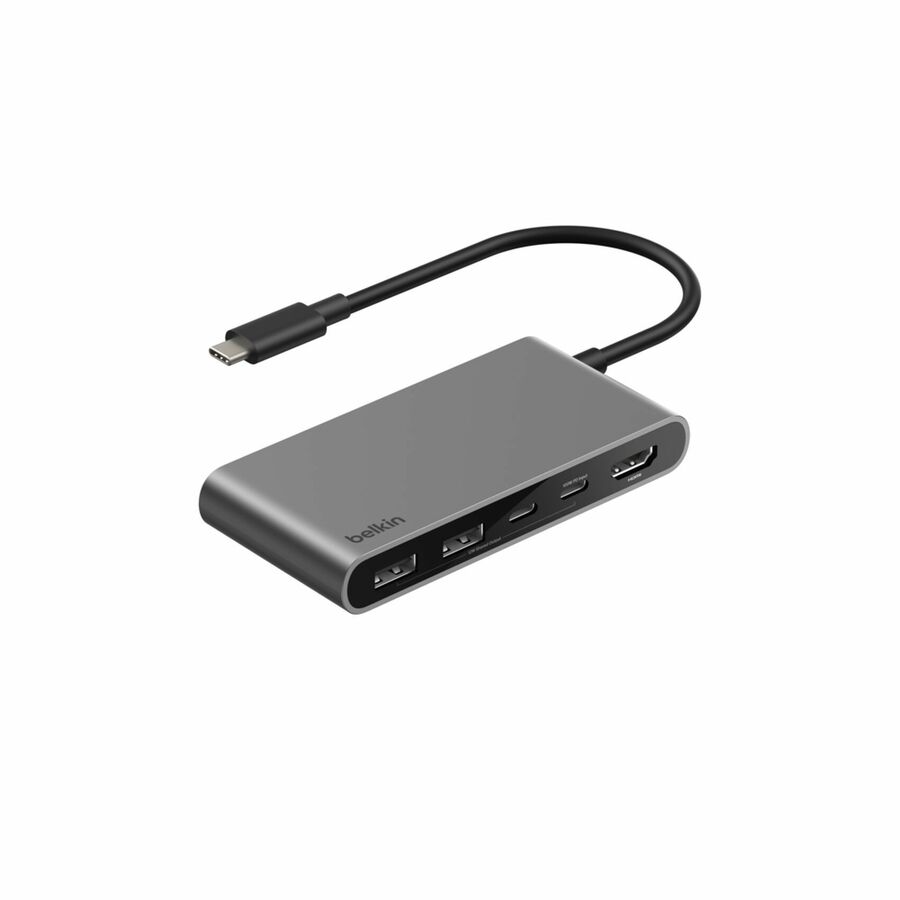
An 8-port dual-display USB-C hub listing MacBook support, built for a display, a monitor and a workstation's worth of peripherals from one port.
$91.95In stockThunderbolt 5, 19-in-1
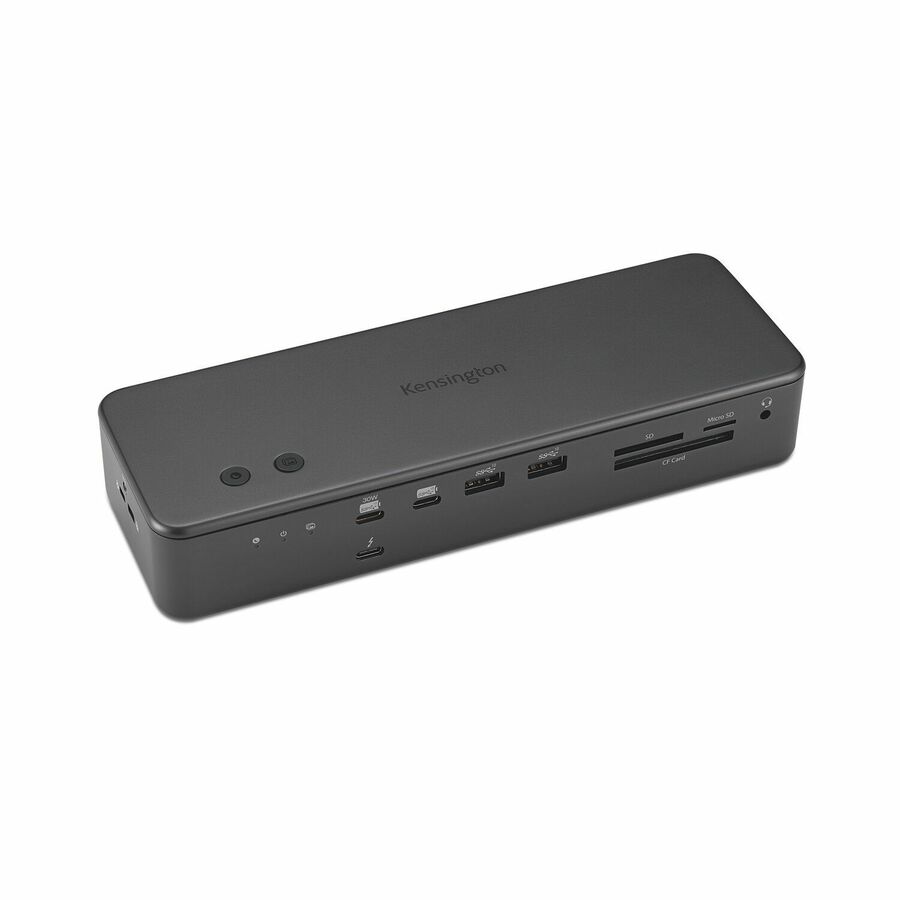
Kensington Computer Products
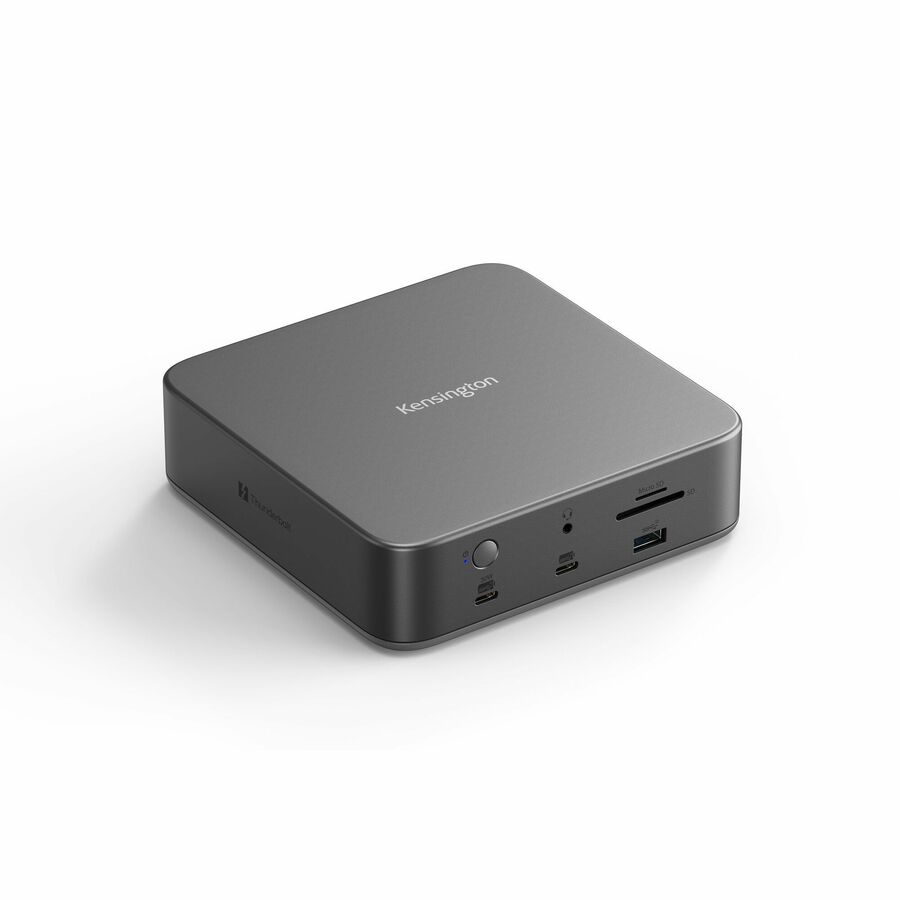
Kensington SD7100T5 EQ Pro Thunderbolt 5 19-in-1 Docking Station…
K33611NA
A Thunderbolt 5 docking station with a 19-in-1 port count, a large fixed desk dock for a MacBook that anchors a full multi-peripheral setup.
$556.34In stockUSB-C/USB-A, dual 4K
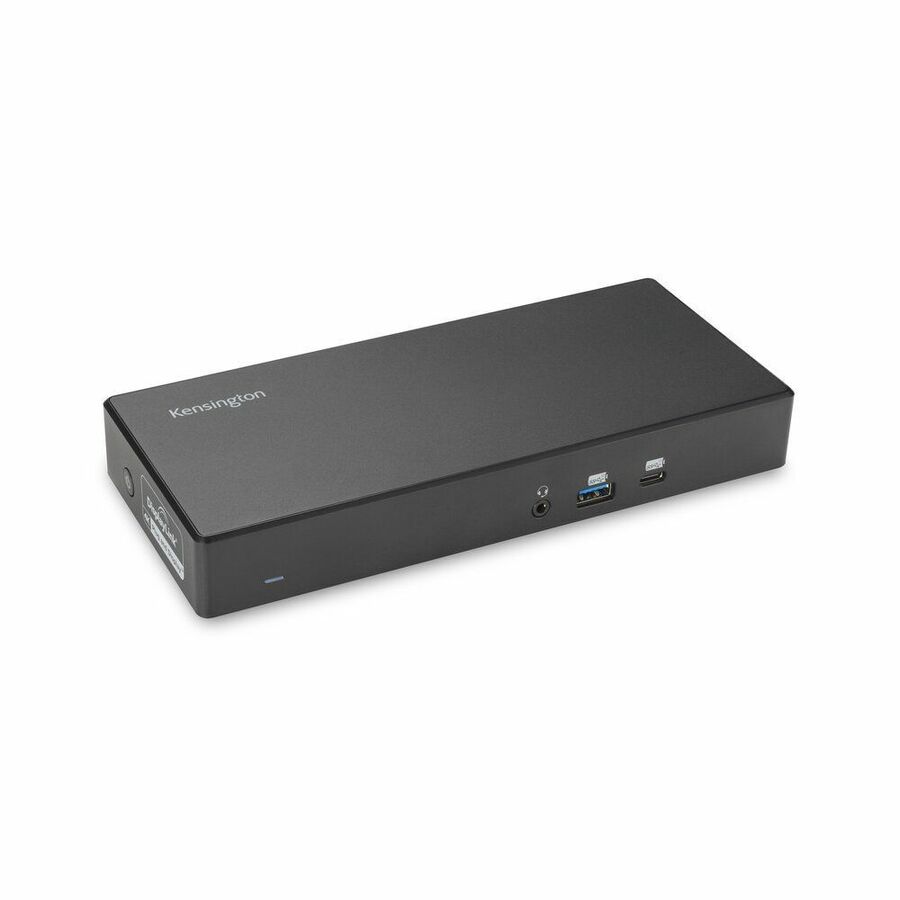
Kensington Computer Products
Kensington SD4781P EQ USB-C & USB-A Dual 4K Docking Station with 100W…
K33603NA
A dual 4K docking station with both USB-C and USB-A host connections and 100W power delivery — a desk dock that fits a mixed Mac-and-Windows fleet.
$300.06Back-orderedThunderbolt 4 flagship
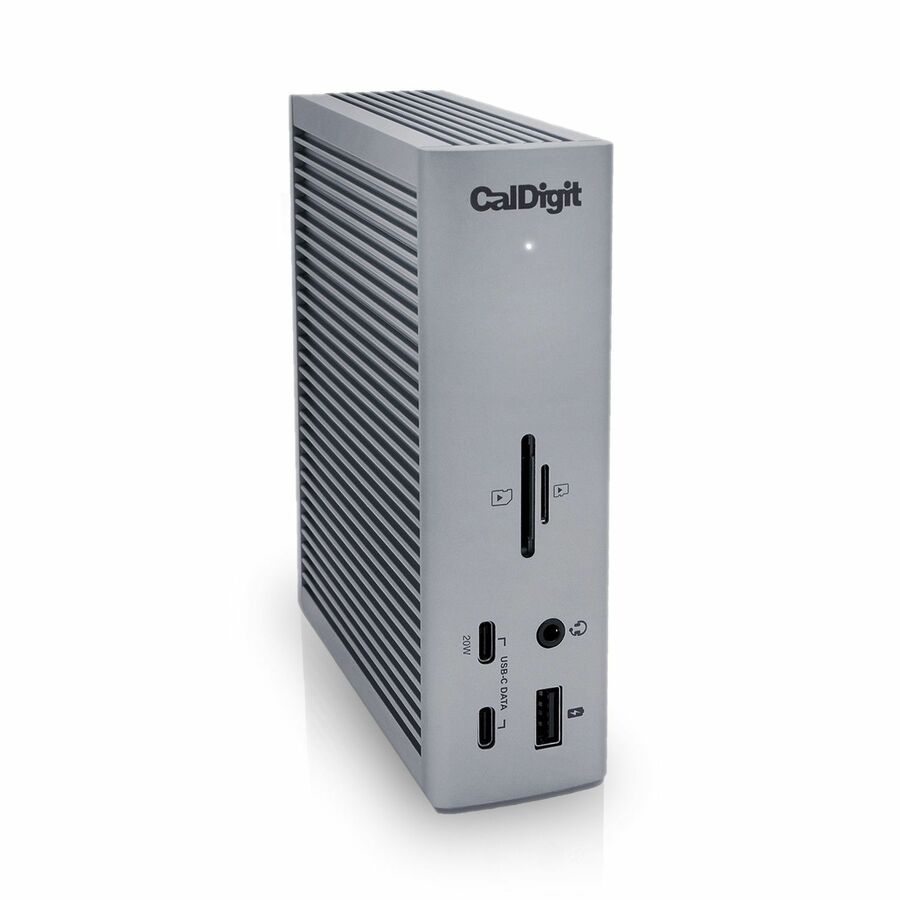
CalDigit
CalDigit TS4 Docking Station
TS4-US
A Thunderbolt 4 docking station listed for computer, notebook, iPad and tablet — a dense, high-port-count desk dock for a demanding Mac workstation.
$690.79In stockThunderbolt 5, SSD dock
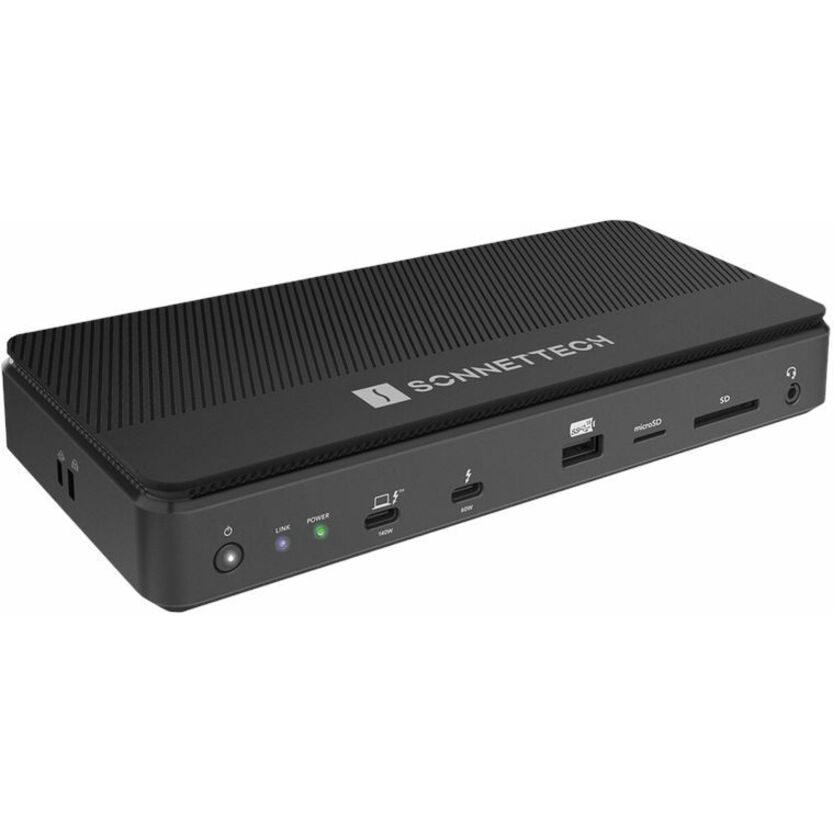
Sonnet Technologies
Sonnet Echo 13 Thunderbolt 5 SSD Dock
ECHO-DK13-2TB5
A Thunderbolt 5 dock listed for MacBook with an SSD bay built in, combining a desk dock and fast onboard storage in one enclosure.
Request pricingUSB-C travel hub
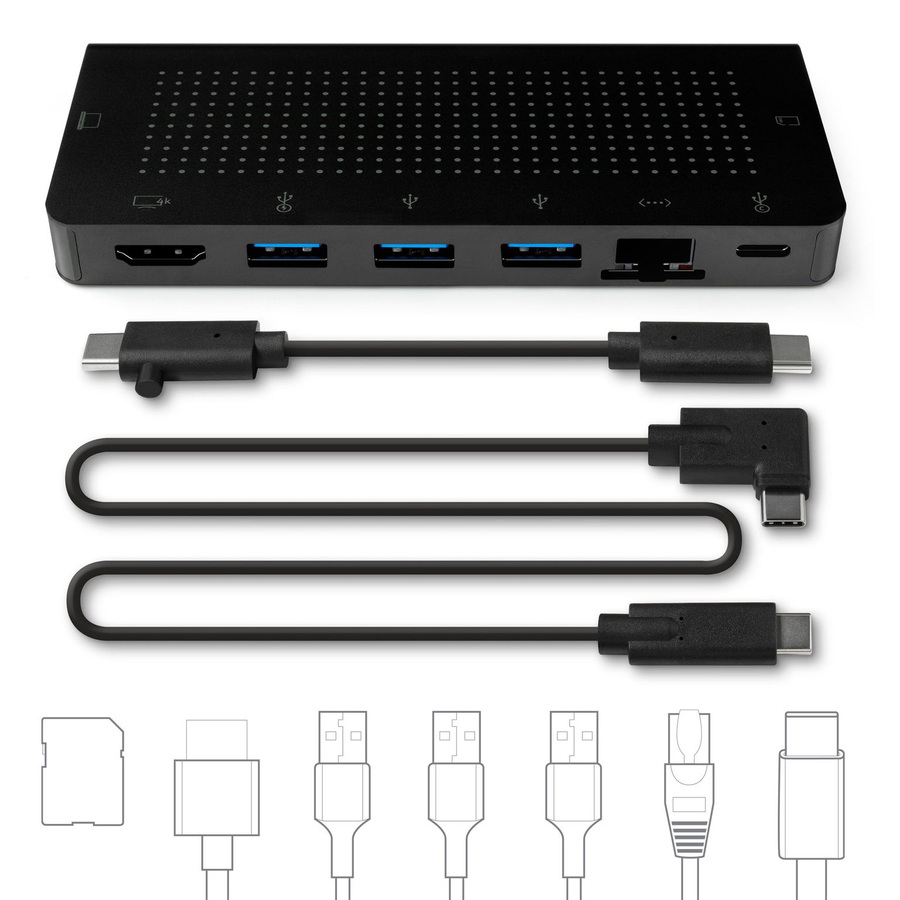
Twelve South
Twelve South StayGo | USB-C Hub for Type C MacBooks, Laptops and iPad…
12-1907
A USB-C hub built for Type-C MacBooks, laptops and iPad Pro — the pocket travel shape for a screen and a network port away from the desk.
Every row this page renders names MacBook in the manufacturer's own title, as this one does.
$78.82Back-orderedMore docking stations in the Uniqcli catalog
See all 1,162 docking stationsMore from across this category. In-stock lines lead, and a back-ordered line carries the same estimated availability its product page does — with live pricing throughout, NDAA §889 screening before checkout and TAA verified on request.
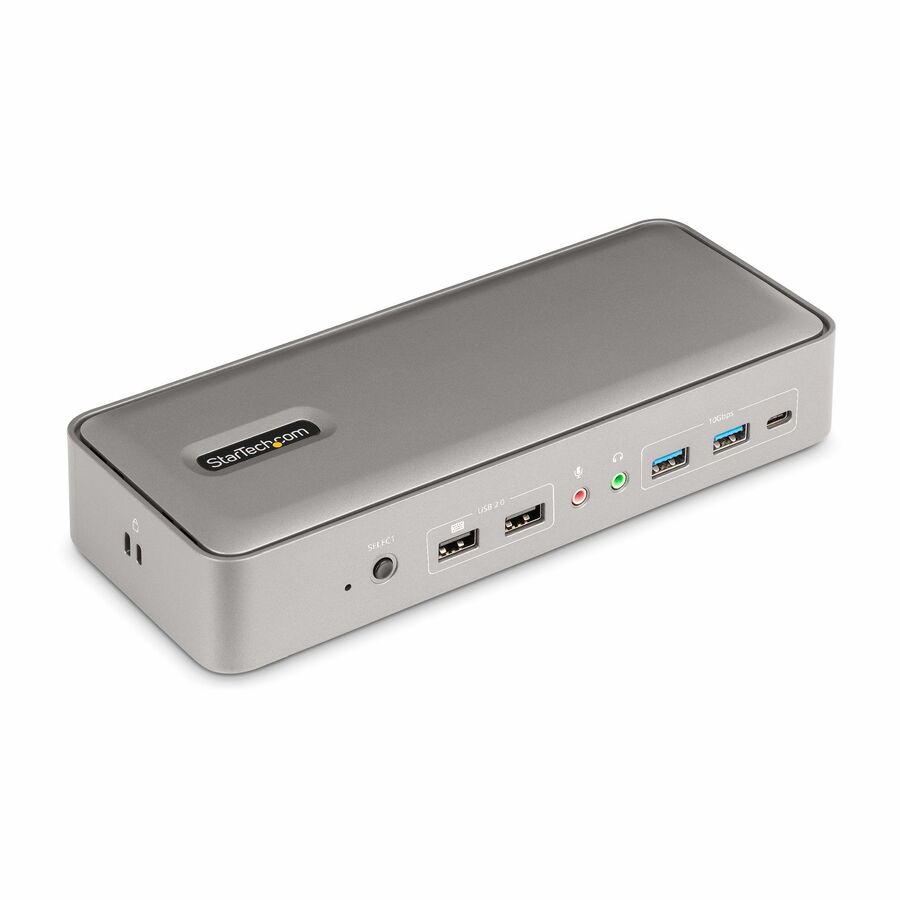
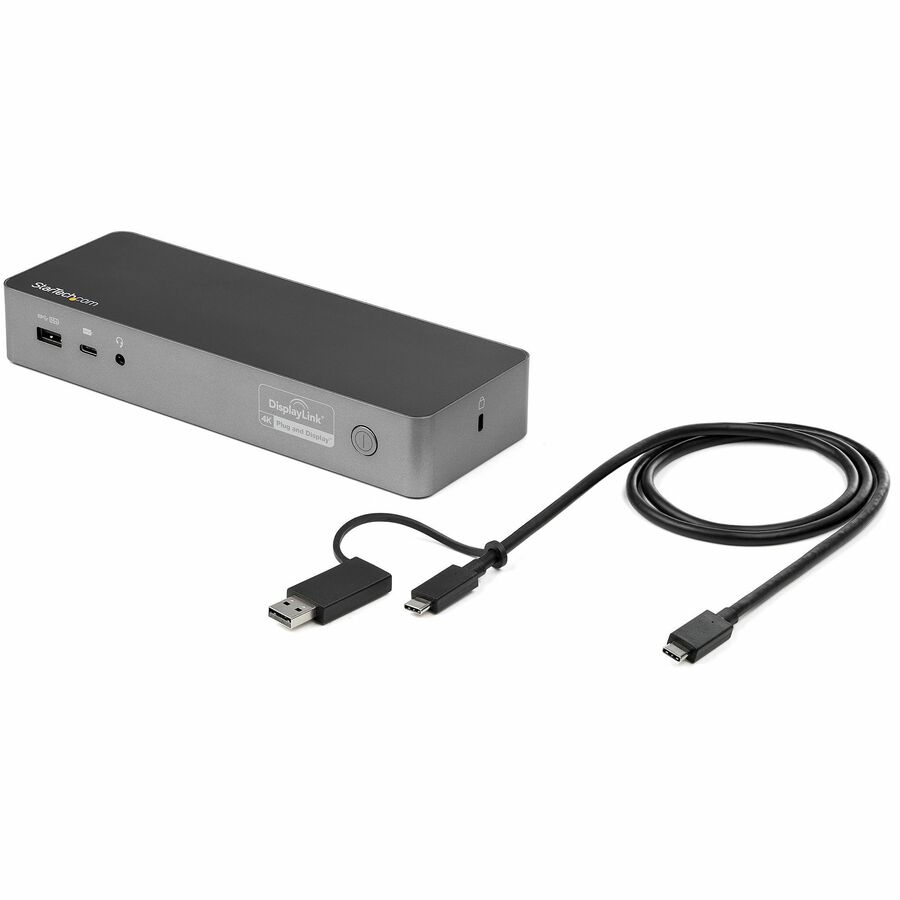
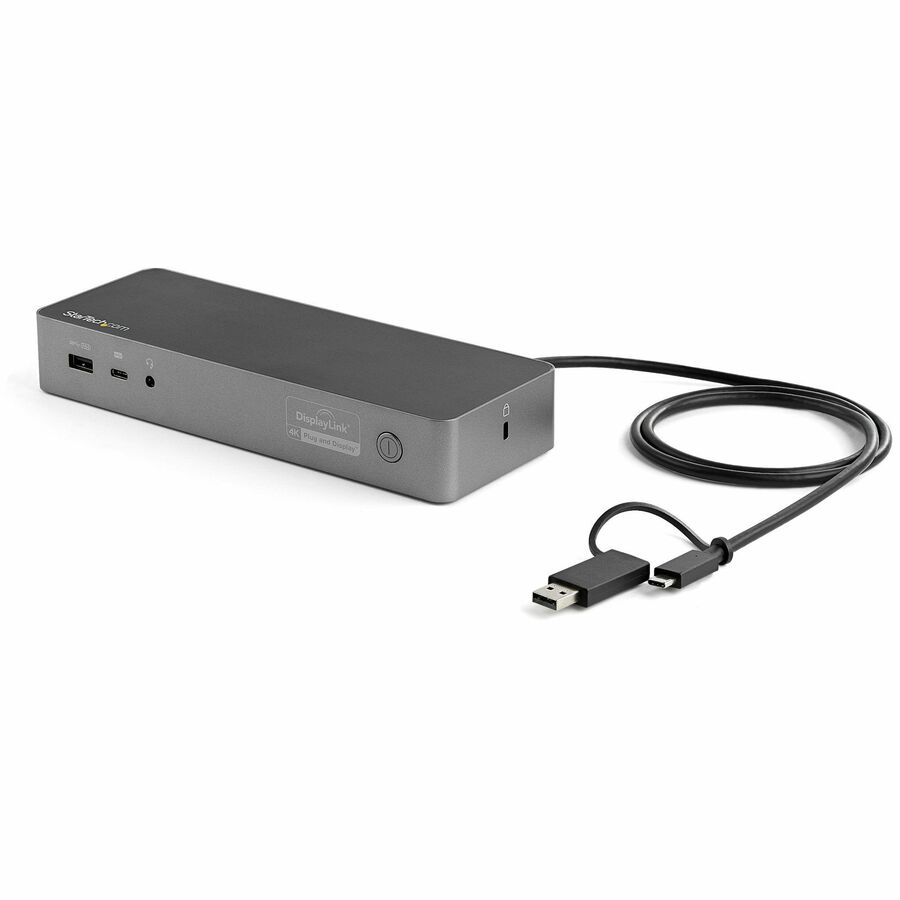
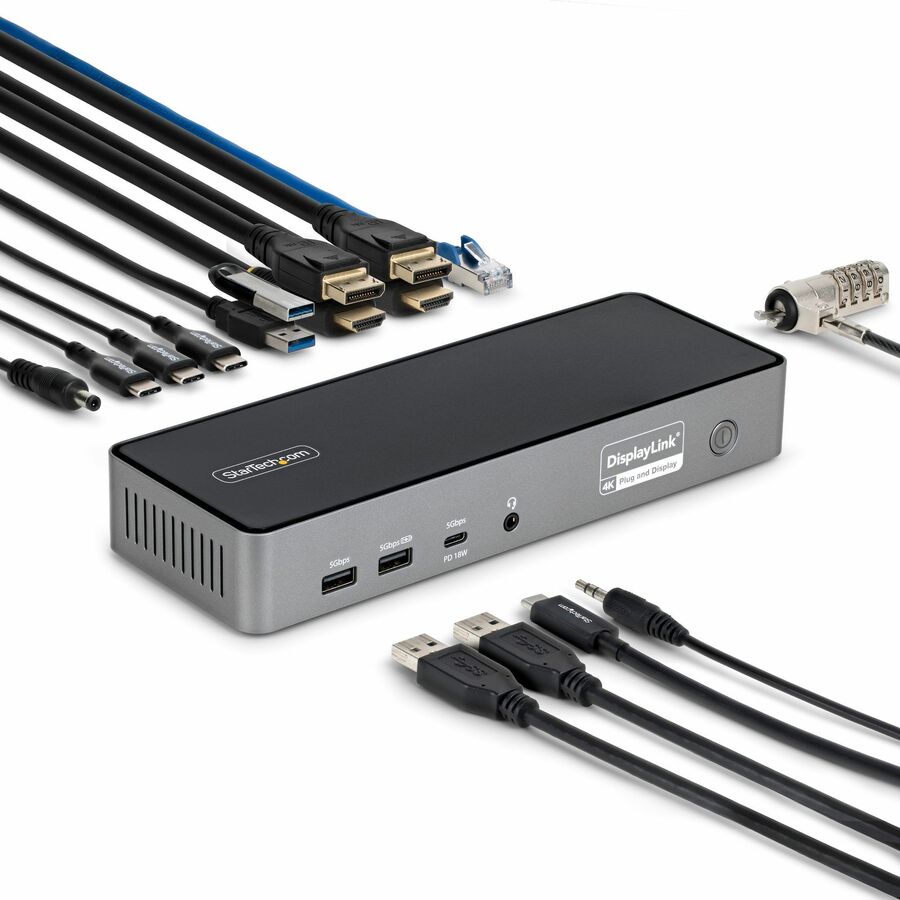
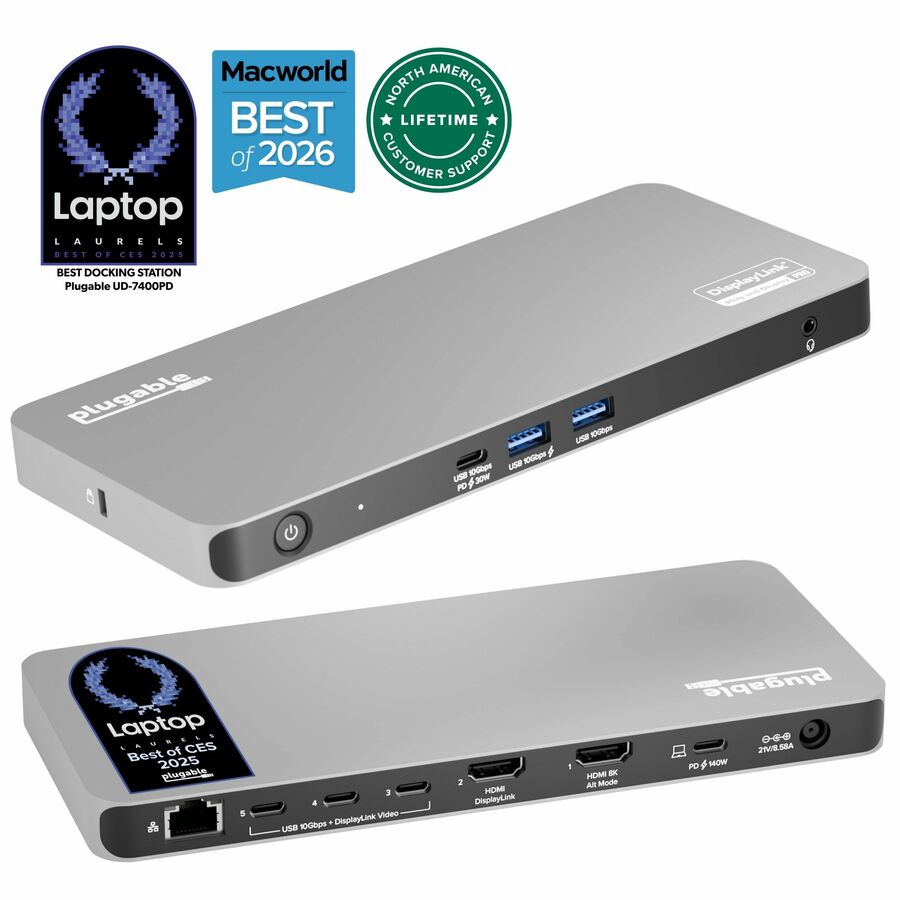
- StarTech.comStarTech Dual-Laptop USB-C KVM Docking Station, Dual Monitor 4K 60Hz DisplayPort Dock, 5x USB Hub, GbE, 90W/45W PD, Windows/Mac, TAA - Dual-Laptop KVM Dock switches between 2 USB Type-C hosts w/ toggle button - Charge 2 laptops (90W to active, 45W to standby PC) - Dual Monitor 4K 60Hz including on base M-Series MacBook Pro/Air - 5x USB Hub & GbE - Windows/Mac/Chrome (mixed OS)129N-USBC-KVM-DOCK
$322.86
$297.03*
159 in stock Back-ordered — estimated OEM lead time 3–8 weeks (Nov 20 – Dec 25 if ordered today).
Back-ordered — estimated OEM lead time 3–8 weeks (Nov 20 – Dec 25 if ordered today).
Back-ordered — estimated OEM lead time 3–8 weeks (Nov 20 – Dec 25 if ordered today).
Back-ordered — estimated OEM lead time 3–8 weeks (Nov 20 – Dec 25 if ordered today).
Back-ordered — we expect to receive stock the week of Dec 14–20 and will process your delivery right after.




Need pricing on MacBook docking stations?
Tell us where to reach you and a Uniqcli specialist will follow up by email with current pricing, availability and lead time for the quantities you need — including parts that aren’t shown on this page.
Buying for an organization or for yourself — both work. No payment up front.
A MacBook is a single USB-C port away from a full desk, and the dock is the part that turns that port into displays, wired networking, power and peripherals in one connection. Every row on this page names MacBook in the manufacturer's own catalog title, which matters more than it looks: the wider docking shelf is full of docks built and tested for Windows laptops, and a Mac has its own rules about how many external displays it will drive and how it charges, so a dock that lists MacBook support is the vendor stating it accounted for them.
The number that catches most Mac fleets out is displays. Apple silicon MacBook Air, and the base MacBook Pro, natively drive a limited number of external monitors, and a plain USB-C or Thunderbolt dock does not change that — it passes the Mac's own display support through. Docks that carry DisplayLink use software to drive additional screens beyond that native limit, which is how a dual- or triple-monitor setup is reached on a machine that would otherwise cap at one; the titles and the technology decide which shape you are buying, and it is the single most common reason a MacBook dock disappoints.
After displays, the buying work is charging and ports. Power delivery back up the same cable is what lets the dock replace the Mac's own charger, and a 96-watt or higher dock keeps a larger MacBook Pro charged under load where a lower-wattage hub trickles. Thunderbolt 4 and Thunderbolt 5 docks carry more bandwidth for high-resolution displays and fast storage than a plain USB-C hub; a travel hub trades all of that for pocketability. Send the exact MacBook models in the fleet and the desk setup, and the dock, the power budget and the display plan come back matched to the machines.
Buyer's checklist
How to choose a dock for a MacBook fleet
- Start with how many external displays the Mac itself supports. Apple silicon MacBook Air and the base MacBook Pro cap at a small number of external screens natively; a plain USB-C or Thunderbolt dock passes that limit through rather than raising it. Confirm the target display count against the specific model before anything else.
- Where you need more screens than the Mac natively drives, look for DisplayLink. It uses a driver to add displays beyond the native cap, which is how dual- and triple-monitor setups are reached on machines that would otherwise stop at one — at the cost of a small software layer to deploy across the fleet.
- Size the charging to the largest MacBook it will serve. Power delivery back up the cable replaces the Mac's charger; a 96-watt or higher dock keeps a 16-inch MacBook Pro charged under load, while a lower-wattage hub is fine for a MacBook Air and slow for a Pro.
- Choose the connection to the workload. Thunderbolt 4 and Thunderbolt 5 docks carry the bandwidth for high-resolution displays and fast external storage; a plain USB-C hub is lighter and cheaper and right for a document worker who needs a screen, a network port and a keyboard.
- Prefer a driverless dock where the fleet is display-simple. Many USB-C and Thunderbolt docks need no software on macOS at all, which is one less thing to manage across a fleet; save the DisplayLink driver for the desks that genuinely need the extra screens.
- Count the ports against the actual desk, not the spec sheet's headline. A dock that drives your displays but is one USB-A short of the scanner, badge reader and headset on every desk still means a second hub — list the peripherals per role and match the port mix to them.
- Decide desk dock versus travel hub per role deliberately. A fixed docking station lives on the desk and drives the whole setup; a compact travel hub goes in the bag for a screen and a network port on the road. Many fleets need both shapes, and they are different line items.
- Standardize on as few dock models as the roles allow. One desk dock and one travel hub across a fleet keeps drivers, firmware and the replacement conversation to two decisions rather than twenty, which is worth more than squeezing the last port onto each desk individually.
The display limit is the Mac's, not the dock's
The single fact that governs a MacBook dock purchase is that Apple silicon Macs have a native external-display limit, and a standard dock does not lift it. A base-tier MacBook Air or MacBook Pro on Apple silicon natively drives a small number of external screens; connect a plain USB-C or Thunderbolt dock and you get the Mac's own display support passed through the dock, not multiplied by it. This is why a fleet that buys 'a dock' and expects three monitors on every desk is disappointed on exactly the machines that make up most of the fleet — the entry-tier laptops.
The way around it is DisplayLink, a technology that drives additional displays over a software driver rather than the Mac's own display engine, which is how a dual- or triple-monitor setup is reached on a machine that natively caps at one. It is a real answer and a common one, but it is a deployment decision: the driver has to be installed and kept current across the fleet, and it uses a little CPU to compose the extra screens. The honest split is to use native display support where the desk needs only what the Mac drives, and reach for DisplayLink only on the desks that genuinely need more screens than the machine supports on its own. The titles and the technology on each part below say which road a given dock takes.
Power, bandwidth and the shape of the dock
Once the display plan is settled, the remaining decisions are power and bandwidth, and they track the size of the MacBook and the demands of the desk. Power delivery back up the single cable is what lets a dock replace the laptop's own charger, and the wattage has to be sized to the largest machine it will serve: a 16-inch MacBook Pro under load draws more than a small hub returns, so a dock rated well into the nineties of watts or beyond keeps a Pro topped up where a lower figure lets it slowly drain. For a MacBook Air the requirement is gentler, which is part of why a fleet often standardizes on a higher-wattage dock for the Pros and accepts it is generous for the Airs.
Bandwidth is the other axis. Thunderbolt 4 and the newer Thunderbolt 5 docks carry far more data than a plain USB-C hub, which is what high-resolution displays and fast external SSDs actually need; a Thunderbolt dock is the right home for a designer's dual 4K screens and a scratch drive, while a USB-C hub is the right, lighter, cheaper home for a document worker who needs a screen, wired networking and a couple of peripherals. Shape matters too — a fixed desk dock and a pocket travel hub are different tools, and most fleets buy one of each. Send the MacBook models and the per-role desk setup, and the dock, the wattage and the display technology can be quoted to the fleet rather than guessed from a single spec line.
FAQ
Common questions
- Will a dock let my MacBook Air drive two or three external monitors?
- Only if the dock uses DisplayLink. Apple silicon MacBook Air and the base MacBook Pro have a native external-display limit, and a standard USB-C or Thunderbolt dock passes that limit through rather than raising it — so a plain dock gives you the number of screens the Mac itself supports, which on the entry machines is small. DisplayLink docks add displays over a software driver and are how a dual- or triple-monitor setup is reached on those machines, at the cost of installing and maintaining the driver across the fleet. Check the Mac model's native limit first, then decide whether you need the DisplayLink path.
- How much charging wattage does a MacBook dock need?
- Size it to the largest MacBook it will serve. Power delivery back up the cable replaces the laptop's charger, and a 16-inch MacBook Pro under load draws more than a small hub returns, so a dock rated well into the nineties of watts or higher keeps a Pro charged while you work. A MacBook Air needs much less, which is why fleets that mix Airs and Pros usually standardize on the higher-wattage dock and accept that it is generous for the Airs rather than buy two power classes.
- What is the difference between a Thunderbolt dock and a USB-C hub for a MacBook?
- Bandwidth and, usually, ambition. Thunderbolt 4 and Thunderbolt 5 docks carry far more data, which is what high-resolution displays and fast external storage need, and they tend to be the fuller desk docks. A plain USB-C hub is lighter and cheaper and right for a desk that needs a single screen, wired networking and a few peripherals. The titles on this page name the connection per part; both run on a MacBook's USB-C port, but they are aimed at different desks.
- Do MacBook docks need software installed?
- Many do not — a large share of USB-C and Thunderbolt docks are driverless on macOS and simply work when connected, which is one less thing to manage across a fleet. The exception is DisplayLink docks, which need their driver installed and kept current to drive displays beyond the Mac's native limit. The practical rule is to use driverless docks where the desk needs only the screens the Mac natively supports, and accept the DisplayLink driver only on the desks that need more.
- Can business, government and education buyers order these?
- Every line Uniqcli quotes is sourced through US distribution and screened for TAA country-of-origin and NDAA §889 status before checkout — with documentation tied to the specific part number, not a product family.
Need MacBook docking stations pricing?
Send a bill of materials or part numbers — we confirm stock and a below-market total, with TAA verified on request. No payment up front.