
Short answer
A docking station is a powered box that adds ports to a laptop over one USB-C or Thunderbolt cable — external monitors, wired Ethernet, USB peripherals and audio — and charges the laptop on that same cable. Buy a dock for a desk somebody sits at every day; a hub or adapter is enough for occasional use, because it usually adds no Ethernet and no charging.
Key facts
- Thunderbolt 4 requires a minimum of 40 Gb/s bandwidth, dual displays at up to 4K, and up to 100 W of PC charging on the computer port.
- Thunderbolt 4 raised the minimum PCIe data requirement to 32 Gb/s; Thunderbolt 3 required 16 Gb/s.
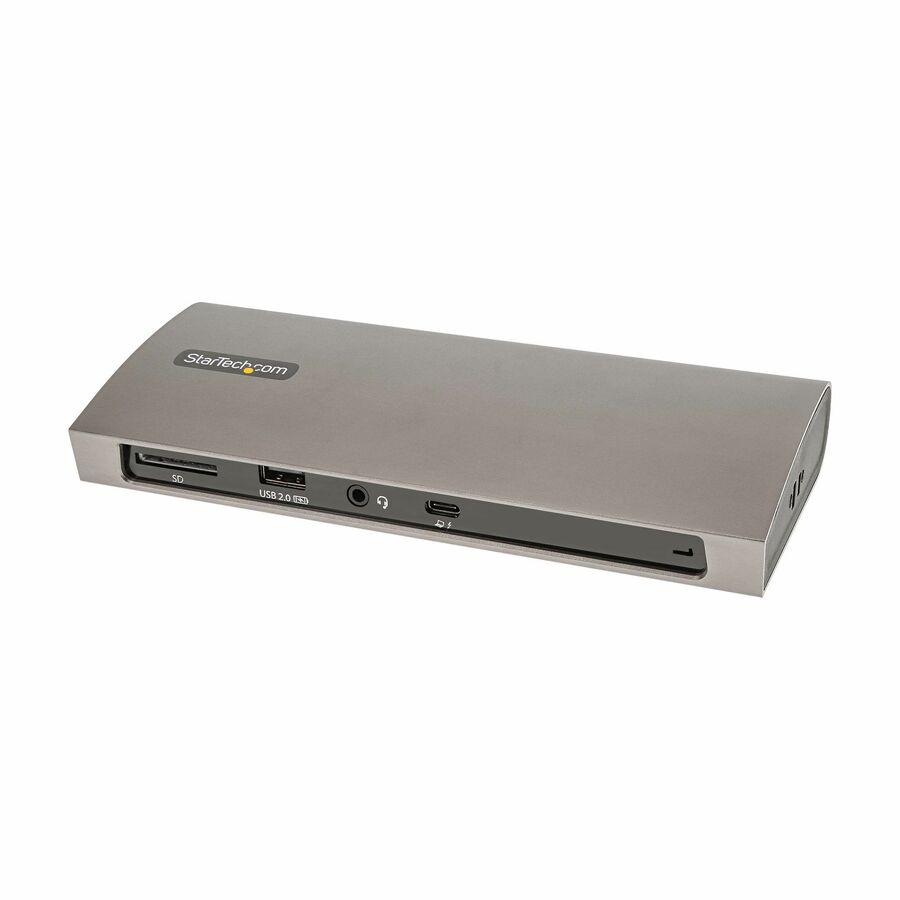
- The StarTech TB4CDOCK is rated 96 W power delivery and drives two 4K 60 Hz displays over its Thunderbolt 4 ports — charging is a published figure.
- Port count is what separates a dock from an adapter — the TB4CDOCK carries three Thunderbolt 4 ports and four USB-A ports beside the host cable.
By Uniqcli Team
A docking station is a hardware hub that lets a laptop connect to multiple external devices — monitors, keyboard, mouse, wired Ethernet, storage, and charging power — through a single cable or connector. Instead of plugging peripherals into the laptop one by one, the user attaches all of them to the dock once, then joins the laptop to the dock with one connection to turn a portable machine into a full desktop workstation.
Most modern docks are "universal" units that attach over USB-C or Thunderbolt, carrying power, video, and data simultaneously on a single cable. That consolidation is what makes docks central to hot-desking and hybrid-work setups: a worker can arrive at any desk, connect one cable, and immediately have their displays, network, and accessories live, then unplug and leave with the laptop when the day ends.
How does a docking station work?
A universal dock acts as a bridge between one high-bandwidth port on the laptop and the many lower-bandwidth ports the user needs. Over a USB-C or Thunderbolt link, three things travel at once: display signals (using DisplayPort or HDMI carried inside the connection), USB data for keyboards, mice, webcams, and drives, and electrical power flowing back to charge the laptop. The dock splits that single stream out to its physical ports — HDMI, DisplayPort, USB-A, Ethernet, audio, and card readers.
Two details govern what a dock can actually do. The first is how video is transported: some docks pass native DisplayPort signals straight through the cable, while others use a compression technology (commonly branded DisplayLink) that sends display data as compressed USB traffic and relies on a driver on the host. The second is power: docks that support USB Power Delivery can charge the laptop over the same cable, removing the need for a separate charger, but only up to the wattage the dock supplies.
What are the main types of docking stations?
USB-C docks are the most common. They use DisplayPort Alt Mode to carry video and typically USB Power Delivery for charging. Their display capability depends heavily on the laptop, because the video comes from the host's own graphics output. Thunderbolt docks (Thunderbolt 3 and 4) use the same USB-C connector but provide far more bandwidth — 40 Gbps on Thunderbolt 3 and 4, and more on newer generations — which allows reliable dual high-resolution displays, faster storage, and daisy-chaining of devices; they require a Thunderbolt-capable laptop to reach full performance.
A third category uses DisplayLink or similar compression to drive displays over ordinary USB data rather than native video lanes. These are the most host-agnostic — useful when you need to support a mixed fleet or push more monitors than the laptop natively allows — but they depend on driver software and use some CPU. Older or vendor-specific machines may instead use a proprietary mechanical dock that the laptop drops onto via a docking connector; these are model-locked and gradually being replaced by universal USB-C and Thunderbolt docks.
When do you need a docking station?
The clearest case is any desk where a laptop is used as a primary workstation with external monitors and accessories. A dock removes the daily ritual of connecting a charger, displays, network cable, and USB devices separately, replacing it with one connection. That single-cable convenience is what makes docks the backbone of hot-desking, where multiple people share the same seats on different days and each simply plugs in their own laptop.
Docks also matter when built-in ports are scarce. Thin-and-light laptops often ship with only one or two USB-C ports, so a dock restores wired Ethernet, legacy USB-A devices, and multi-monitor output that the chassis cannot provide on its own. If a user only ever needs a single external monitor and a charger, a simpler multiport adapter may be enough; a full docking station earns its place when the setup involves several peripherals, wired networking, or two or more displays.
What should you consider when buying a docking station?
Compatibility is the first checkpoint, and it hinges on the laptop's port. A USB-C connector does not guarantee video or charging — the port must support DisplayPort Alt Mode for external displays and USB Power Delivery for charging, and Thunderbolt docks reach full capability only on Thunderbolt-capable hosts. Confirm the dock's power output meets the laptop's needs (thin laptops may charge on around 65W, while performance machines can require 90W–100W or more), since an underpowered dock will run the battery down under load.
Display support is the other common pitfall. The number, resolution, and refresh rate of monitors a dock can drive depends on both the dock and the laptop's graphics. This is especially relevant on some Apple Silicon Macs: earlier base-tier M-series chips drive only one external display over USB-C or Thunderbolt unless a DisplayLink-based dock is used, though newer base chips have raised that limit — so verify the exact model. Also weigh the port mix you actually need (Ethernet, USB-A, card readers, audio), whether you want native or DisplayLink video, and — for standardized fleets — pick a single dock model that works across the range of laptops you deploy.
Key takeaways
- A docking station turns a laptop into a desktop workstation, connecting monitors, peripherals, wired network, and charging power through one cable.
- Confirm the laptop's port actually supports video (DisplayPort Alt Mode) and charging (USB Power Delivery) — a USB-C shape alone does not guarantee either.
- Match the dock's power output to the laptop; underpowered docks charge slowly or drain the battery during heavy use.
- Thunderbolt docks offer the most bandwidth for dual high-resolution displays and fast storage, but need a Thunderbolt-capable laptop to reach full speed.
- Multi-monitor capability depends on the laptop's graphics, not just the dock; verify how many displays the host can drive, especially on earlier base-tier Apple Silicon Macs.
- For hot-desking or mixed fleets, standardize on one universal (USB-C or DisplayLink) dock model that works across every laptop you support.
Shop it at Uniqcli
Parts for this job
Thunderbolt 4, dual 4K
StarTech.com
StarTech Thunderbolt 4 Dock, 96W Power Delivery, Single 8K / Dual…
TB4CDOCK
Three Thunderbolt 4 ports driving two 4K 60 Hz displays, four USB-A, SD and gigabit Ethernet on one 0.8 m host cable, with 96 W power delivery. The standard desk build.
$156.39In stockSmall footprint
Kensington Computer Products
Kensington SD2600T Thunderbolt 4 Dual 4K Nano Docking Station
K34036NA
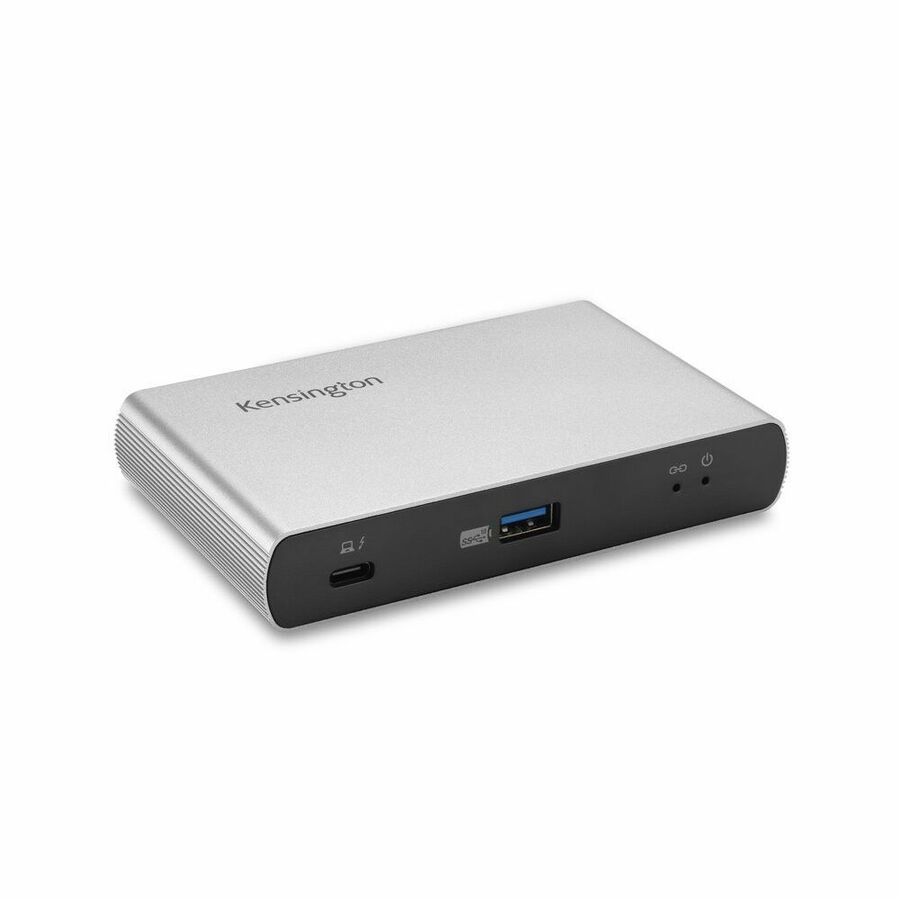
A compact Thunderbolt 4 dock supporting two displays with 65 W power delivery — the choice where the desk has no room and the laptop's own charger stays put.
65 W charges a thin-and-light; a mobile workstation will want the higher-wattage dock.
$224.90Back-orderedUSB-C, no Thunderbolt
Plugable Technologies
Plugable 11-in-1 USB-C Hub 100W USB-C Pass-through, Laptop Docking…
USBC-11IN1E
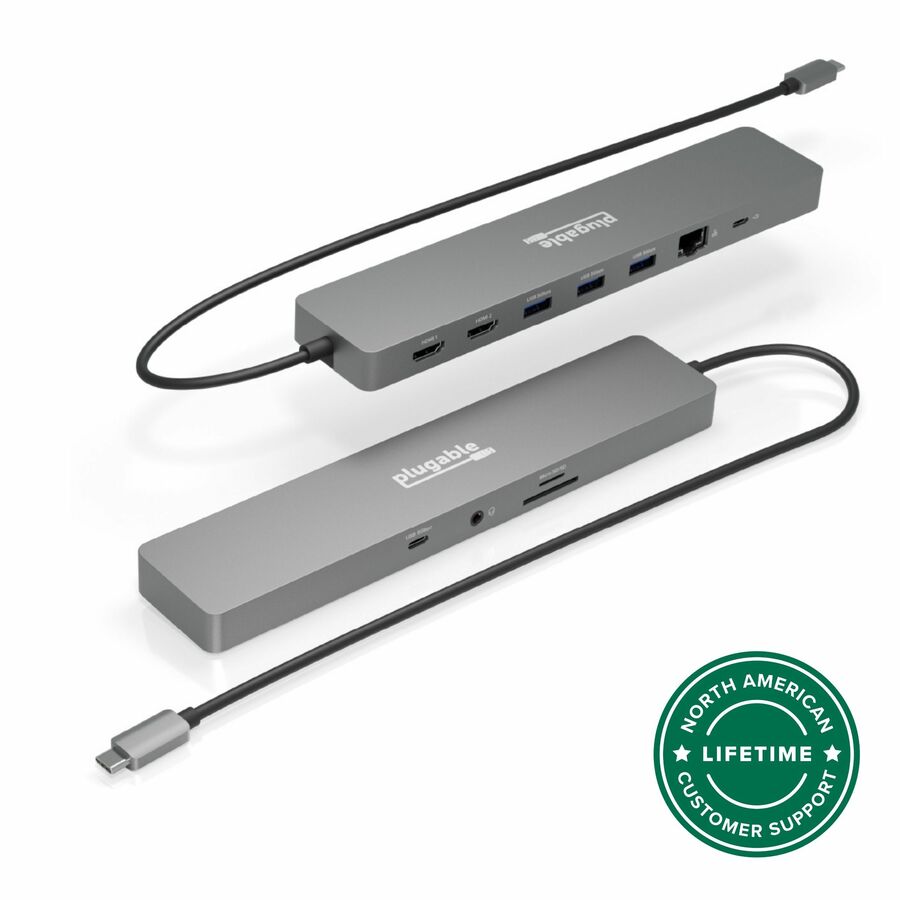
An 11-port USB-C dock with 100 W pass-through, dual monitors and 4K 60 Hz HDMI, driverless on Windows and ChromeOS. For fleets whose laptops have USB-C but not Thunderbolt.
$126.45In stockFrequently asked
- What is the difference between a docking station and a USB-C hub or adapter?
- A multiport hub or adapter typically adds a few ports for occasional use and often does not include wired Ethernet, high power delivery, or robust multi-monitor support. A docking station is designed as a permanent desk anchor: it supplies more ports, delivers enough power to charge the laptop, and is built to drive multiple external displays. The line blurs, but if you need several peripherals, networking, and dual monitors from one connection, that is docking-station territory.
- Will one docking station work with any laptop?
- Universal USB-C and Thunderbolt docks work with a wide range of laptops, but not unconditionally. The laptop's port must support video output and charging over USB-C, and full Thunderbolt speed requires a Thunderbolt host. Display limits also vary by machine. DisplayLink-based docks are the most host-agnostic because they carry video over standard USB data, but they require a driver. Always check the specific laptop models you plan to support before standardizing.
- Can a docking station drive dual monitors?
- Many can, but the outcome depends on both the dock and the laptop. Thunderbolt docks reliably support dual high-resolution displays. USB-C docks depend on the host's graphics output and whether it supports multi-stream video. Some laptops — notably earlier base-tier Apple Silicon Macs — natively support only one external display over USB-C or Thunderbolt, in which case a DisplayLink dock is the usual way to add more; newer base chips have eased this.
- Do you need a docking station to connect a laptop to a monitor?
- No. A single monitor connects directly by HDMI, DisplayPort or USB-C if the laptop has the matching port. A dock earns its place when one cable has to carry the monitor plus Ethernet, peripherals, audio and charging — and when the laptop leaves the desk daily.
- Why does my laptop need a docking station?
- It does not need one; the dock is for the desk, not the laptop. Thin notebooks ship with two or three ports, so a docked desk trades six connections for one, adds wired Ethernet the laptop no longer has, and charges over the same cable.
- Do I need a docking station for two monitors?
- Usually yes, unless the laptop has two video-capable outputs. Thunderbolt 4 requires support for two 4K displays, so a Thunderbolt dock on a Thunderbolt host is the dependable path; a USB-C dock's second display depends on what the host port supports.
- How do I use a docking station for my laptop?
- Plug the dock's power supply into the wall, connect monitors, Ethernet and peripherals to the dock once, then connect the single host cable to the laptop's USB-C or Thunderbolt port. Undocking is that one cable. Displays are arranged in the operating system's display settings, not on the dock.
- Does a docking station charge the laptop?
- Most modern USB-C and Thunderbolt docks that support USB Power Delivery charge the laptop over the same cable, so no separate charger is needed at the desk. The catch is wattage: the dock must supply enough power for that laptop. A dock rated below the laptop's requirement may charge only slowly or fail to keep up during demanding workloads, so verify the power figures before deploying.
Sources
Keep reading