
By Uniqcli Team
USB-C Power Delivery is useful shorthand for a USB-C connection using the USB Power Delivery protocol. USB Power Delivery, usually shortened to USB PD, lets compatible devices negotiate how much power will move over the connection. It is what allows one USB-C cable to charge a laptop, power a dock, and carry data at the same time — but the USB-C connector alone promises none of those capabilities. A reliable deployment starts by checking the host, dock or charger, cable, and endpoint as one power chain.
USB Power Delivery in plain language
Traditional USB power was intentionally modest. It was designed to run small peripherals, not to replace the power adapter for a workstation-class laptop. USB Power Delivery adds a negotiation protocol. A power source advertises the combinations it can provide, a receiving device requests one it supports, and the two agree before higher power is delivered.
That negotiation matters for safety and compatibility. Plugging a laptop that normally uses a high-wattage adapter into a lower-powered USB PD charger does not force the charger to produce power it cannot supply. The laptop may charge slowly, hold its battery level only under light work, or continue discharging under load. Conversely, attaching a phone to a 240W-capable source does not mean the phone receives 240W. It requests a supported profile and draws what it needs within that agreement.
USB PD also allows power direction to be managed rather than permanently tied to the traditional host/peripheral relationship. A monitor connected to wall power can charge a laptop while receiving video from it. A laptop can power a small peripheral. Some battery packs can accept power through the same port they later use as an output. The exact behavior is implemented by the devices, so bidirectional capability should be confirmed rather than assumed.
This is why the useful procurement question is not simply, "Does it have USB-C?" It is, "What power role, PD revision, power range, data mode, and display mode does this exact port support?"
USB-C and USB PD are not the same thing
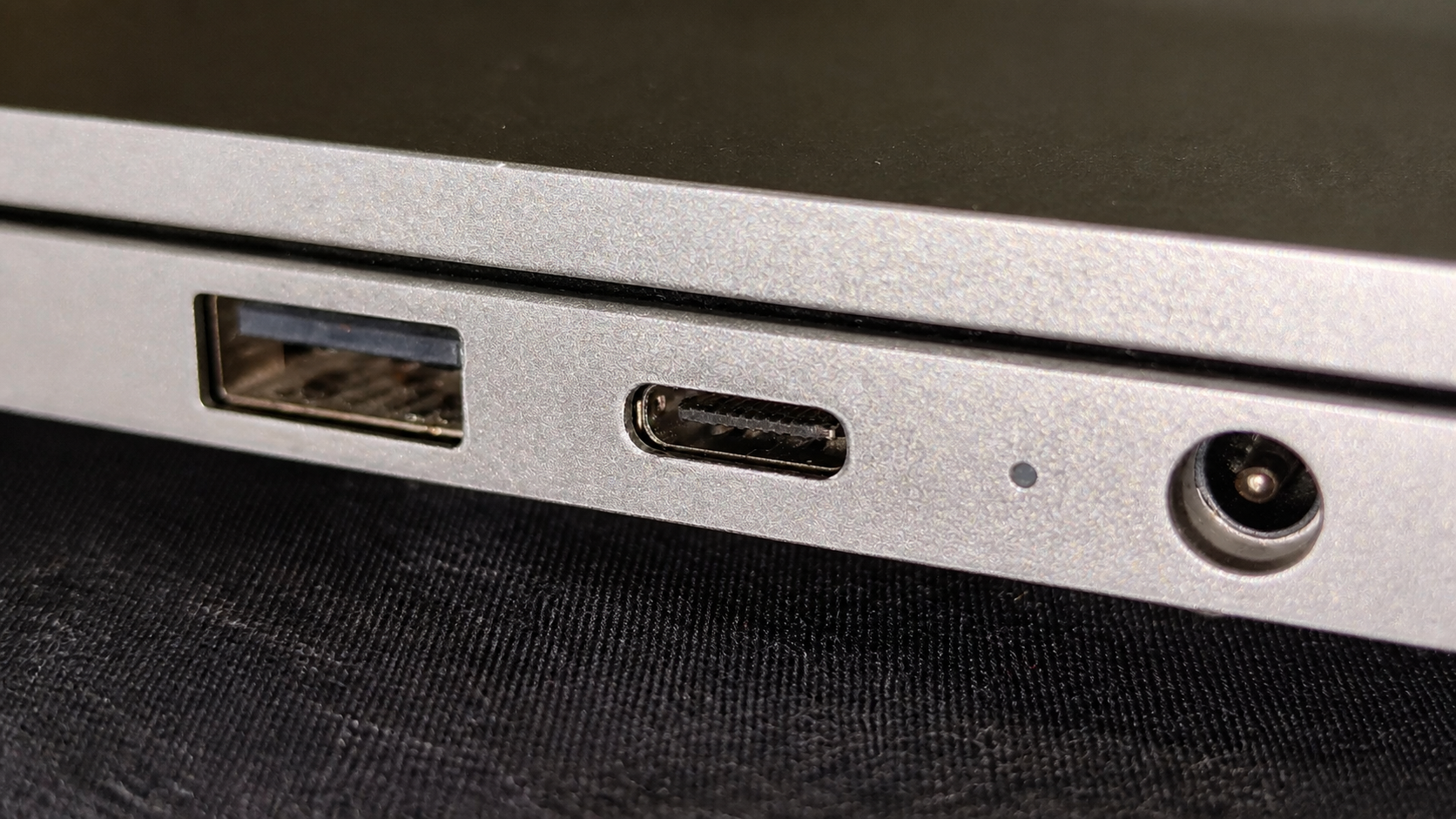
USB-C is the reversible physical connector and cable ecosystem. USB Power Delivery is a separate protocol that can operate over USB-C. USB-IF's own guidance explicitly warns that USB Type-C is not interchangeable with USB PD, USB 3.2, or USB4. Manufacturers can implement a USB-C port with USB 2.0 data, no display output, and limited charging; another visually identical port can provide USB4 data, DisplayPort video, and high-power PD.
Four capabilities therefore need separate verification:
- Connector: Is the port actually USB-C, and is it intended as input, output, or dual-role?
- Power: Does the port support USB PD, at what maximum input or output wattage, and under which modes?
- Data: Does it support USB 2.0, USB 3.2, USB4, Thunderbolt, or another stated rate?
- Display: Does the host and dock support DisplayPort Alt Mode, Thunderbolt display tunneling, or a driver-based path such as DisplayLink?
A cable can add another mismatch. A USB-C cable designed only for USB 2.0 data can still participate in Power Delivery, while a fast data cable may have a lower power rating than the equipment needs. Data capability and power capability are independent labels. Check both.
How USB PD negotiation works
The power source begins by presenting the power combinations it supports. The sink — the device asking for power — selects an acceptable option. Only after the exchange does the source transition to the negotiated voltage. The protocol can also communicate changes when the device's needs or the source's available capacity change.
In Standard Power Range, common fixed-voltage operation reaches the familiar laptop-charging territory that preceded the 240W expansion. Extended Power Range, introduced with USB PD 3.1, adds higher fixed voltages. USB-IF lists 28V, 36V, and 48V profiles that enable power levels up to 140W, 180W, and 240W respectively. Adjustable supply modes can support intermediate voltages where both products implement them.
Those are protocol ceilings, not universal settings. A 140W laptop, dock, charger, and cable must share a compatible profile to reach 140W. If one item supports only a lower range, the chain settles at that lower capability or does not establish the expected charging mode.
The practical rule is simple: the lowest-capability component controls the result.
What EPR changes — and what it does not
Extended Power Range makes USB-C viable for devices whose power requirements exceed the former 100W ceiling. USB-IF says the current system can reach 240W over a compatible full-featured USB-C cable and connector. That expands the addressable equipment to larger laptops, displays, docks, and other devices that previously needed proprietary power connectors.
EPR does not make every USB-C cable a 240W cable. It does not turn an existing 100W dock into a 140W host charger. It does not guarantee that a laptop accepts EPR on every USB-C port. It also does not say anything about how much continuous power a device requires under its heaviest workload.
USB-IF's certification and marking program distinguishes 60W and 240W USB-C-to-USB-C cable power capabilities. For fleet procurement, the marking is useful evidence, but it is not the entire compatibility record. Confirm the cable's data-rate marking too, and use the USB-IF product database or the vendor's certified-product record when certification is a requirement.
Avoid treating wattage as a quality score. A 60W cable may be exactly right for a thin client or modest notebook. A 240W cable is necessary only when the source and sink require that higher range. Buying the highest number everywhere can add cost and cable stiffness without improving the user experience.
The dock power-budget problem
A docking station complicates the chain because it is both a power consumer and a distributor. Its external adapter supplies a total amount of power. The dock keeps some for its controller, network interface, display circuitry, storage devices, and downstream ports. The remainder can be offered to the laptop through the host connection.
This creates three numbers that are often confused:
- Power-adapter rating: the total output of the dock's external supply.
- Dock host power: the maximum PD output available to the attached laptop.
- Endpoint requirement: the input wattage the laptop expects for normal and peak operation.
A dock bundled with a large adapter can still deliver less to the laptop than the adapter's label suggests. The vendor specification should state host charging separately. If it does not, ask for written confirmation before standardizing.
The endpoint also matters. Some laptops accept their full supported USB-C charging rate only through selected ports. Others accept USB-C charging but restrict processor or graphics performance when the available input is below the factory adapter's rating. Some high-performance systems use USB-C for dock connectivity while retaining a separate power adapter. That is not a failure of USB PD; it is a platform power-design decision.
Test using the real workload. A laptop that appears to charge while idle can lose battery during compilation, rendering, video conferencing, or GPU work. The proof is a sustained load test with the deployed dock, cable, monitors, and peripherals attached.
Build a USB-C PD compatibility matrix
For a mixed fleet, create one row per laptop model and record evidence rather than relying on connector appearance.
- Exact host model: Which complete model and generation is being deployed?
- Port location: Which physical USB-C port supports charging and dock functions?
- Required input: What wattage does the manufacturer specify for normal operation?
- Supported PD input: What is the highest PD profile the host accepts?
- Dock host output: How much power reaches the laptop, not just the dock adapter?
- Cable: Is its power rating adequate, and does its data rate meet the dock requirement?
- Display path: Are the required display count, resolution, and refresh rate supported by both host and dock?
- Firmware and drivers: Which BIOS, dock firmware, chipset, Thunderbolt, or DisplayLink versions are required?
- Operating result: Does the battery hold or charge under the user's sustained workload?
Add a result column — pass, conditional, or fail — and record the condition. A dock may pass for office users but be conditional for engineering laptops that require a separate adapter. That is more useful than a blanket claim of compatibility.
Cable selection: power and data are separate
The cable must carry the negotiated current and voltage safely, but it must also support the data and display path required by the dock. Procurement teams frequently solve only one half.
For power, look for the declared 60W or 240W capability and supporting vendor documentation. Higher-current and full-featured implementations use electronic identification so connected equipment can recognize cable capability. Do not use an unmarked cable as evidence for a high-power deployment.
For data, verify the supported rate. A charging cable may provide only basic USB data. That can be fine between a charger and a laptop but inadequate between a laptop and a dock carrying storage, Ethernet, displays, and peripherals. A cable sold as USB-C without a rate is not a safe fleet standard.
For distance, use the cable length validated by the dock or platform vendor when the link carries high-rate data or displays. Longer passive cables become more difficult as signaling rates rise. Active cables can extend reach but add their own compatibility and directionality constraints. The approved bill of materials should name the exact cable, not merely "USB-C cable."
Charger sharing and multiport adapters
Multiport chargers advertise a total power budget that may be redistributed as devices are attached or removed. A unit labeled 140W may provide 140W to one port only when the other ports are unused, then divide the budget under a multi-device load. That behavior can be acceptable for travel kits but problematic at a permanent desk where the laptop needs a stable minimum.
Capture the per-port combinations from the manufacturer. Test the intended simultaneous load, including phones, tablets, and accessories. If attaching a second device causes the laptop to renegotiate below its required level, choose a charger with a suitable multiport allocation or give the laptop a dedicated source.
Deployment checklist
- Inventory exact laptop models and the port that supports PD and dock functions.
- Record the manufacturer's required adapter wattage and supported USB PD input.
- Record the dock's host-delivery wattage separately from its adapter rating.
- Select a named cable with adequate power and data capability.
- Validate the full display, Ethernet, storage, audio, and peripheral load.
- Run a sustained workload and watch whether the battery charges, holds, or drains.
- Test sleep, wake, hot-plug, and firmware-update behavior.
- Document conditional cases that need a separate adapter or a different dock.
- Keep an approved dock, cable, power supply, firmware, and laptop-model matrix.
- Re-test before adding a new laptop generation to the standard.
Common buying mistakes
Treating USB-C as a feature bundle. The shape does not prove power, display, data speed, or Thunderbolt.
Using the adapter rating as laptop charging wattage. The dock consumes and redistributes power. Find the host-output specification.
Testing only at idle. Battery drain often appears when CPU, GPU, display, and peripheral demand peak together.
Substituting a cable silently. A lower-rated or data-limited cable can change the result even when the dock and laptop are unchanged.
Ignoring multiport allocation. A shared charger can renegotiate when another device connects.
Assuming firmware cannot affect power. Dock and platform firmware can change negotiation, sleep behavior, and compatibility. Record the tested versions.
Acceptance test for a standardized desk
Run acceptance on the exact combination that will be issued, not on one convenient laptop in the lab. Start from a low battery state, attach every approved display and peripheral, and use the normal corporate image. Confirm that the operating system reports external power, the battery trend remains positive under sustained work, and the dock does not disconnect when the system sleeps and wakes. Repeat after a cold boot and after unplugging and reconnecting the host cable.
Record the negotiated result where platform tooling exposes it, along with dock firmware, laptop BIOS, operating-system build, cable part number, power-supply part number, and display configuration. Test the failure cases too: replace the approved cable with a lower-rated one, attach a second device to a shared charger, and load all downstream ports. The goal is to know how the system degrades and whether the user receives a useful warning.
For a fleet, sample more than one physical unit of each model. One worn connector or defective cable should not be mistaken for a design limitation, and one unusually tolerant unit should not become the proof for a standard. The final approval record should say which combinations passed, which are conditional, and which are prohibited.
Support triage for charging complaints
Give the help desk a known-good charger, dock, cable, and laptop for comparison. When a user reports slow charging or battery drain, record the exact connected devices, port, power supply, cable part number, firmware, workload, and operating-system message. Remove peripherals, test the approved cable directly from charger to host, then rebuild the chain one component at a time.
Inspect connectors for damage or debris and stop using equipment that overheats, arcs, or has a damaged jacket. A wattage label alone cannot clear a component. If the approved chain works but a substitute does not, quarantine the substitute rather than changing the fleet standard around it.
Preserve the test outcome in the asset or incident record. Repeated failures tied to one laptop generation, dock firmware, or cable batch should trigger an engineering review instead of repeated individual replacements.
Key takeaways
- USB-C describes a connector. It does not, by itself, guarantee USB Power Delivery, a particular data rate, display output, or USB4.
- The source and sink negotiate a supported voltage and current. The device does not simply receive the maximum number printed on the charger.
- USB PD Extended Power Range can support up to 240W with compatible equipment and cable. Every component in the chain must support the requested level.
- A dock's advertised power supply rating is not necessarily the wattage delivered to the laptop because the dock and attached peripherals consume part of the budget.
- For fleet deployment, verify exact laptop-port capability, required charging wattage, dock host output, cable power rating, display path, and firmware before standardizing.
Shop it at Uniqcli
Frequently asked
- Is every USB-C port capable of Power Delivery?
- No. USB-C is the connector. A manufacturer chooses whether a port supports USB PD and whether it accepts power, provides power, or can do both. Check the exact system manual and the markings or documentation for the specific port.
- Can a 240W USB-C charger damage a lower-power laptop?
- With standards-compliant USB PD equipment, the source and sink negotiate a supported power profile rather than automatically applying the charger's maximum. The laptop requests what it supports. Use certified, correctly rated equipment and avoid damaged or undocumented cables and adapters.
- Why does my laptop say it is charging slowly through a dock?
- The dock may deliver less host power than the laptop expects, the cable may limit the negotiated mode, or the laptop may reserve full performance for its factory adapter. Compare the laptop requirement with the dock's host-output rating, then test with the specified cable and current firmware.
- Does a 240W cable also support the fastest USB data rate?
- Not necessarily. USB-IF treats power capability and data capability as separate product characteristics. Verify both markings and specifications. A high-power cable can still support only a modest data rate.
- Does USB Power Delivery guarantee monitor support?
- No. Display output depends on the host, dock, cable, and supported display transport such as DisplayPort Alt Mode, USB4 or Thunderbolt tunneling, or a driver-based technology. PD covers power negotiation, not display capability.
Keep reading