
Short answer
Thunderbolt is a certification layered on the USB-C connector: a Thunderbolt 4 port must provide 40 Gbps of bandwidth, drive two 4K displays or one 8K, carry 32 Gbps of PCIe and supply up to 100 W of charging. A plain USB-C port guarantees none of those, which is why the lightning-bolt mark beside the port matters more than the shape of the plug.
Key facts
- Thunderbolt 4 requires 40 Gbps of minimum bandwidth — the same headline figure as Thunderbolt 3.
- Thunderbolt 4 requires dual monitor support at up to 4K resolution, or a single 8K display.
- Thunderbolt 4 carries 32 Gbps of PCIe throughput; Thunderbolt 5 raises that to 64 Gbps.
- Thunderbolt 4 requires up to 100 W of PC charging; Thunderbolt 5 makes up to 240 W of charging available.
- Thunderbolt 5 runs at 80 Gbps in both directions, with Bandwidth Boost up to 120 Gbps for display, and supports dual 8K monitors.
By Uniqcli Team
Thunderbolt is a high-speed hardware interface, developed by Intel, that carries data, video, and power over a single cable. Since Thunderbolt 3 it has used the USB-C connector, and it combines PCI Express (for data and external devices), DisplayPort (for monitors), and USB Power Delivery into one port — letting a single laptop connection drive displays, storage, docks, and even external graphics enclosures.
Because it consolidates several protocols into one link, Thunderbolt is common on business laptops, mobile workstations, and docking stations where a user needs many peripherals through a single cable. It is backward-compatible with ordinary USB-C devices, but it delivers its full bandwidth only when the host, the cable, and the accessory are all Thunderbolt-rated. That is why the version number and its guaranteed capabilities matter when you are specifying laptops, docks, and monitors for a fleet.
How does Thunderbolt work?
Thunderbolt uses a technique called protocol tunneling. It takes PCI Express and DisplayPort traffic, packages them together, and sends them across one physical link, adding USB Power Delivery so the same cable can also charge the device. At the far end, a controller unpacks the streams and hands each protocol back to the operating system, which is why one port can simultaneously run a monitor, a storage array, and a wired network adapter.
The standard also supports daisy-chaining: you can connect up to six Thunderbolt devices in a single chain, running one cable from the laptop to a dock, then onward to a display or drive. Thunderbolt 4 added support for hubs, allowing a star topology where one connection fans out to several independent downstream ports rather than a single line.
What are the differences between Thunderbolt 3, 4, and 5?
Thunderbolt 3 introduced the USB-C connector and a 40 Gbps ceiling, but certification was relatively relaxed, so some early ports and cables ran at lower speeds. Thunderbolt 4 kept the same 40 Gbps maximum yet tightened the guarantees: mandatory certification, support for two 4K displays or one 8K display, a minimum of 32 Gbps of PCIe bandwidth, wake-from-sleep by keyboard or mouse through a dock, and required charging on at least one port. In practice, Thunderbolt 4 made 'full-speed' the baseline rather than the best case.
Thunderbolt 5 raises the ceiling substantially. It roughly doubles the baseline to 80 Gbps of bidirectional bandwidth and can reallocate the link asymmetrically to deliver up to 120 Gbps in one direction for display-heavy workloads, a feature Intel calls Bandwidth Boost. It is built on the USB4 version 2 specification and adds DisplayPort 2.1 and higher PCIe throughput, along with support for higher power delivery for charging more demanding laptops.
How is Thunderbolt different from USB-C and USB4?
USB-C is a connector shape; Thunderbolt is a protocol that runs over that connector. Every recent Thunderbolt port is physically a USB-C port, but not every USB-C port supports Thunderbolt. That is the single most common point of confusion when reading a spec sheet: a laptop can have several USB-C ports where only one or two are Thunderbolt-enabled, usually marked with a small lightning-bolt icon.
Thunderbolt and USB4 are closely related — Thunderbolt 4 and USB4 share much of the same underlying technology, and Thunderbolt 5 is built on USB4 version 2. The practical distinction is that Thunderbolt is Intel's certified profile with stricter mandatory minimums (guaranteed PCIe tunneling, guaranteed display support, guaranteed bandwidth), whereas USB4 makes several of those capabilities optional for the manufacturer. As a result, two USB4 ports can differ in real-world performance, while a Thunderbolt-certified port has a known floor.
When do you actually need Thunderbolt?
Thunderbolt earns its place when a single cable has to do a lot at once. The clearest cases are single-cable docking (one connection that provides power, multiple monitors, wired Ethernet, and USB peripherals), driving multiple high-resolution or high-refresh displays, fast external NVMe storage, and external GPU enclosures for graphics or compute work. In each of these, the sustained bandwidth and PCIe tunneling are what ordinary USB cannot reliably provide.
For lighter workloads — charging a laptop, connecting a keyboard and mouse, or attaching a single 1080p or basic 4K monitor — standard USB-C or USB4 is usually sufficient and less expensive. The decision is less about the port existing and more about whether the connected workload actually consumes the extra bandwidth and device support that Thunderbolt guarantees.
What should you check before buying?
Confirm the whole chain is rated for the speed you expect. Full Thunderbolt performance requires a Thunderbolt-capable host, a Thunderbolt-certified cable, and a Thunderbolt accessory; if any link is only USB-C, the connection quietly falls back to the slower device's capability. Match the version numbers too — plugging a Thunderbolt 5 dock into a Thunderbolt 4 laptop works, but the link runs at the older, slower ceiling.
Pay attention to cables and power. Passive cables longer than about half a meter can drop below full bandwidth, so longer runs generally need certified or active cables. Check the port's charging wattage against the laptop's requirement, and verify how many and what resolution of displays the port supports, since those limits are set by the Thunderbolt version and the host silicon rather than by the dock alone.
Key takeaways
- Thunderbolt runs over the USB-C connector but is a superset of it — identify it by the lightning-bolt icon and Thunderbolt certification, not by the port shape alone.
- Thunderbolt 3 and 4 both top out at 40 Gbps; Thunderbolt 4 tightens the mandatory minimums (dual 4K or single 8K displays, 32 Gbps PCIe, wake-from-sleep, required certification).
- Thunderbolt 5 roughly doubles the baseline to 80 Gbps bidirectional and can reallocate bandwidth to reach up to 120 Gbps in one direction for display-heavy work.
- Full speed requires host, cable, and device to all be Thunderbolt-rated; any USB-C-only link in the chain drops the connection to the slower speed.
- Cable length and type matter — longer passive cables can reduce bandwidth, while certified or active cables preserve it over distance.
- It is backward-compatible with USB-C and USB4 accessories, so a Thunderbolt port stays useful even for non-Thunderbolt peripherals.
Shop it at Uniqcli
Parts for this job
Certified dock
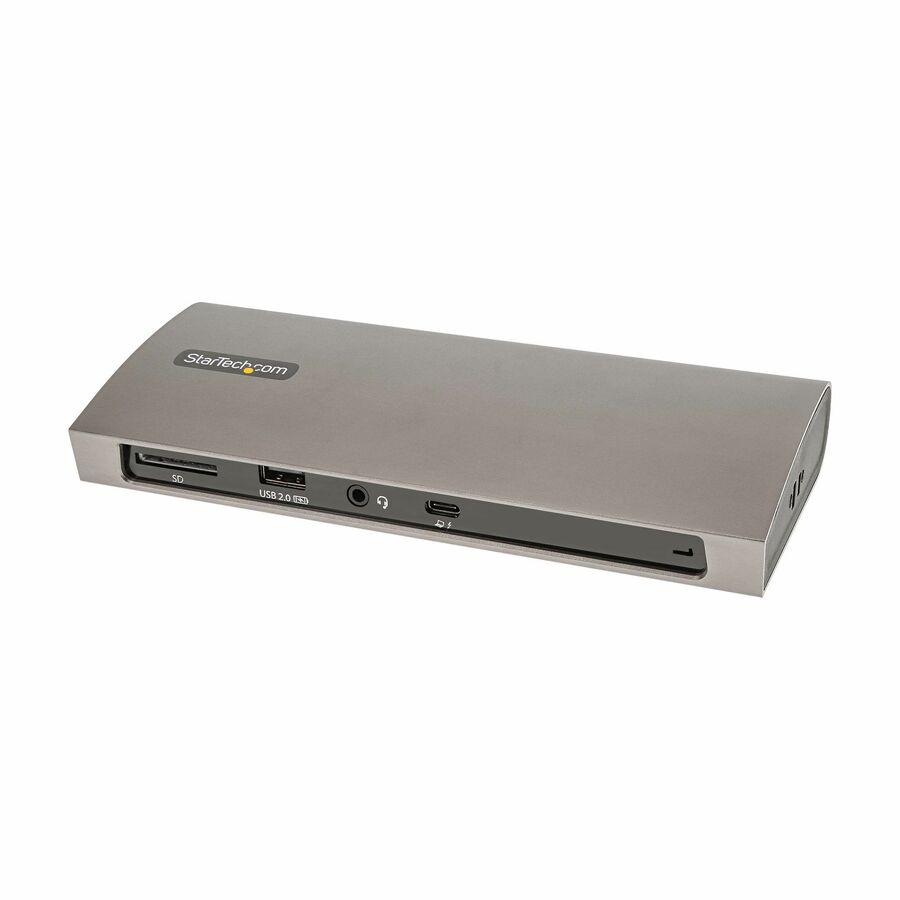
StarTech.com
StarTech Thunderbolt 4 Dock, 96W Power Delivery, Single 8K / Dual…
TB4CDOCK
A Thunderbolt 4 dock with 96 W power delivery, three TB4/USB4 ports, four USB-A, SD and Gigabit Ethernet — a single 8K or dual 4K 60 Hz on a TB4 host.
$156.39In stock100 W charging
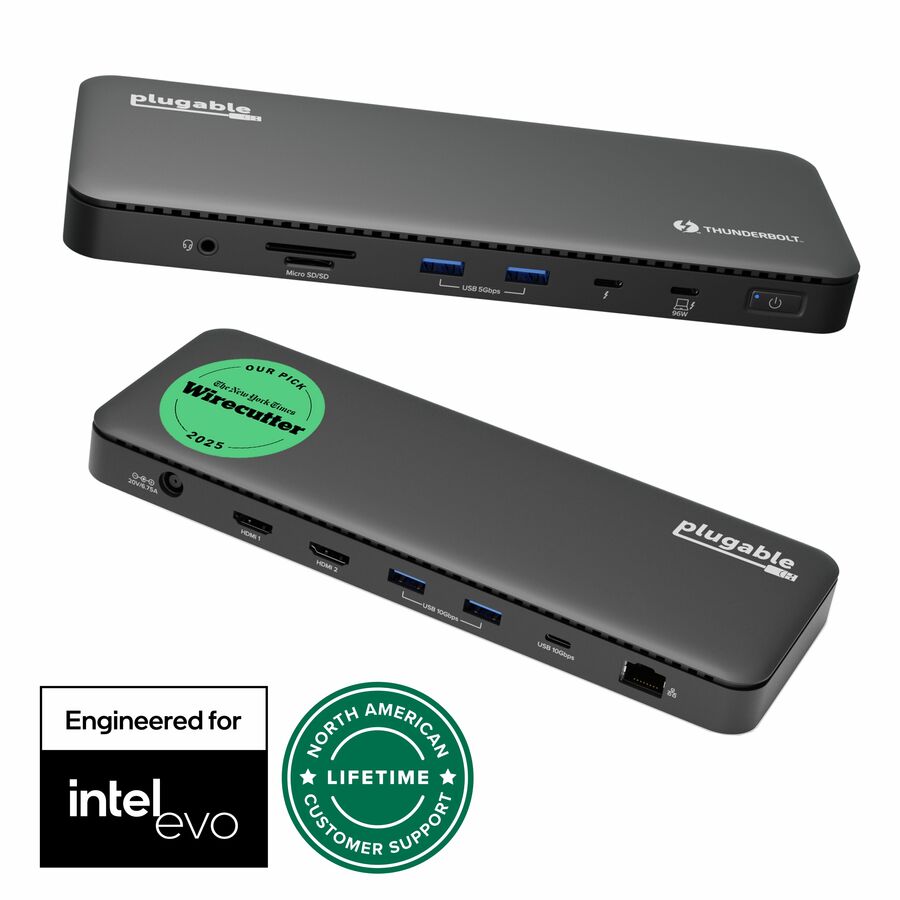
Plugable Technologies
Plugable Thunderbolt 4 Dock, 100W Charging (96W Certified), Dual HDMI…
TBT4-UD5
A certified Thunderbolt 4 dock with 100 W charging, four USB ports and Gigabit Ethernet, for a laptop that needs the full charging requirement met over one cable.
$273.60In stockCompact hub
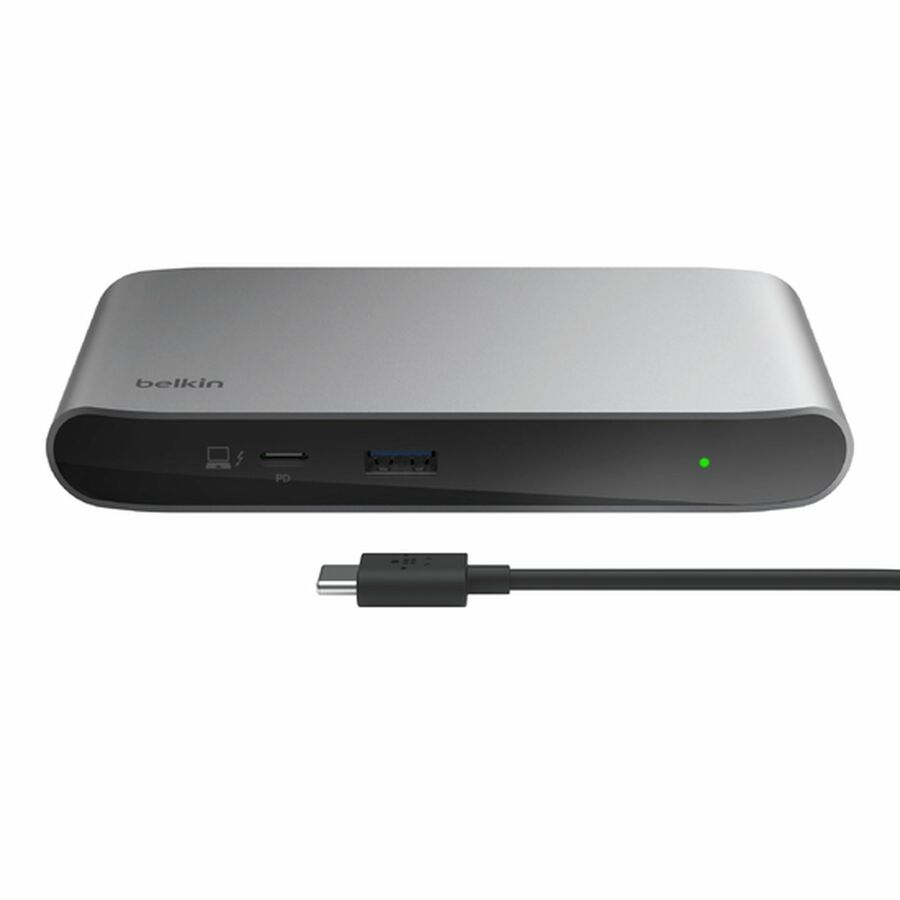
Belkin International
Belkin Thunderbolt 4 5-in-1 Multiport Core Hub
INC013TTSGY
A five-in-one Thunderbolt 4 hub at 40 Gbps with 96 W power delivery, four TB4 USB-C ports and one USB-A — the option for a desk that needs ports rather than a full dock.
$137.99In stockFrequently asked
- Is Thunderbolt the same as USB-C?
- No. USB-C is the physical connector, while Thunderbolt is a high-speed protocol that runs over that connector. Every recent Thunderbolt port is a USB-C port, but many USB-C ports do not support Thunderbolt. Look for the lightning-bolt icon next to the port to tell them apart.
- Can I use any USB-C cable with a Thunderbolt device?
- Physically, yes — the plug fits. But a standard USB-C cable will not carry full Thunderbolt bandwidth; the connection falls back to slower USB speeds. To reach the rated Thunderbolt speed you need a Thunderbolt-certified cable, and for longer runs an active or certified cable is usually required.
- Is Thunderbolt backward compatible?
- Yes. Newer Thunderbolt versions work with older Thunderbolt devices and with USB-C and USB4 accessories. When versions differ, the link runs at the capability of the slower device — so a Thunderbolt 5 dock connected to a Thunderbolt 4 laptop operates at Thunderbolt 4 speeds.
- How many devices can I daisy-chain from one Thunderbolt port?
- Up to six Thunderbolt devices can be connected in a single chain from one port. Thunderbolt 4 and later also support hubs, which let one connection branch out to several independent ports in a star layout instead of a single line.
- What is a Thunderbolt cable used for?
- A Thunderbolt cable carries data, video, and power over one link, so it is used to connect a laptop to docking stations, external monitors, fast NVMe storage, and wired networking through a single connection. Because it tunnels PCI Express and DisplayPort together, one cable can drive a dock that fans out to displays, Ethernet, and USB peripherals at once — work an ordinary USB cable cannot sustain.
- Can a Thunderbolt cable connect two computers directly?
- Yes. Besides docks and peripherals, a Thunderbolt cable can link two computers into a high-speed peer connection — macOS calls it Thunderbolt Bridge and Windows exposes it as Thunderbolt networking — so files move between machines far faster than over ordinary Ethernet. This host-to-host mode is one reason Thunderbolt appears in workflows that shuttle large media or datasets between systems.
- How do I tell if my USB-C port is Thunderbolt?
- Look for the lightning-bolt symbol printed beside the port; a plain USB-C port on the same machine will not carry it. If the marking has worn off or the chassis never had one, check the system specification for the exact model rather than the family, because manufacturers commonly ship Thunderbolt on one configuration and plain USB-C on another. On Windows, a Thunderbolt controller appears in Device Manager; on macOS, Thunderbolt has its own section in System Information. A dock that connects but drives only one display, or charges slowly, is a strong sign the port is USB-C rather than Thunderbolt.
- Can I plug a USB-C into a Thunderbolt port?
- Yes. A Thunderbolt port uses the USB-C connector and is backward compatible with USB-C devices, so a USB-C monitor, drive or hub plugged into a Thunderbolt port works at that device's own speed. The reverse is where it breaks down: a Thunderbolt device plugged into a plain USB-C port falls back to whatever USB modes that port supports, or does not work at all if the device needs PCIe. The cable matters too — a charging-only USB-C cable will not carry the data rate the port is capable of.
- Is Thunderbolt 4 worth the upgrade?
- It depends on what the port has to guarantee rather than on the headline speed, because Thunderbolt 4 and Thunderbolt 3 share the same 40 Gbps figure. What Thunderbolt 4 raises is the floor: 32 Gbps of PCIe rather than 16, two 4K displays or one 8K as a requirement rather than an option, and up to 100 W of charging on at least one port. For a fleet standardizing on one dock across mixed laptops, that predictability is the whole argument. For a single machine already driving one display over Thunderbolt 3, it changes little.
Sources
- 1.Intel — Thunderbolt Technology overview (Thunderbolt 4 and 5 requirements)intel.com
- 2.Intel — What Is Thunderbolt 4? (40 Gbps bandwidth, the 16 to 32 Gbps PCIe change)intel.com
- 3.Intel Newsroom — Introducing Thunderbolt 4 (certification requirement: two 4K displays or one 8K display)download.intel.com
Keep reading