
Short answer
The main difference between 1440p and 4K is pixel count: 1440p is 2560 x 1440 and 4K UHD is 3840 x 2160, exactly 2.25 times as many pixels. On a 27-inch panel that is about 109 PPI against 163 PPI, so 4K at that size is normally run with OS scaling. Choose 1440p for general office seats at 24 to 27 inches; choose 4K at 27 to 32 inches and up for imaging, CAD and dense text.
Key facts
- 1440p is 2560 x 1440, or 3,686,400 pixels. 4K UHD is 3840 x 2160, or 8,294,400 pixels — 2.25 times as many.
- On a 27-inch panel 1440p is roughly 109 PPI and 4K roughly 163 PPI; ViewSonic quotes 108 and 163 for the same diagonal.
- At 32 inches 4K falls to about 138 PPI, which is the size at which it reads comfortably closer to native scaling.
- Windows treats 96 DPI as 100% scaling, so a 163 PPI panel is normally run scaled; apps that ignore the scale factor look blurry.
- 3840 x 2160 is the UHDTV format ITU-R BT.2020 sets parameter values for; 2560 x 1440 is a computer-display format, not a broadcast one.
The choice between 1440p (2560×1440, QHD) and 4K (3840×2160, UHD) is not about which panel is 'better' — 4K carries exactly 2.25× the pixels of 1440p (8.3 vs 3.7 megapixels). The real question is whether that extra density translates into value at the screen size, viewing distance, and workload you are actually deploying. Beyond a certain pixel density the eye stops resolving individual pixels at a normal viewing distance, so past that point the added resolution costs money and GPU headroom without a visible payoff.
Two practical variables decide most fleet purchases: physical size and scaling. At 27 inches, 1440p lands near 109 PPI and renders crisply at 100% scaling, while 4K reaches roughly 163 PPI and typically needs 125–150% OS scaling to keep text legible. That scaling step reclaims sharpness but gives back some of the extra desktop space 4K promises. Weigh the sharpness gain against higher cost, greater GPU demand, and — for standardized deployments — driver, docking, and refresh-rate consistency across the fleet.
At a glance
Side by side
| Factor | 1440p (QHD) | 4K (UHD) |
|---|---|---|
| Resolution / pixels | 2560×1440 — 3.7 megapixels | 3840×2160 — 8.3 megapixels (2.25× more) |
| Pixel density at 27" | ~109 PPI | ~163 PPI |
| OS scaling needed | Crisp at 100% (native 1:1) | Usually 125–150% for comfortable text |
| Effective workspace | 2560×1440 logical | 150% ≈ 1440p logical; 125% ≈ 3072×1728 |
| GPU demand | Lighter; easier to sustain high refresh | ~2.25× the pixels; heavier load, esp. gaming/3D |
| Text & fine-detail clarity | Good; adequate for most office use | Noticeably sharper for text, photo, CAD, video |
| Relative cost | Lower at a given size and refresh rate | Higher, and premiums grow at high refresh rates |
Choose 1440p (QHD) when
- Standardizing general office, admin, or knowledge-worker fleets at 24–27 inches, where 100% scaling avoids per-app scaling quirks
- Prioritizing high refresh rates (144 Hz+) on mainstream or integrated GPUs without a graphics upgrade
- Cost-per-seat and predictable driver/docking behavior across many units matter more than maximum sharpness
- Users sit at typical desk distance where ~109 PPI already looks sharp for documents and spreadsheets
Choose 4K (UHD) when
- Deploying for creative, engineering, or detail work — photo/video editing, CAD, or dense code and data at 27–32 inches
- Text clarity and fine detail justify the higher cost and the extra GPU headroom required to drive it
- Users benefit from more usable desktop area at 125% scaling, or from viewing native 4K source content 1:1
- The workstation already has a capable discrete GPU and modern dock/cabling to carry 4K at the target refresh rate
Bottom line
Choose 1440p for general office seats at 24 to 27 inches; choose 4K at 27 inches and up for imaging, CAD and dense text. For most office and knowledge-worker deployments at 24–27 inches, 1440p is the pragmatic default: sharp at native scaling, lighter on the GPU, cheaper per seat, and simpler to standardize. Reserve 4K for larger panels (27–32 inch and up) and for creative, engineering, or text-intensive roles where the added density is genuinely visible and the GPU, dock, and budget can support it. Match the resolution to the task rather than buying the highest number on the spec sheet.
Products for this decision
1440p at 27 inches
ASUS Computer International
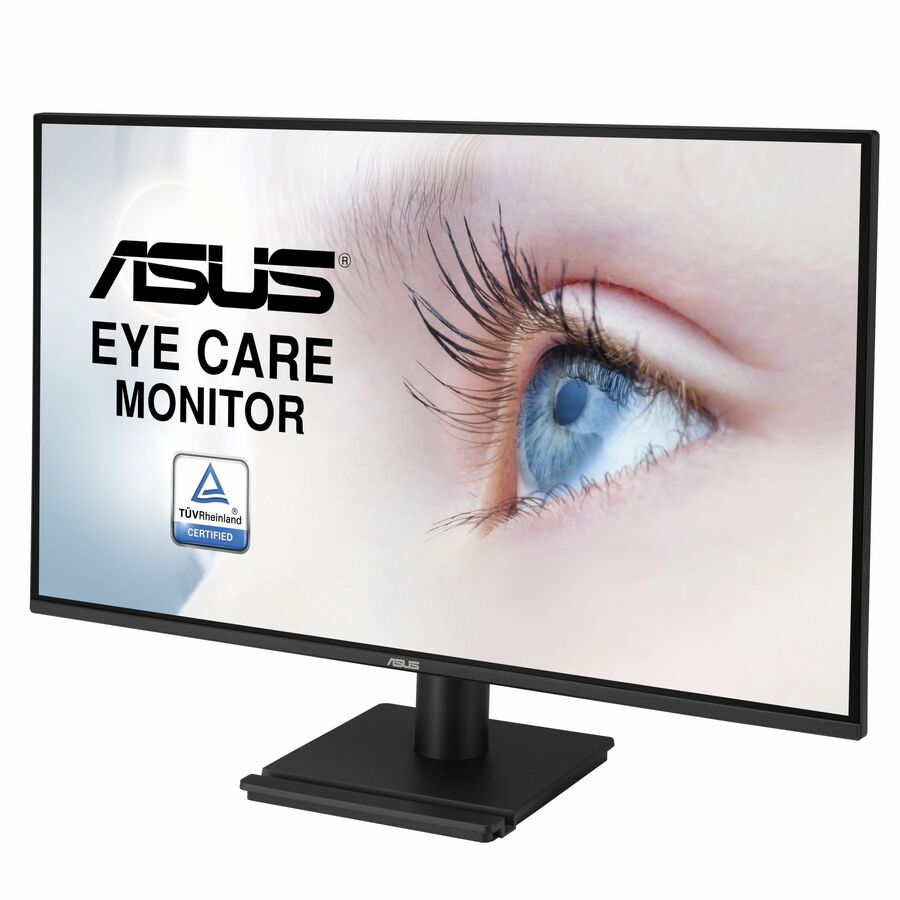
Asus VA27AQ 27" Class WQHD LED Monitor
VA27AQ
A 27-inch WQHD IPS panel at 2560 x 1440 — about 109 PPI, legible at native 100% scaling, the pragmatic default for a general office seat.
$190.24Back-ordered4K at 27 inches
Acer
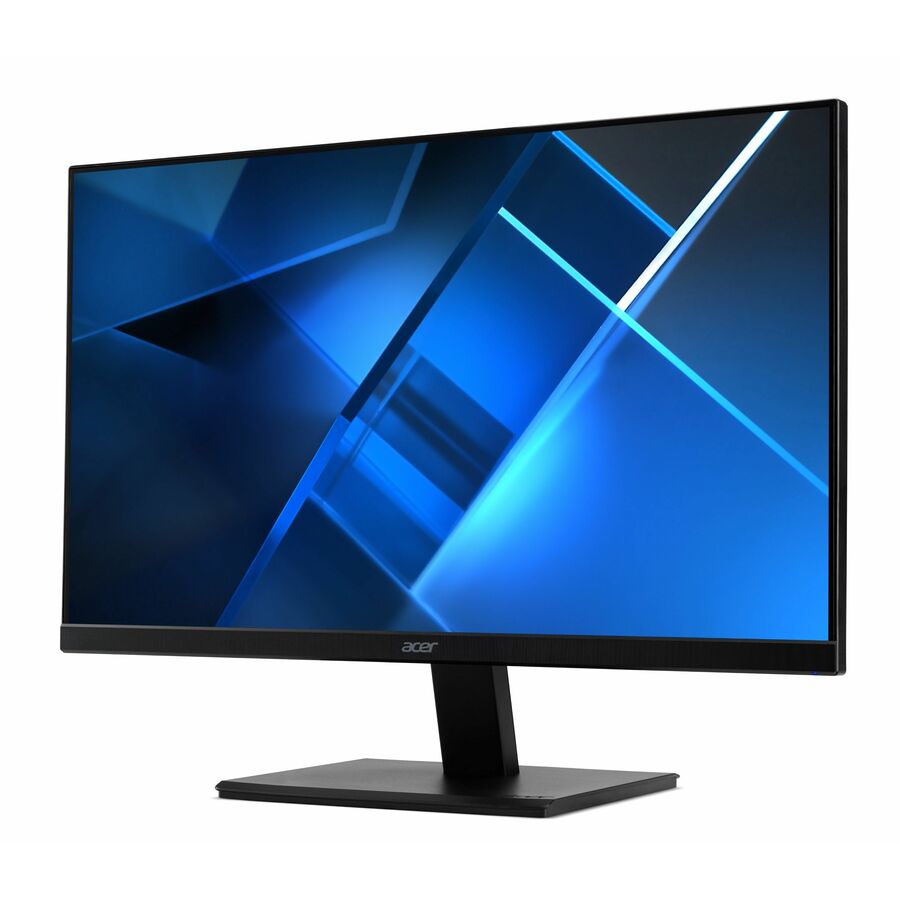
Acer Vero V277K L 27" Class 4K UHD LED Monitor
UM.HV7AA.L01
A 27-inch 4K IPS panel at 3840 x 2160 and 10-bit colour, for detail work where the extra density is visible at desk distance.
At 27 inches 4K is about 163 PPI; plan on 125-150% OS scaling and test any line-of-business app that scales badly.
$279.59In stock4K at 32 inches
Acer
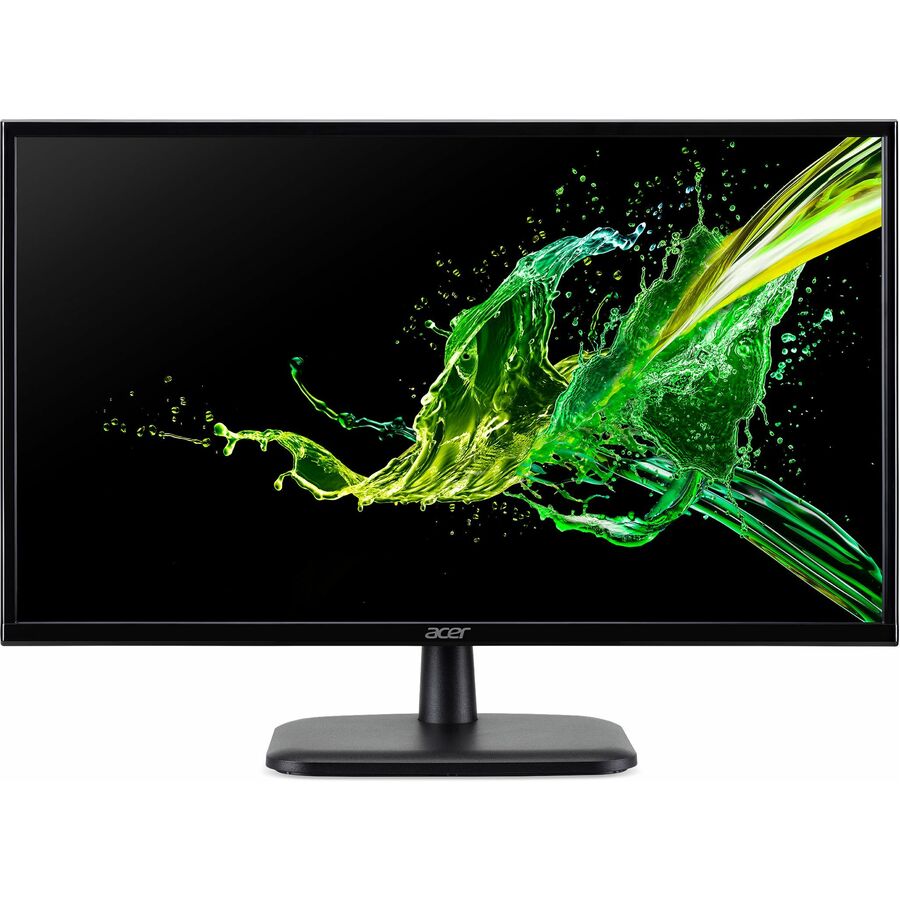
Acer EK321QK 32" Class 4K UHD LCD Monitor
UM.JE1AA.004
A 31.5-inch 4K panel, the size at which 4K falls to roughly 138 PPI and gives back usable desktop area rather than only sharpness.
$251.63Back-ordered4K with one-cable docking
Philips Electronics
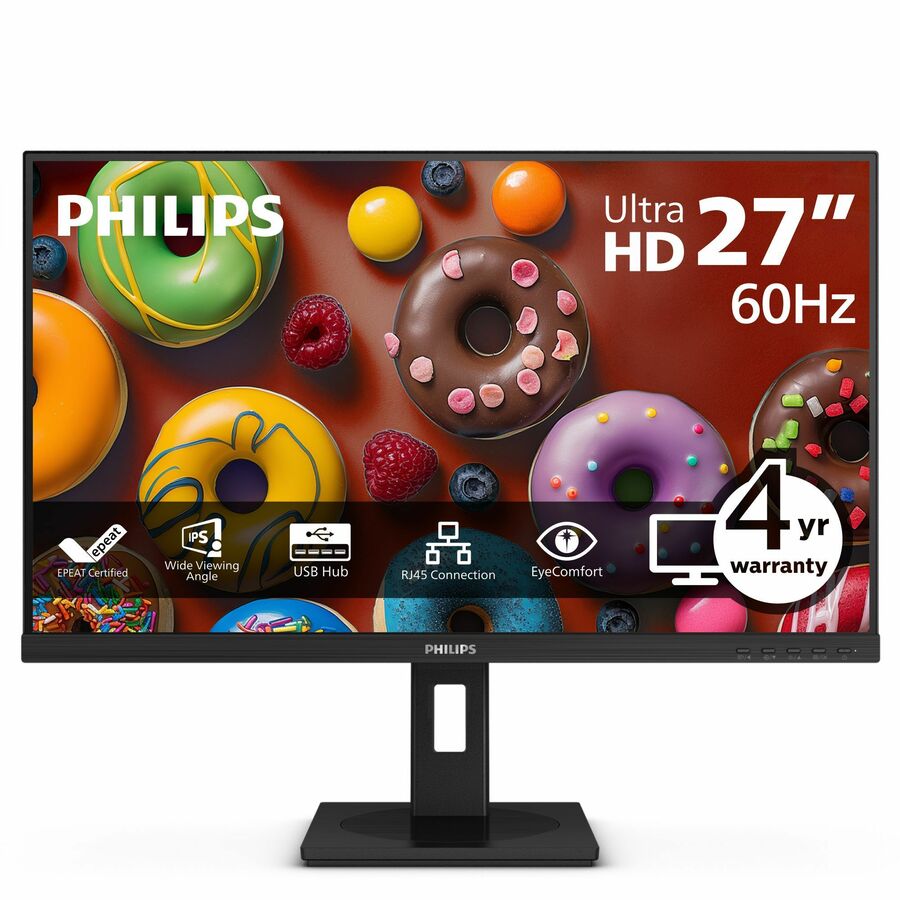
Philips 27B1U3900 27" Class 4K UHD LED Monitor
27B1U3900
A 27-inch 4K IPS panel with USB-C alongside HDMI and DisplayPort, plus a USB hub — the shape that replaces a separate dock at the desk.
$358.13Back-orderedShop it at Uniqcli
FAQ
Common questions
- Do you need 4K for standard office work?
- Usually not. For documents, spreadsheets, email, and web work at 24–27 inches, 1440p already looks sharp at native scaling and costs less per seat. 4K's advantage shows most in fine detail — dense text, photo and video editing, and CAD — rather than everyday productivity tasks.
- Is 4K worth it on a 27-inch monitor?
- It can be, but with a caveat. At 27 inches 4K reaches roughly 163 PPI, so the OS typically needs 125–150% scaling to keep text legible — which trades back some of the extra desktop space. Text and images look crisper, but on that size many users find 1440p at 100% scaling a better balance of clarity, cost, and simplicity.
- Does 4K require a more powerful GPU?
- Generally yes for demanding graphics. 4K drives 2.25× the pixels of 1440p, which raises the load for gaming, 3D, and GPU-accelerated rendering, making high frame rates harder to sustain. For 2D office work, video playback, and desktop use, the difference is far less demanding and modern integrated graphics can usually handle it.
- Will everything look too small on a 4K display?
- At native (100%) scaling on a smaller panel, yes — text and UI elements become very small. That is why 4K is normally run with OS scaling (commonly 125–150%), which restores comfortable sizes while keeping the sharpness. Occasional apps that scale poorly can still look blurry or missized, which is worth testing before a fleet-wide rollout.