
Short answer
USB-C is the connector; Thunderbolt 4 is a protocol that runs over it. Intel's Thunderbolt 4 requirements are 40 Gbps of bandwidth, dual monitors at up to 4K, PCIe at 32 Gbps and PC charging, and a certified port meets all four. A USB-C port that is not Thunderbolt or USB4 guarantees none of them: its data rate follows whichever USB specification the host implements, and video output is optional.
Key facts
- Intel's Thunderbolt 4 requirement list is 40 Gbps minimum bandwidth, dual monitors at up to 4K, PCIe at 32 Gbps and PC charging.
- USB-C is a connector, not a speed: the same plug carries USB 2.0 at 480 Mbps or USB4 at 40 Gbps, depending on the host silicon.
- USB4 Version 2.0 raises the ceiling to 80 Gbps over the same USB Type-C cable and connector.
- Thunderbolt 5 doubles the requirements again — 80 Gbps bidirectional, dual 8K display support and PCIe at 64 Gbps.
- Every Thunderbolt 4 port accepts ordinary USB-C devices; a plain USB-C port cannot run a Thunderbolt device at Thunderbolt speeds.
- DisplayPort Alt Mode is optional on USB-C, so a USB-C port can carry data and power and no video at all.
This comparison is really two different kinds of thing put side by side, which is why it confuses people. USB-C is a connector: an oval 24-pin plug specified by USB-IF, and nothing about the shape tells you what the port behind it can do. Thunderbolt 4 is a protocol specification with a fixed requirement list, carried on that same connector and certified before a product may wear the logo. So the question a buyer is actually asking is not "which cable", it is "what is this port required to deliver".
That distinction shows up on the loading dock. Two laptops in the same fleet can both have two USB-C ports; one pair drives a dual-4K dock, an NVMe enclosure and charges the machine, and the other pair moves keyboard and mouse traffic and will not light a second monitor. Nothing on the chassis distinguishes them except a small lightning-bolt mark. When you are standardising docks across a hundred desks, the port specification is the buying decision and the cable is an afterthought.
The practical test is: read the requirement list, then read the laptop's own port table. Thunderbolt 4 fixes bandwidth, display count, PCIe throughput and host charging as minimums. A plain USB-C port fixes none of them — its data rate follows whichever USB specification the silicon implements, and video output over DisplayPort Alt Mode is optional and often absent.
At a glance
Side by side
| Factor | Thunderbolt 4 | USB-C without Thunderbolt or USB4 |
|---|---|---|
| What it is | A protocol with a certified requirement list, carried on a USB-C connector | A connector and cable specification; it sets no data rate on its own |
| Guaranteed data rate | 40 Gbps minimum required bandwidth | Whatever USB specification the host implements — USB 2.0 tops out at 480 Mbps |
| Display requirement | Dual monitor support at up to 4K minimum resolution | No video requirement; DisplayPort Alt Mode is optional |
| PCIe tunnelling | PCIe at 32 Gbps, so external NVMe and eGPU enclosures work | None — PCIe tunnelling exists only on Thunderbolt and USB4 |
| Host charging | Required PC charging on at least one computer port, up to 100 W | USB Power Delivery is optional and the wattage varies by port |
| Certification | Every host, dock and cable is certified against the requirement list | No equivalent mandatory certification for the connector alone |
| Compatibility both ways | Accepts USB4, Thunderbolt 3 and ordinary USB-C devices | Will not run a Thunderbolt device at Thunderbolt speeds |
| Next generation | Thunderbolt 5 raises it to 80 Gbps bidirectional, dual 8K and PCIe at 64 Gbps | USB4 Version 2.0 raises USB to 80 Gbps over the same connector |
Specify Thunderbolt 4 when
- The desk build is one cable: two 4K displays, wired Ethernet, peripherals and laptop charging from a single port
- The workload touches external PCIe hardware — NVMe enclosures, capture cards, eGPU chassis, instrumentation
- You are standardising docks across a fleet and need every machine to behave the same at the desk
- The laptop refresh already ships Thunderbolt 4 and you want the dock to outlive it
A plain USB-C port is enough when
- The dock drives one display at a resolution the laptop's own DisplayPort Alt Mode supports
- The attached hardware is keyboard, mouse, headset, wired Ethernet and a card reader
- The port is only ever used for charging and the laptop's supplied adapter sets the wattage
- You are buying adapters for a mixed estate where some machines have no Thunderbolt controller at all
Bottom line
Treat Thunderbolt 4 as a guarantee and USB-C as a shape. A certified Thunderbolt 4 port has to deliver 40 Gbps, drive two 4K displays, tunnel PCIe at 32 Gbps and charge the host, so a dock bought against that specification behaves identically on every machine that carries the logo. A USB-C port makes no such promises: the same physical plug covers everything from USB 2.0 at 480 Mbps with no video to USB4 at 80 Gbps, and the only way to know which you have is the laptop's own port table. Buy Thunderbolt where the desk depends on displays, PCIe or one-cable charging; buy plain USB-C where the port is carrying peripherals and power and the display count is one.
Products for this decision
Top pick
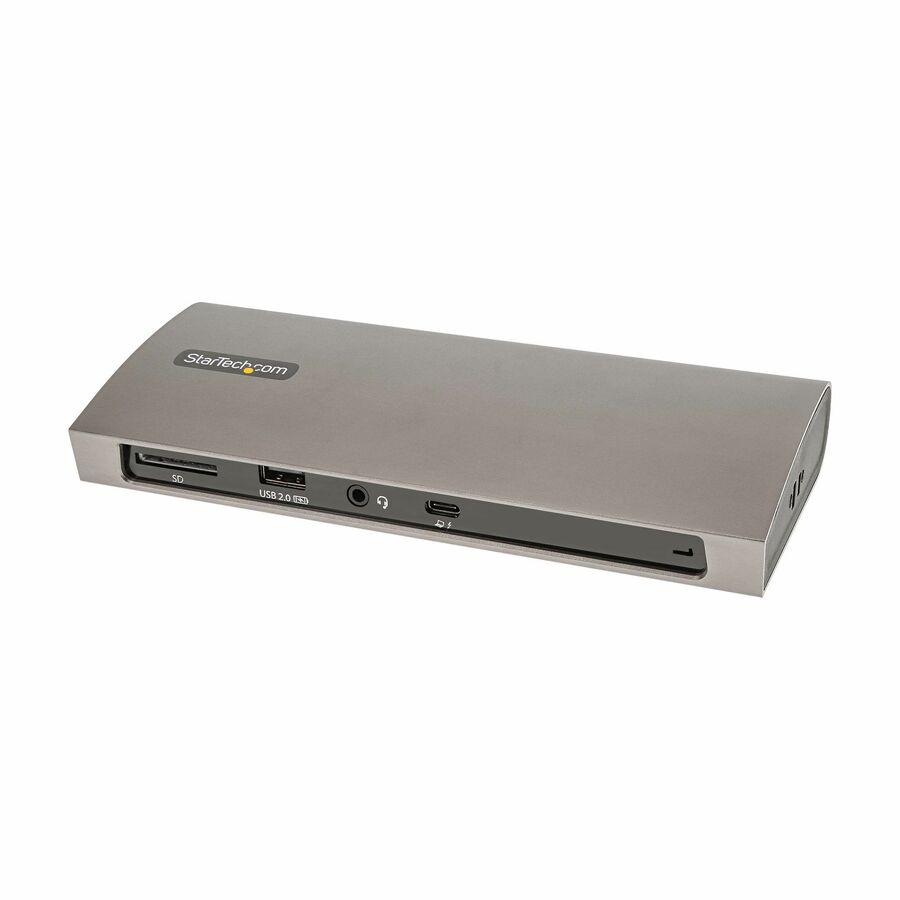
StarTech.com
StarTech Thunderbolt 4 Dock, 96W Power Delivery, Single 8K / Dual…
TB4CDOCK
A certified Thunderbolt 4 dock with 96 W power delivery, three downstream Thunderbolt 4 ports and a single 8K or dual 4K 60 Hz display path — the standard desk build.
Confirm the laptop carries a Thunderbolt 4 or USB4 port before standardising on it.
$156.39In stockCompact
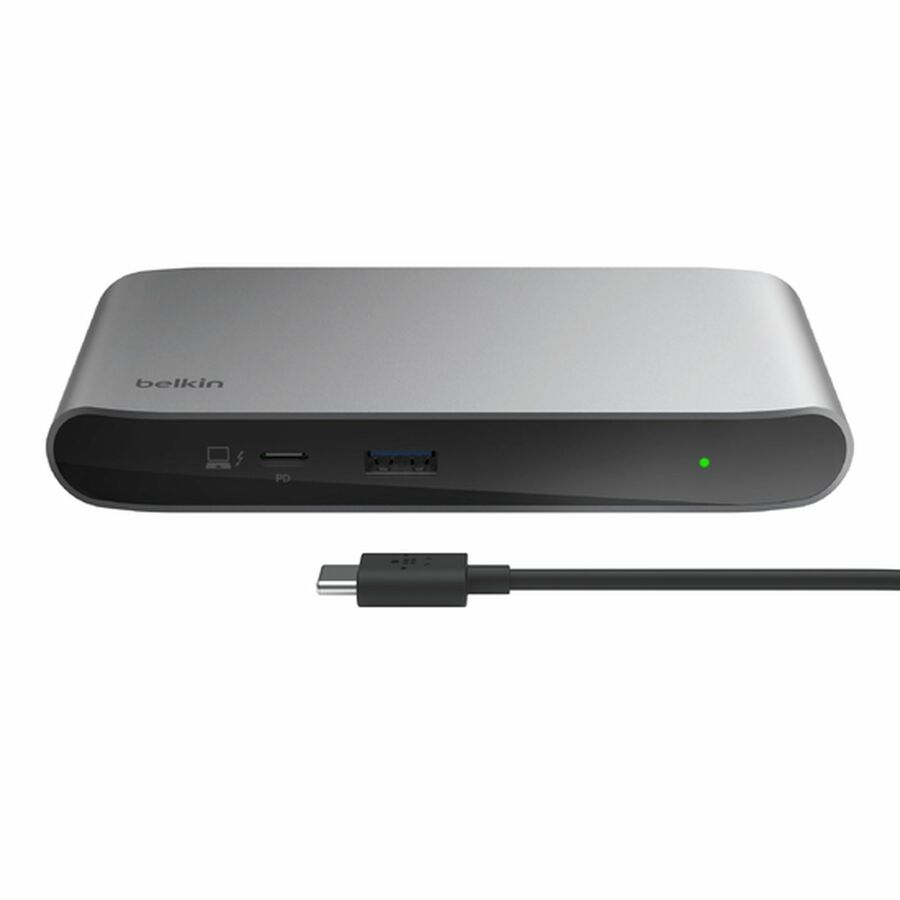
Belkin International
Belkin Thunderbolt 4 5-in-1 Multiport Core Hub
INC013TTSGY
A five-port Thunderbolt 4 hub at the full 40 Gbps with 96 W charging, for a desk that needs the protocol but not a full dock's port count.
$137.99In stockUSB4, not Thunderbolt
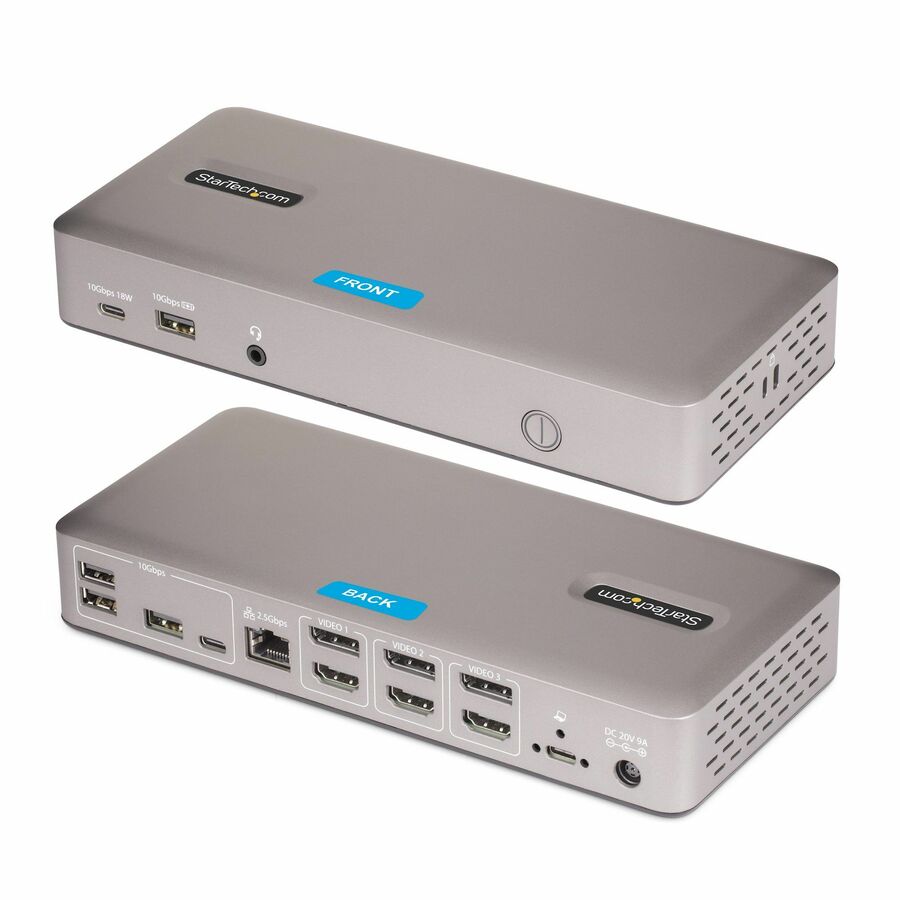
StarTech.com
StarTech Triple-Monitor USB4 Docking Station, 4K 60Hz HDMI…
150N-USB4DOCK-TRIPLE
A USB4 dock driving three 4K 60 Hz outputs with 2.5 GbE and 100 W charging — the middle road for a mixed estate where not every laptop is certified.
$178.47In stockPlain USB-C
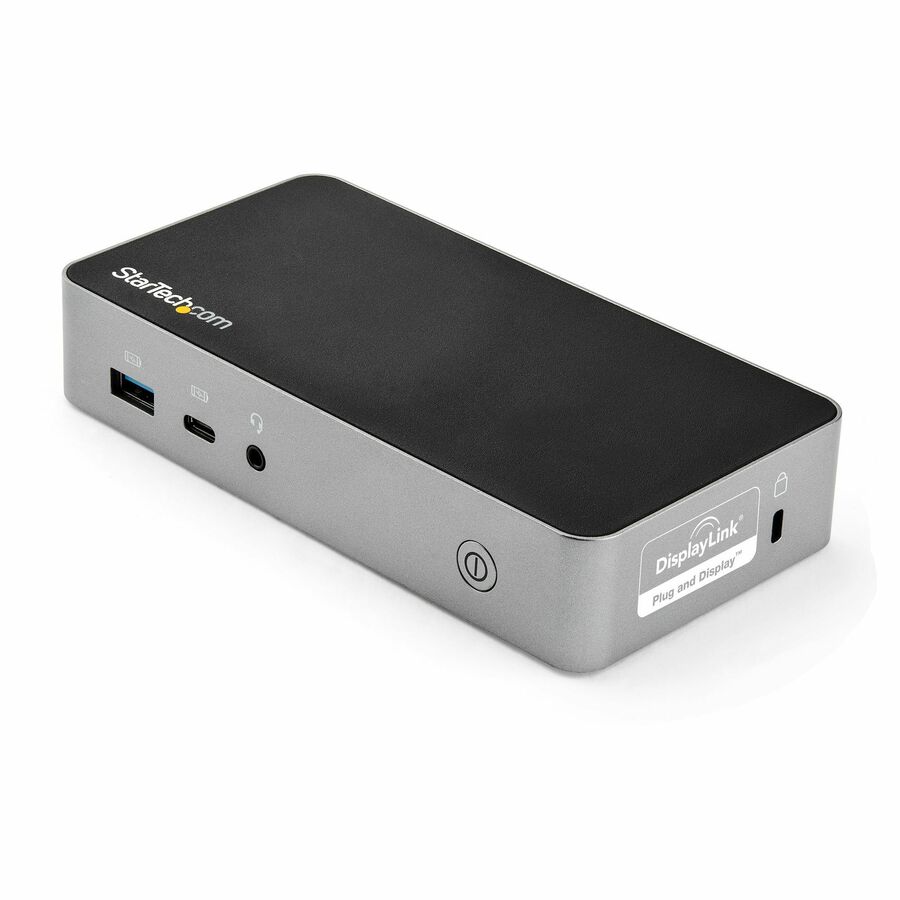
StarTech.com
StarTech USB-C Dock
DK30CHHPD
A USB-C dock with dual 1080p HDMI, gigabit Ethernet and 65 W charging, for machines whose port has DisplayPort Alt Mode but no Thunderbolt controller.
$121.43In stockFAQ
Common questions
- Can I plug a USB-C into a Thunderbolt port?
- Yes. A Thunderbolt 4 port accepts ordinary USB-C devices and negotiates down to whatever they support, so a USB-C hub, drive or charger works in it. The reverse is not true: plugging a Thunderbolt device into a plain USB-C port gives you only the USB functions that device also implements, and often none at all.
- Can I connect USB devices to a Thunderbolt 4 port?
- Yes. Backward compatibility with USB is part of the Thunderbolt 4 requirement list, so USB-C keyboards, drives, headsets and hubs all work. A USB-A device needs an adapter or a dock, which is one of the reasons Thunderbolt docks carry USB-A ports.
- Is Thunderbolt 4 worth the upgrade?
- It is worth it when the desk depends on something Thunderbolt guarantees and USB-C does not: two 4K displays from one cable, external PCIe storage, or a single dock behaving identically across a fleet. If the port only carries peripherals, power and one screen, a plain USB-C dock does the same job for less.
- What is the difference between Thunderbolt 4 and USB4?
- USB4 is the USB-IF specification that Thunderbolt 4 is built on, and both run at 40 Gbps on the same connector. The difference is that Thunderbolt 4 makes optional USB4 features mandatory — dual 4K displays, PCIe at 32 Gbps and host charging — and certifies every product against that list, while a USB4 port can implement a smaller subset.
- How do I tell whether a USB-C port is Thunderbolt?
- Look for the lightning-bolt mark beside the port and check the machine's own port table; manufacturers list which ports carry Thunderbolt and which are USB only. On a laptop with mixed ports, docking into the wrong one is the most common cause of a second monitor refusing to appear.
Sources