
External video input acceptance: prove the camera-to-application path
A camera preview does not approve a meeting or recording setup. Check the source, capture device, USB connection, selected application and audio together, then save a repeatable handoff.
By Uniqcli Team · · 5 min read
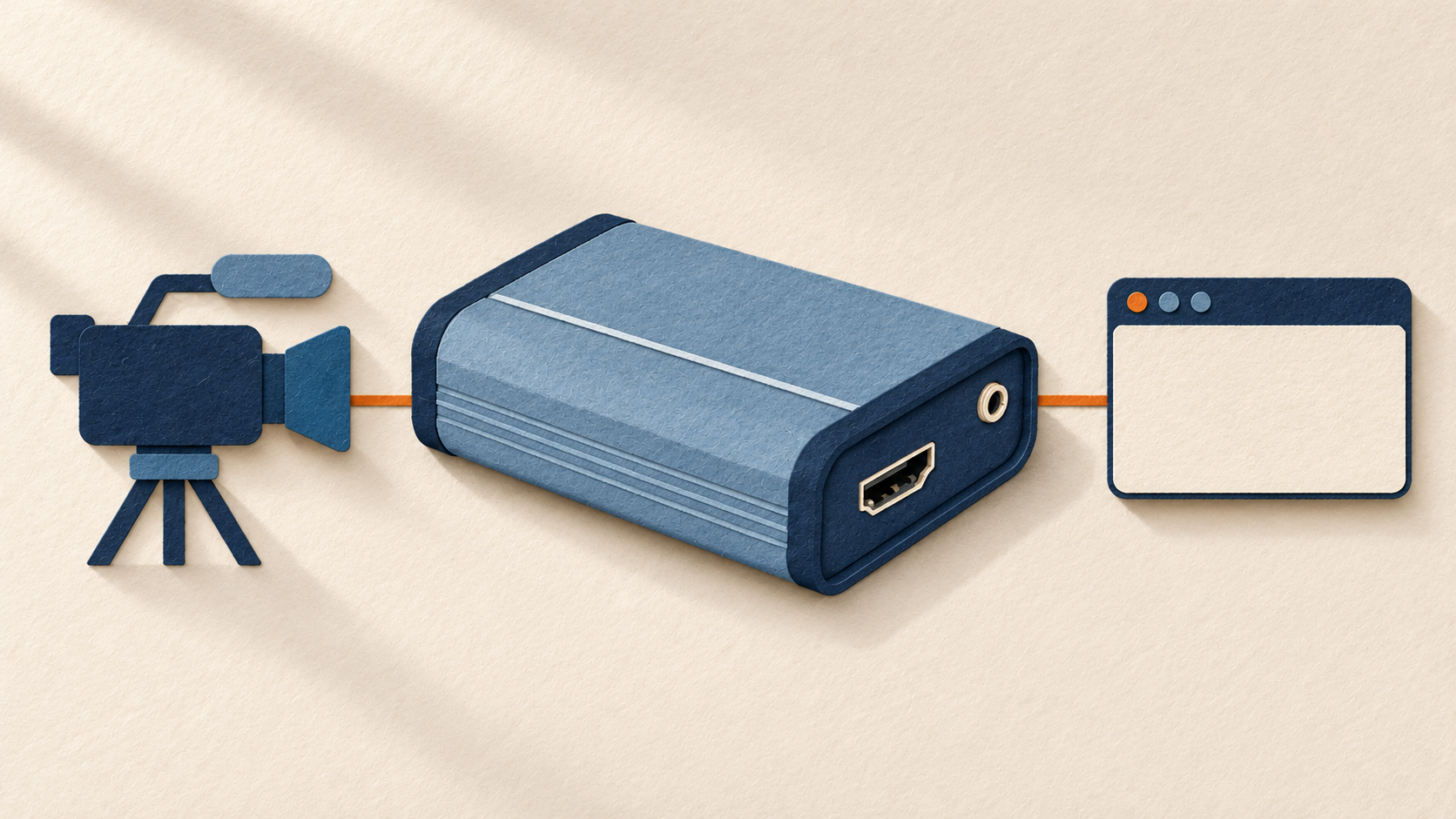
Key takeaways
- Test the complete video path from the camera through the capture device, USB connection and actual meeting or recording application.
- Document exact equipment models, supported video modes, host connections and application settings.
- Verify saved recordings or the remote participant's experience rather than relying only on a local preview.
- Check the selected audio input, synchronization and unwanted feedback alongside video quality.
- Record startup, reconnection and recovery procedures so another operator can reproduce the accepted setup.
On this page
Start with the output the audience needs
Begin with a clear statement of what the setup must accomplish. For example: “The trainer's face and demonstration must be readable, and speech must remain synchronized in the approved recording application throughout the planned session.” Agree on the required video mode and acceptance conditions with the person who will use the system. A sharp image on the camera's own screen does not prove what the computer receives or what remote participants see.
Document the complete signal path: camera or approved video source, video cable, capture interface, USB cable or adapter, computer port and application. A USB webcam has fewer components, but it still requires application-level testing. If audio comes from a separate microphone or mixer, document that signal path as well.
Use a private test meeting or local recording with consenting participants and nonconfidential material. Identify device-selection and reconnection problems before a public event. This worksheet documents one approved configuration; it does not guarantee that every combination of camera, capture device and application will work.
Make one configuration record
Recommended configuration
- Source
- Camera/model, firmware, approved power source, output connector, selected video mode and whether interface overlays are present.
- Capture interface
- Exact model and revision, firmware/driver if applicable, supported input mode and selected capture output.
- Host connection
- Computer and OS version, actual USB port, cable/adapter and any intervening dock or hub.
- Application
- Meeting or recording app/version, selected video source, requested mode and saved scene/profile where relevant.
- Audio path
- Selected microphone or embedded input, any mixer/interface, monitoring route and the intended recorded/remote result.
- Acceptance evidence
- Agreed task, session length, sample recording or private-call observation, exception owner and retest condition.
Verify the source and capture device before judging the app
Follow the camera and capture-device manufacturers' current guidance for the exact equipment models. Elgato's Cam Link 4K documentation highlights the importance of clean HDMI output, meaning the camera can send video without on-screen menus or interface overlays. Its specifications also distinguish supported resolution and frame-rate combinations, including capabilities that depend on the device revision. Recording only a product-family name is therefore insufficient.
Confirm that the camera remains powered and produces the intended output throughout the planned session. Use the manufacturer's approved power arrangement and operating conditions. Document sleep behavior, unwanted overlays or runtime interruptions that affect the task. A camera's internal recording capability does not automatically establish its external video-output capability.
Capture only sources you are authorized to use and formats supported by the equipment. If an input is protected or unsupported, resolve the issue through the appropriate equipment or source requirements. Acceptance testing should not depend on bypassing content protection.
Check the USB path and the selected application
Connect the capture device using the cable and computer port intended for deployment, including the actual dock or hub if one will be used. Document the connection instead of relying on USB connector shape or port color. Magewell's specifications note that capture frame rates may be limited by available USB bandwidth and operating conditions. A supported video input mode does not guarantee the same result across every host connection.
Select the intended capture device inside the meeting or recording application and review its available settings. OBS documentation describes separate controls for resolution, frame rate, video format and audio device. It also notes that unsupported resolution or frame-rate selections may prevent video from appearing. Use the application's available settings as evidence of what can be configured, rather than forcing values the device does not support.
Record a short sample that includes a person's face, movement and any text or detail important to the task. Review the saved recording. For meeting setups, ask a second participant to evaluate the received picture and sound. A local preview does not necessarily represent the remote experience. Document the observed results without assuming they apply to every meeting platform or network.
Check audio as part of the video result
- Confirm which audio input the application is using. Embedded camera audio and a separate USB microphone are different signal paths.
- Record a visible and audible cue followed by normal speech to check for obvious synchronization problems in the saved or received result.
- Listen for the intended voice, background noise, clipping, duplicate audio and unwanted monitoring feedback. Do not approve the setup based only on a moving audio-level meter.
- If an adjustment is necessary, document it in the approved application profile and replay the test sample. Avoid applying an unexplained fixed audio delay to every future configuration.
- Keep this test focused on the video workflow. Detailed microphone gain, mixer routing and recording-channel acceptance should have their own configuration record.
Hypothetical training-room acceptance exercise
Recommended configuration
- Requirement
- A privately recorded training demonstration at an agreed 1080p/30 fps application setting, with readable demonstration text and usable synchronized speech.
- Test condition
- The chosen camera/capture model, normal office laptop, intended USB dock and the application profile that the trainer will actually use.
- Checks
- Inspect a saved sample and run for the planned session period. Close/reopen the app, then reconnect the device during a separate nonlive test and confirm the correct inputs return.
- Example exception
- The picture returns after reconnect but the app selects the laptop microphone. Keep acceptance open until the approved profile/procedure restores the intended audio and the result is checked again.
This is a hypothetical acceptance exercise, not a completed measurement or a guarantee that a particular camera or capture device supports the example video mode.
Make the result repeatable by the next operator
Save a concise setup record identifying the exact ports, cables, device names and application profile. Include a standard start-of-session check and the manufacturer's supported recovery procedure if a device is missing. Identify who is authorized to change the configuration and who is responsible for accepting unresolved limitations.
Repeat the relevant acceptance checks after changing the camera, capture interface, dock, operating system, application or significant settings. A successful test applies to the configuration that was recorded. When components change, retain the previous evidence and create a new acceptance result rather than assuming the earlier approval still applies.
Frequently asked questions
Does a 4K camera prove that participants receive 4K video?
No. Record the camera's output, captured format and application result separately. Device support, USB bandwidth, application settings and the meeting platform may affect the delivered resolution.
Can I approve video and ignore audio until later?
Only when the use case has no audio requirement. For meetings and narrated recordings, test the combined video and audio result using the actual selected audio input.
What if the device works in its utility but not in the meeting app?
Treat the utility result as a partial check. Verify the application's device selection and supported video format, then test the actual meeting or recording workflow before acceptance.
Bring the complete path to the equipment discussion
Use the completed worksheet to compare required video inputs, host compatibility and application workflows before ordering equipment. A catalog capture device represents only one component of the signal path, not approval of the complete setup.
Find the right video capture equipment
Planning a meeting room, training setup or recording workstation? Uniqcli can help you source capture devices, connectivity accessories and compatible hardware based on your project requirements.
Sources
- 1.Elgato: Cam Link 4K camera suitability and clean HDMIhelp.elgato.com
- 2.Elgato: Cam Link 4K technical specifications and model-dependent modeshelp.elgato.com
- 3.Magewell: USB Capture HDMI Gen 2 input, capture and bandwidth specificationsmagewell.com
- 4.OBS Project: video capture source settingsobsproject.com