
Short answer
An interactive flat panel display is a large-format touchscreen with a computer built in, used in classrooms and meeting rooms in place of a projector and whiteboard. Panels are specified at roughly 55 to 86 inches diagonal in 16:9 at 3840 x 2160, and what separates models is the touch technology, the brightness in nits, and whether a slot-in OPS computer can replace the embedded one.
Key facts
- Classroom panels are specified at roughly 55 to 86 inches diagonal, 16:9, 3840 x 2160; SMART's GX (V4) Plus and ViewSonic's IFP6552 are both rated 400 cd/m2.
- Touch-point counts are operating-system dependent: SMART publishes up to 50 points OS dependent, and ViewSonic's IFP6552 gives 33 on Windows and 20 on Android.
- Touch technology differs by model — SMART's GX (V4) Plus uses advanced infrared, while its Pro panels and ViewSonic's use capacitive-family sensing.
- An OPS slot takes a slot-in computer through one Intel 80-pin connector carrying video, audio, USB, control and power — no external box and no HDMI run.
- Most panels ship with embedded compute, commonly an ARM system-on-chip running Android, that handles whiteboarding, a browser and screen mirroring unaided.
By Uniqcli Team
An interactive flat panel display — usually shortened to IFP or IFPD, and often called an interactive whiteboard or smart board in the classroom — is a large-format touchscreen, typically 55 to 86 inches diagonal, with a computer built in. It shows content like any display, but the glass registers touch and pen input, so a teacher can write over a document, drag objects, and drive an application directly at the board without returning to a workstation.
The category displaced the projector-plus-whiteboard pairing in most new classroom builds because it collapses several devices into one. A single panel provides the image, the writing surface, the speakers, the input switching and — through embedded compute or a slot-in PC — the application environment. In procurement terms, that means one asset tag, one power feed, one network drop and one warranty instead of a projector, a lamp budget, a screen, a mount, an audio system and a separate teacher machine.
How does the touch layer actually work?
Three touch technologies dominate large-format interactive displays, and they behave differently enough to matter in a classroom. Infrared touch places an emitter and sensor frame around the bezel and detects where a beam grid is interrupted. It is inexpensive at large sizes, works with any object including a gloved hand or a dry-erase marker cap, and is the reason many IFPs have a visibly raised bezel. Its weaknesses are a small hover gap before contact registers and sensitivity to dust, direct sunlight and debris in the channel.
Projected capacitive — the same family of sensing used in phones and tablets — puts a conductive grid behind the glass. It gives a flush, edge-to-edge surface, the most precise and lowest-latency writing feel, and clean multi-touch. It costs more at large diagonals and requires a conductive stylus or a bare finger, so an arbitrary object will not write. Optical and infrared-optical variants sit between the two, using cameras in the corners to triangulate contact.
Both approaches appear across our catalog. Several SMART Board M-series collaboration displays are listed with infrared sensing, while the SMART Board Mini interactive podium uses projected capacitive, and SMART's larger Pro-series panels are listed under the vendor's own HyPr Touch branding. The practical test is not the acronym: ask to write a full sentence in cursive at speed, in the corner of the panel, with the pen the teacher will actually be handed. Latency and edge accuracy are what teachers notice, and neither shows up on a spec sheet.
Embedded compute vs the OPS slot
Almost every modern IFP ships with an embedded system-on-chip — commonly an ARM processor running a customized Android environment — that boots the whiteboarding app, a browser and screen-mirroring without any external computer. Our catalog lists LG's CreateBoard panels on ARM Cortex-A73 and A53 cores with 8 GB of memory, and SMART's Pro panels with the vendor's iQ embedded experience and onboard DDR4 and storage. For a district that mostly needs annotation, casting from a teacher laptop and a browser, embedded compute is the whole answer and there is nothing further to buy.
The alternative — or the supplement — is the OPS slot. OPS is Intel's Open Pluggable Specification, introduced in 2010 and developed with display manufacturers to standardize how a media player or PC slots into a display. An OPS module is a small computer in a fixed-size enclosure that seats into a bay on the back of the panel and connects through a single 80-pin connector carrying video, USB, control and power. No external box, no HDMI run, no separate power brick.
Choose the OPS route when the classroom needs a real Windows environment at the board — a district image, domain join, Intune or Group Policy management, licensed subject software that has no web version, or an assessment platform that requires a managed desktop. Choose embedded-only when the teaching workflow is annotation plus casting plus web apps, and the teacher's own managed laptop supplies everything else. The mistake is buying OPS modules for every room by default: it doubles the endpoints your team patches and adds a Windows license to every classroom whether or not it is used.
Why the panel replaced the projector in new classrooms
A ceiling-mounted projector puts the light source behind the presenter, which is why generations of teachers taught with a bright square on their face and their own shadow across the content. It also introduces consumables and a service ladder: lamps and filters on a maintenance schedule, a ceiling mount to reach, a separate screen to keep clean and flat, and cable runs above the ceiling that nobody wants to re-pull. The image washes out under classroom lighting, so blinds get drawn and the room dims.
A flat panel removes every one of those. It is a self-illuminated display readable with the lights on, at eye level, with no shadow, no lamp, no filter and no ladder. It puts the speakers, the touch layer and the compute in the same enclosure, and it fails in a way a technician can diagnose from the floor. That combination — not the interactivity by itself — is why panels won the standard classroom.
The other half of the story is that panels turned an AV purchase into a construction-adjacent one, which is the subject of the next section.
The installation prerequisites nobody budgets for
Start with the wall. A large-format panel plus its mount is a substantial concentrated load, and it must land on structure — studs, blocking, a backing plate or a masonry anchor rated for it — never on drywall anchors alone. Check the panel's published weight against the mount's rated capacity, and check both against what the wall can carry. In older buildings, plaster over lath and CMU walls each have their own anchoring answer, and the honest sequence is to have facilities look at the specific wall before the panel is ordered. Confirm the panel's published VESA mounting pattern against the mount as well; large displays use several different patterns.
Then power and network. The panel needs a receptacle behind it, at mounting height, not a cord snaking down the wall to a desk outlet — that means an electrician adding a recessed receptacle in most rooms. It needs a wired network drop at the same location if the embedded system or an OPS module will be managed, because a classroom access point shared with thirty student devices is not where you want your board's software updates competing. Plan the low-voltage drop at the same time as the receptacle; the wall is only open once.
Finally, height and reach. Mount height is a genuine trade-off: hang the panel where the youngest students can reach the bottom of the writing area and the top rows become unreadable from the back of the room; hang it for sightlines and primary-grade students cannot touch it. Height-adjustable wall mounts and mobile stands exist for exactly this reason and belong in the budget line, not in a follow-up requisition. Decide the mounting standard per grade band once, district-wide, and specify it in the bid.
When a projector is still the right answer
Interactive panels do not win everywhere, and a vendor who tells you otherwise is selling. Image size is the clearest limit: flat panels top out around 86 to 98 inches at prices that climb steeply, while a projector produces a 120-inch or larger image for a fraction of that. In a lecture hall, a cafeteria, an auditorium or a large multi-purpose room, projection is not a compromise — it is the correct engineering answer.
Budget is the second. A district refreshing forty classrooms at once will often find that ultra-short-throw projectors paired with a whiteboard surface — several of which our catalog lists at 20,000 hours of rated normal-mode operation — cover more rooms per dollar than panels do, and the long-life light sources now common in that class remove much of the consumable problem that made older projectors painful. Interactive ultra-short-throw models bring pen and touch input to that setup where it is needed.
The third case is retrofit reality. If a room already has a ceiling projector on a working circuit, a screen, and no wall that will take a panel without construction, replacing the projector is a one-day job and installing a panel is a project with an electrician, a low-voltage contractor and a summer window. Sequence accordingly: panels in new builds and full renovations, projectors where the infrastructure already fits.
Specifying a panel: what to put in the bid
Fix the diagonal by room, not by district. Sizing follows the distance from the back row to the board and the smallest text students must read, which is why a 65-inch panel that is perfect in a small-group room is inadequate in a standard 30-student classroom. Write the size per room type into the specification rather than buying one size everywhere.
Then pin down the things that vary invisibly between models: resolution (3840 x 2160 is the current classroom baseline across the panels we carry), rated brightness in nits, the number of simultaneous touch points, whether the panel includes an OPS bay and whether the module is included or separate, the input complement and whether any input supplies power and touch-back over a single cable, and the warranty term with its on-site or advance-replacement terms.
Finally, specify the management story explicitly. Ask how the panel is updated, whether it enrolls in a device management console, whether it can be powered down and woken on a schedule, and whether firmware updates require a technician at the board. A hundred panels that each need a person standing in front of them to patch is a staffing decision disguised as a hardware purchase.
Key takeaways
- An interactive flat panel is a large touchscreen with built-in compute that replaces the projector, screen, speakers and teacher workstation with one asset.
- Infrared touch is cheap at large sizes and works with any object; projected capacitive is flush, faster and more precise but needs a finger or conductive stylus. Test writing feel at the panel's edge, not on a spec sheet.
- Embedded ARM/Android compute covers annotation, casting and web apps. Add an OPS module — Intel's Open Pluggable Specification, an 80-pin slot-in PC — only where a managed Windows desktop is genuinely required.
- Panels won the standard classroom because they remove lamps, filters, ladders, presenter shadow and the darkened room — not because of interactivity alone.
- The hidden cost is installation: structural mounting, a receptacle at mounting height, a wired network drop, and a height-adjustable mount decided per grade band.
- Projectors still win for very large images, lecture-scale rooms, tight per-room budgets and retrofits where the ceiling infrastructure already exists.
Shop it at Uniqcli
Parts for this job
65-inch, small group
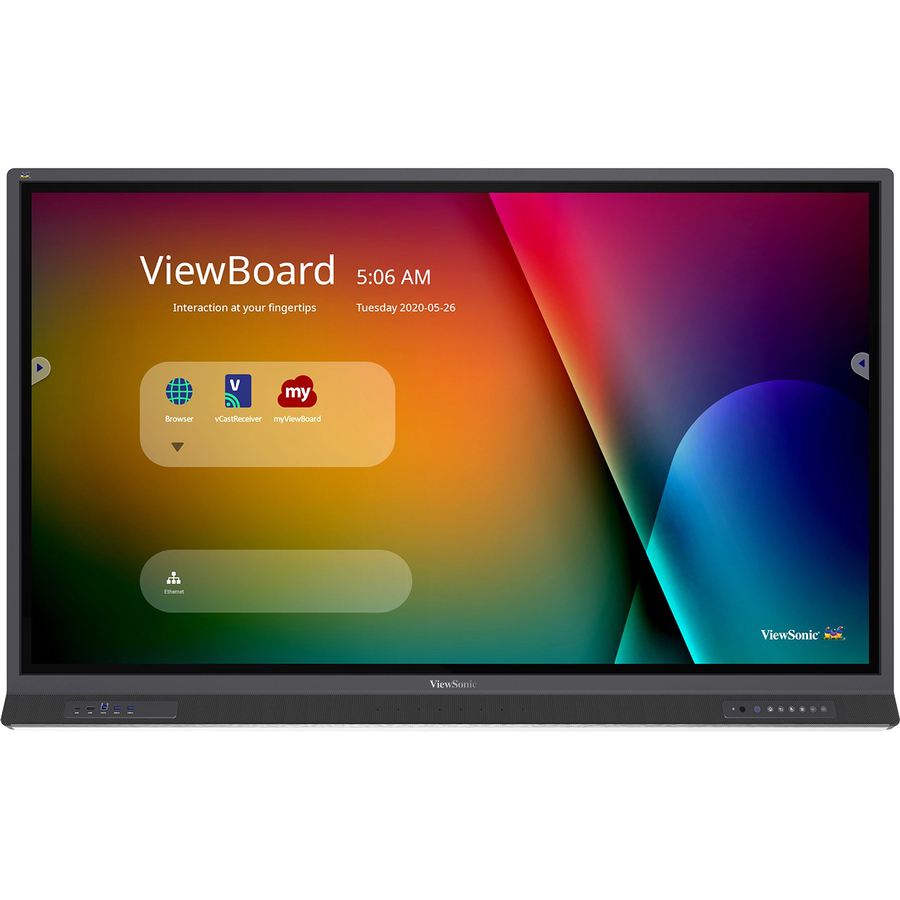
ViewSonic
ViewSonic IFP6552 65 Inch ViewBoard 4K Interactive Flat Panel Display…
IFP6552
A 65-inch 3840 x 2160 panel rated 400 nits with an integrated microphone array, USB-C, RJ45 and an Intel 80-pin OPS slot for a managed Windows module later.
Request pricing75-inch, standard classroom
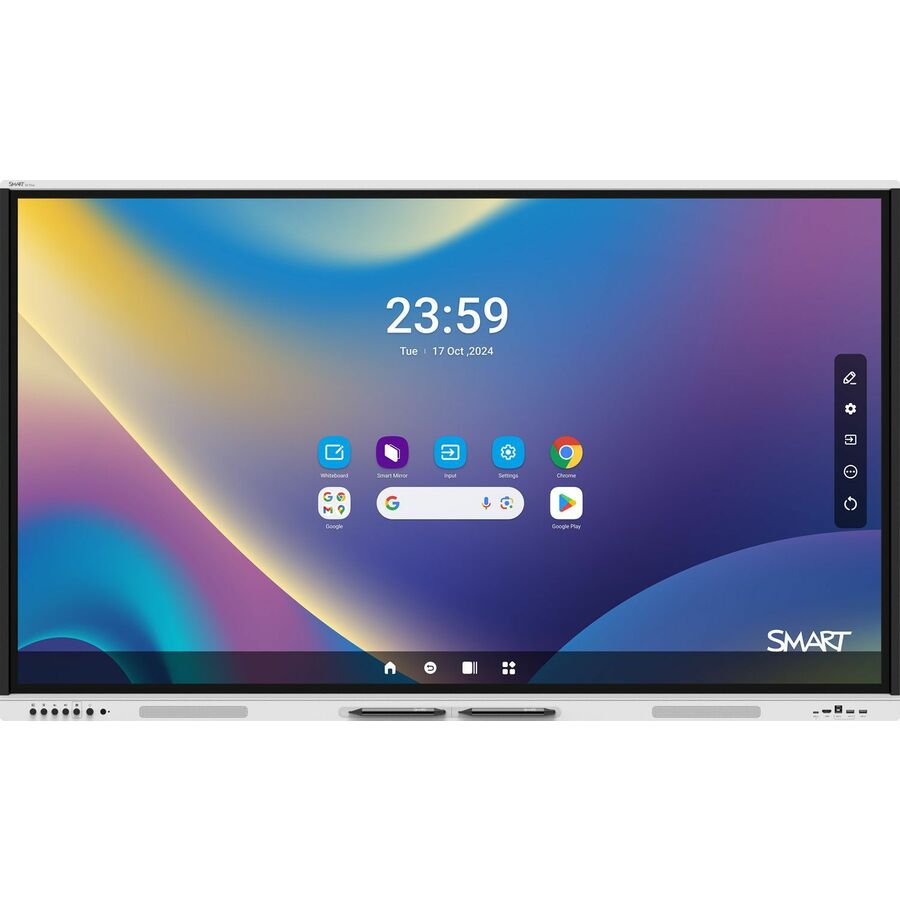
SMART Technologies
SMART Board GX175N-V4 Plus Interactive Display with Embedded OS (GMS)
GX175N-V4
A 75-inch 3840 x 2160 panel with advanced infrared touch and embedded Android compute — the size a room with a back row 25 to 30 feet away usually needs.
$2,247.57Back-ordered86-inch, large room
SMART Technologies
SMART Board GX186N-V4 Plus Interactive Display with Embedded OS (GMS)
GX186N-V4
The 86-inch member of the same series, for a wide room where the smallest text on screen has to stay legible from the far corner.
Above this diagonal, an ultra-short-throw projector is usually the more economical way to reach 100 inches or more.
$3,185.42In stockFrequently asked
- What's the difference between an interactive flat panel and a smart board?
- In everyday use they mean the same thing, but "SMART Board" is a trademark of SMART Technologies, one manufacturer in the category, the way "Xerox" became shorthand for photocopying. "Interactive flat panel display" is the neutral category name that covers SMART, ViewSonic, LG, BenQ and others. If your specification says "smart board," rewrite it as "interactive flat panel display" with the technical requirements spelled out — otherwise a bid can be read as sole-source to one vendor.
- Do I need a separate computer with an interactive flat panel?
- Usually no. Modern panels ship with embedded compute — commonly an ARM processor running a customized Android environment — that handles whiteboarding, a browser and screen mirroring from a teacher's laptop with nothing else attached. You need a separate computer when the classroom depends on a managed Windows desktop at the board: district imaging, domain join, licensed software with no web version, or an assessment platform that requires it. In that case an OPS module slots into the panel itself rather than sitting as a separate box.
- What size interactive display do I need for a classroom?
- Size follows the distance from the back row and the smallest text students must read, not a district-wide default. A 65-inch panel suits a small-group or intervention room; a standard 30-student classroom with a back row 25 to 30 feet away generally needs 75 inches or more. Measure the actual worst-case seat in a representative room of each type, and write the size into the specification per room type rather than buying one diagonal everywhere.
- Is an interactive display better than a projector?
- For a standard classroom, usually — it removes lamps, filters, ladder access, presenter shadow and the need to dim the room. For large rooms it usually is not: panels top out around 86 to 98 inches at steeply rising prices, while a projector produces a 120-inch or larger image far more economically. Laser ultra-short-throw projectors have also removed the lamp-replacement problem that made older projectors painful, so the honest split is panels in standard classrooms and projection at lecture scale or on a tight per-room budget.
- Can an interactive flat panel be mounted on any wall?
- No. A large-format panel plus its mount is a concentrated load that must be anchored to structure — studs, blocking, a backing plate or a rated masonry anchor — and never to drywall anchors alone. Check the panel's published weight against the mount's rated capacity and confirm the specific wall with facilities before ordering, since plaster-over-lath and CMU each need their own approach. Confirm the panel's VESA pattern against the mount too; large displays use several.
- What else has to be installed alongside the panel?
- A receptacle behind the panel at mounting height, so no cord runs down the wall, and a wired network drop at the same location if the embedded system or an OPS module will be centrally managed. Both mean opening the wall, so schedule them together. Budget a height-adjustable mount as well — the trade-off between reach for younger students and sightlines from the back row is real, and retrofitting the mount later costs more than specifying it up front.
Sources
- 1.SMART Technologies — SMART Board GX (V4) Plus series specificationssupport.smarttech.com
- 2.ViewSonic — IFP6552 65-inch 4K ViewBoard specificationsviewsonic.com
- 3.Intel — Introduction to the Intel Open Pluggable Specificationintel.com
Keep reading