
Best Lenovo ThinkVision Monitors for School Staff and Labs
USB-C docking panels, Tiny-In-One displays and 22- to 32-inch ThinkVision monitors for staff desks, front offices and labs.
Lenovo monitors in stock at Uniqcli
How to choose →A curated selection with live pricing — in-stock lines first, then back-ordered lines with a typical lead time. Every line is sourced through US distribution and screened for NDAA §889 status before checkout, with TAA verified on request.
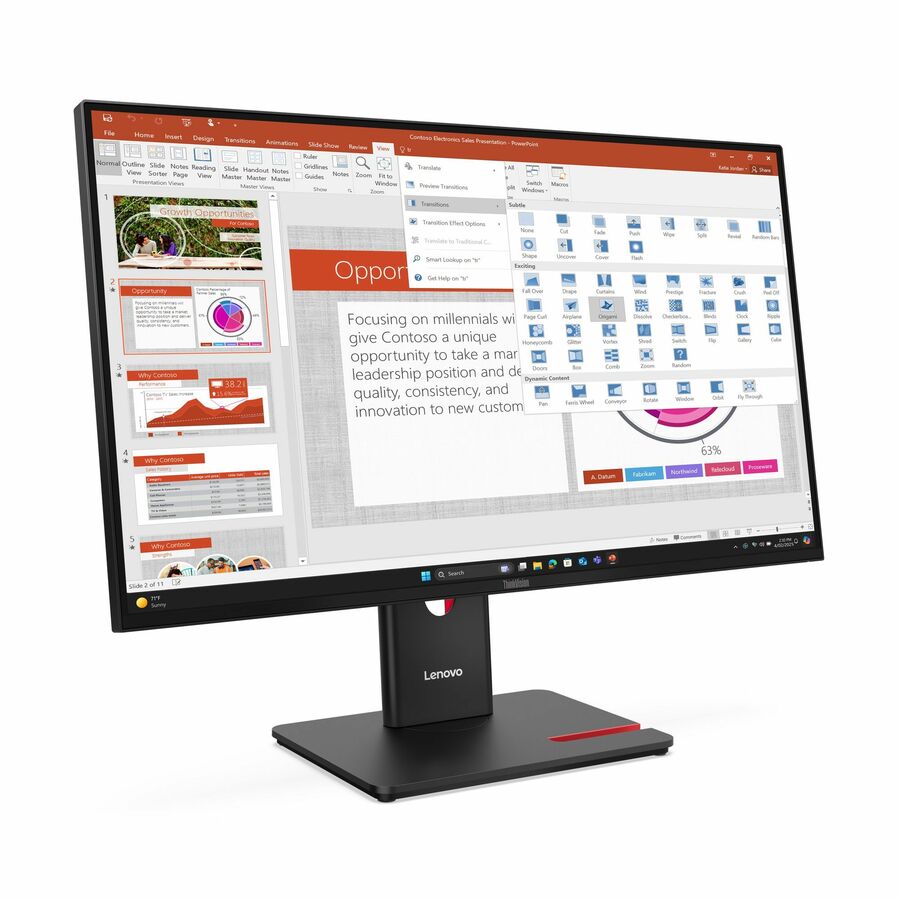
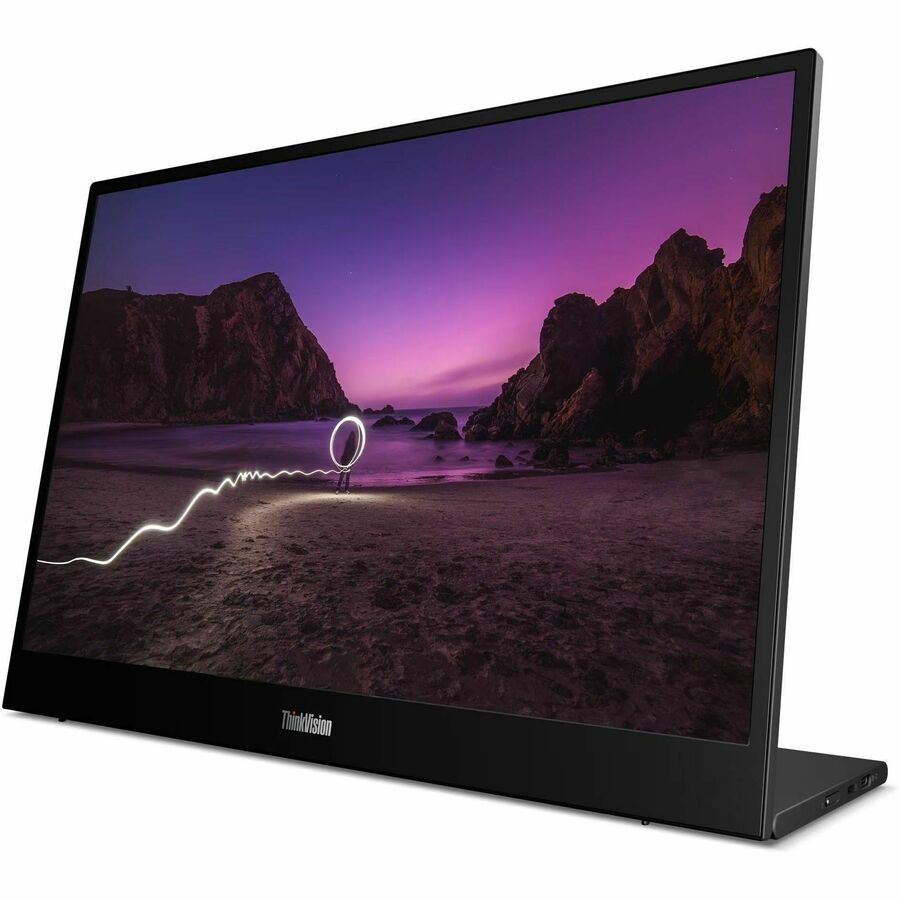
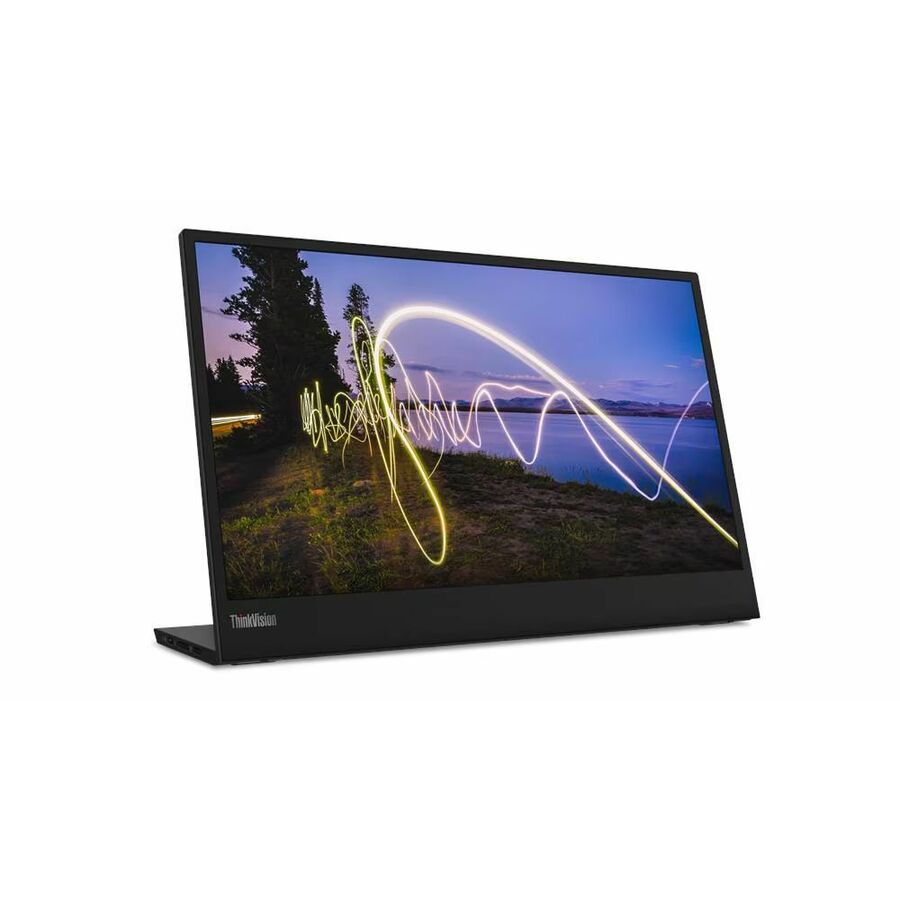
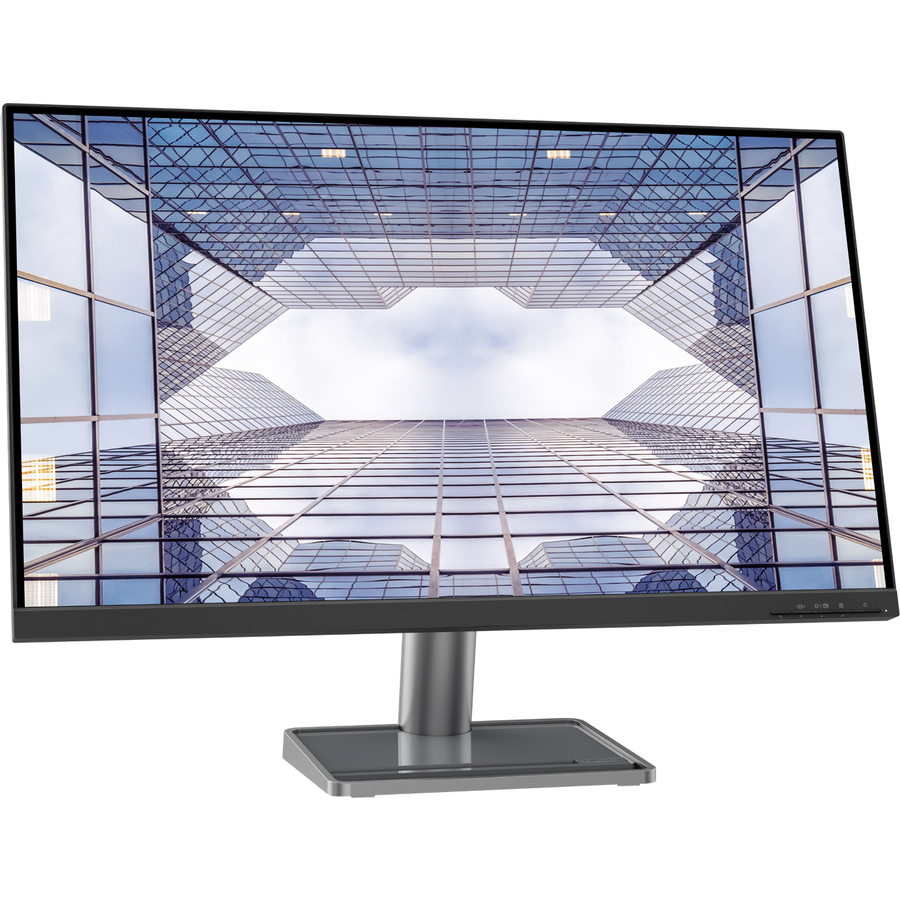
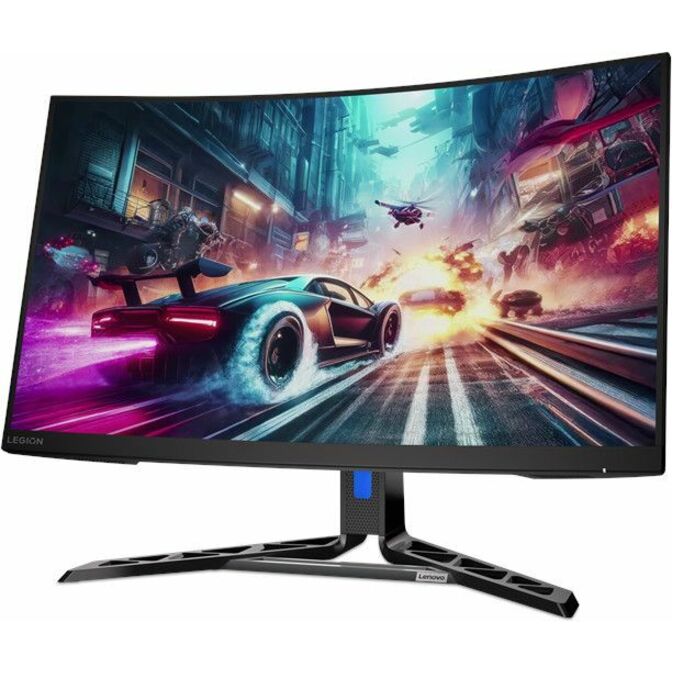
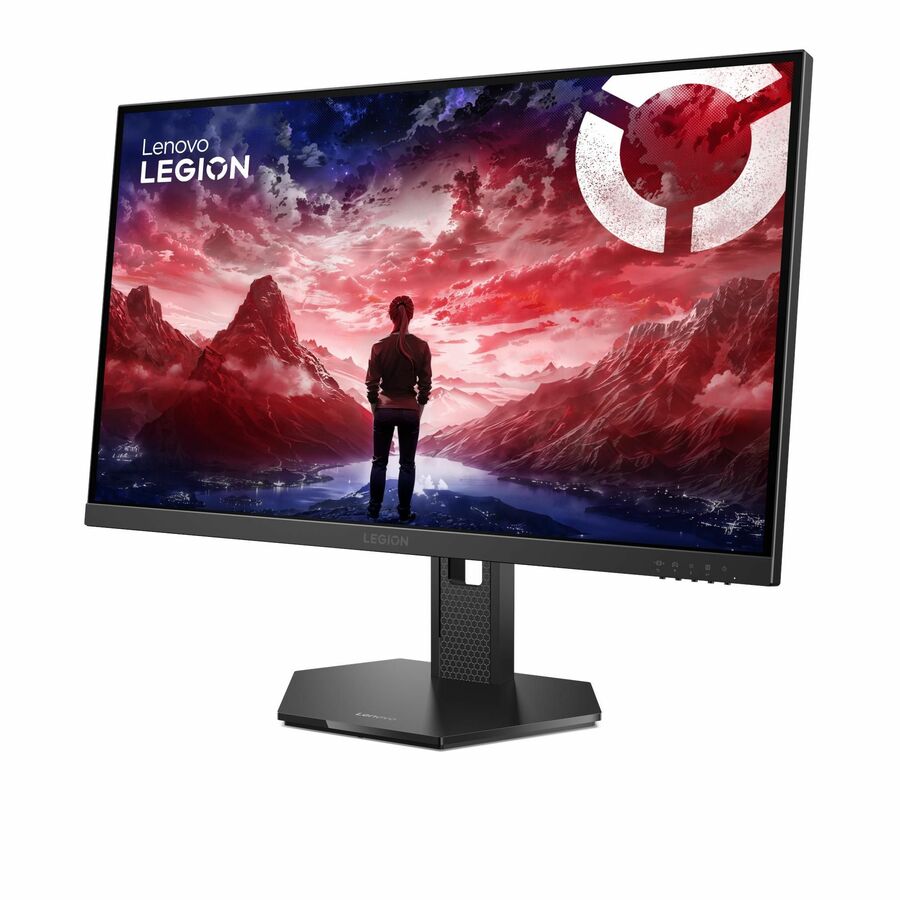
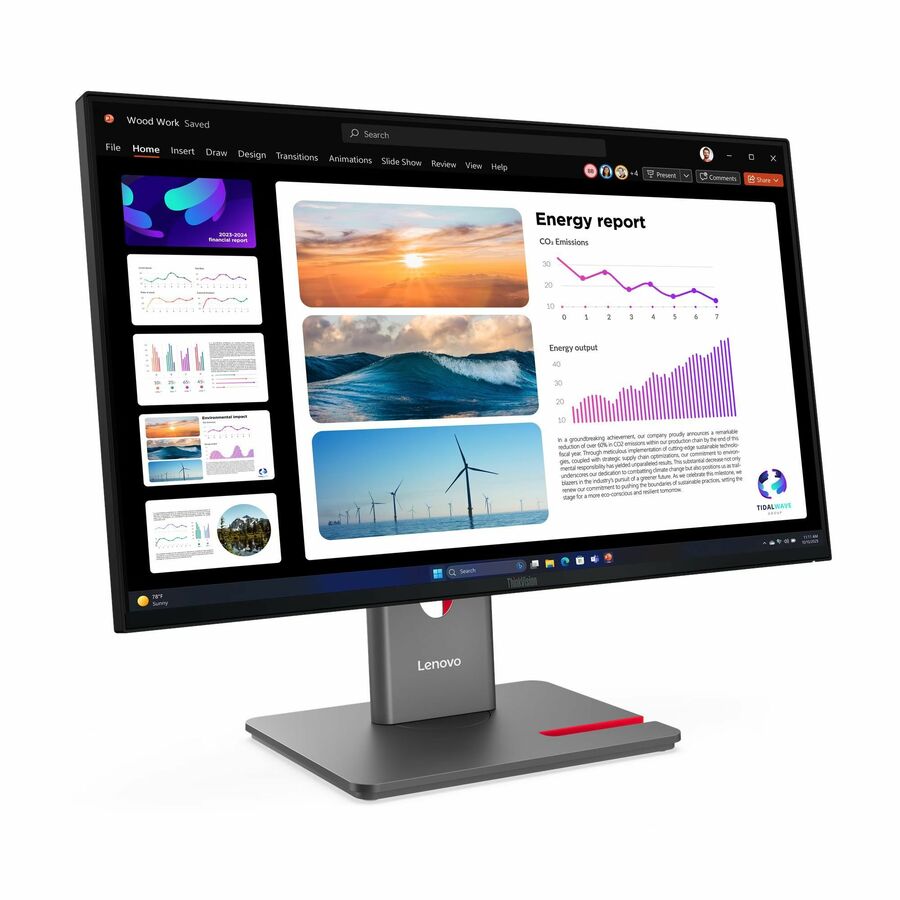
- LenovoLenovo ThinkVision S22-4e 22" Class Full HD LED Monitor - 16:9 - Raven Black - 21.5" Viewable - In-plane Switching (IPS) Technology - WLED Backlight - 1920 x 1080 - 16.7 Million Colors - 250 Nit - 4 ms - 100 Hz Refresh Rate - Tilt - HDMI - VGA - VESA Mount Compatible64CBKAT6US
$113.64
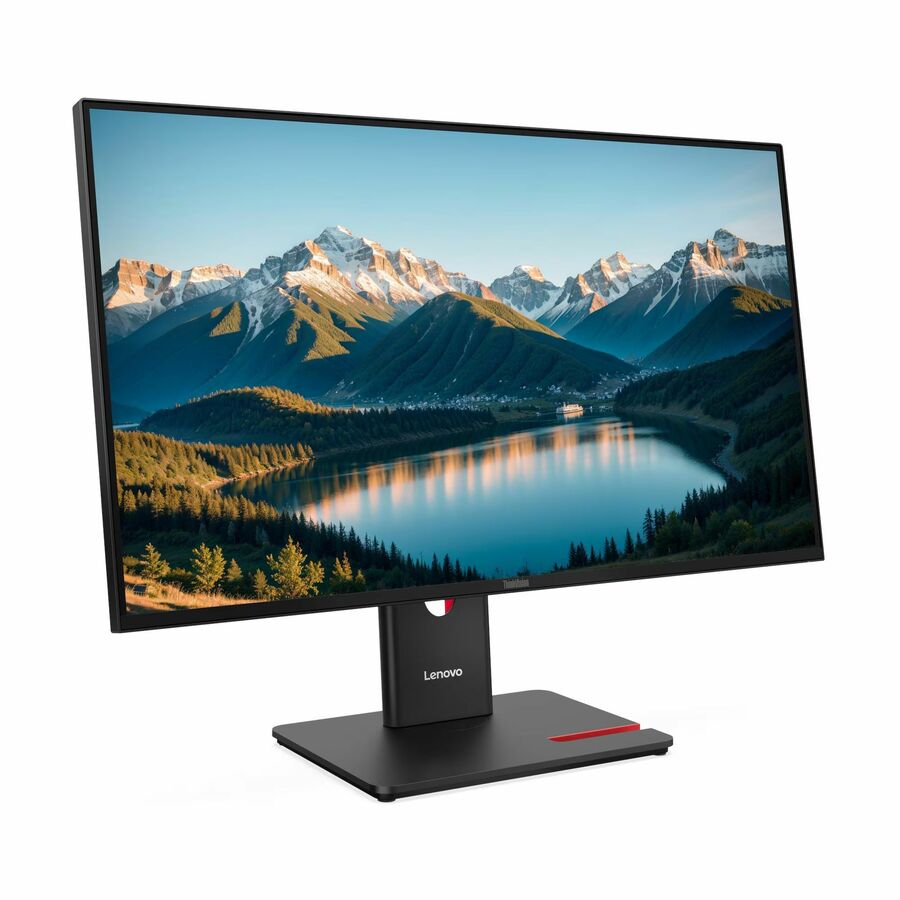
3,033 in stock - LenovoThinkVision S24-4e 23.8 inch Monitor - ThinkVision S24-4e 23.8 inch Monitor64B5KAT1UZ
$130.01
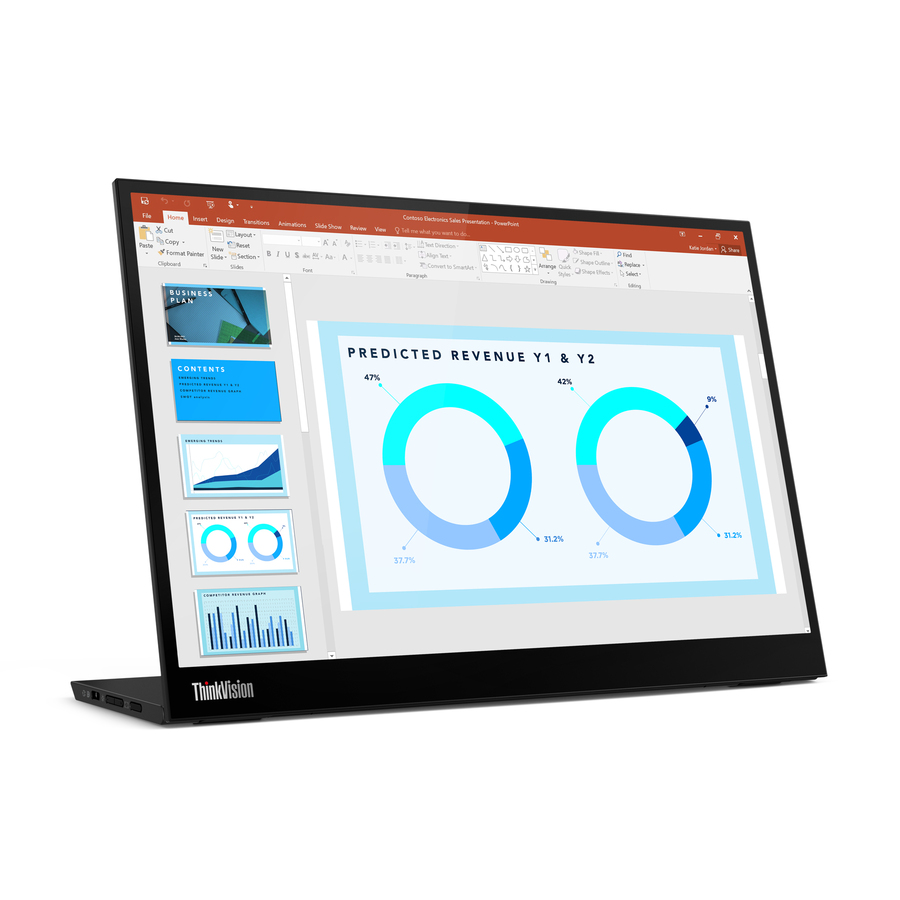
1,131 in stock - LenovoThinkVision T24-40 23.8 inch Monitor - ThinkVision T24-40 23.8 inch Monitor64A4MATXUZ
$214.45
10,688 in stock


Top pick
Lenovo
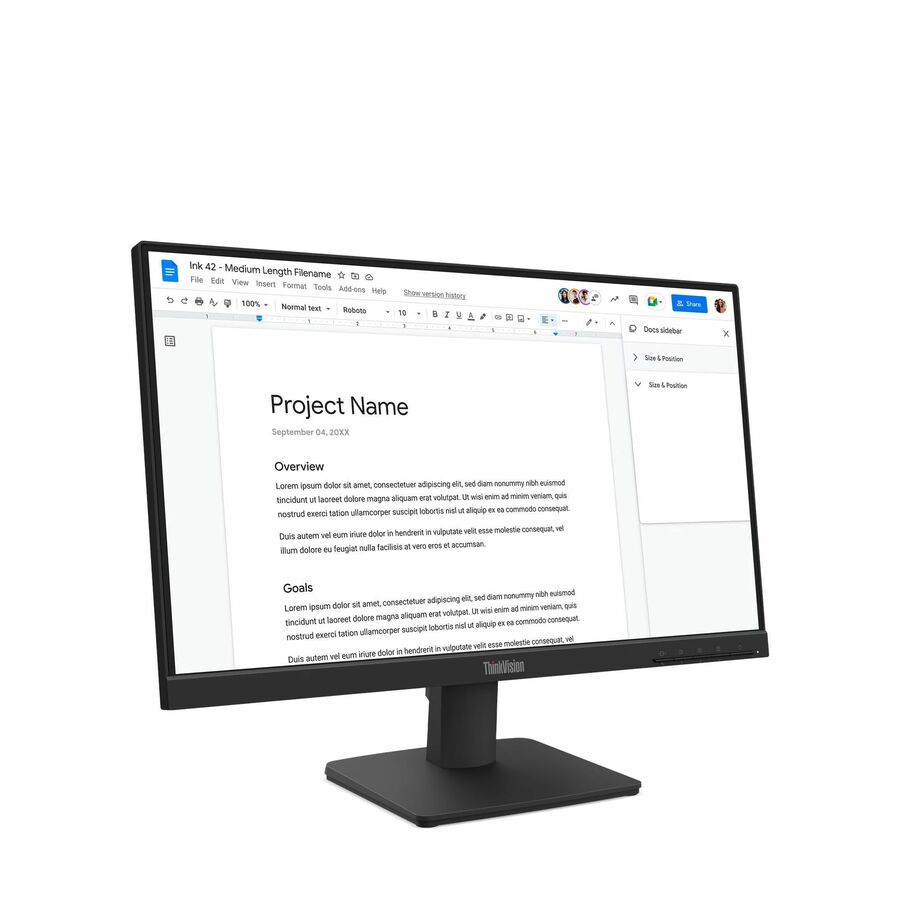
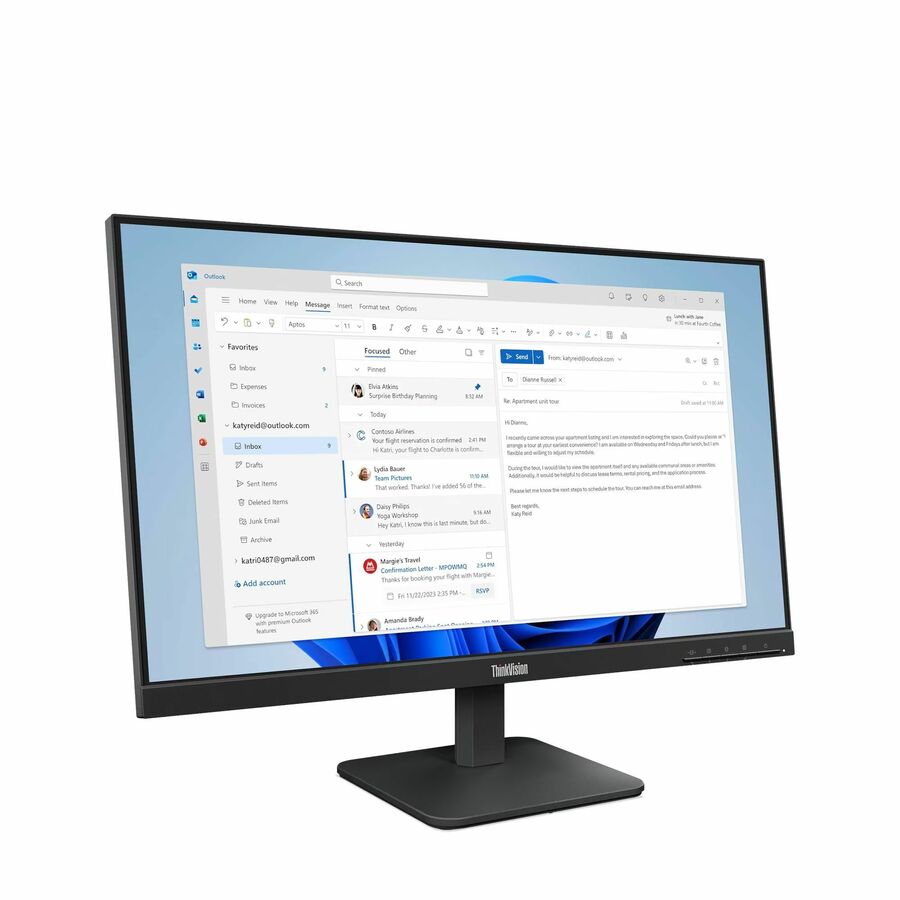
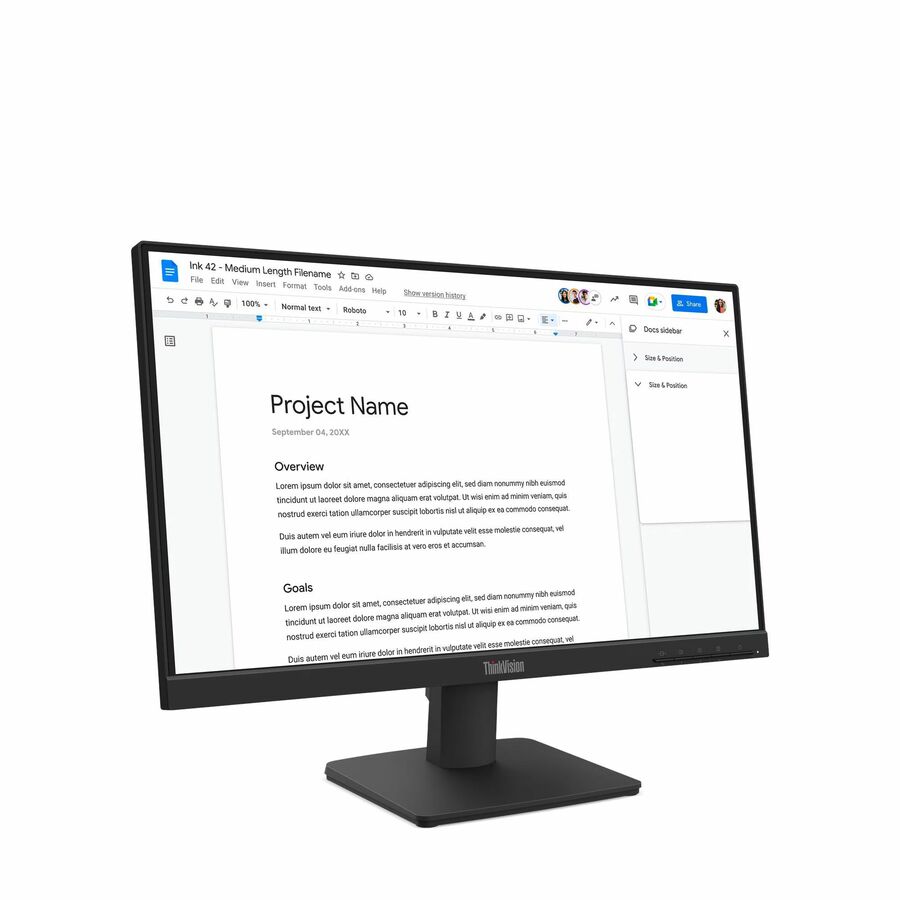
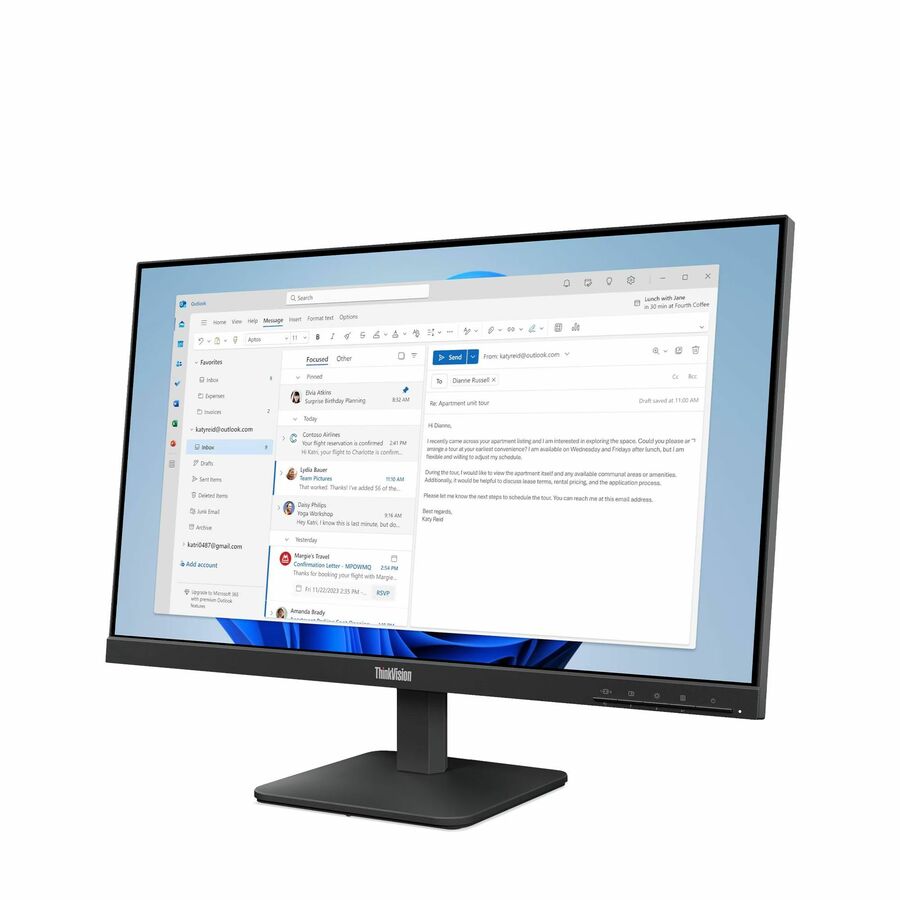
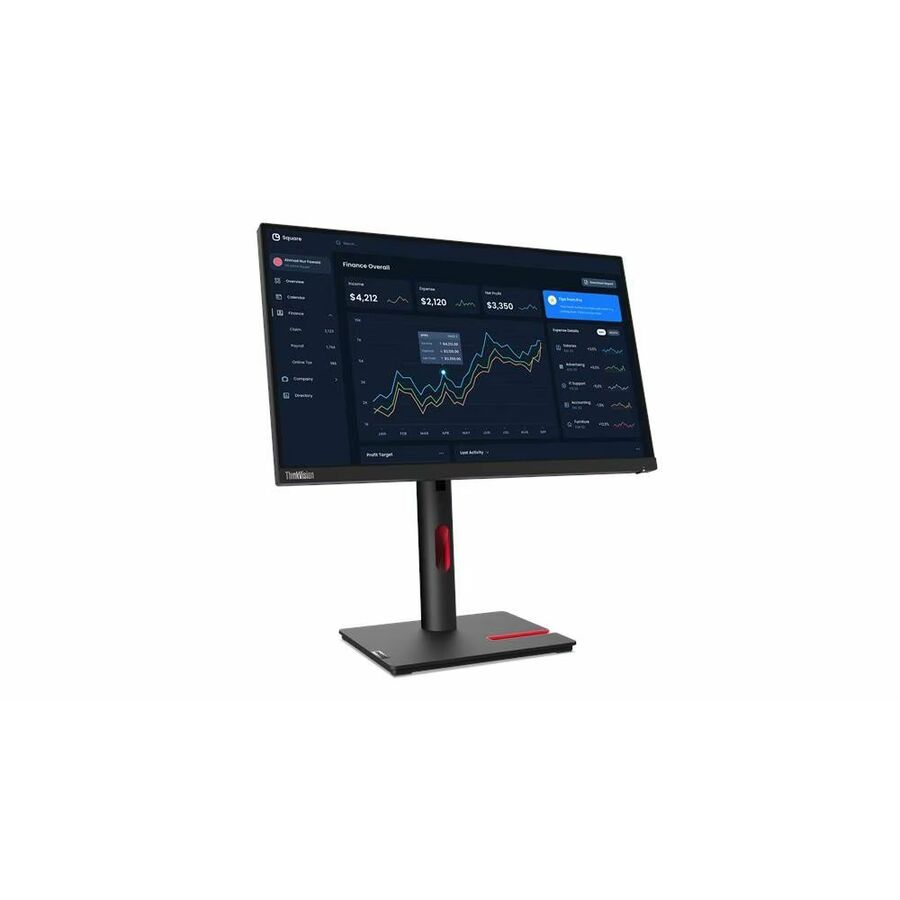
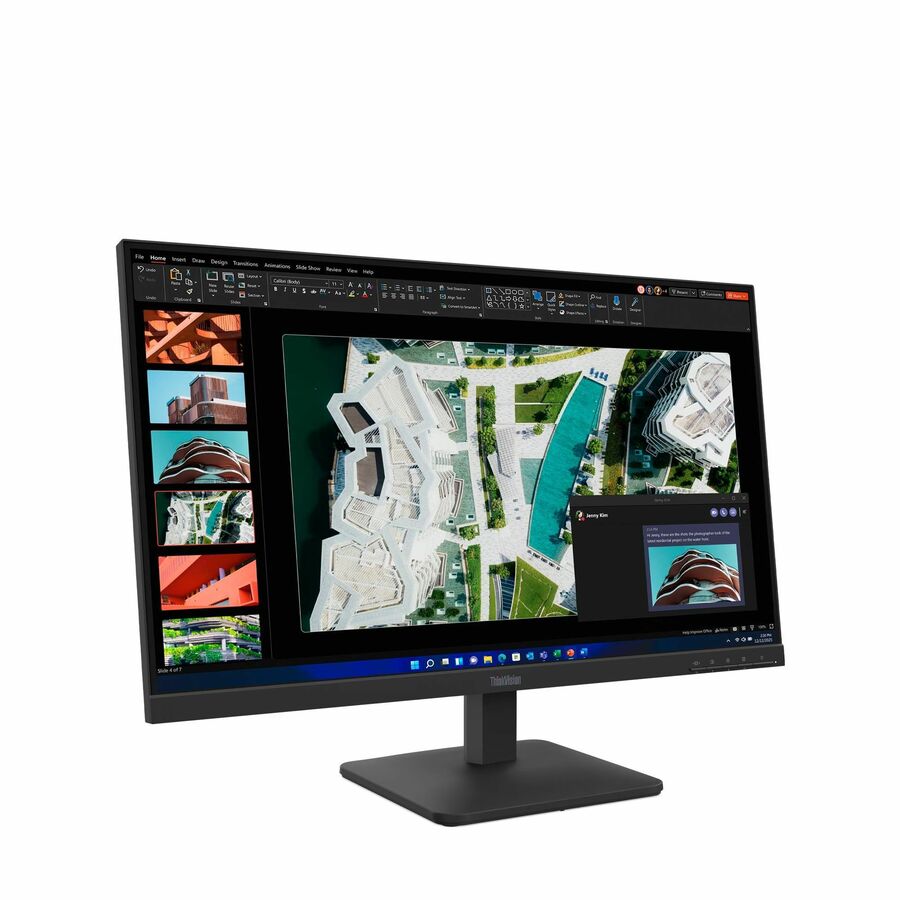
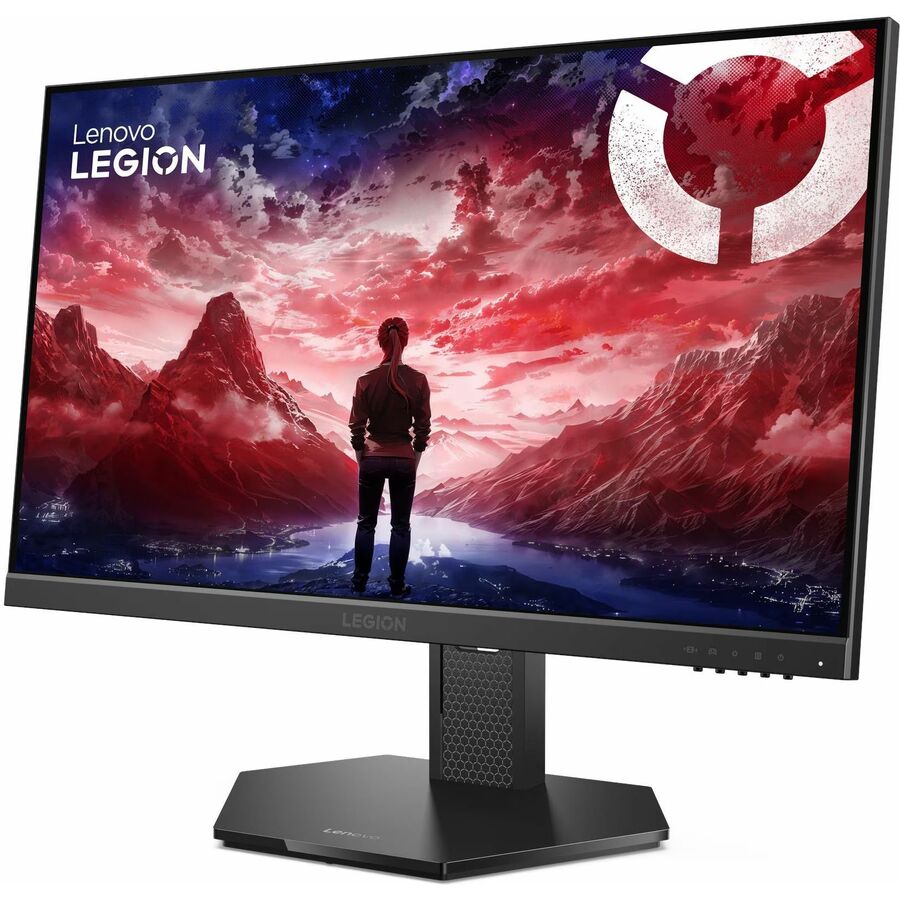
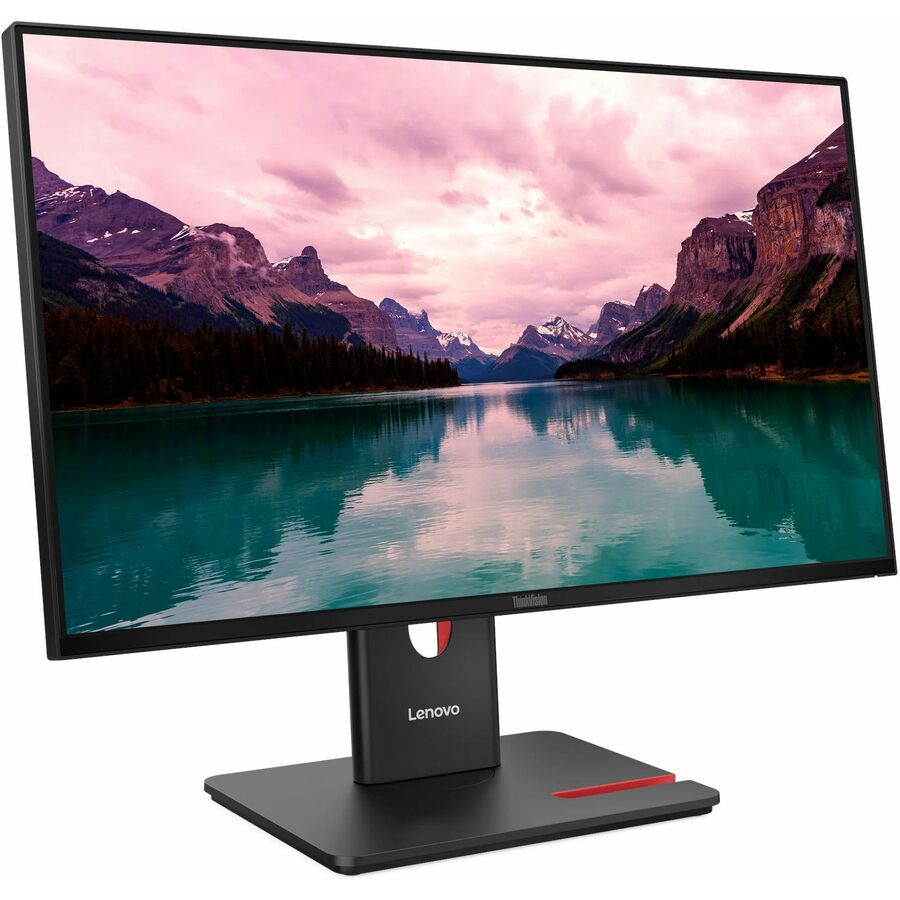
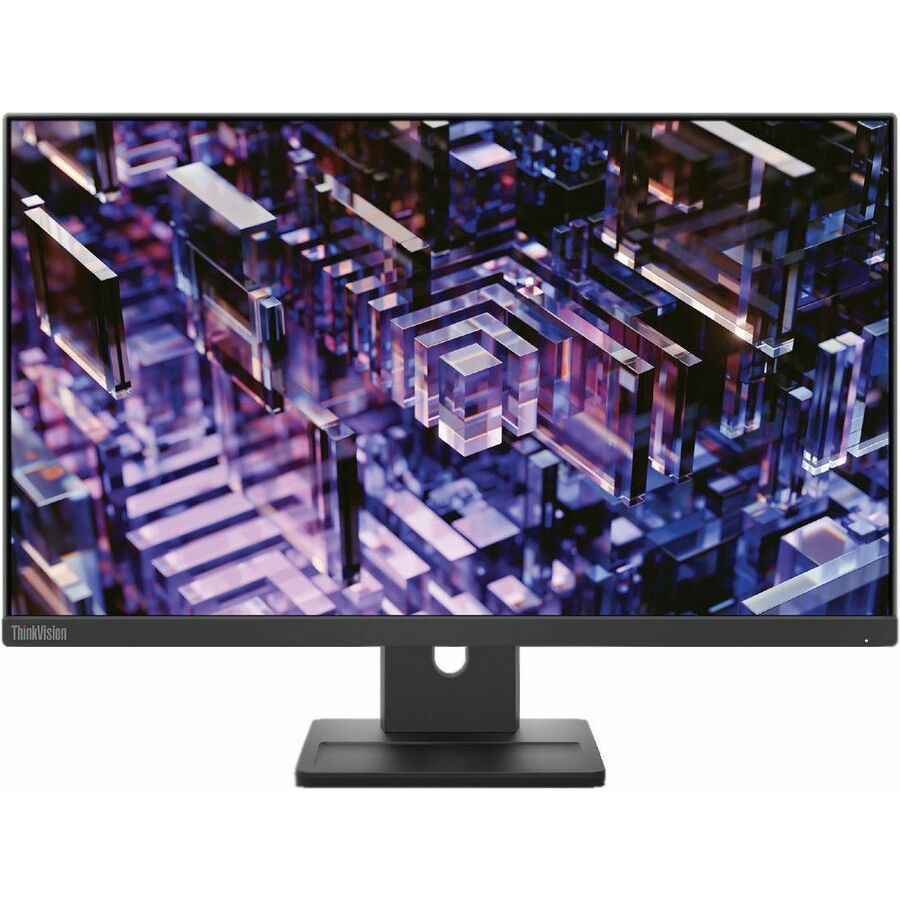
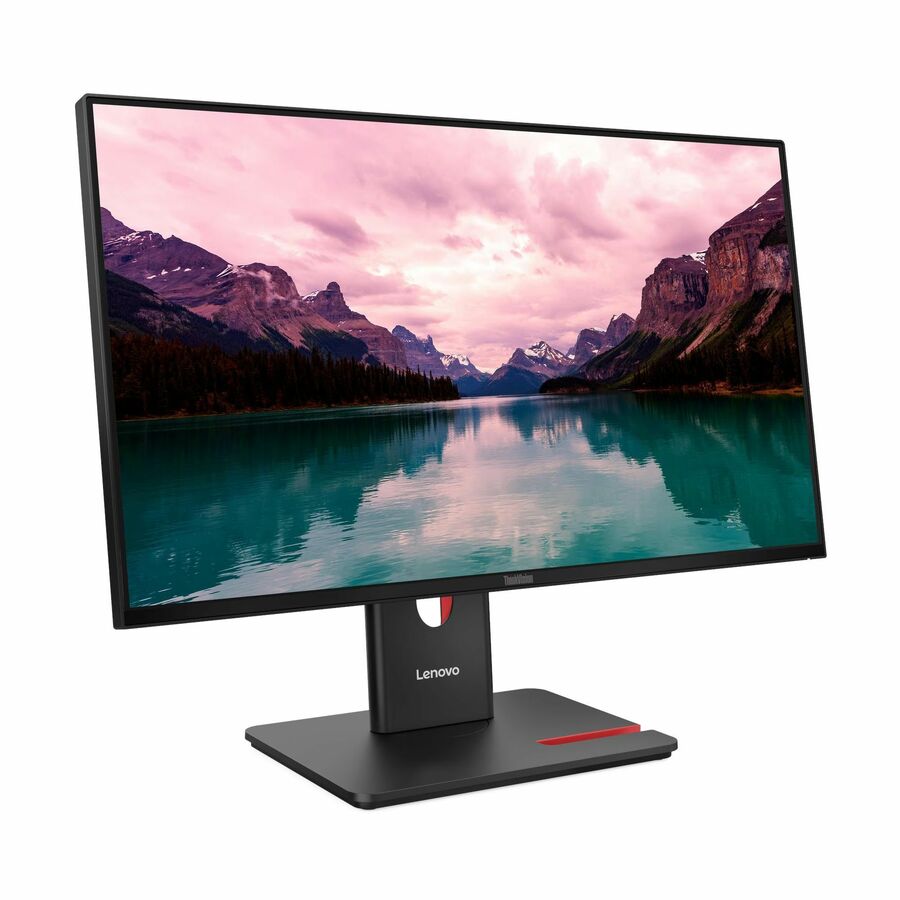
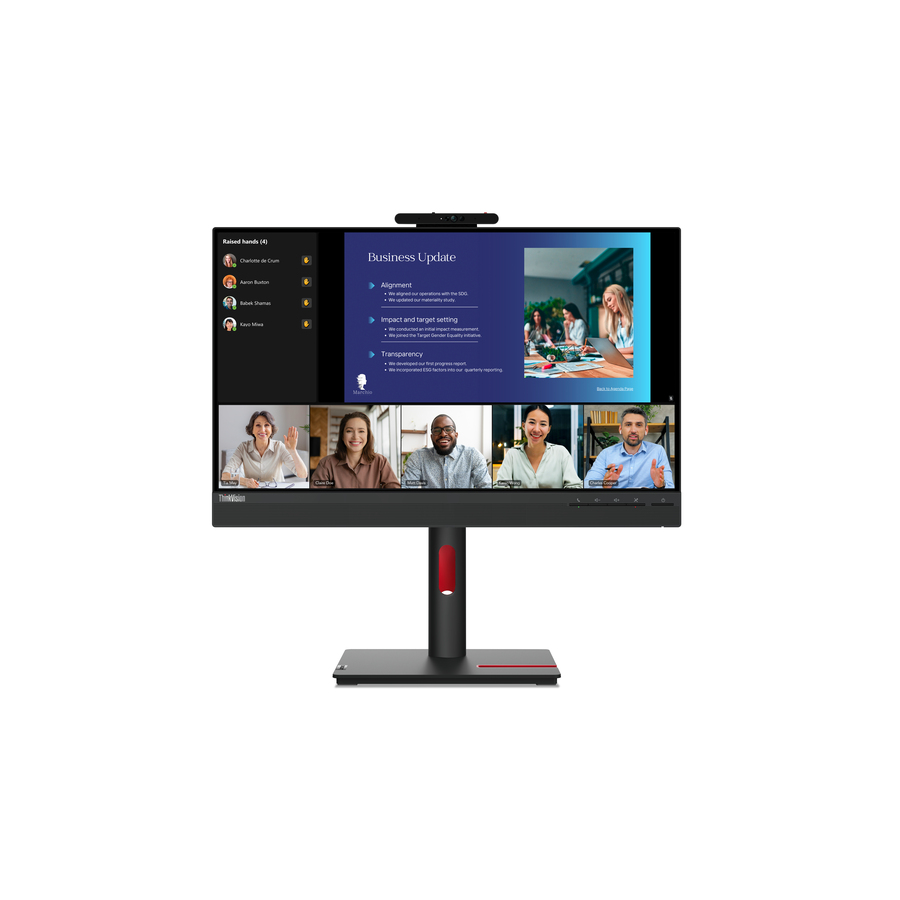
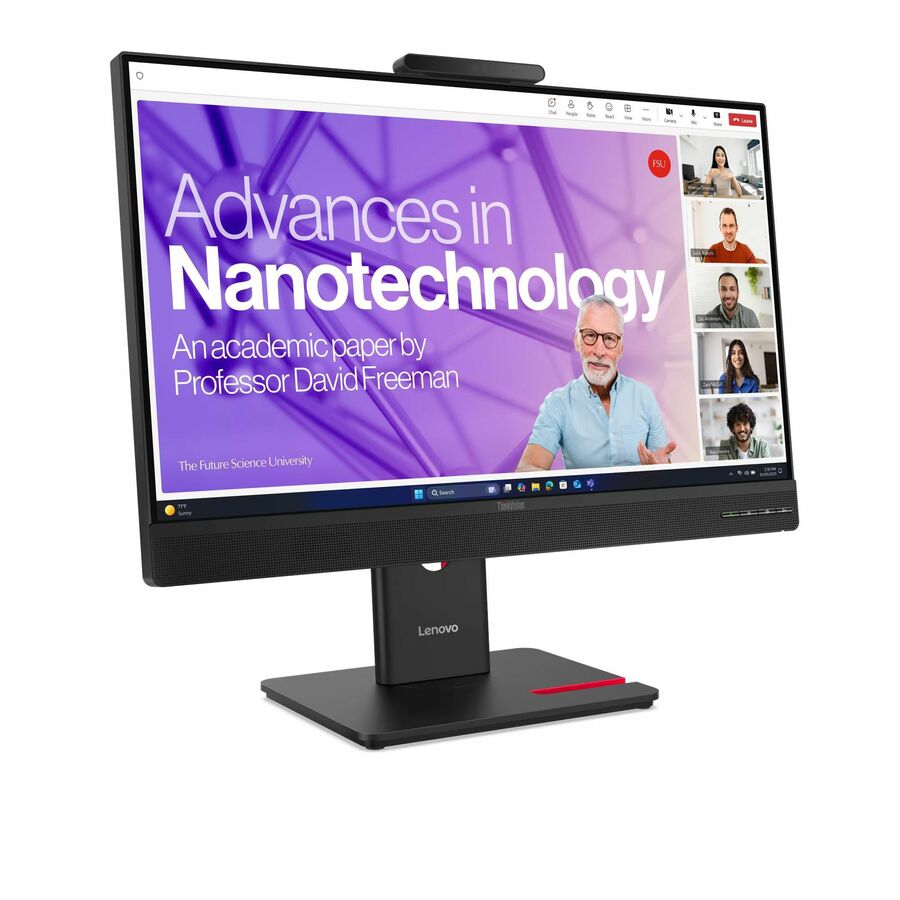
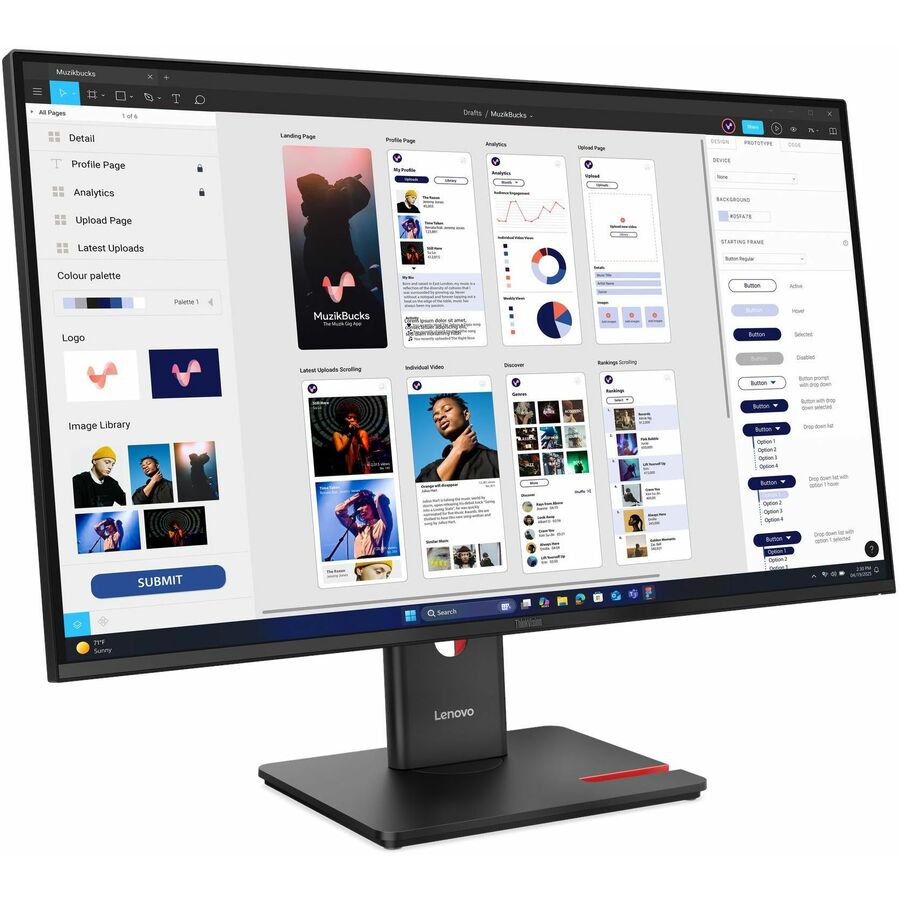
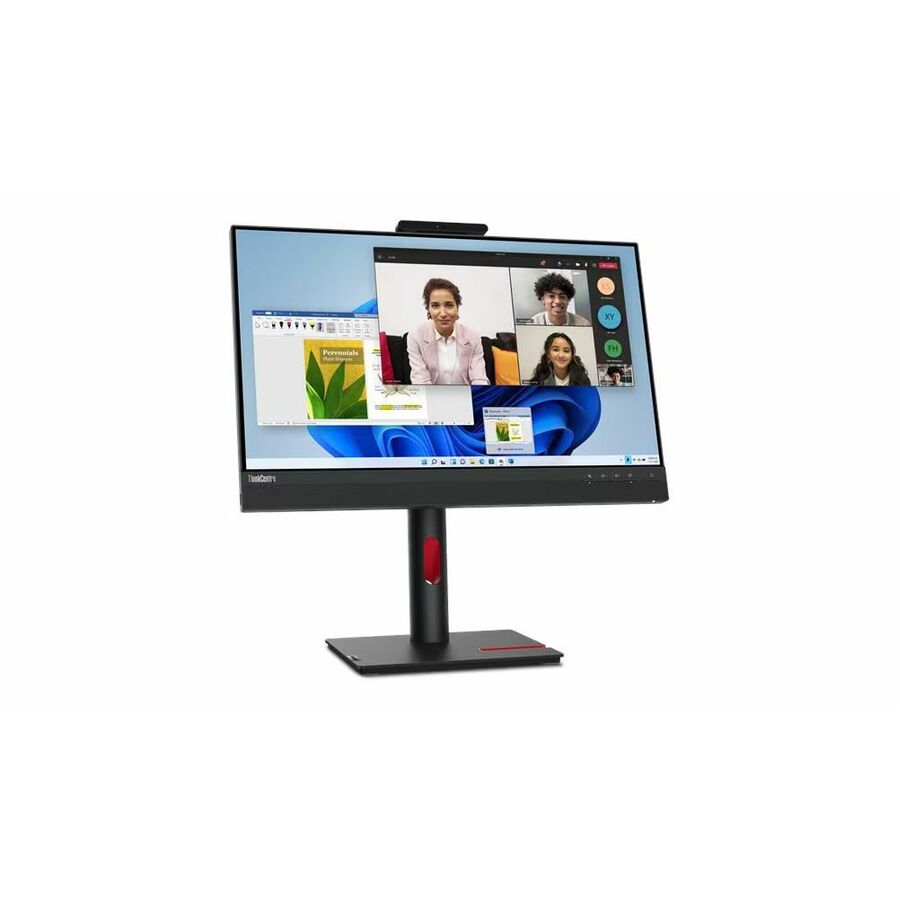
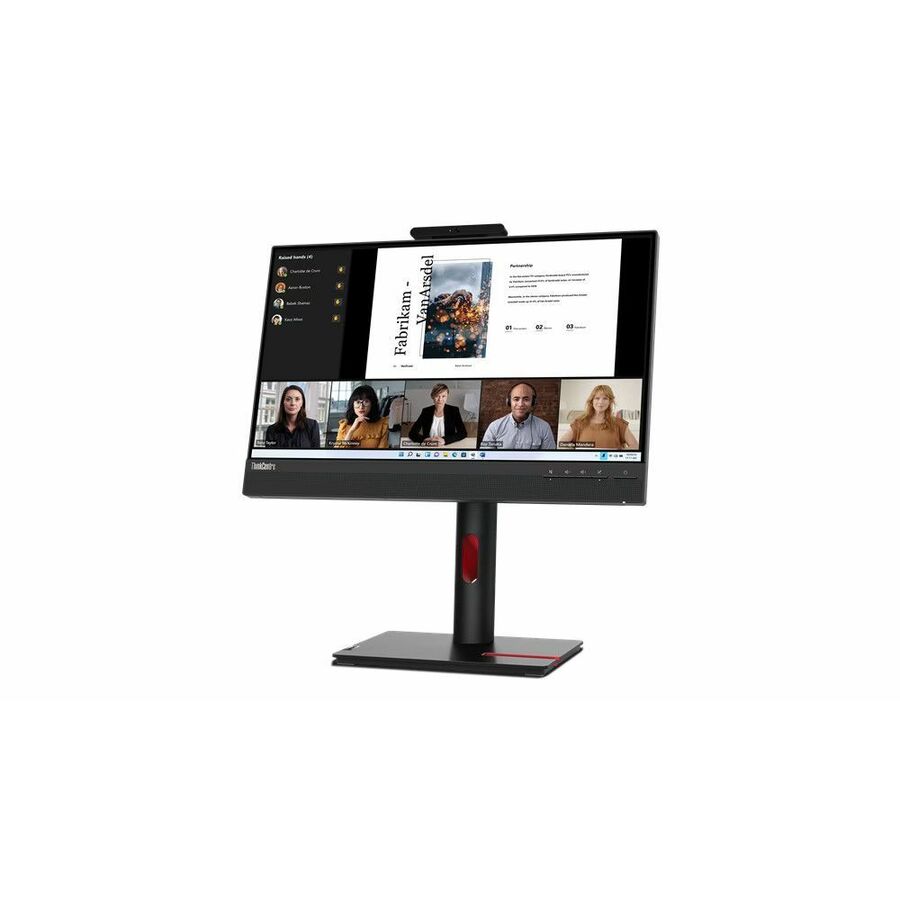
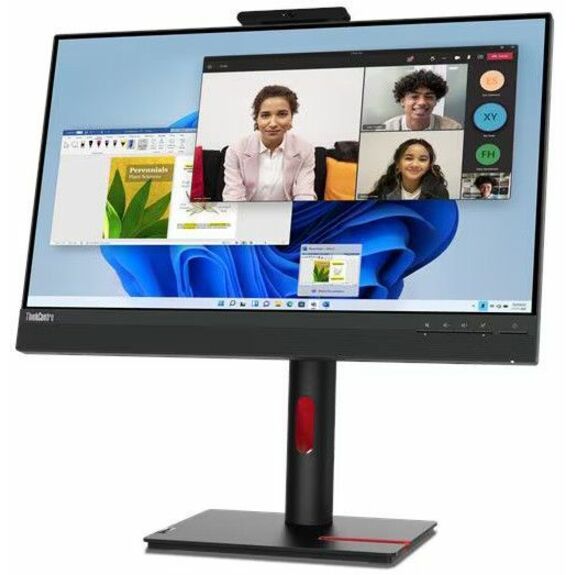
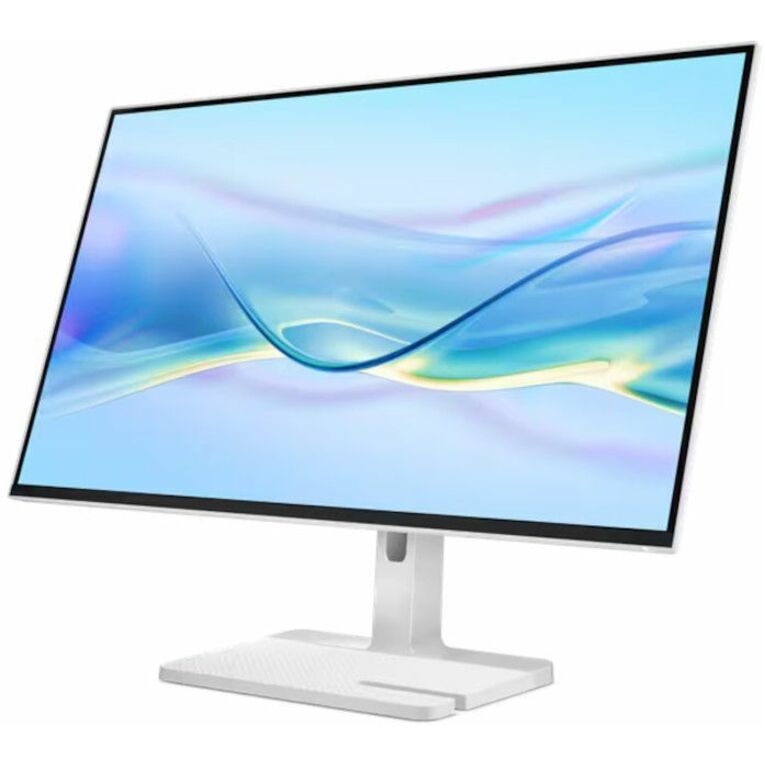
Lenovo ThinkVision T24-4v 24" Class Webcam Full HD LED Monitor
64B6MAR1UZ
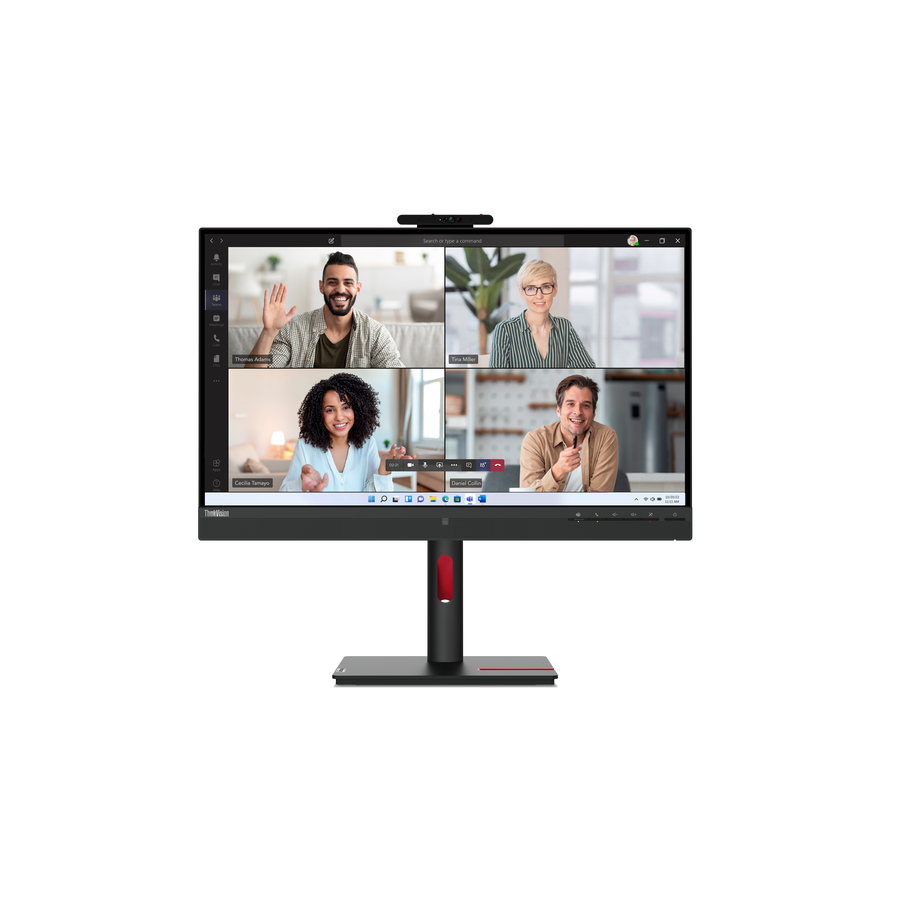
The volume staff and front-office panel: 24 inches at 1080p on an in-plane switching panel, with USB Type-C alongside HDMI, VGA and DisplayPort so a docking seat collapses to one cable, and an integrated webcam that removes a separate purchase for administrative calls.
Two things to settle first: the camera is a privacy conversation before it is a feature, and the row states USB Type-C without stating its power delivery — confirm the wattage against the laptop on the quote.
$327.04Back-orderedMore monitors in the Uniqcli catalog
See all 1,690 monitorsMore Lenovo first — closest to what you were just looking at; “See all monitors” above opens every other brand in the category. In-stock lines lead, and a back-ordered line carries the same estimated availability its product page does — with live pricing throughout, NDAA §889 screening before checkout and TAA verified on request.
Need pricing on Lenovo monitors?
Tell us where to reach you and a Uniqcli specialist will follow up by email with current pricing, availability and lead time for the quantities you need — including parts that aren’t shown on this page.
Buying for an organization or for yourself — both work. No payment up front.
What decides a ThinkVision panel is whether the seat is a docking seat. If someone arrives with a laptop and connects at a fixed desk, a USB-C panel carrying video, data and power over one cable earns its premium; if a desktop lives under the desk permanently, it does not. Product titles state that a panel has USB Type-C but not how many watts it supplies, so confirm that figure on the quote.
If a district has already standardized on Lenovo endpoints, the monitor decision gets simpler and worth a little scrutiny. Buying ThinkVision panels alongside ThinkPad and ThinkCentre hardware is not a technical requirement — any monitor will work with any machine — but it is a real procurement simplification: one vendor relationship for the whole desk, one warranty channel to chase, one set of firmware and menu conventions for whoever supports the building, and a docking behavior that has been validated on the machines you already own. For a small district where one or two people support every school, that consolidation has an operational value that never shows up on the quote.
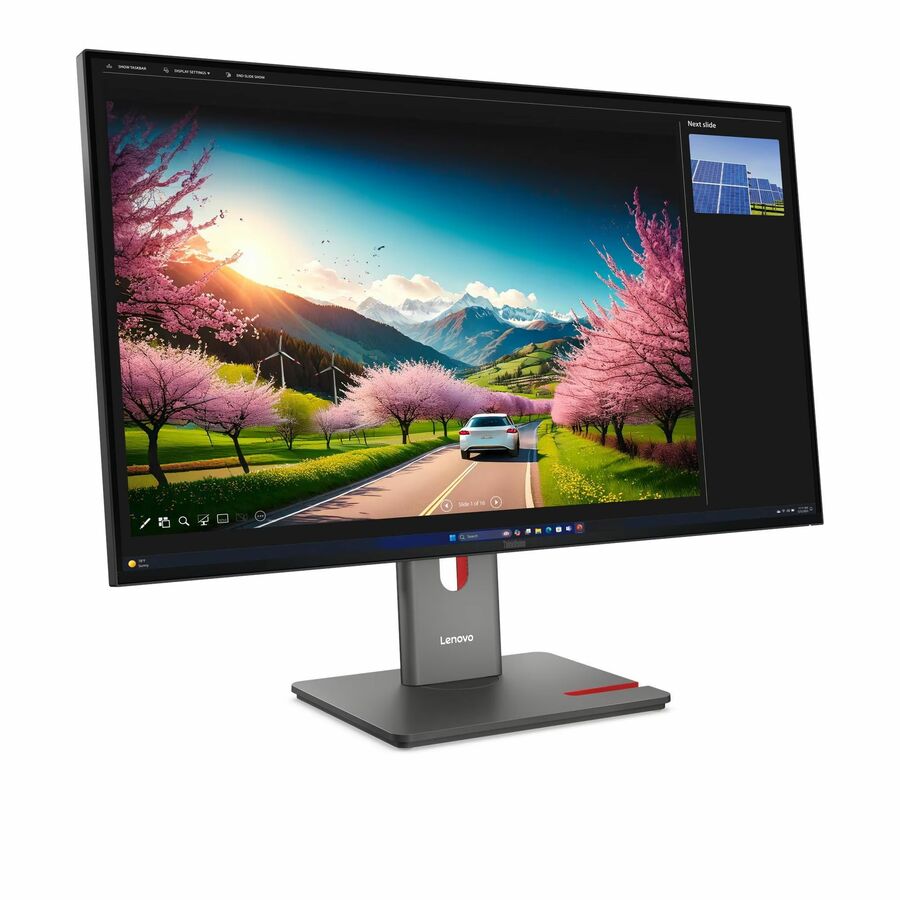
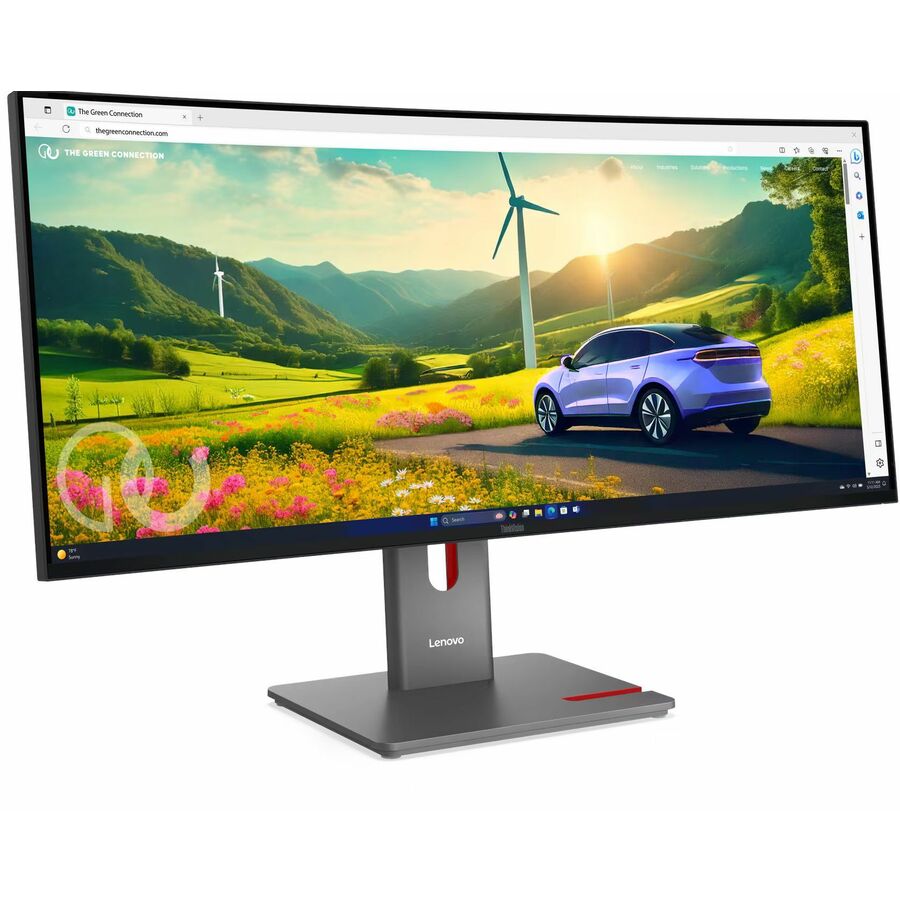
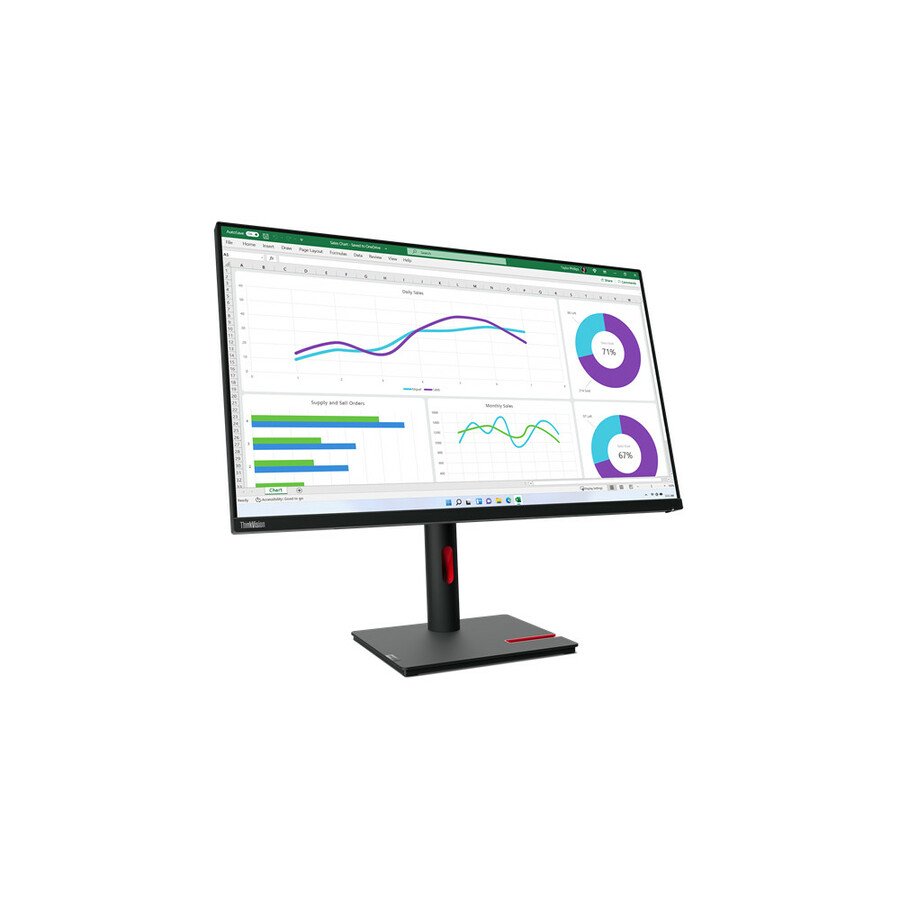
The bench here runs to roughly ninety photographed, priced Lenovo panels across 22 to 49 inches, with about half of them carrying a USB Type-C connection. Two families sit inside it. ThinkVision is the monitor line proper — the T-series for mainstream business seats, the P-series for higher-specification desks. Alongside them are ThinkCentre Tiny-In-One displays, which are a different proposition entirely and are covered in their own section below.
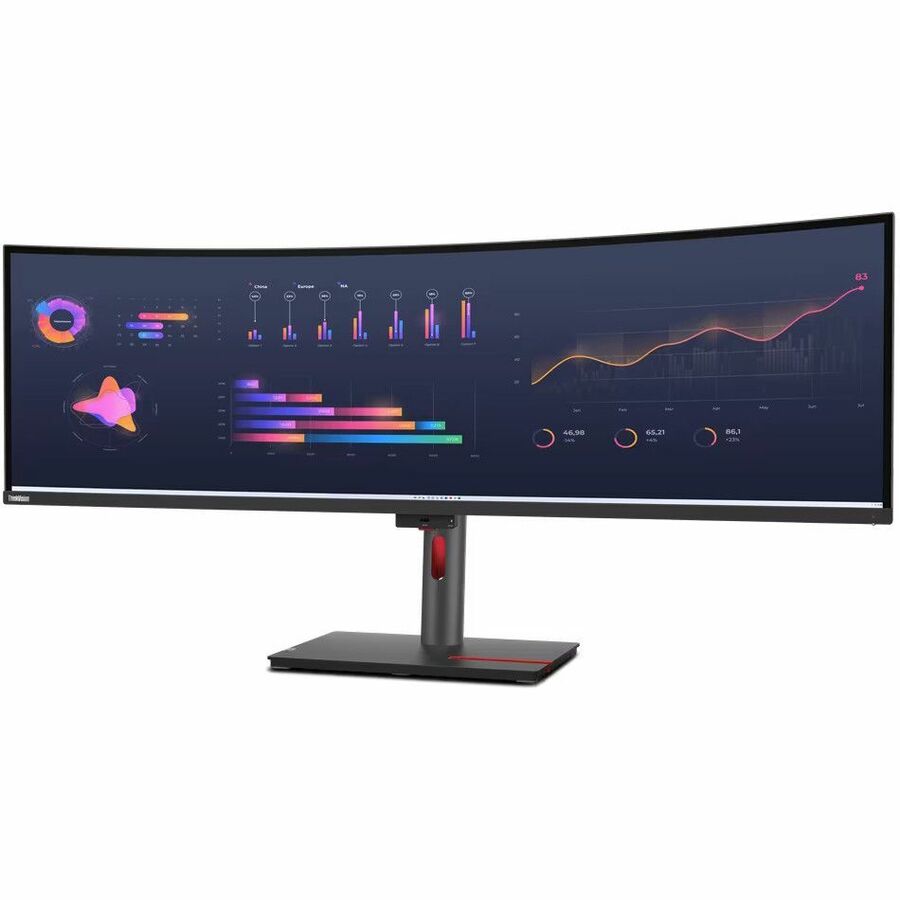
The grid is live and puts in-stock rows first, then leads with the highest-priced units, so the 49-inch ultrawide at the top is not the recommendation. The rows a school should be looking at are the 22-, 24- and 27-inch T-series panels further down, where a full-featured business monitor lands in the three-hundred-dollar band.
Buyer's checklist
How to choose ThinkVision monitors for a school district
- Decide whether the seat is a docking seat. If a teacher or administrator arrives with a laptop and connects at a fixed desk, a USB-C panel that carries video, data and power over one cable is worth the premium. If a desktop sits under the desk permanently, it is not.
- Confirm the USB-C power delivery wattage against the specific laptop. The product titles state that a panel has USB Type-C; they do not state how much power it supplies. A panel that delivers less than the laptop's charger provides will still charge, just slowly — verify the figure on the quote before you standardize a building on it.
- Check whether the panel has an integrated webcam and whether you want one. Many rows in this bench list a webcam. That is convenient for remote instruction and administrative meetings, and it is a conversation you should have with your district's privacy position before putting cameras on every desk in a building.
- Size by desk depth, not by preference. 22 and 24 inches suit shallow lab desks and front-office counters; 27 inches suits a staff workstation running two windows; 32 inches and the ultrawides belong on a small number of specialist desks, not on a floor plan.
- Look for the KVM feature where one desk serves two machines. Several of the higher-specification rows list a built-in KVM switch, which lets a single keyboard, mouse and display serve both a district machine and a second computer. In a media room or a technician's bench that removes a whole box from the desk.
- Specify the stand adjustment explicitly. A monitor bought for a desk somebody occupies all day should adjust for height at minimum. It is the single feature most likely to be quietly dropped from a specification and most likely to be missed in year two.
- Verify Tiny-In-One generation compatibility before ordering. A Tiny-In-One display and a ThinkCentre Tiny computer have to be a compatible pair; the generations do not all interchange. Get the exact monitor part number and the exact computer part number confirmed together on the quote.
- Fix the part number and buy the room from one lot. ThinkVision model numbers carry generation suffixes for a reason — a T27QD-40 is not a T27hv-30 — and mixing generations across a room means mixing stands, menus and cable requirements.
USB-C docking: collapsing a staff desk to one cable
The most useful thing a ThinkVision panel does for a school is not display quality, it is cable reduction. Roughly half the Lenovo monitors in this bench list a USB Type-C connection, and on a docking-capable panel that single cable carries the video signal to the monitor, the data from whatever is plugged into the monitor's USB hub back to the laptop, and power to charge the laptop. A teacher walks in, connects one cable, and has a display, a keyboard, a mouse, a wired network connection where the panel provides one, and a charging laptop.
That matters operationally more than it sounds. A significant share of help-desk tickets in a laptop district resolve to a display cable that was not fully seated, a dock that lost its firmware, or a power brick left in another room. Collapsing three connections into one removes most of that category. It also removes the separate docking station from the purchase, which is often what makes the USB-C panel the cheaper option once the whole desk is costed rather than just the monitor line.
The caveat to write into the specification is power delivery. Product titles in this bench state that a panel has USB Type-C; they do not state the wattage it supplies. A panel supplying less power than a laptop's own charger will still charge it, but slowly enough that a machine used heavily all day may end the day lower than it started. Confirm the wattage figure on the quote against the specific laptop model the panel will serve, particularly for higher-power ThinkPad configurations, before a building standardizes on one part number.
Tiny-In-One: one box instead of two
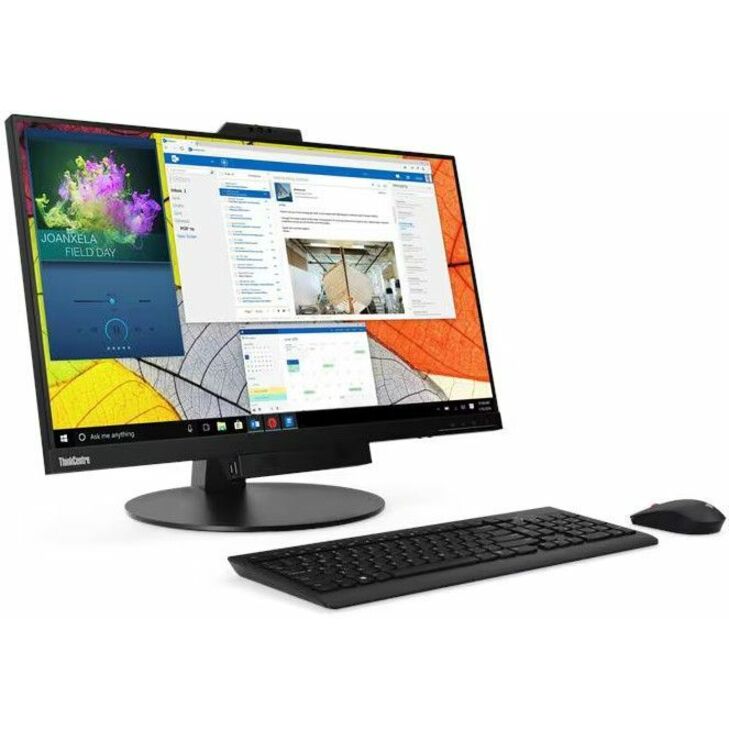
The ThinkCentre Tiny-In-One displays in this bench are a different product concept from the ThinkVision panels around them. A Tiny-In-One monitor is designed to accept a ThinkCentre Tiny computer into the display itself, so what arrives at the desk is a single unit with one power cable — an all-in-one, assembled from parts the district can service and replace independently.
For schools, the appeal is specific. It has the installation profile of an all-in-one, which matters when a summer refresh is limited by technician hours rather than by budget. But unlike a true all-in-one, the computer and the display are separable: when the machine reaches end of life, the panel stays and a newer Tiny goes in; when a panel fails, the computer is unaffected. That is a materially better lifecycle position than a sealed all-in-one, and it is the reason these turn up in front offices, library catalog stations and media-center kiosks.
The compatibility caveat is important and easy to get wrong. A Tiny-In-One display and a ThinkCentre Tiny computer must be a matched, compatible pair, and the generations do not all interchange — a Gen 5 display and an older Tiny are not automatically a working combination. Do not order the two halves on separate requisitions and assume they will meet. Put both exact part numbers on the same quote and have the pairing confirmed before anything ships. We currently hold a small number of Tiny-In-One rows, so quantity for a whole building should be confirmed against the specific part before the requisition is written.
Which Lenovo panel for which seat
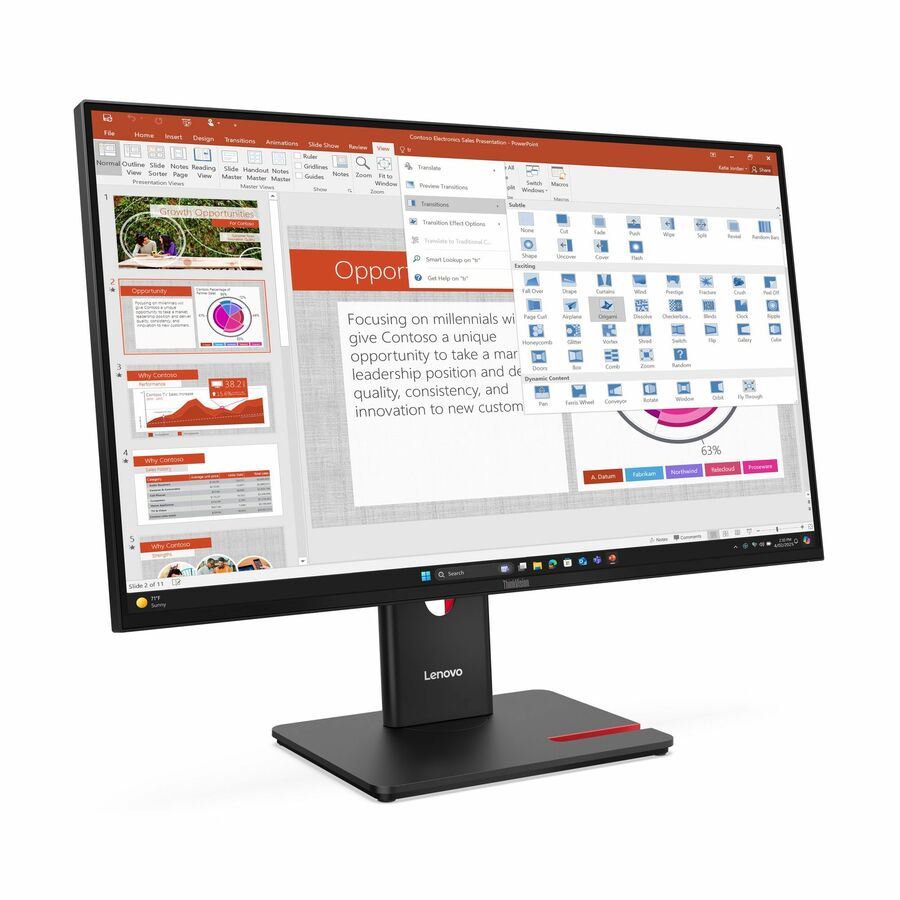
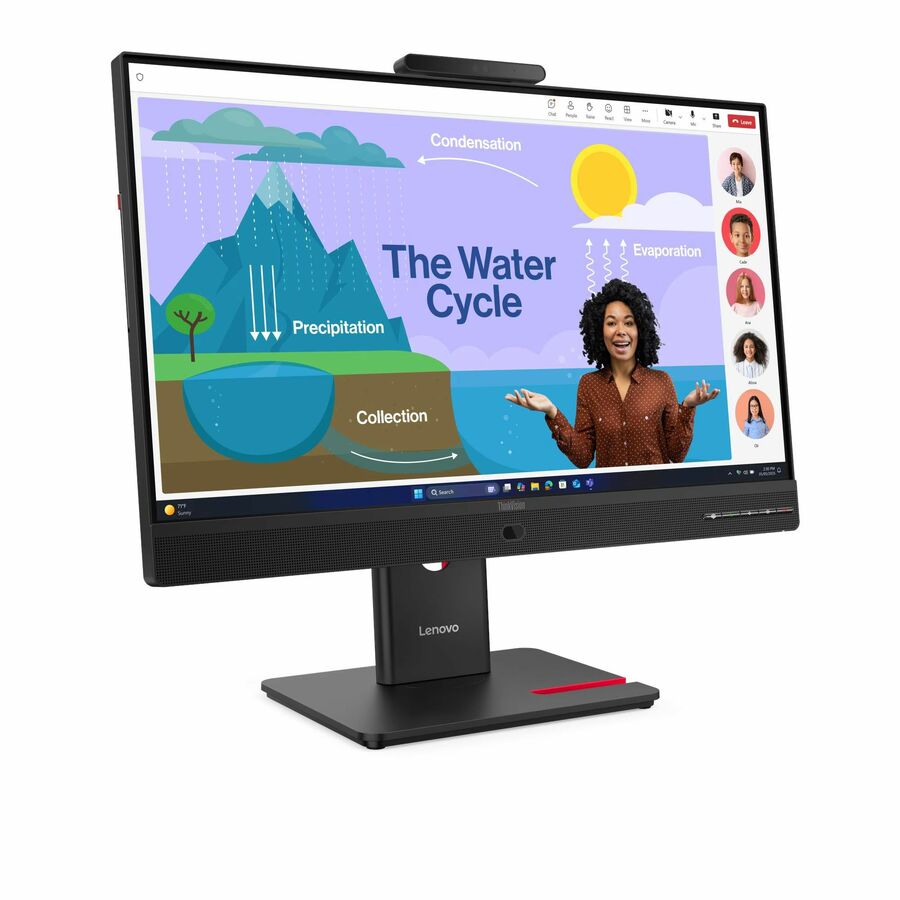
ThinkVision T24-4v and T24D-4v (64B6MAR1UZ, 64B7UAR1US) — the volume staff and front-office panels. 24-inch 1080p with an integrated webcam. Upside: the right size for a shallow desk, and the camera removes a separate purchase for administrative video calls. Downside: the webcam is a privacy conversation before it is a feature, and 1080p at 24 inches is a general-use specification rather than a design one.
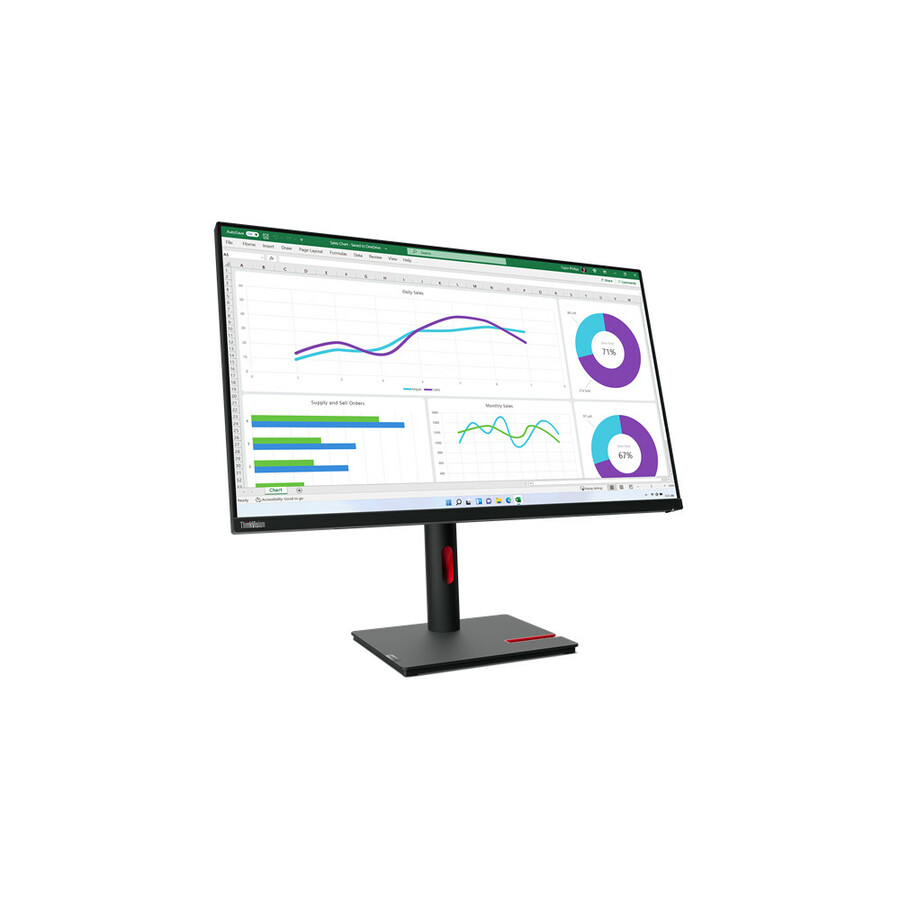
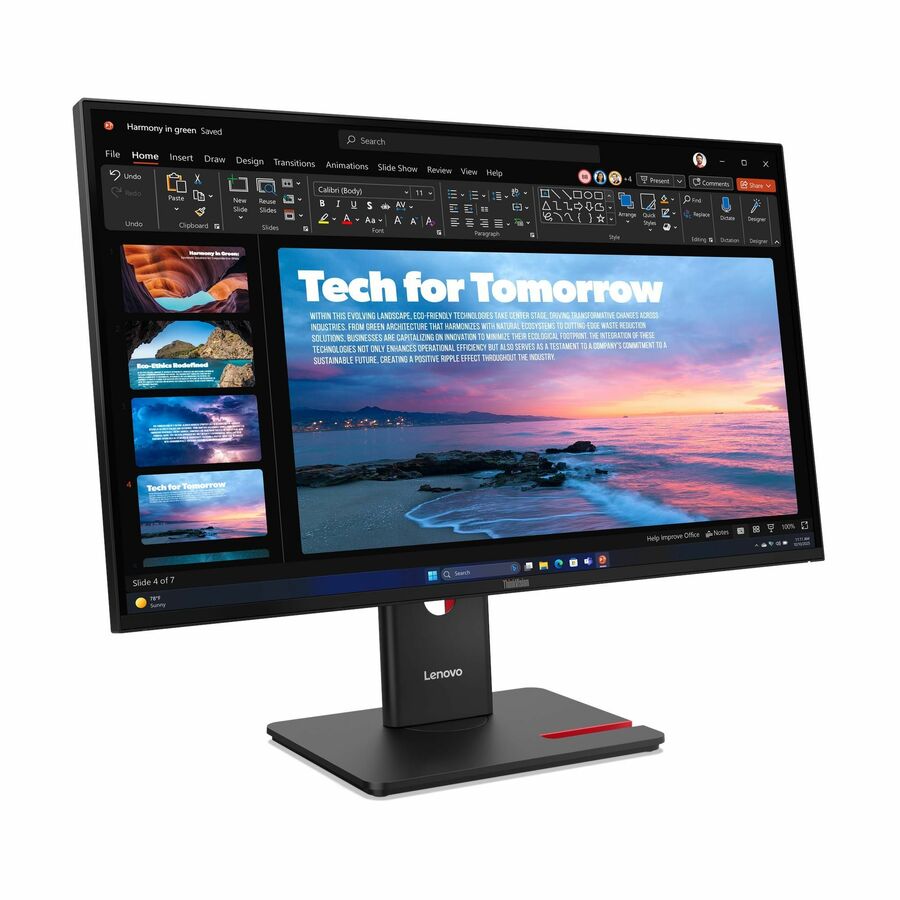
ThinkVision T27QD-40 (64AAGAR2US) — the mainstream 27-inch staff workstation panel. WQHD at 2560x1440 is the resolution where two documents genuinely sit side by side without either being cramped. Upside: the best balance of size, resolution and price in this bench for someone working across windows all day. Downside: it is roughly two to three times a basic lab panel, so it belongs at staff desks rather than on a thirty-seat floor plan.
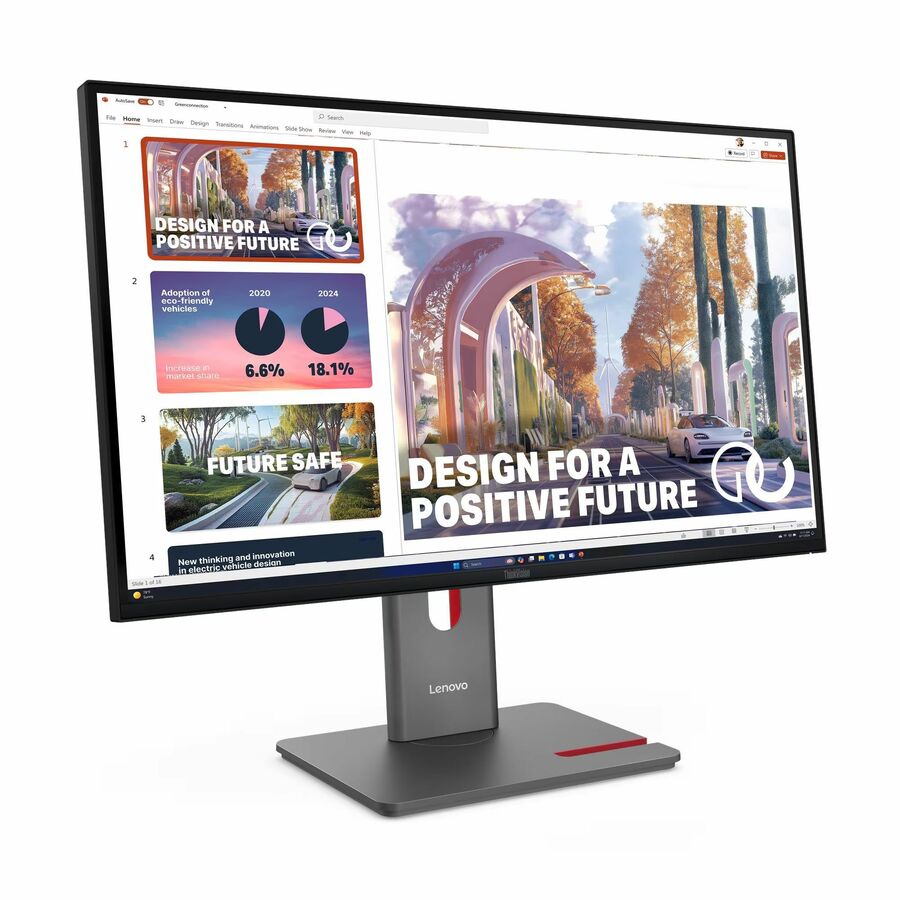
ThinkVision T27hv-30 (63D6UAR3US) — the docking-and-conferencing option. 27-inch WQHD with in-plane switching, an integrated webcam, speakers, USB-C, HDMI, DisplayPort, a USB hub and VESA mounting. Upside: it is a complete meeting-capable desk in one unit. Downside: the price reflects that, and a district that already has room-based conferencing equipment is paying twice.
ThinkVision P27u-20 (62CBRAR6US) — the specialist seat. 27-inch 4K at 450 nits with USB-C, a USB hub and a built-in KVM switch. Upside: the brightness and resolution suit a CTE, design or GIS station, and the KVM lets one desk serve two machines. Downside: firmly a specialist purchase — four of these cost what a small lab of business panels costs.
ThinkCentre Tiny-In-One 22 and TIO24 Gen 5 (12N9GAR1US, 12NAGAR1UZ) — the front-office and catalog-station answer. Upside: one box per seat with a serviceable, separable computer inside it. Downside: you are buying into a compatibility pairing, and the available quantity on any one part number is limited.
When single-vendor standardization is worth it, and when it is not
The argument for buying ThinkVision alongside Lenovo endpoints is operational rather than technical. One vendor across the desk means one warranty channel, one support relationship, one set of imaging and firmware conventions, and docking behavior that has been validated on the machines you already own. For districts with a small technology staff covering multiple buildings, that consistency is worth paying a modest premium for, because the alternative cost is measured in technician time that never appears on a purchase order.
The argument against is straightforward: monitors are one of the least vendor-sensitive things a district buys. A panel connected over HDMI or DisplayPort behaves the same regardless of the badge, and a district with dedicated technology staff can buy the best value in each category and manage the resulting variety without difficulty. Where the budget is tight and the staff is capable, mixed-vendor monitor buying is usually cheaper and entirely workable.
The place where standardization genuinely earns its keep is USB-C docking. That is the one part of the desk where panel, cable and laptop interact in ways that can go wrong, and buying the monitor from the same vendor as the laptop reduces the number of combinations anybody has to test. If your district is moving staff to laptops and single-cable desks, that is the strongest case for consolidating on ThinkVision — and the specific case worth raising when you send the quote request.
FAQ
Common questions
- Do we need ThinkVision monitors to use Lenovo laptops?
- No. Any monitor works with any laptop over HDMI or DisplayPort, and a district with capable technology staff can buy the best value in each category without difficulty. The case for matching is operational — one warranty channel, one support relationship, one set of conventions — and it is strongest where USB-C docking is involved, because that is where panel, cable and laptop interact in ways that can go wrong.
- How much power does a USB-C ThinkVision monitor supply to a laptop?
- It varies by model, and the product titles in our catalog state that a panel has USB Type-C without stating the wattage. That figure needs to come off the quote for the specific part number, checked against the specific laptop it will serve. A panel supplying less than the laptop's own charger will still charge it, just slowly enough that a heavily used machine may end the day lower than it started.
- What is a Tiny-In-One display?
- It is a monitor designed to accept a ThinkCentre Tiny computer into the display itself, so the desk gets a single unit with one power cable. It installs like an all-in-one, which helps when a summer refresh is limited by technician hours, but the computer and panel remain separable — replace the machine at end of life and keep the display. The compatibility pairing matters: get both exact part numbers confirmed together on one quote.
- Should we buy monitors with integrated webcams for school desks?
- It depends on your district's privacy position, and that conversation should happen before the order rather than after installation. An integrated camera is genuinely convenient for remote instruction and administrative meetings and removes a separate purchase. It also puts a camera on every desk that receives one. Many rows in this bench list a webcam and many do not, so the choice is available either way — decide it deliberately at the specification stage.
- What size ThinkVision monitor suits a school staff desk?
- 27 inches at WQHD is the sweet spot for anybody working across two windows all day — a registrar, a counsellor, a building administrator. 24 inches at 1080p is sufficient for a front-office counter or a single-application seat and costs materially less. Reserve 32-inch panels and ultrawides for a small number of specialist desks; on a floor plan they consume budget that is better spent finishing the room.
Need Lenovo monitors pricing?
Send a bill of materials or part numbers — we confirm stock and a below-market total, with TAA verified on request. No payment up front.