
Best Lenovo Chromebooks for K-12 Districts
100e clamshells, 500e convertibles and 14-inch classroom models for 1:1 programs.
Lenovo Chromebooks in stock at Uniqcli
How to choose →A curated selection with live pricing — in-stock lines first, then back-ordered lines with a typical lead time. Every line is sourced through US distribution and screened for NDAA §889 status before checkout, with TAA verified on request.
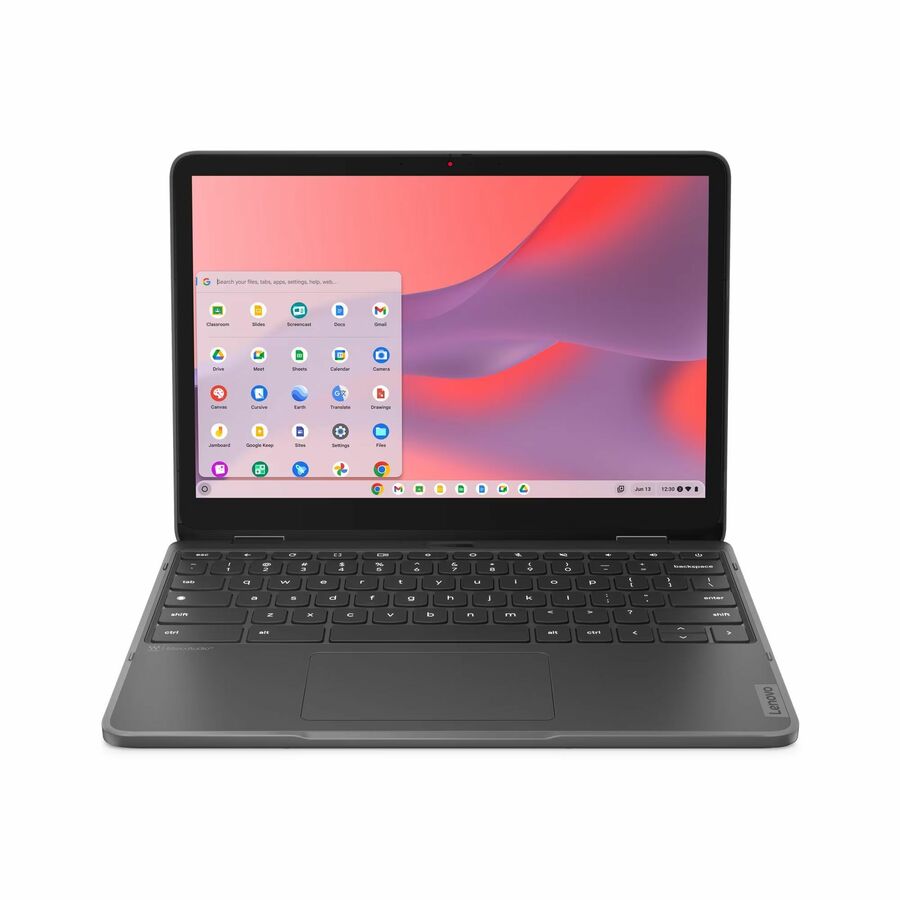
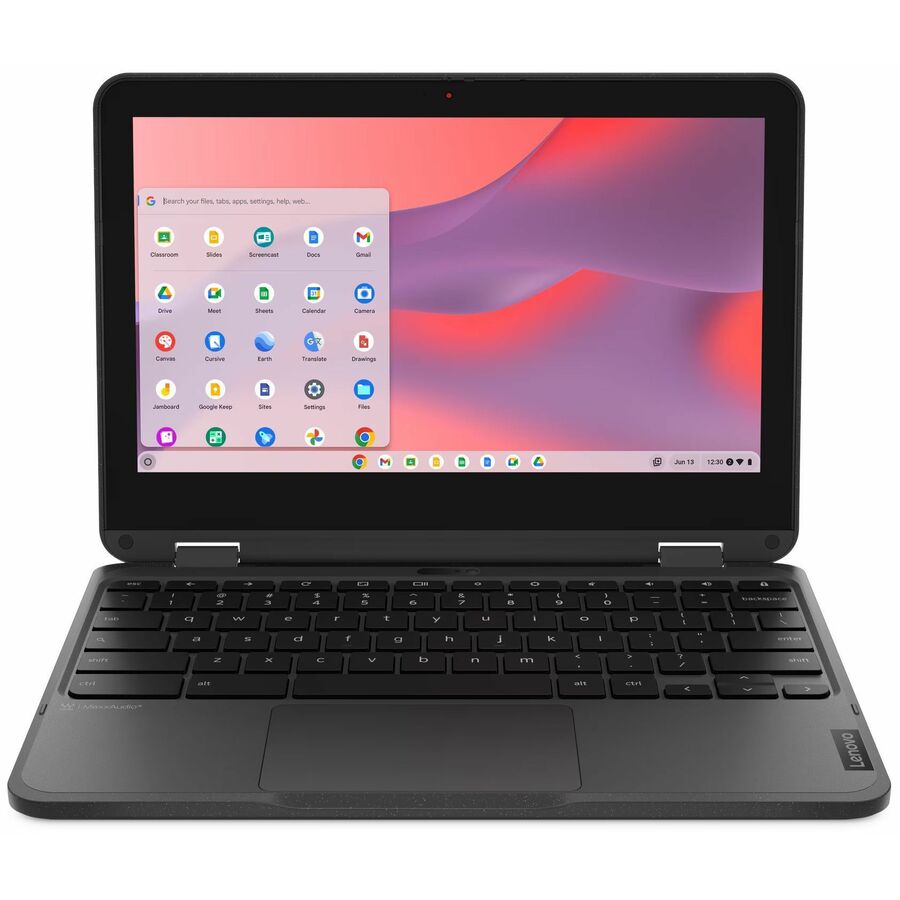
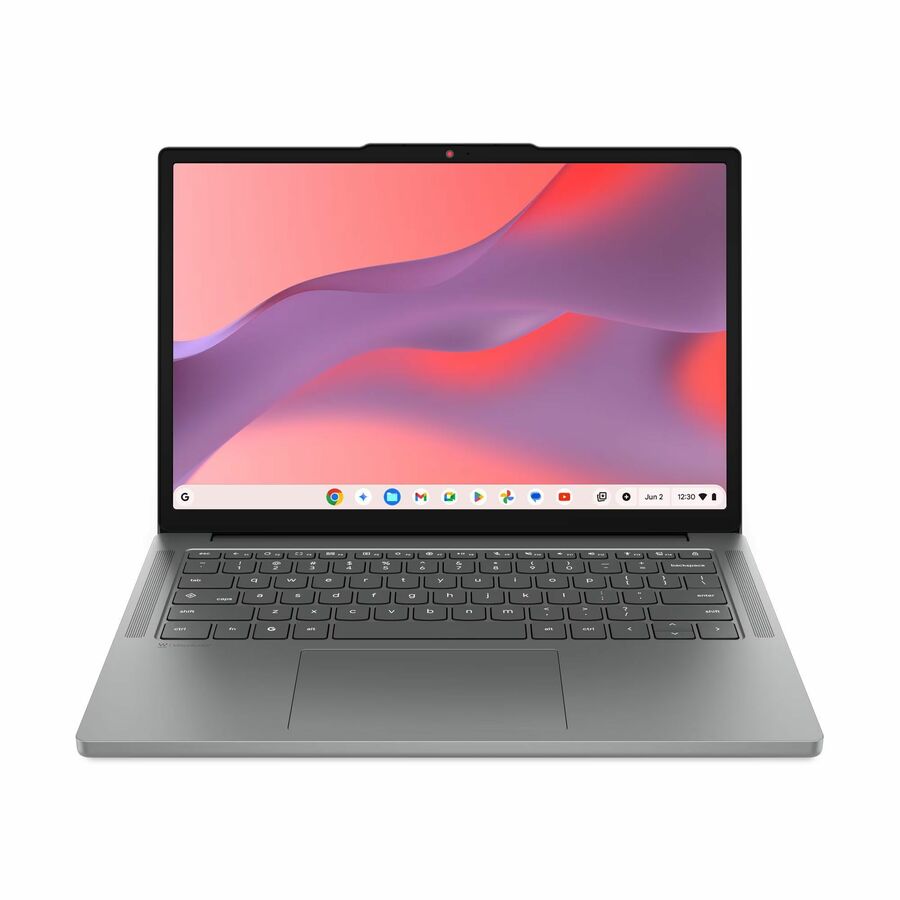
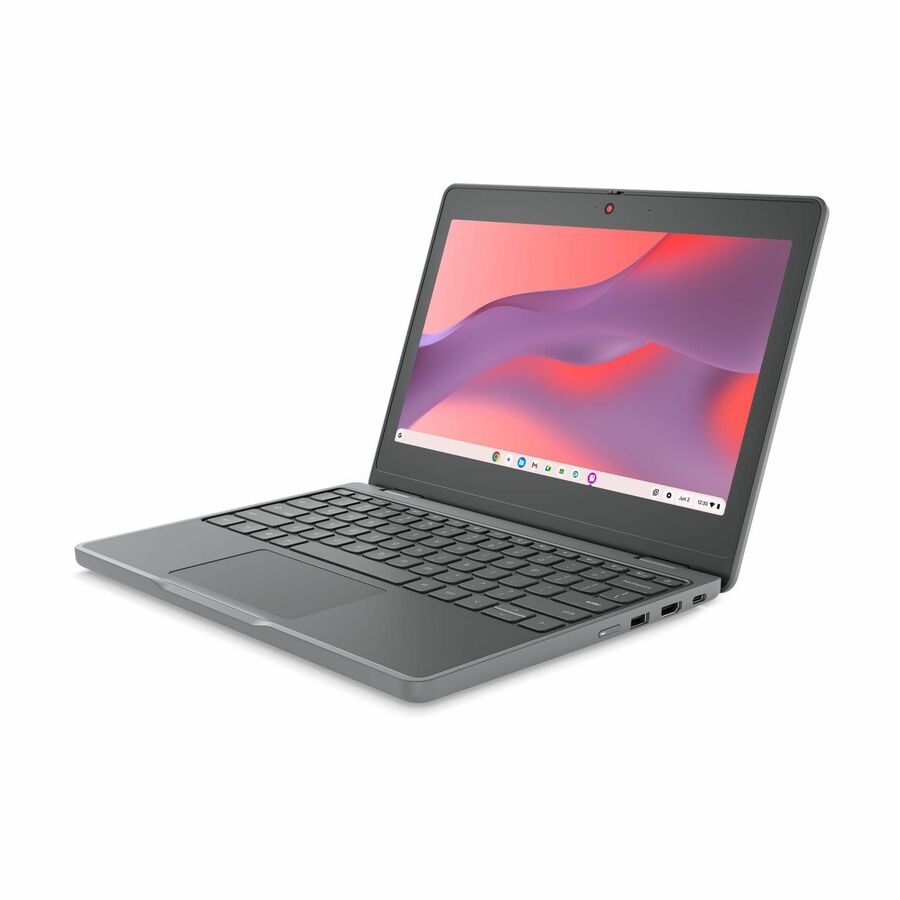
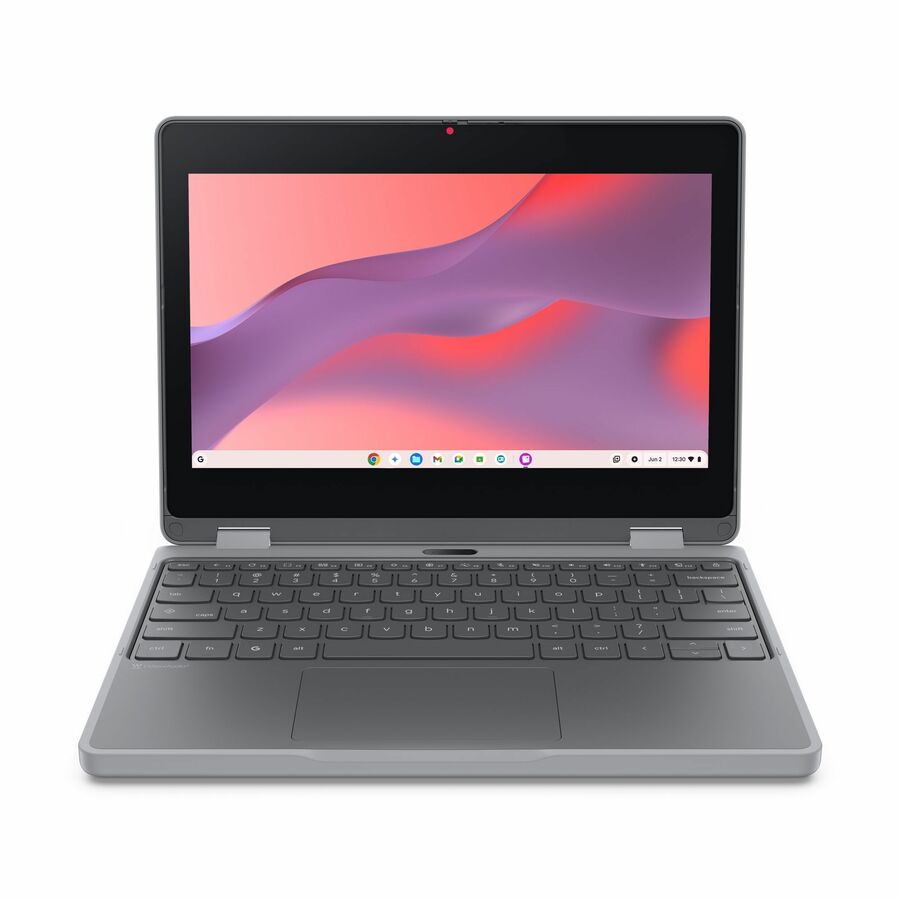
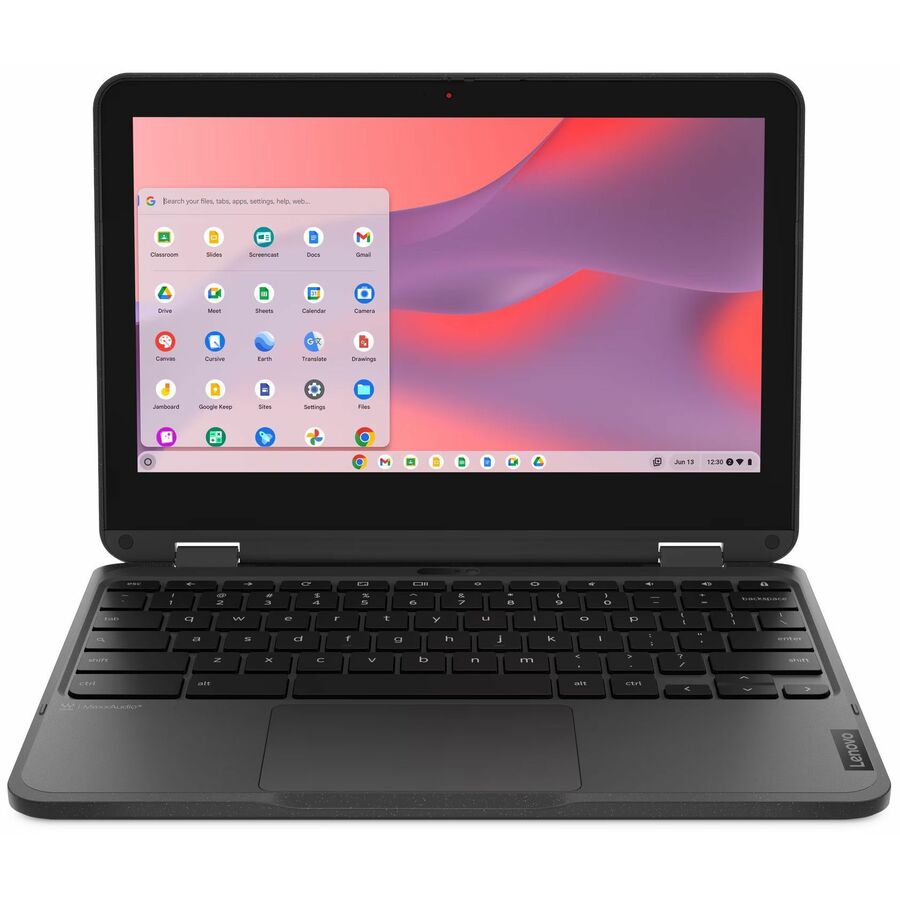
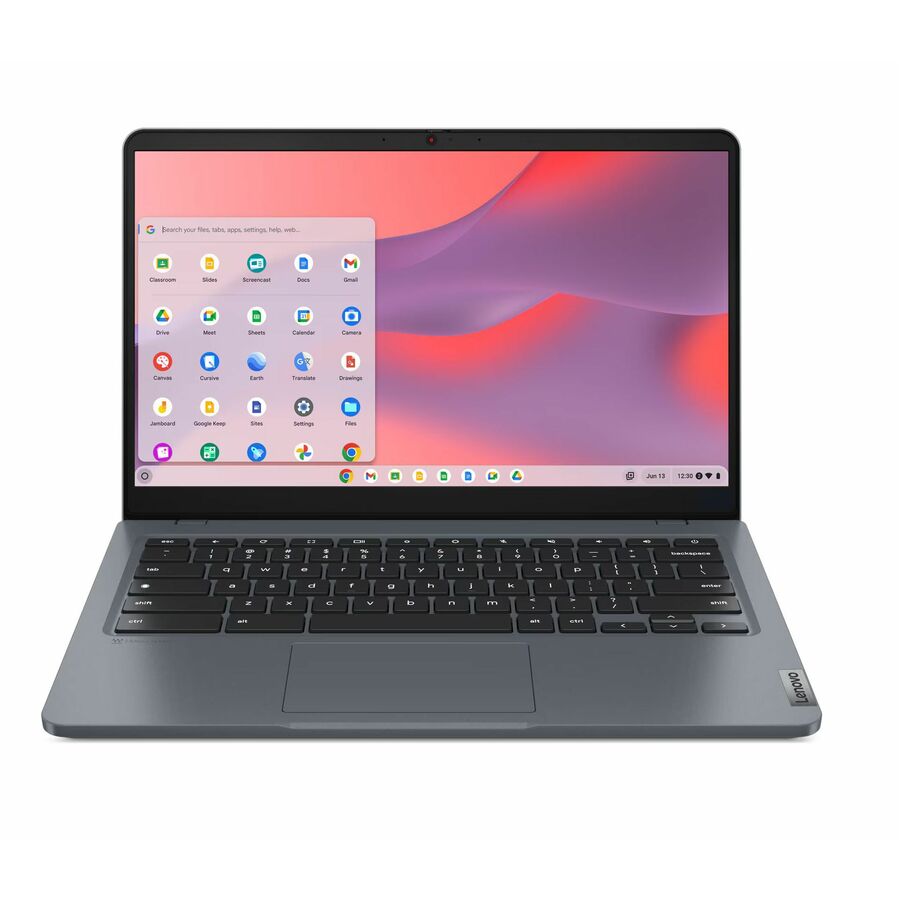
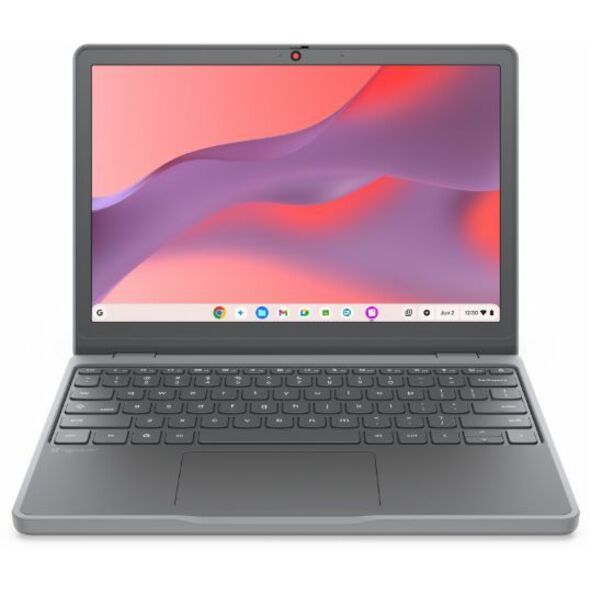
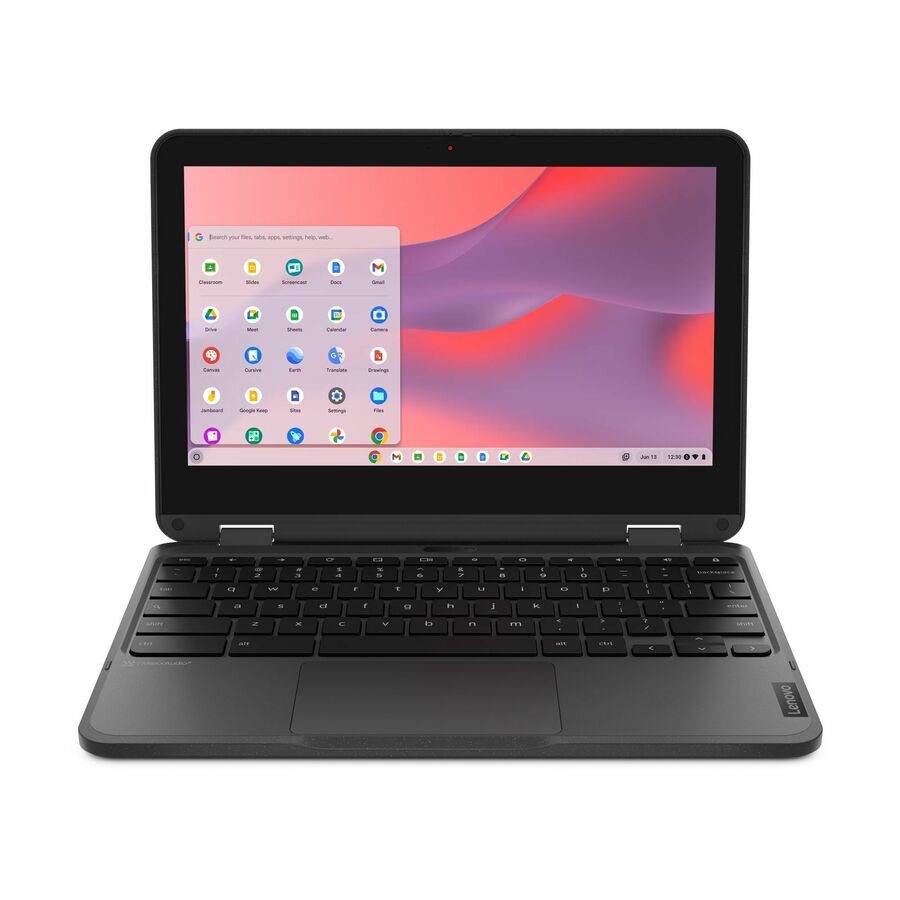
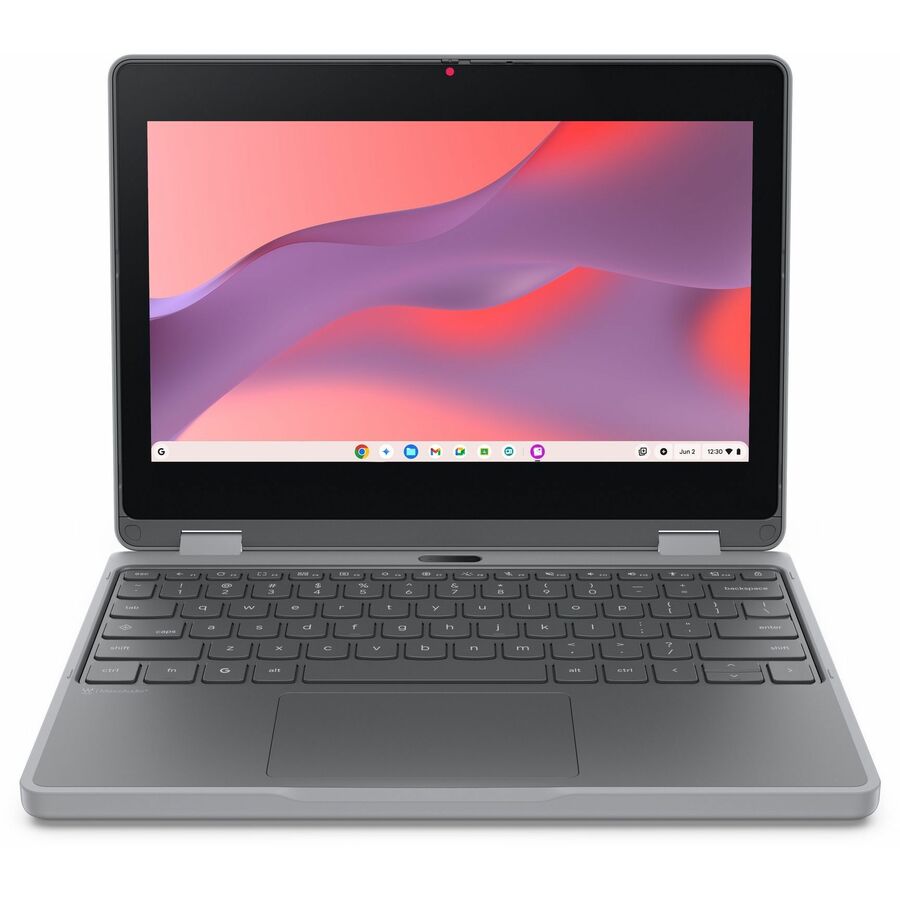
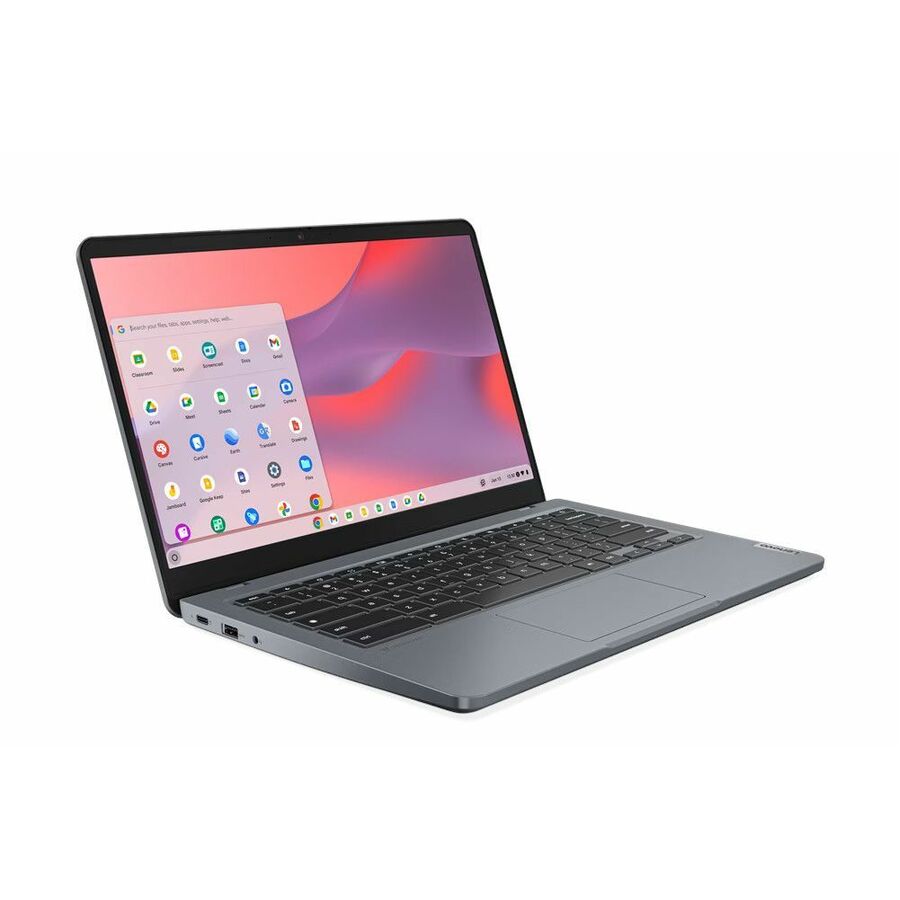
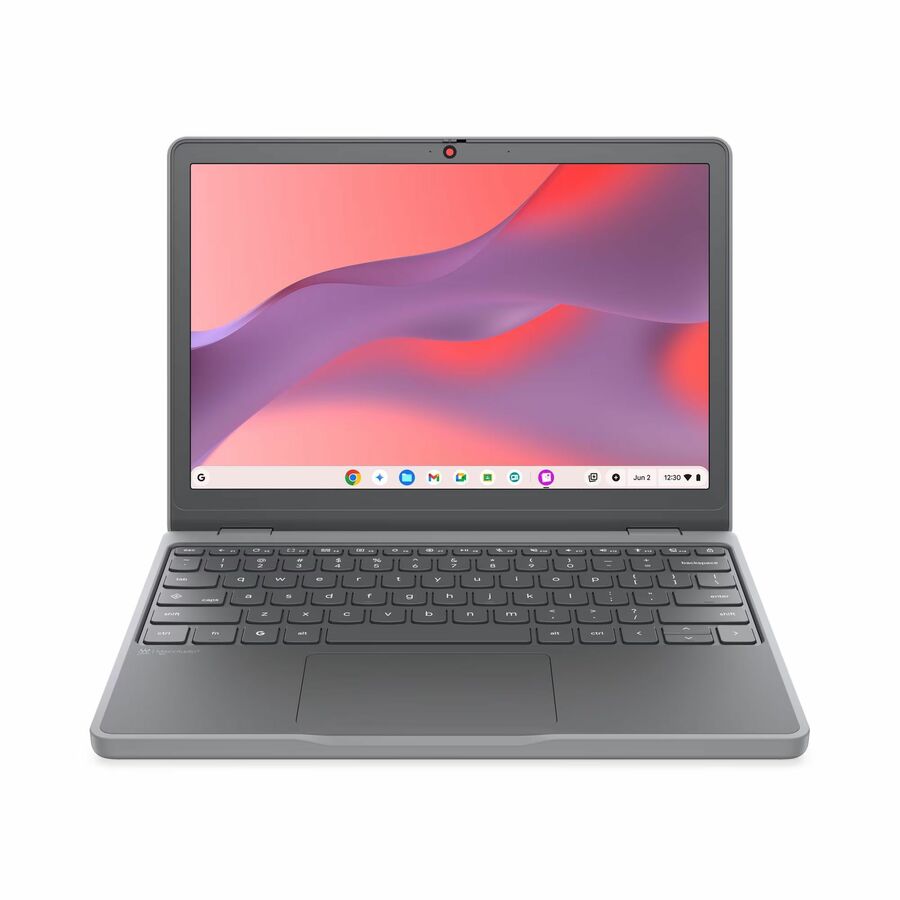
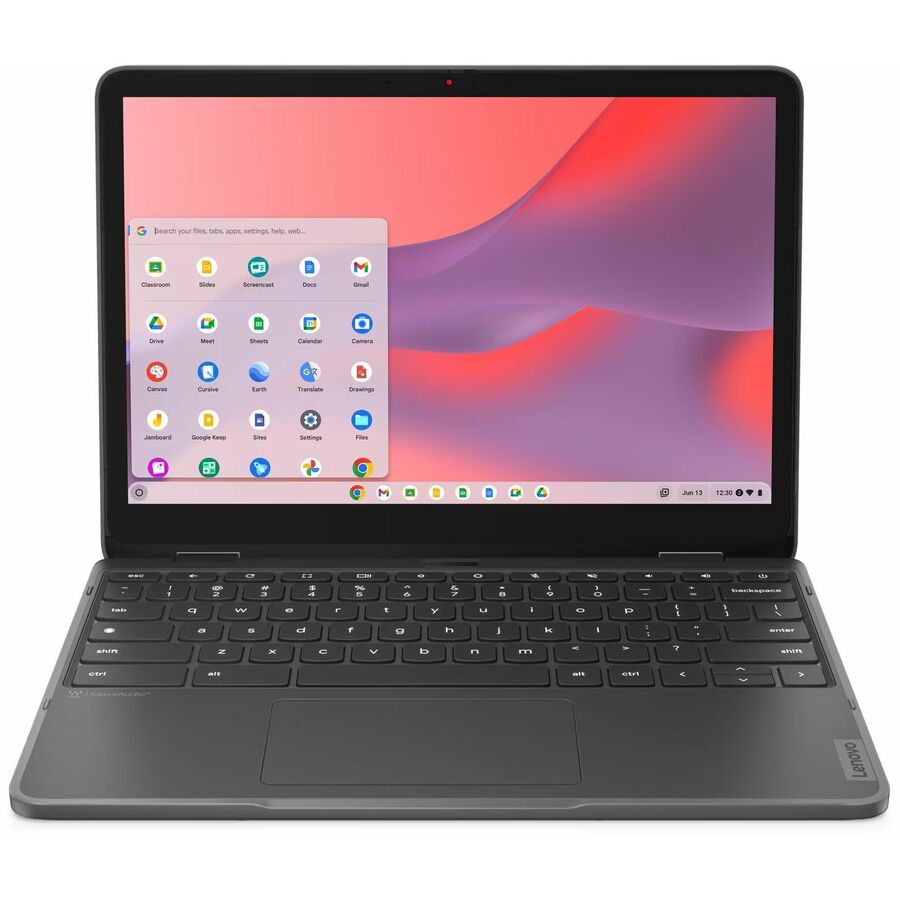
- LenovoLenovo Chromebook 100e Gen 5 M89 83T60008US 11.6" Touchscreen Chromebook - HD - MediaTek - 8 GB - 64 GB Flash Memory - English (US) Keyboard - Luna Gray - MediaTek Kompanio 540 Chip - 1366 x 768 - ChromeOS - ARM - Front Camera/Webcam - IEEE 802.11ax Wireless LAN Standard83T60008US
$596.16
1,419 in stock
Top pick
Lenovo
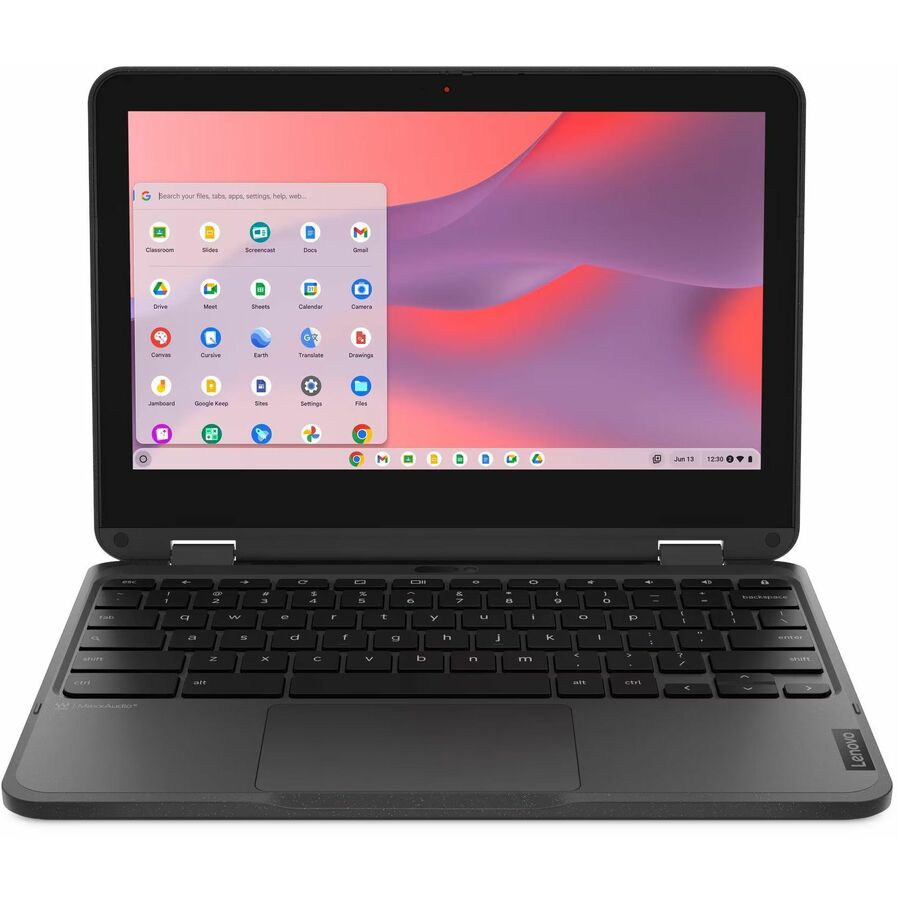
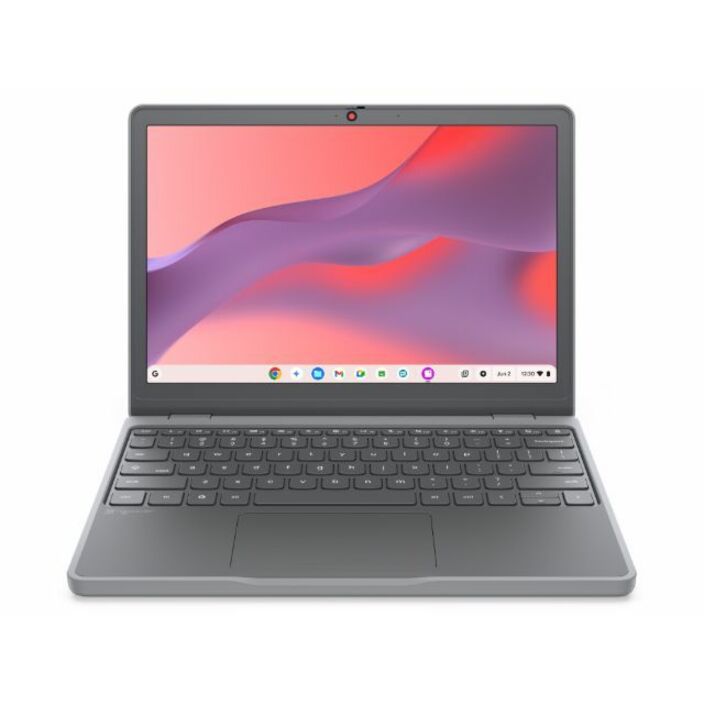
Lenovo Chromebook 100e Gen 5 M89 83T60006US 11.6" Chromebook
83T60006US
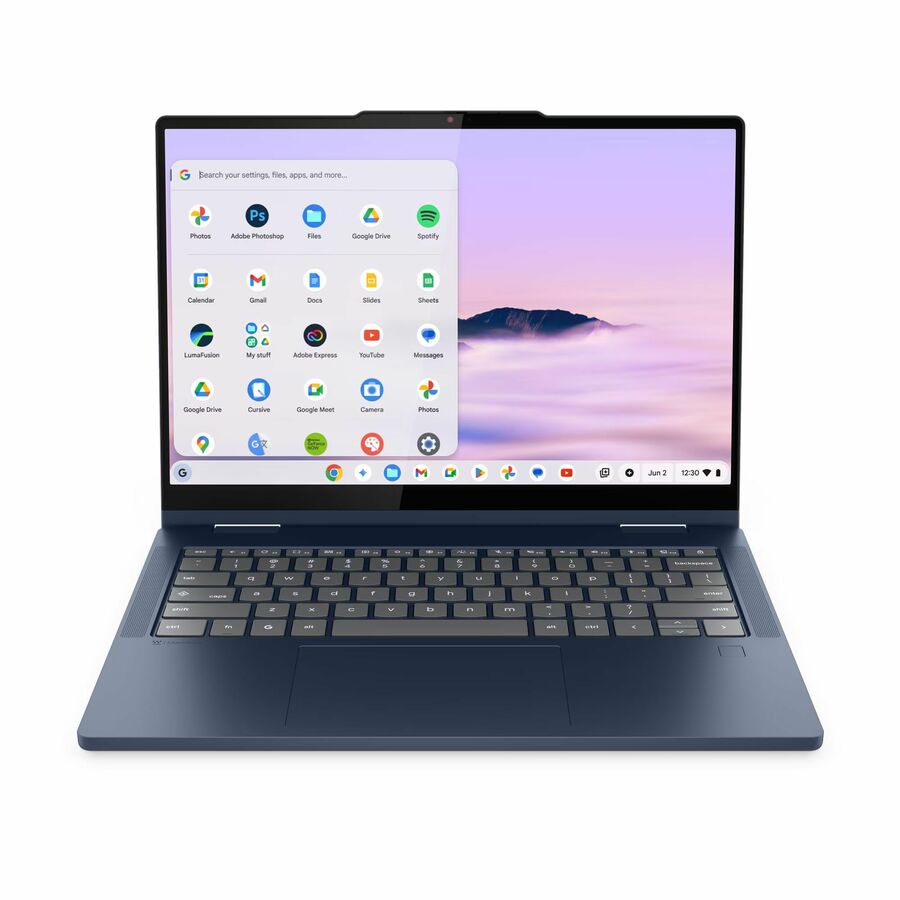
The 100e is the entry clamshell the rest of the education line is measured against, and this Gen 5 row is the one to price a 1:1 refresh from — an 11.6-inch IPS panel on a MediaTek Kompanio platform, which is the specification most student workloads never exhaust.
$449.73Back-orderedMore laptops in the Uniqcli catalog
See all 15,794 laptopsMore Lenovo first — closest to what you were just looking at; “See all laptops” above opens every other brand in the category. In-stock lines lead, and a back-ordered line carries the same estimated availability its product page does — with live pricing throughout, NDAA §889 screening before checkout and TAA verified on request.
Back-ordered — we expect to receive stock the week of Nov 30 – Dec 6 and will process your delivery right after.
Back-ordered — estimated OEM lead time 3–8 weeks (Nov 13 – Dec 18 if ordered today).
Back-ordered — estimated OEM lead time 3–8 weeks (Nov 13 – Dec 18 if ordered today).
Back-ordered — we expect to receive stock the week of Oct 26 – Nov 1 and will process your delivery right after.
Back-ordered — estimated OEM lead time 3–8 weeks (Nov 13 – Dec 18 if ordered today).
Back-ordered — estimated OEM lead time 3–8 weeks (Nov 13 – Dec 18 if ordered today).
Back-ordered — estimated OEM lead time 3–8 weeks (Nov 13 – Dec 18 if ordered today).
Back-ordered — estimated OEM lead time 3–8 weeks (Nov 13 – Dec 18 if ordered today).
Back-ordered — estimated OEM lead time 3–8 weeks (Nov 13 – Dec 18 if ordered today).
Back-ordered — we expect to receive stock the week of Dec 7–13 and will process your delivery right after.
Back-ordered — we expect to receive stock the week of Nov 23–29 and will process your delivery right after.
Back-ordered — estimated OEM lead time 3–8 weeks (Nov 13 – Dec 18 if ordered today).
Back-ordered — estimated OEM lead time 3–8 weeks (Nov 13 – Dec 18 if ordered today).
Back-ordered — estimated OEM lead time 3–8 weeks (Nov 13 – Dec 18 if ordered today).
Back-ordered — estimated OEM lead time 3–8 weeks (Nov 13 – Dec 18 if ordered today).
Back-ordered — estimated OEM lead time 3–8 weeks (Nov 13 – Dec 18 if ordered today).
Back-ordered — estimated OEM lead time 3–8 weeks (Nov 13 – Dec 18 if ordered today).
Need pricing on Lenovo Chromebooks?
Tell us where to reach you and a Uniqcli specialist will follow up by email with current pricing, availability and lead time for the quantities you need — including parts that aren’t shown on this page.
Buying for an organization or for yourself — both work. No payment up front.
Lenovo holds the strongest in-stock position of any Chromebook brand we carry, and for a district that is a scheduling fact rather than a marketing one. A 1:1 refresh has a hard delivery window — units have to be imaged, tagged, enrolled and distributed inside a summer, and every week of slipped delivery comes out of the technicians' time, not the vendor's. Buying from what is actually on a shelf is frequently worth more than buying the theoretically better specification.
The education line is deliberately narrow, which helps. The 100e is the entry clamshell, the 500e is its convertible sibling, and the 14e and 14-inch Chromebook models step up to a larger panel for older students and staff. Across the current rows you will find both MediaTek Kompanio and Intel N-series silicon, 4 GB and 8 GB memory options, 64 GB of flash storage, and Wi-Fi 6 or Wi-Fi 6E radios. That is a small enough matrix that a district can genuinely evaluate all of it in an afternoon.
Every card below carries a live price and a live availability status, sorted so that in-stock units lead. Nothing here is a static list that was accurate in some previous quarter. If a model you want shows as back-ordered, that is real information about your delivery plan and it is better to see it now than to discover it after a board has approved a purchase order.
Buyer's checklist
How to choose a Lenovo Chromebook for a 1:1 program
- Decide the clamshell-versus-convertible question once, at district level, by grade band. The 100e and the 500e are close siblings; the 500e adds a touchscreen and a 360-degree hinge that earns its cost in early grades and in special education, and mostly does not in a keyboard-first secondary classroom. Letting individual schools choose is how a two-model fleet becomes a six-model support problem.
- Treat 8 GB as the floor for secondary students and accept 4 GB only where the workload is genuinely a browser and a testing client. Both configurations exist in this line and the price difference per seat is small against the cost of a device that cannot hold a research session open.
- Check the Auto Update Expiration date of the specific platform before standardizing. Google publishes an AUE date per ChromeOS platform and states devices receive ten years of updates from the platform's release — so the supported window is a property of the platform, not of your purchase date.
- Confirm which components are customer-replaceable on the exact model you are buying, and get the part numbers on the quote. Keyboards, palm rests and screens are the parts a school district actually consumes, and a repair program that can source them is dramatically cheaper than one that ships units out.
- Size the spares pool from your own breakage history, not from a rule of thumb, and buy the spares with the fleet so they share a platform and an image. If you have no history yet, start conservative, measure the first year honestly, and correct at the next cycle.
- Verify that 14-inch units fit the charging carts you already own before you specify them. Bay depth varies between cart generations and a fleet decision that strands existing carts is an expensive thing to discover during a summer deployment.
- Match the radio to the access points. These rows carry 802.11ax and, on several models, Wi-Fi 6E. A 6E client is a good future position but returns nothing until the wireless infrastructure behind it supports the band, so let the network refresh schedule inform whether you pay for it.
- Put the Chrome Education Upgrade on the same purchase order as the hardware. ChromeOS devices are enrolled and managed from the Google Admin console under that license; Google states a bundled perpetual upgrade covers the life of the device it is enrolled to and is not transferable between devices.
Decoding the 100e, 500e and 14e naming
Lenovo's education naming is more informative than most, and once you can read it the catalog stops looking like a wall of part numbers. The trailing e marks the education line. The leading number is the tier: the 100e is the entry clamshell, the 500e is the convertible with a touchscreen, and the 14e denotes the 14-inch class. The generation number and the platform code that follows — Gen 4, Gen 5, M89 — is the part that determines your update window, so it is the part worth reading twice.
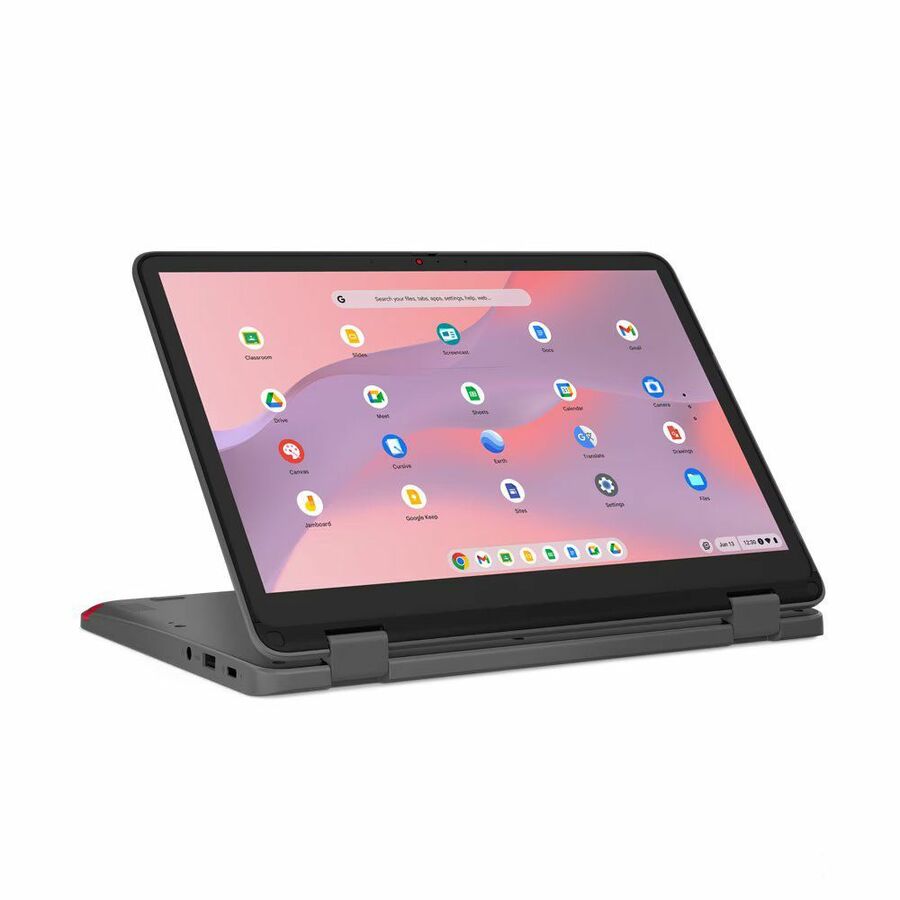
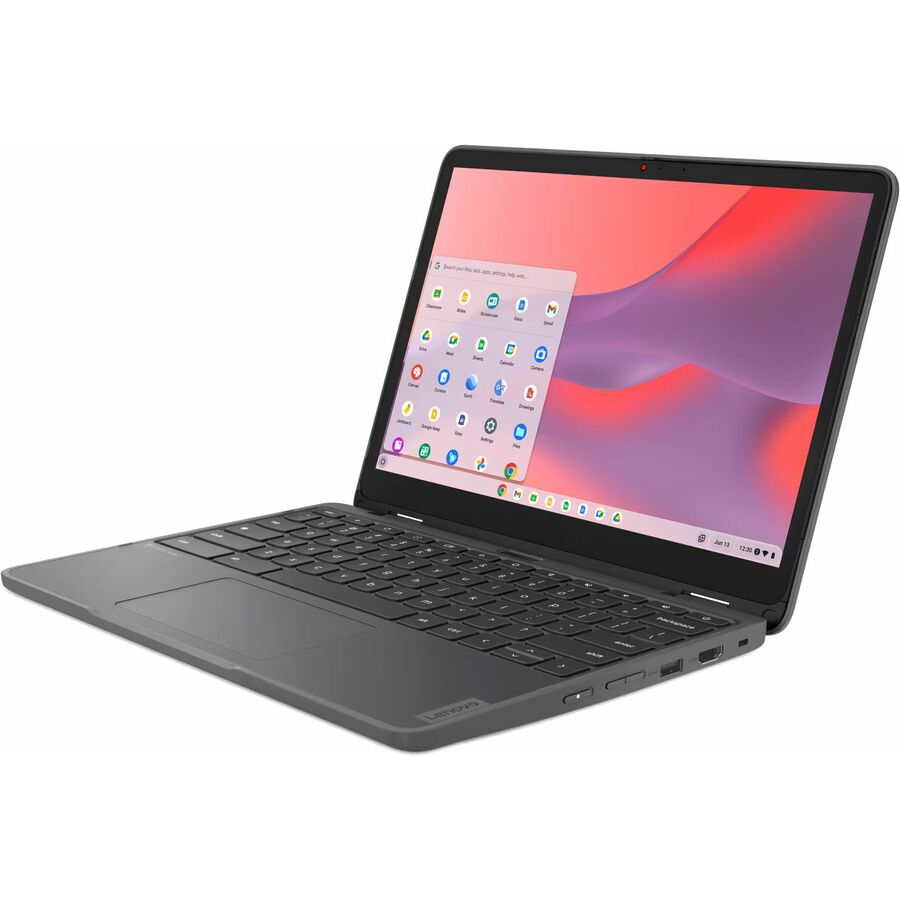
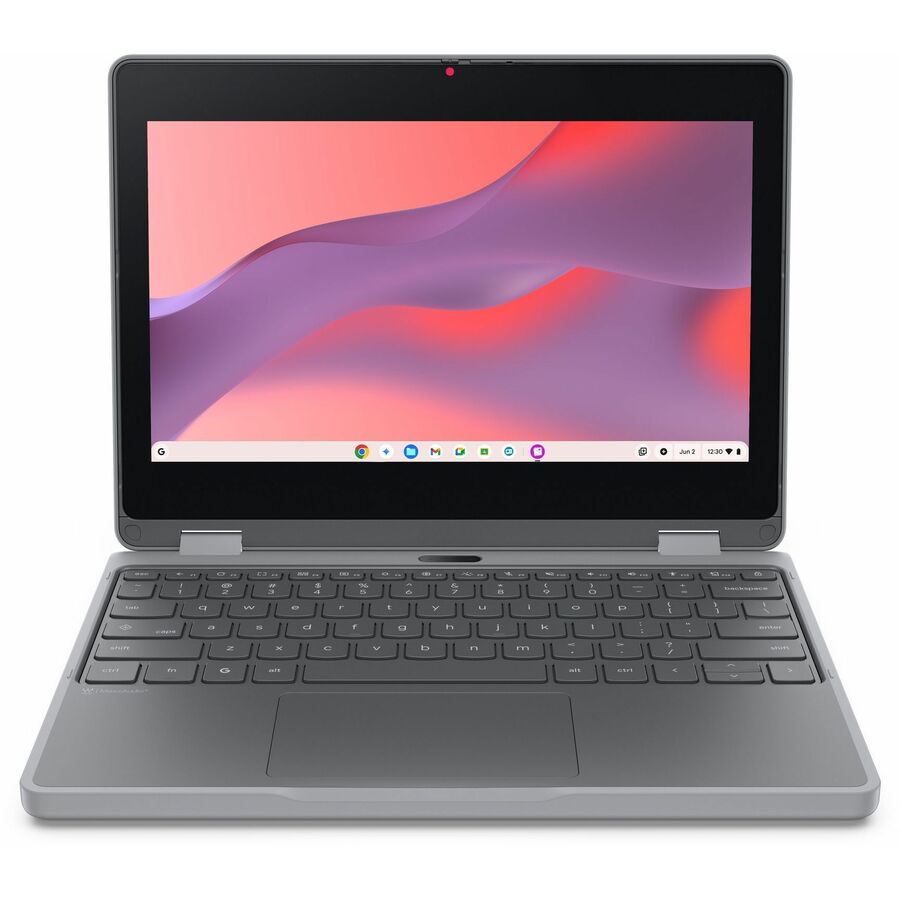
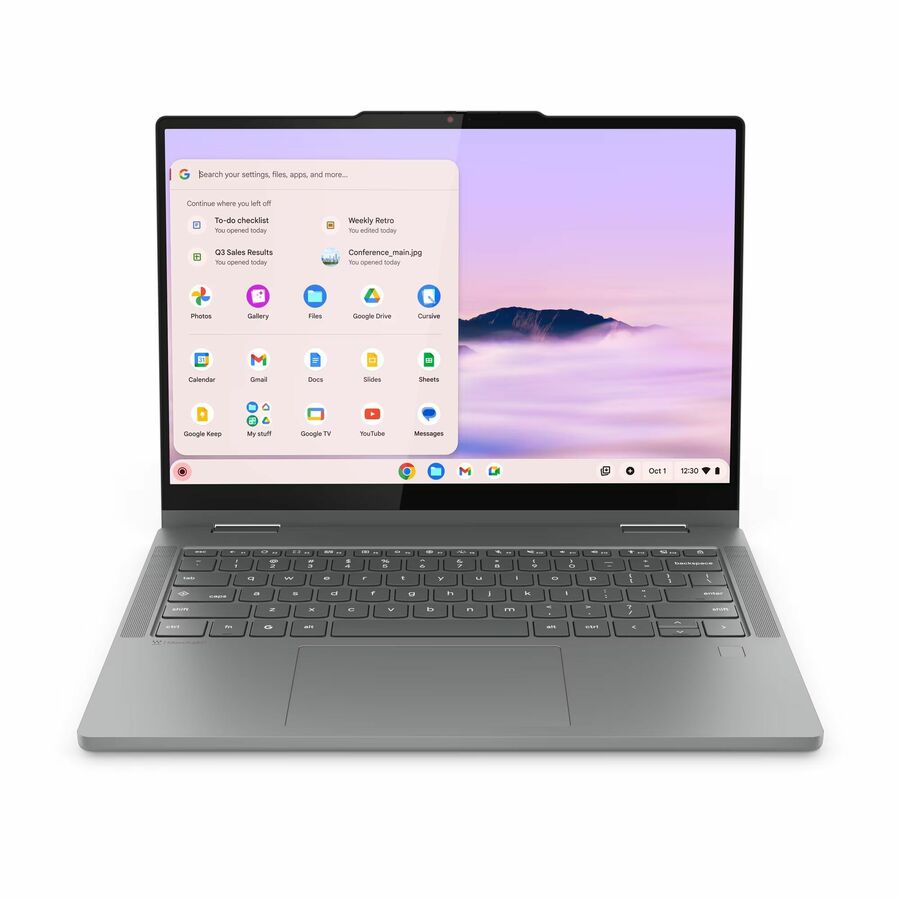
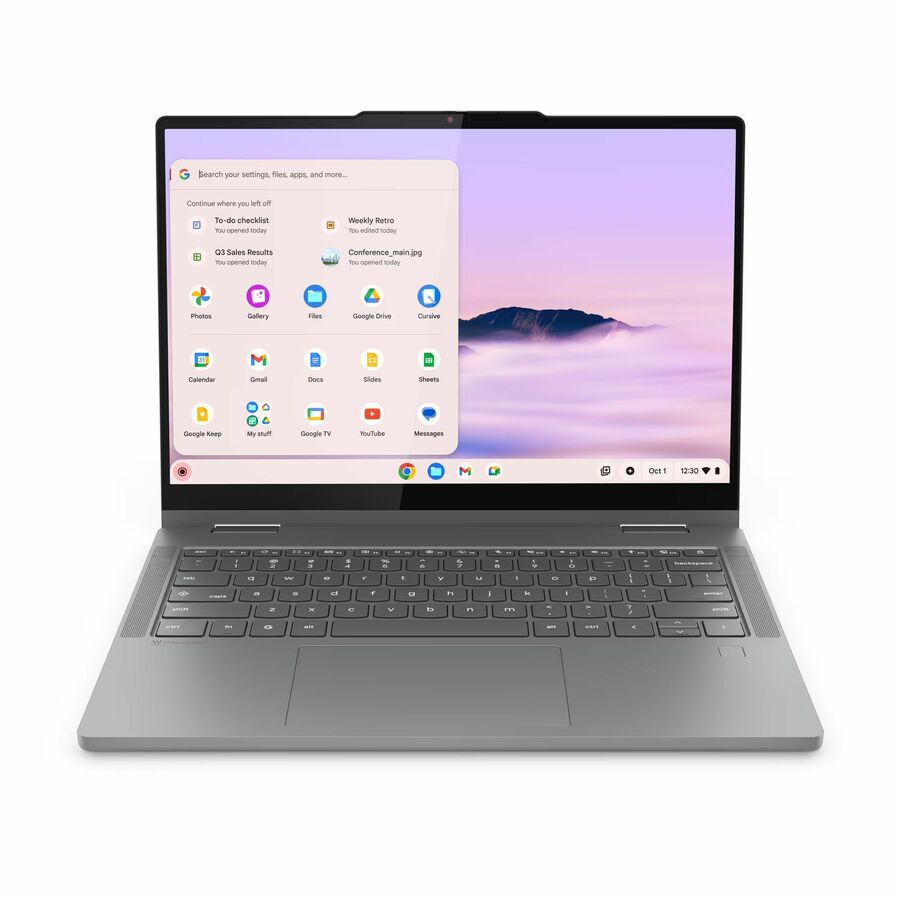
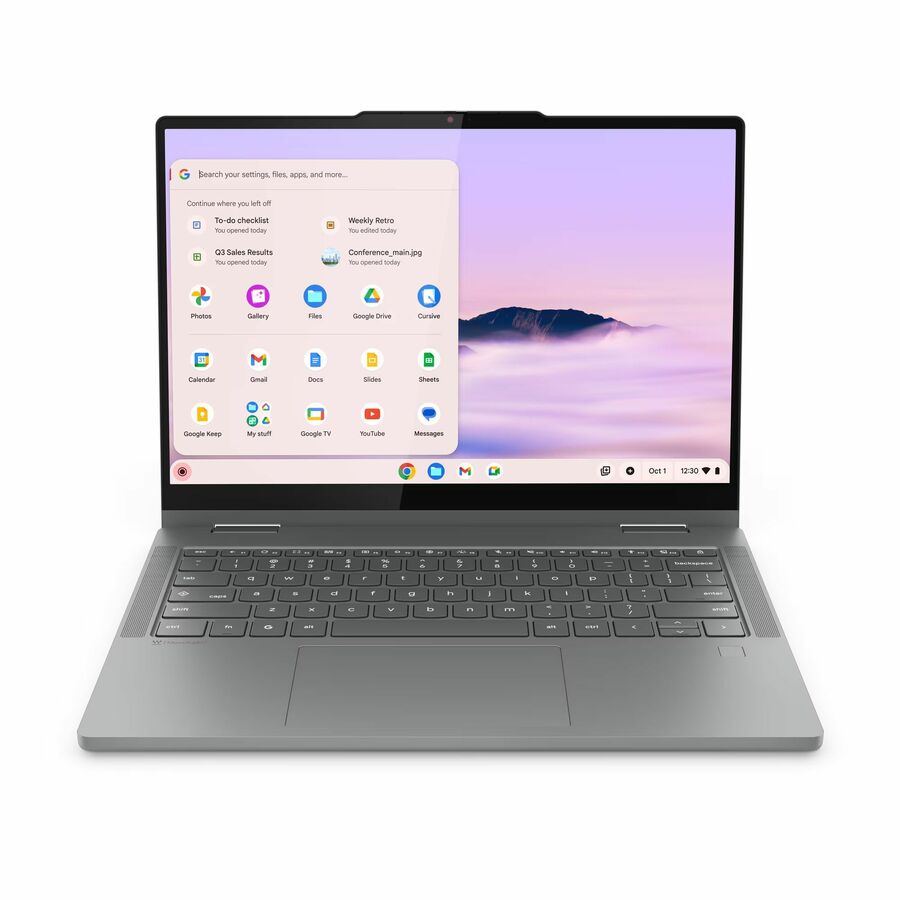
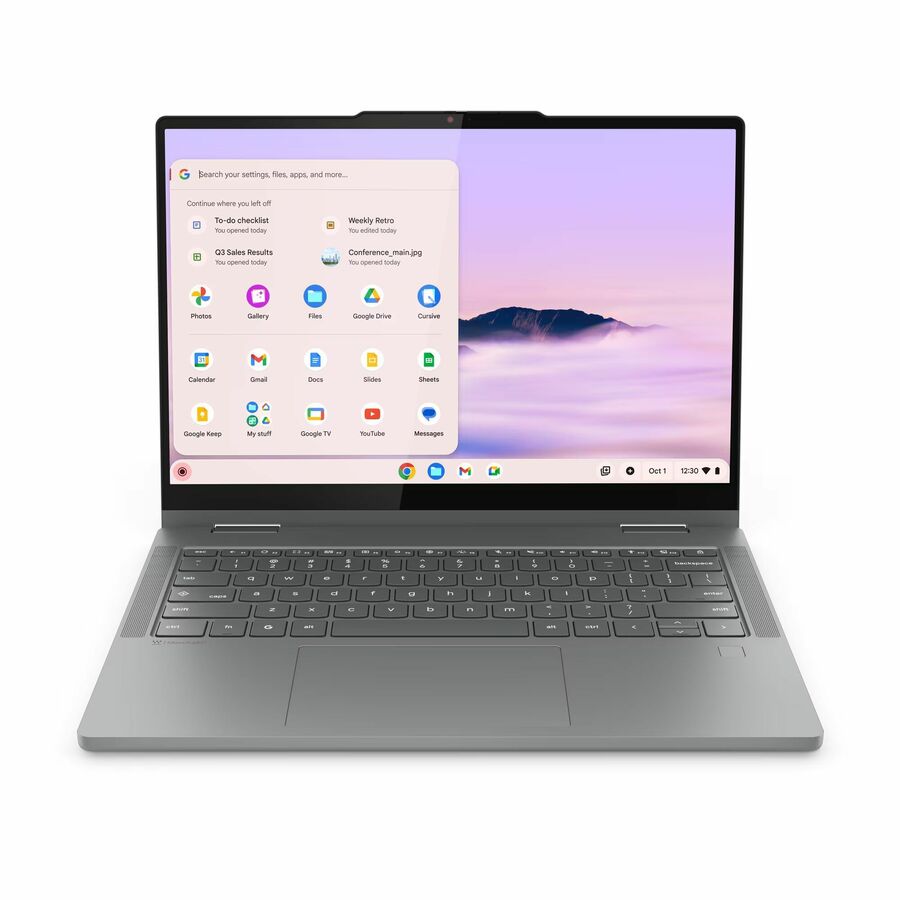
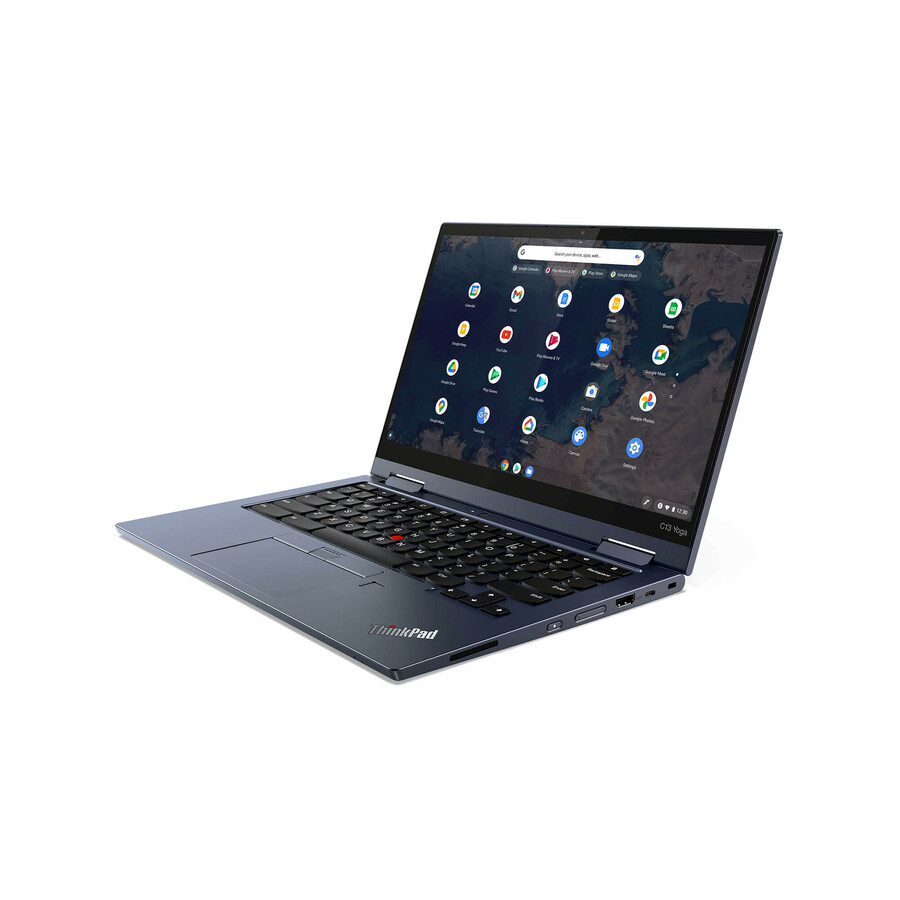
In the current rows that shakes out cleanly. The 100e Gen 5 M89 is an 11.6-inch clamshell on MediaTek Kompanio silicon, available with either 4 GB or 8 GB of memory and with or without touch. The 500e Gen 5 M89 is the convertible on the same platform in 11.6-inch and 12.2-inch panels with Wi-Fi 6E. The 500e Yoga Gen 4 and 500e Gen 4s are the previous-platform convertibles on Intel N-series parts, and the 14e Gen 3 and 14-inch Chromebook models carry the larger Full HD and WUXGA panels.
Two implications follow. First, a district can hold a two-SKU fleet — one 100e configuration and one 500e configuration on the same generation — and cover almost every classroom use case with a single spares bin. Second, when a generation rolls over, the sibling relationships stay stable, which makes the next refresh a much shorter evaluation than the first one was.
MediaTek or Intel: what the choice actually changes
Both silicon families appear across these rows and both are appropriate for a ChromeOS student workload. The honest procurement answer is that for a browser, a learning-management system and a state testing client, neither choice is the thing that will determine whether your program works.
What the choice does change is availability and platform lifetime. Because the AUE date attaches to the platform, a fleet standardized on one silicon family will have one date to manage rather than two. And because supply moves independently for each, the practical question in any given buying season is which family you can get in the depth you need — which is exactly what the availability status on each card is there to answer.
Our recommendation to districts is to let the requirement pick the tier and let supply pick the silicon, then lock both for the duration of the fleet. Splitting a fleet across two silicon families to chase a small per-unit saving buys you two images, two sets of firmware behavior to validate against your testing platform, and two AUE dates in the asset register.
Sizing a spares pool without guessing
The single most common budgeting error in a 1:1 program is treating spares as a contingency to be funded later. They are not contingency; they are a known operating cost, and the only real question is what your own number is. Districts that already run a fleet have the data: pull last year's repair tickets, separate the units that were returned to service from the ones that were written off, and express both as a percentage of deployed seats. That percentage, applied to the new fleet size, is your spares order.
If you are deploying 1:1 for the first time you do not have that history, and no vendor can honestly give it to you — breakage rates vary enormously by grade band, by whether devices go home, and by whether the program includes protective cases. The defensible approach is to buy a modest same-configuration pool with the initial order, instrument the first year properly, and correct at the next purchase rather than pretending to precision you do not have.
Whatever the number, buy the spares in the same transaction as the fleet. A spare purchased a year later is frequently a different generation with a different AUE date, a different keyboard part and a different image — at which point it is not a spare, it is a second fleet with a population of one.
The 14-inch question
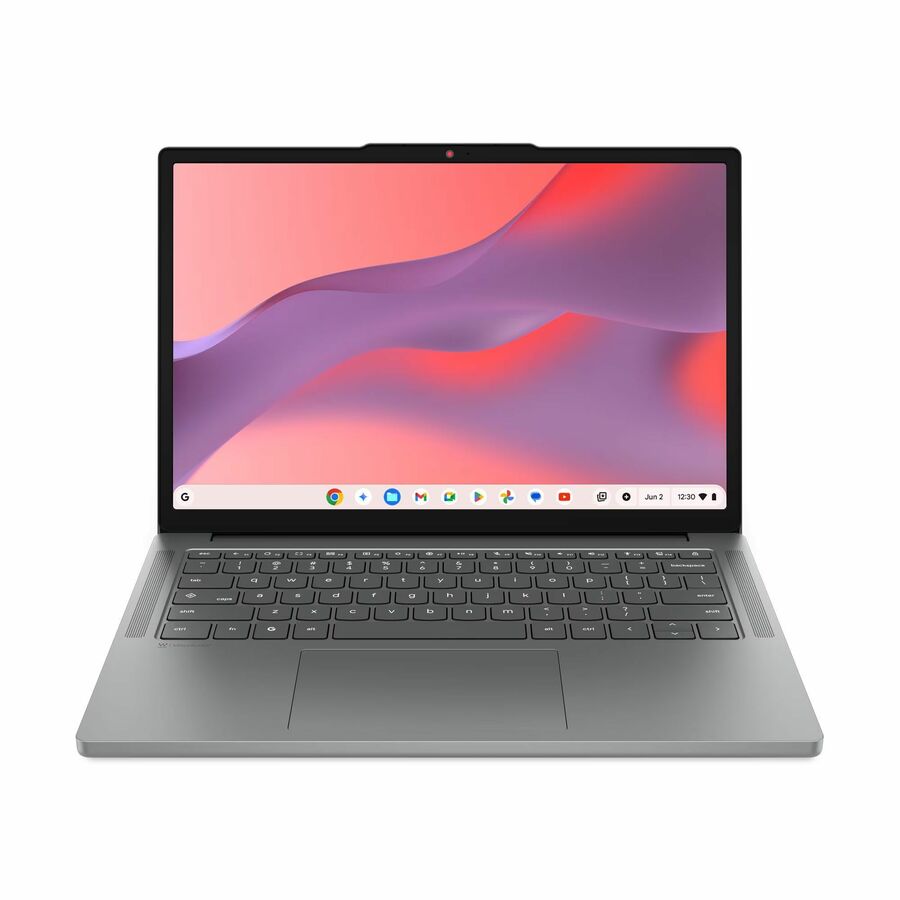
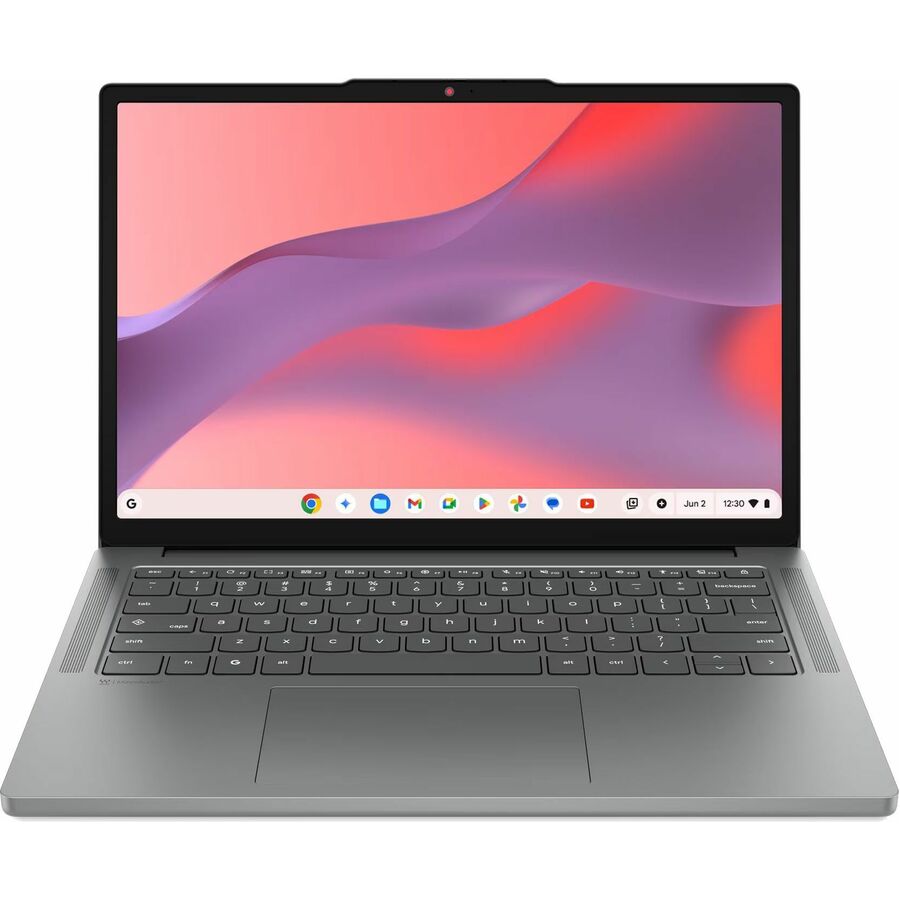
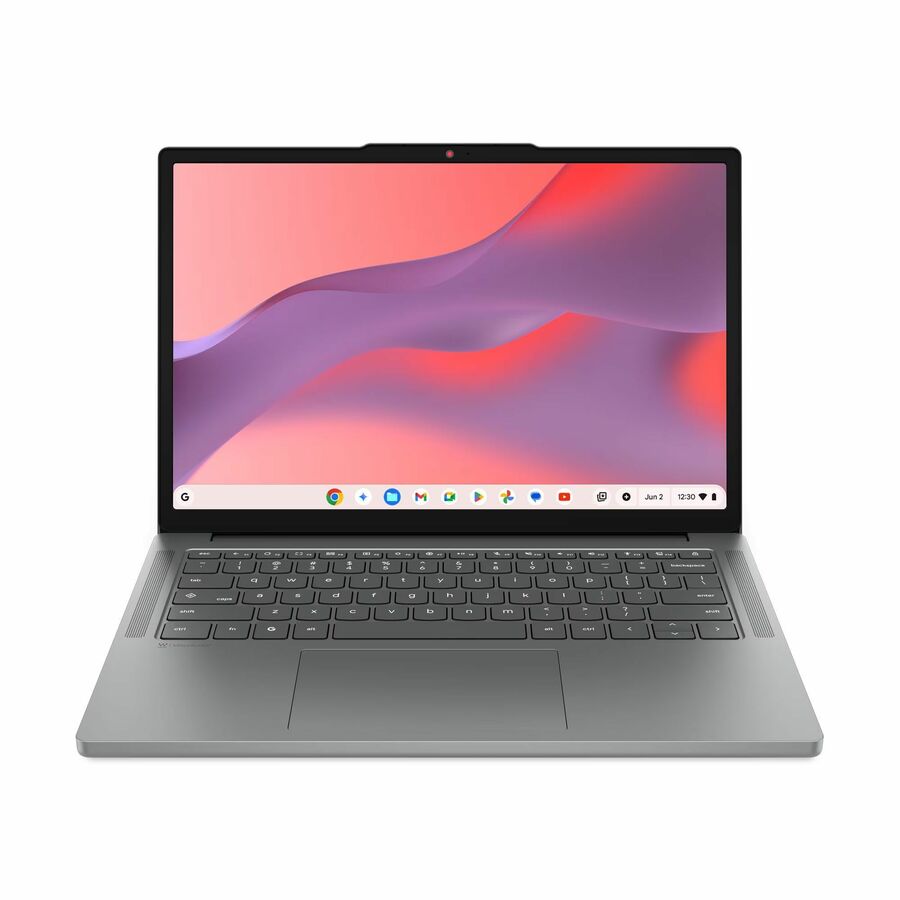
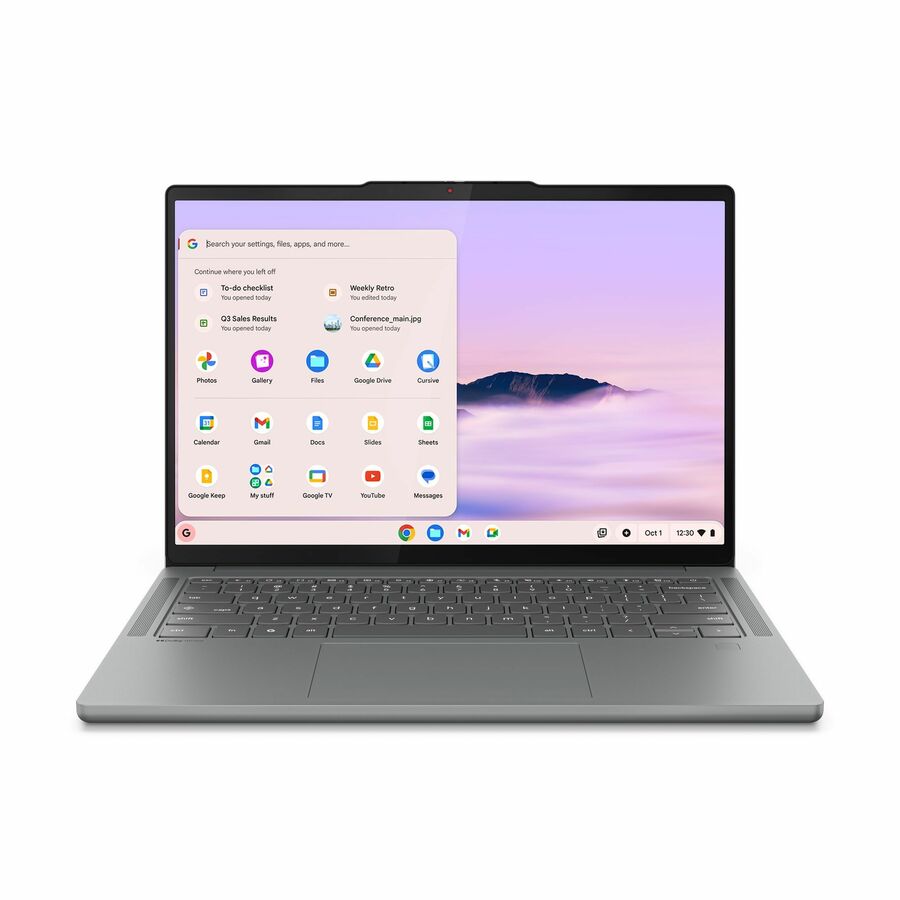
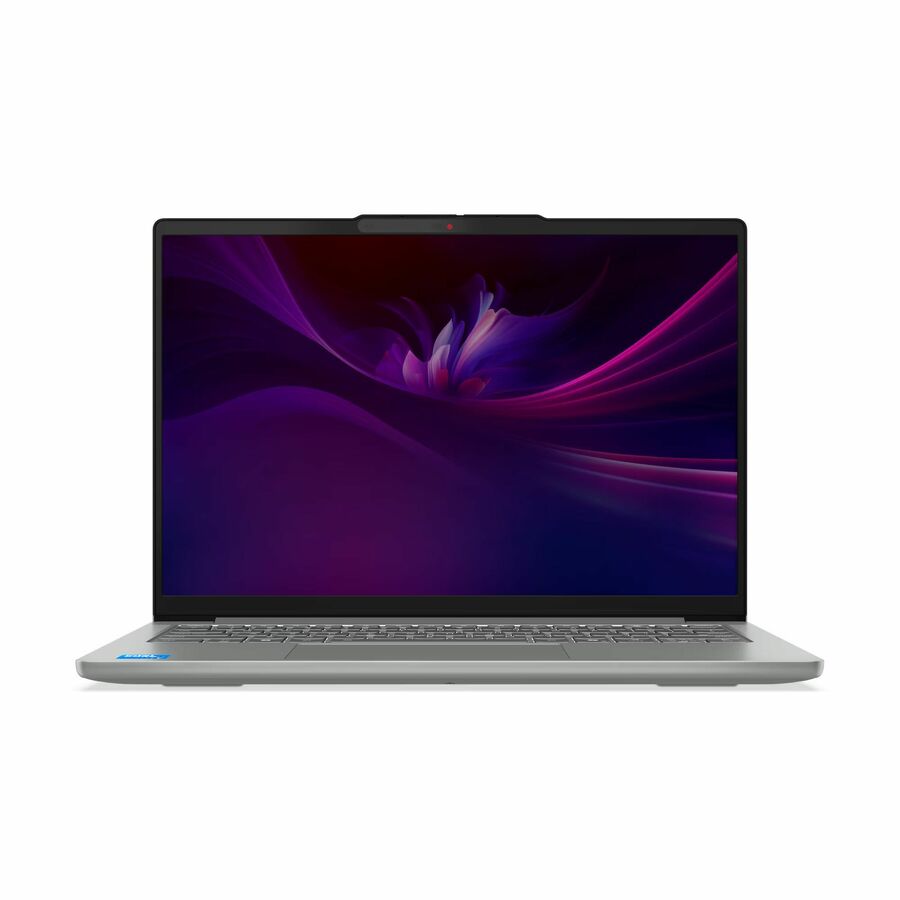
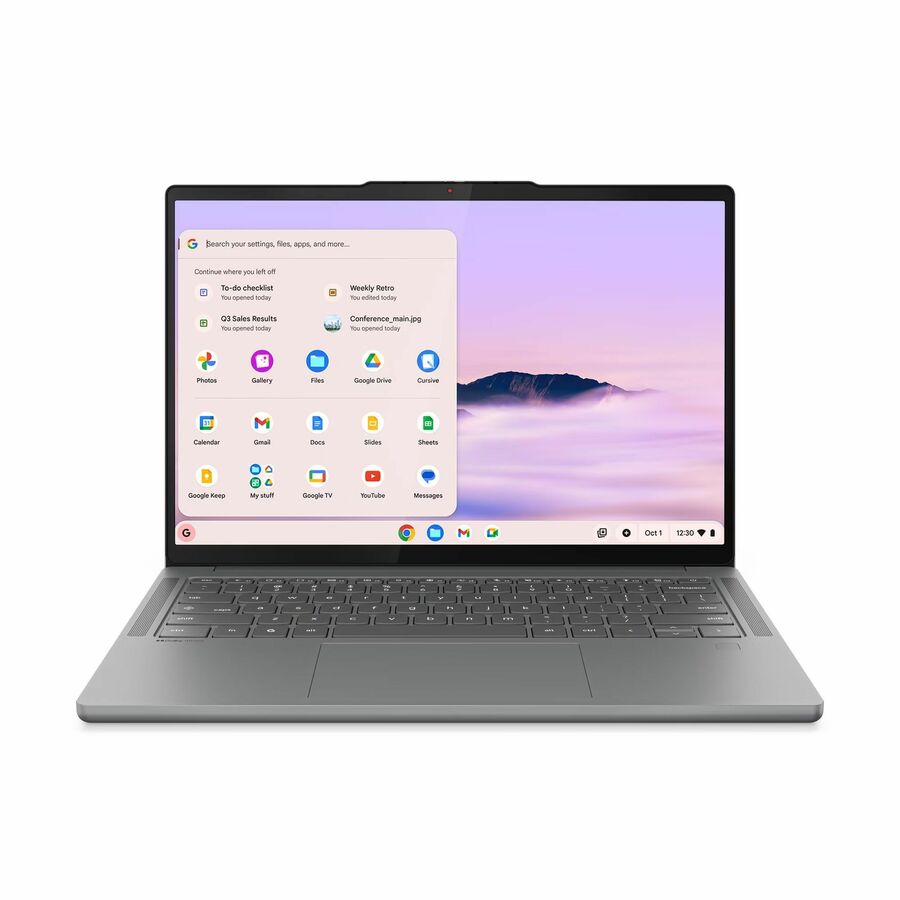
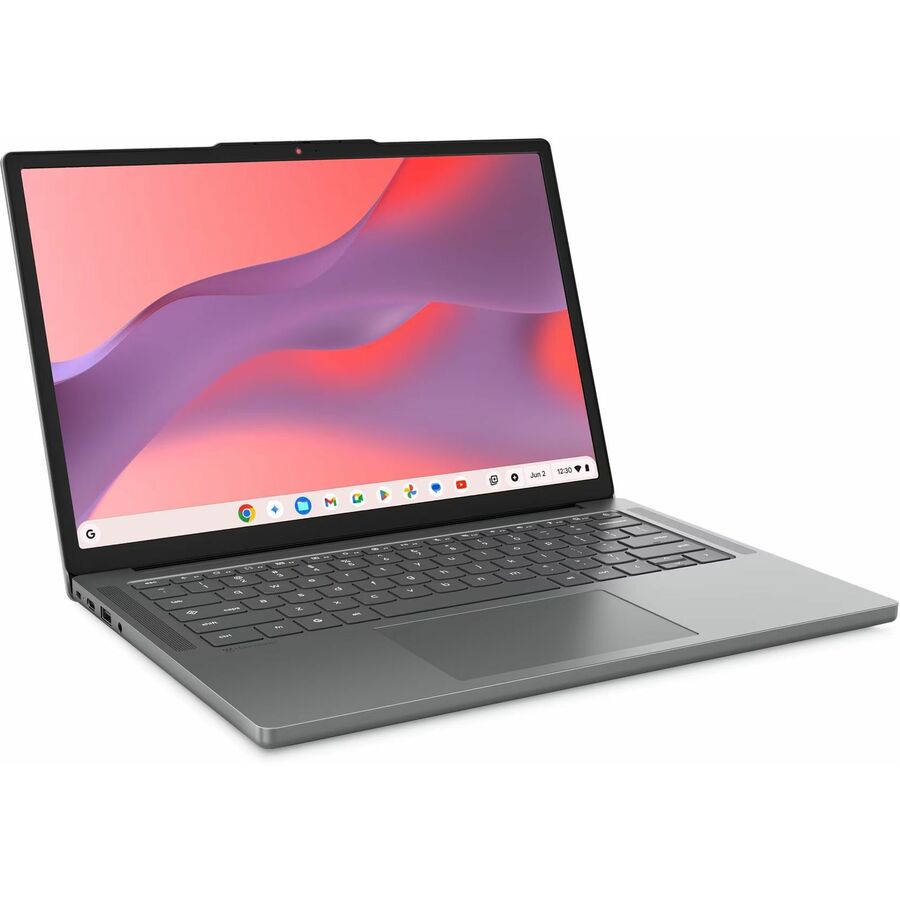
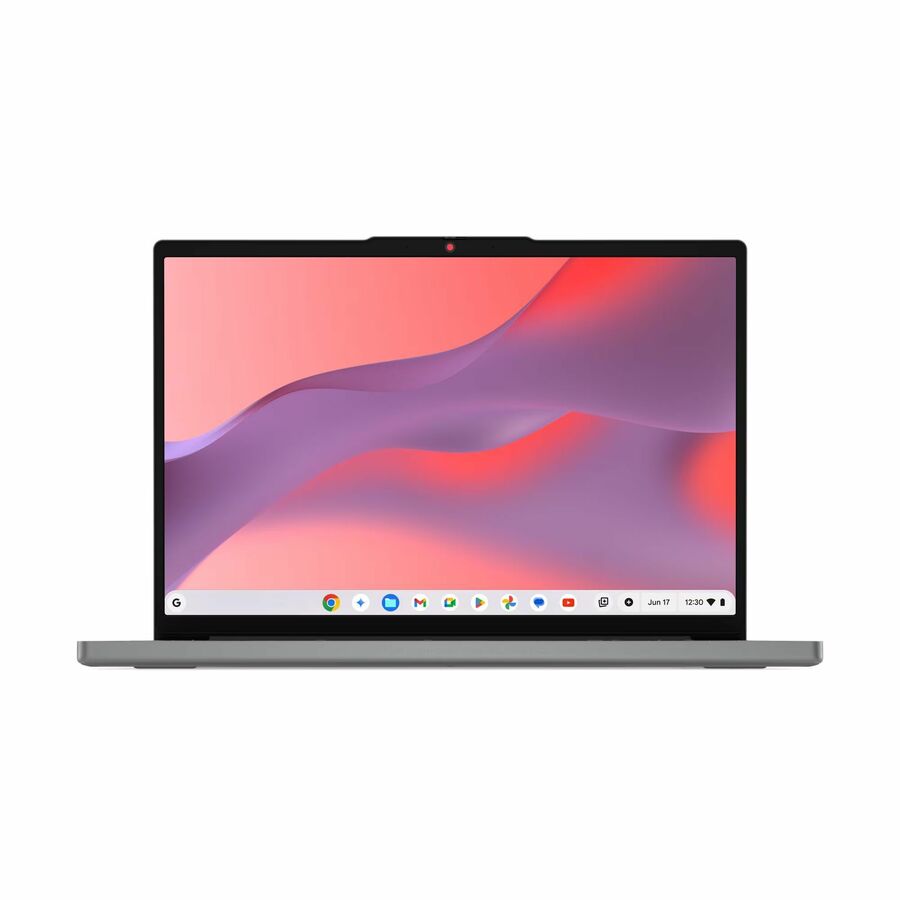
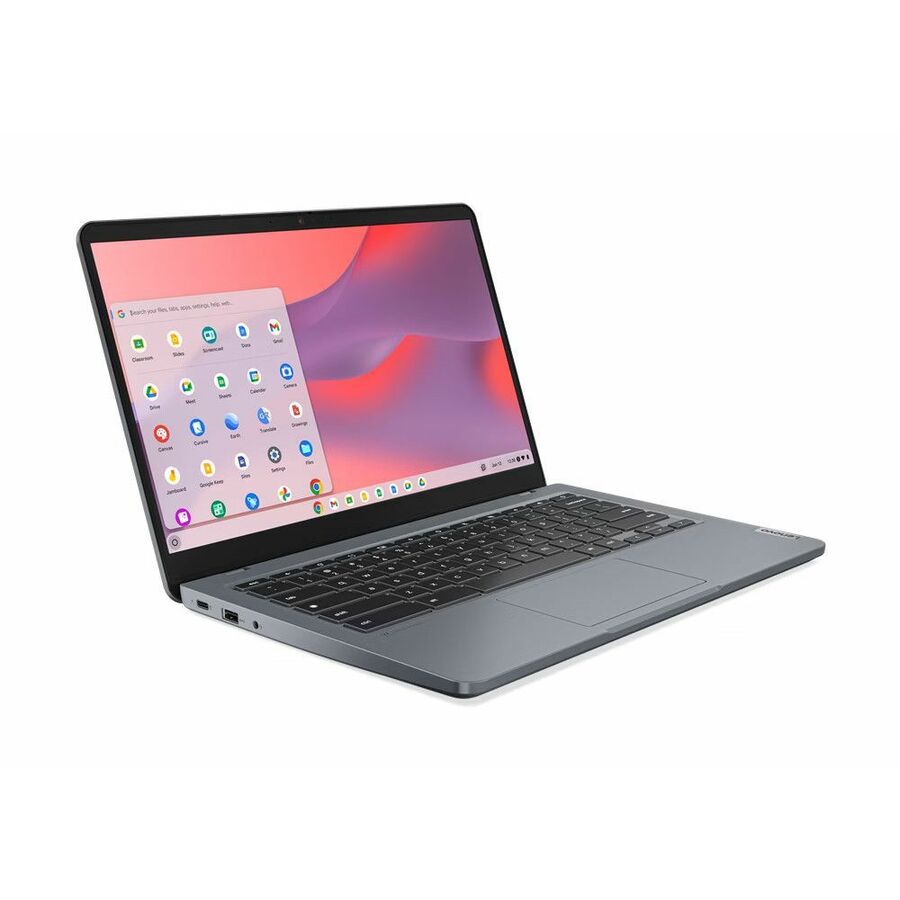
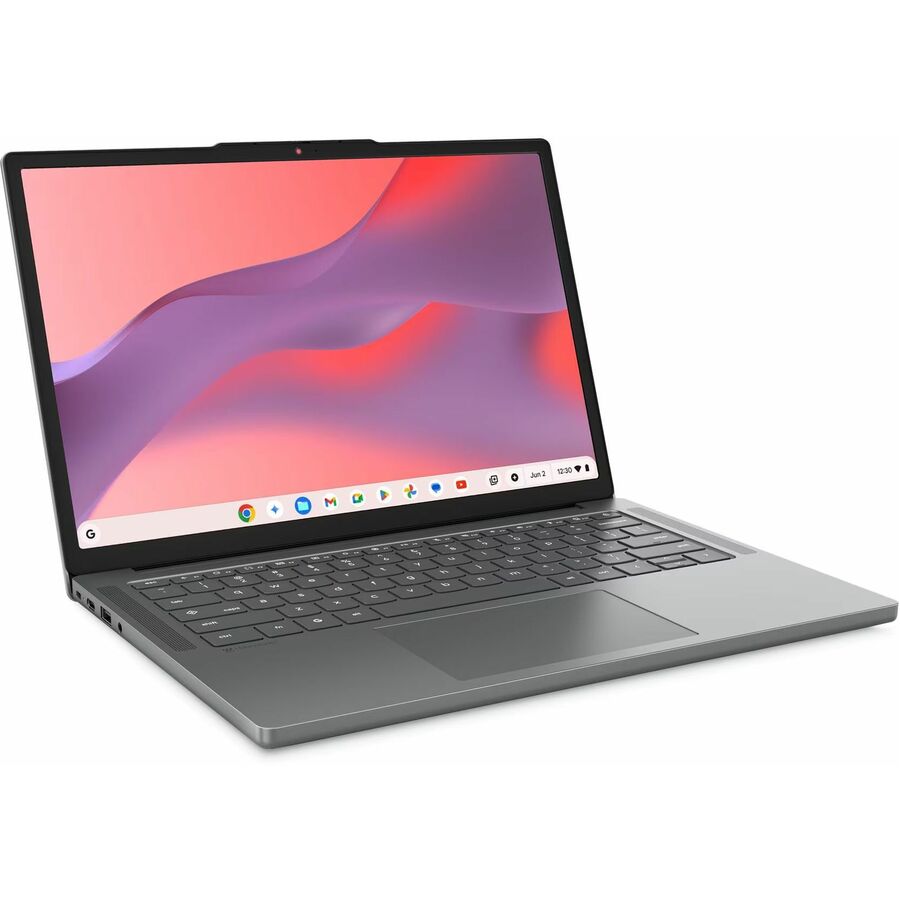
The 14e Gen 3 and the 14-inch Chromebook models are noticeably better machines to work on than an 11.6-inch unit. Full HD and WUXGA panels make a real difference for anything involving side-by-side reading, spreadsheets, or a testing interface that was designed on a desktop. For staff devices and for older secondary students the argument is easy to make.
The counter-arguments are physical and they are the ones that catch districts out. A 14-inch unit is heavier in a middle-school backpack, and it may not fit charging carts sized for the 11-inch class. Before a 14-inch model goes into a specification, measure a cart bay you actually own and confirm it, because retrofitting cart capacity across a district is not a small line item.
The reasonable middle position for most districts is 11.6-inch units for the general student fleet and 14-inch units for staff, high-school seniors, or specific programs where the larger canvas is instructionally justified. Quote both on the same purchase order with separate counts so the split is visible and deliberate.
FAQ
Common questions
- What is the difference between the Lenovo 100e and 500e?
- In the current catalog rows they are siblings on the same platform: the 100e is the clamshell and the 500e is the convertible, adding a touchscreen and a 360-degree hinge so the unit can be used in tablet posture. Both appear in 11.6-inch sizes with the 500e also available at 12.2 inches. The convertible costs more per seat and adds a mechanical hinge, so most districts specify it for early grades and special education and use the clamshell for the general secondary fleet.
- How long will these receive ChromeOS updates?
- Google publishes an Auto Update Expiration date for each ChromeOS platform and states that devices receive ten years of updates measured from the platform's release rather than from your purchase date. Because several generations are usually in distribution at once, two models on this page can carry meaningfully different remaining windows. Ask us for the AUE date of the exact configuration before you standardize, and record it with the asset.
- How many spare units should we order?
- The only honest answer is that it depends on your own breakage history, which varies enormously by grade band and by whether devices go home. If you already run a fleet, use last year's repair and write-off numbers as a percentage of deployed seats. If this is a first deployment, buy a modest same-configuration pool with the initial order and correct at the next cycle once you have real data. What matters most is that spares are bought with the fleet so they share a platform, an image and an AUE date.
- Do you provide asset tagging, imaging or enrollment before delivery?
- Tell us what the deployment needs to look like on arrival and we will scope it on the quote — asset tagging schemes, enrollment into your Google Admin console, and staged delivery by building are all normal parts of a district order rather than exceptions. The important thing is to raise it while the order is being quoted, because it changes lead times.
- Can we mix Lenovo Chromebooks with a fleet from another brand?
- Technically yes — ChromeOS management is brand-agnostic and all enrolled devices sit in the same Google Admin console. Operationally it costs you: separate spare-parts bins, separate repair procedures, separate AUE dates to track, and a help desk that has to ask which model before it can help. Districts that run mixed fleets usually got there by accident across refresh cycles rather than by choice, and most spend the next cycle consolidating.
Need Lenovo Chromebooks pricing?
Send a bill of materials or part numbers — we confirm stock and a below-market total, with TAA verified on request. No payment up front.