
Short answer
A Chromebook is a laptop running ChromeOS, Google's browser-centered operating system: the system partition is read-only, updates apply automatically at restart, and the user's environment follows their Google account rather than the machine. Google ships automatic updates for 10 years from the platform's release date, and enrolling a device in the Admin console needs a per-device upgrade license.
Key facts
- Google ships ChromeOS updates for 10 years from the platform's release date, not from the purchase date, so an older platform bought new has less life left.
- ChromeOS is a read-only operating system and cannot run executable files, so Windows and macOS installers do not run on it at all.
- Managing a standalone ChromeOS device requires a ChromeOS Enterprise Upgrade, ChromeOS Education Upgrade or Kiosk and Signage Upgrade — one per device.
- The per-device upgrade and the Google Workspace for Education user license are separate decisions: one is counted by device, the other by person.
- Verified Boot self-checks the system at every power-on and reverts unfamiliar code; each page and application runs in its own restricted environment.
- Offline use covers only what was cached in advance, so offline availability is enabled at deployment rather than left to the user.
By Uniqcli Team
A Chromebook is a laptop that runs ChromeOS, Google's operating system built around the Chrome browser. Instead of installing traditional desktop applications, a Chromebook runs web applications, progressive web apps and — on supported models — Android apps, with user files stored primarily in cloud storage rather than on the device. The same operating system also ships in desktop form as a Chromebox and in all-in-one form as a Chromebase.
What distinguishes a Chromebook from a conventional laptop is not the hardware, which is ordinary x86 or Arm silicon, but the software model. ChromeOS updates itself automatically in the background, keeps its system partition read-only, and verifies its own integrity at every boot. That combination is why the platform became the default endpoint for large managed fleets in education: a device that repairs itself, cannot easily run downloaded executables, and can be wiped and re-enrolled in minutes is a device a small IT team can deploy in the thousands.
How does a Chromebook work?
A Chromebook signs the user in with a Google account and rebuilds their working environment from that account: browser profile, bookmarks, extensions, policies and cloud files. Because the environment follows the account rather than living on the machine, any managed device in the building becomes that student's device the moment they sign in — which is why shared-cart and one-to-one models both work on the same hardware without re-imaging between them.
The applications are mostly web applications. A full productivity suite, a learning management system, a student information system and most classroom tools run in the browser, and progressive web apps can be installed so they open in their own window and appear in the launcher like native software. Many Chromebooks can additionally run Android applications from the Google Play Store, and ChromeOS includes an optional Linux development environment for computer-science coursework — both of which extend what the platform can do beyond the browser, though neither turns it into a general-purpose desktop.
Local storage exists but is deliberately small and secondary. Files saved to the device sit in a downloads area and are encrypted; the expectation is that work lives in cloud storage and syncs. That design is what makes a broken Chromebook a hardware problem rather than a data problem — a replacement device signed into the same account restores the user's working state without a backup or restore process.
What makes ChromeOS different from Windows or macOS?
Four architectural decisions do most of the work, and Google documents all of them. The first is verified boot: Google describes ChromeOS as completing a self-check every time the device powers on, and states that if unfamiliar code is detected the system automatically repairs itself by reverting to a previous version. The check begins in a read-only portion of firmware and validates each subsequent stage before executing it, so a compromised system partition is detected rather than trusted.
The second is the read-only operating system. Google's own framing is that as a read-only operating system, ChromeOS cannot run executable files — the traditional delivery vehicle for viruses and ransomware — so a malicious executable that reaches the device has nowhere to install itself. The third is sandboxing: threats are contained to the specific tab or application they arrive in, so a compromised page does not become a compromised machine. The fourth is the update model. Updates download in the background and apply on the next restart, and they cover the operating system, the browser and hardware components together rather than arriving as separate patch streams an administrator has to sequence.
The practical difference for a school is what these remove from the workload. There is no image to build and maintain, no antivirus agent to license and update, no monthly patch window to schedule around instruction, and no local administrator account to worry about. What replaces that work is policy management in a console, which is a smaller and more predictable job — but it is not zero, and it is licensed separately, which the next section covers.
Do Chromebooks work offline?
Yes, but only for what has been prepared in advance. Google's productivity applications offer an offline mode that has to be enabled while the device is still connected, after which recently used documents are cached locally and edits sync when the connection returns. Mail can be read and composed offline in the same way, and files explicitly marked for offline availability in cloud storage are held on the device. Downloaded media, locally installed Android apps and the Linux environment all continue to work without a network.
What does not survive an outage is anything that was not cached ahead of time: a document the student has never opened, a web-based assessment platform, a live collaboration session, a video lesson streamed rather than downloaded. For a district that sends devices home into households with unreliable connectivity, the honest planning assumption is that offline mode is a bridge across an interruption rather than a way to run a curriculum disconnected. Teach staff to enable offline availability on the material a student will need, and treat that as part of the deployment procedure, not as a user preference.
This is also where the difference between a Chromebook and a thin client matters. A thin client is useless without a network because the session itself lives on a server. A Chromebook is a complete computer that degrades to a smaller feature set when the network disappears — a meaningful distinction when specifying devices for take-home programs or for buildings with patchy wireless coverage.
How are Chromebooks managed in a school?
Management happens in the Google Admin console, and it requires a license. Google states that to manage standalone ChromeOS devices in your organization you need a ChromeOS Enterprise Upgrade, a ChromeOS Education Upgrade or a Kiosk and Signage Upgrade — or a device that came with one of those bundled. Without an upgrade the hardware is a consumer Chromebook: it works, but it cannot be enrolled, policy-managed, force-installed to, or remotely disabled.
Once a device is enrolled, the console applies device and user policies together. Google documents enforcing settings on managed devices, configuring Wi-Fi and proxy settings, automatically installing apps and extensions, limiting access to authorized users only, applying different settings to different groups such as teachers versus students, dedicating devices as purpose-built kiosk apps, and controlling managed guest sessions that people share without an account. In an education deployment that is the whole management surface: organizational units per school or grade band, a policy set per unit, and enrollment handled at receipt.
Two licenses are commonly confused here and they do different jobs. The device upgrade licenses the machine and makes it manageable. Google Workspace for Education editions license the user and determine what that person's account can do. A district needs to make both decisions, and they are scoped differently — one by device count, one by headcount.
Where a Chromebook is the wrong tool
The clearest limit is software that ships as a Windows or macOS installer. Full computer-aided design packages, the desktop versions of professional creative suites, engineering and statistics software, industry-specific career and technical education applications, and any vendor tool distributed as an installer will not run on ChromeOS. Web versions sometimes exist and are sometimes adequate, but a CTE program built around a specific desktop application needs Windows workstations, not Chromebooks, and pretending otherwise produces a lab that cannot teach its own curriculum.
Peripherals are the second constraint. Devices that depend on vendor drivers — some scientific instruments, specialized scanners, certain graphics tablets, older printers and lab interfaces — may have no ChromeOS support at all. Verify each peripheral against the platform before committing a room, because a driver that does not exist cannot be worked around.
Assessment is the third, and it is the one most likely to cause a scramble in the spring. Some testing platforms ship a ChromeOS kiosk application and are fully supported; others require a locked-down secure browser that only exists for Windows or macOS. Which of those applies is a vendor-by-vendor fact and it changes between versions, so confirm it against your specific assessment stack — including any state-mandated platform — before you standardize a grade band on Chromebooks. Finally, sustained heavy local work such as long-form video editing or large local datasets is a poor fit on a platform designed around modest local storage and cloud-resident files.
What to check before you buy
Start with the auto update expiration date, because it is the specification that determines how long the device can safely stay in service. Google provides ten years of automatic updates measured from the platform's release date rather than from your purchase date, which means an older platform bought new can have far less usable life left than a newer one at a similar price. Check the date before you compare anything else; it reorders the shortlist more often than any other number.
Then match the hardware to the user. Memory and storage are the two specifications districts most often under-buy — a student who keeps twenty tabs open on four gigabytes of memory has a slow device regardless of the processor. Screen size and whether it needs to be touch-enabled or convertible depend on grade band; ruggedization, spill resistance and reinforced ports matter enormously in elementary deployments and less in a staff device. A comfortable keyboard matters more than a benchmark for anyone writing all day.
Finally, plan the things that are not the device. Accidental damage protection and a realistic spare ratio are what keep a one-to-one program running, because the failure rate in student hands is a schedule, not an accident. Charging carts, labeling, asset tagging and enrollment at receipt all belong in the same order rather than in a later requisition. And decide the licensing at purchase time: a device bundled with a management upgrade arrives ready to enroll, whereas a device bought without one is a consumer machine until a license is attached to it.
Key takeaways
- A Chromebook is a laptop running ChromeOS — a browser-centered operating system that runs web apps, progressive web apps and, on supported models, Android apps, with files stored primarily in the cloud.
- Google's security model rests on verified boot (a self-check at every power-on that reverts unfamiliar code), a read-only OS that cannot run executable files, per-tab sandboxing, and automatic background updates applied at restart.
- The user environment follows the Google account, not the machine, so shared-cart and one-to-one models run on the same hardware and a replacement device restores the user's state on sign-in.
- Managing ChromeOS devices requires a management upgrade license — Google states a ChromeOS Enterprise, ChromeOS Education or Kiosk and Signage Upgrade is needed to manage standalone devices. The device license and the Workspace for Education user license are separate decisions.
- Offline works only for what was cached in advance; enable offline availability as part of deployment rather than leaving it to the user.
- Chromebooks are the wrong tool for Windows or macOS installer software, driver-dependent peripherals, some proctored assessment stacks, and sustained heavy local media work — verify your CTE and testing platforms before standardizing.
- Check the auto update expiration date before anything else: Google measures ten years of updates from the platform's release date, not from your purchase date.
Shop it at Uniqcli
Parts for this job
Elementary one-to-one
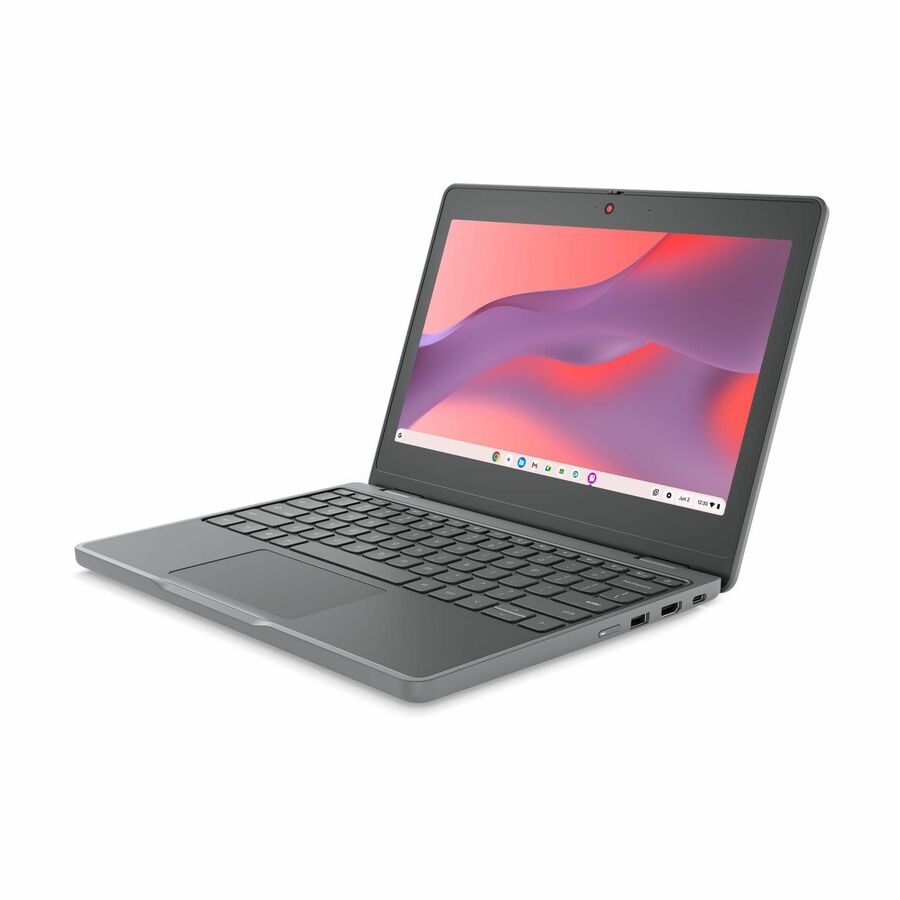
Lenovo
Lenovo Chromebook 100e Gen 5 M89 83T60009US 11.6" Chromebook
83T60009US
An 11.6-inch education Chromebook on a current MediaTek platform with 8 GB of memory and 64 GB of storage — the size and build most districts buy for lower grades.
Check this platform's auto update expiration date against your refresh cycle before you compare it on price.
$545.60In stockMore memory and storage
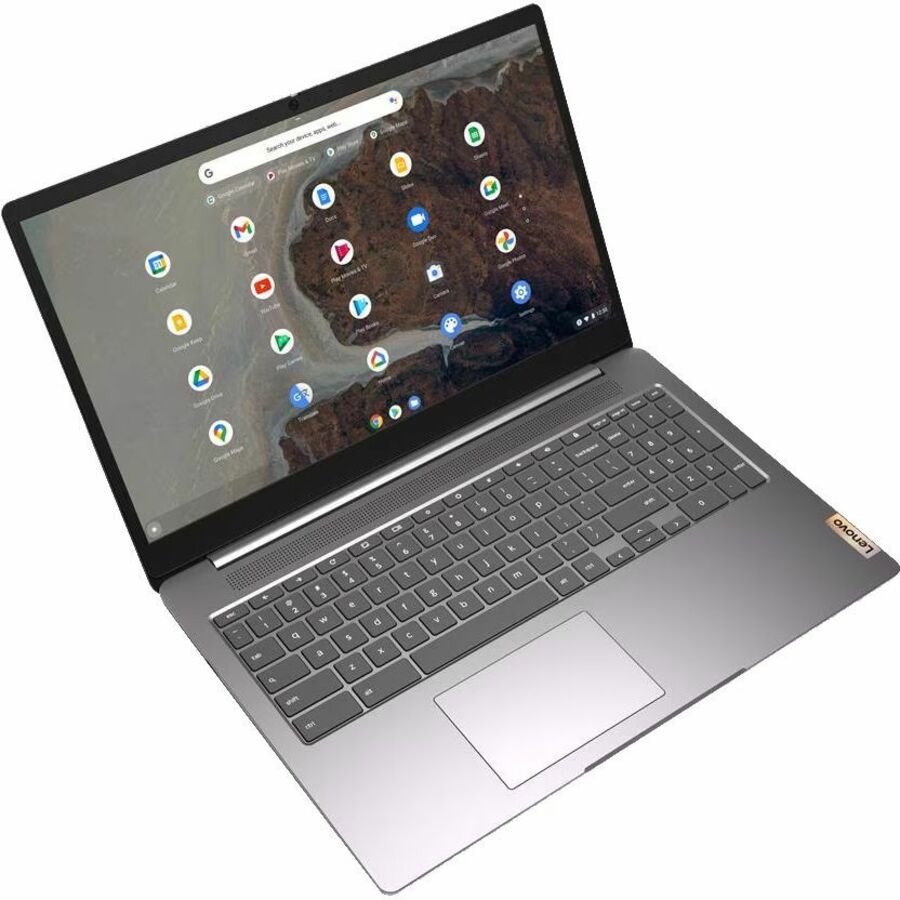
Lenovo
Lenovo IdeaPad 3 CB 15IJL6 82N4005AUS 15.6" Chromebook
82N4005AUS
A 15.6-inch full-HD Chromebook with 8 GB of memory and 128 GB of storage, for the tab-heavy secondary or staff user the 4 GB models slow down.
$439.21Back-orderedTouchscreen, 8 GB
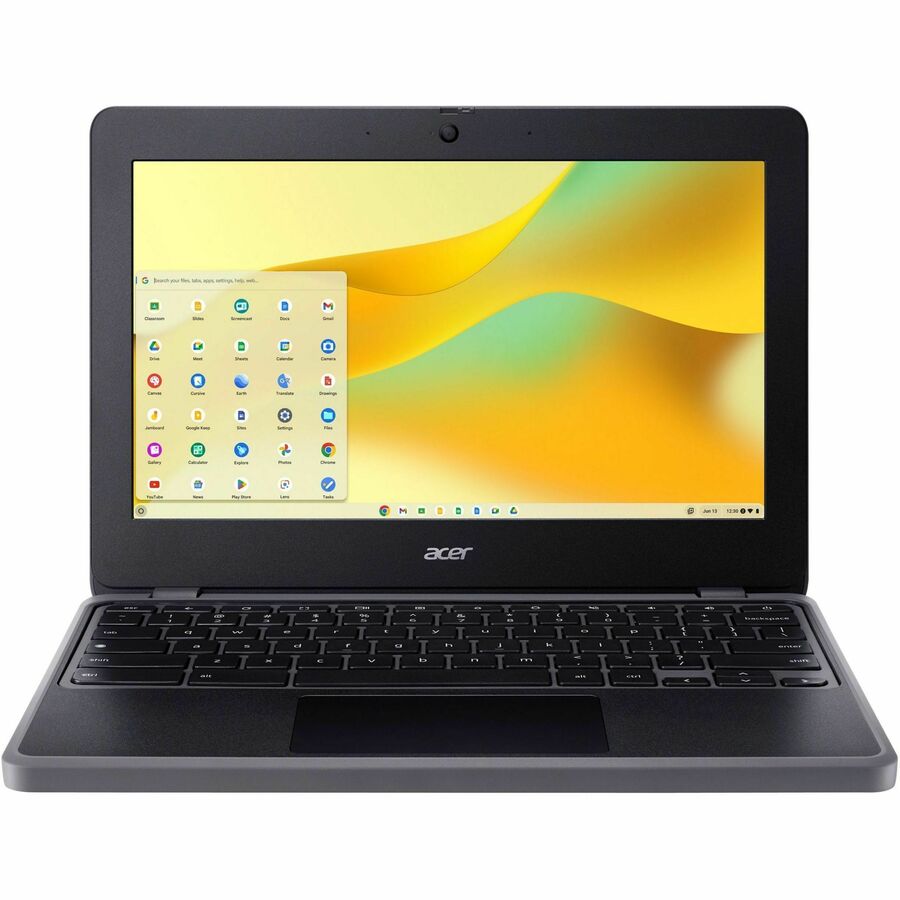
Acer
Acer Chromebook 511 C736T C736T-C2PB 11.6" Touchscreen Chromebook
NX.JJ3AA.001
An 11.6-inch touchscreen Chromebook on an Intel N100 with 8 GB of memory, for classrooms whose assessment or courseware expects touch input.
$499.09Back-orderedFrequently asked
- Can a Chromebook run Windows programs?
- No — a Chromebook runs ChromeOS, which is a read-only operating system that cannot run executable files, so a Windows .exe or .msi installer will not install on it. Windows applications reach a Chromebook the same way they reach any thin endpoint: through a remote desktop, virtual desktop infrastructure or desktop-as-a-service session, where the application runs on a server and the Chromebook renders the screen. Web versions are the other route, and for common office work they are usually enough; for CAD, engineering, statistics or a career-and-technical-education tool distributed as an installer, specify Windows hardware instead.
- Is a Chromebook a real laptop?
- Yes. A Chromebook is ordinary laptop hardware running a different operating system. It has a processor, memory, storage, a keyboard and ports like any other laptop; what differs is that ChromeOS is built around the browser, keeps its system partition read-only, and updates itself automatically. The hardware range runs from very inexpensive student devices to premium models with high-resolution displays and substantial memory.
- Can a Chromebook run Microsoft Office?
- The web versions of Word, Excel, PowerPoint and Outlook run in the browser on ChromeOS, and Android versions are available on supported devices. The full desktop applications for Windows and macOS do not install on ChromeOS. For most classroom document work the web versions are sufficient; for advanced spreadsheet modeling, complex macros or specialized add-ins, a Windows device remains the right choice.
- Do Chromebooks need antivirus software?
- Google's position is that the platform's own design handles this: ChromeOS is read-only and cannot run executable files, each tab and application is sandboxed, verified boot checks system integrity at every startup, and security updates apply automatically in the background. Districts generally do not deploy traditional endpoint antivirus to ChromeOS fleets. Web filtering, safe browsing policy and account security are still your responsibility and are configured in the Admin console.
- What is the difference between a Chromebook and a thin client?
- A thin client has almost no local capability — the session runs on a server in a data center and the device renders it, so without a network it does nothing. A Chromebook is a complete computer with its own processor, storage and applications that degrades to a reduced offline feature set when the network drops. The two also differ in what you buy alongside them: a thin-client deployment needs virtual desktop infrastructure and licensing behind it, while a Chromebook deployment needs a device management upgrade and user licensing.
- How long does a Chromebook last?
- Physically, a well-specified device with accidental damage protection typically serves a four to five year cycle in student hands. The harder limit is the auto update expiration date. Google provides ten years of automatic updates from the platform's release date, so a device built on an older platform has less remaining supported life than its purchase date suggests. Check the AUE date at procurement and build the refresh schedule from it rather than from the invoice date.
Sources
- 1.Google Chrome Enterprise and Education Help — Auto Update policysupport.google.com
- 2.Google Chrome Enterprise and Education Help — Managing your ChromeOS devicessupport.google.com
- 3.ChromeOS — Security and privacy for business endpointschromeos.google
Keep reading