
Short answer
A Chromebook's auto update expiration (AUE) date is when Google stops shipping automatic ChromeOS and security updates for that hardware platform. Google provides 10 years of updates measured from the platform's release date, not from the purchase date, so two devices at a similar price can have very different amounts of supported life left.
Key facts
- Google ships ChromeOS updates for 10 years from the platform's release date, so an older platform has less supported life left than its purchase date suggests.
- AUE is set per hardware platform, not per device, and manufacturers reuse family names across platforms, so check the exact model designation.
- All ChromeOS devices released in 2021 or later receive the extended update window automatically.
- For some older devices an administrator must opt in to the Extended Auto-update policy; Google marks those with an asterisk in its published tables.
- Opting an older device in erases its Android data and removes the Play Store, so audit any Android-dependent curriculum or accessibility tool first.
- A management upgrade license makes a device manageable; it does not extend the update window, which is a property of the hardware platform.
By Uniqcli Team
Auto update expiration, usually shortened to AUE, is the date after which a ChromeOS device stops receiving automatic operating-system and security updates from Google. It is set per hardware platform rather than per individual device, and Google measures it from the platform's release date — not from the date you bought the machine, and not from the date it was first switched on in a classroom.
That single detail is why AUE is a procurement fact rather than a technical footnote. Two Chromebooks on a quote can carry similar specifications and similar prices while one has nine years of supported life ahead of it and the other has four. Nothing on the outside of the box tells you which is which. Checking the expiration date before comparing anything else reorders a shortlist more often than any other number on the sheet.
How the ten-year clock works
Google states that ChromeOS improvements provide enhanced security and stability for ten years from the platform release date. A platform, in Google's usage, is the set of hardware components — processor, wireless chipset and so on — that a manufacturer selects for a device. Several different retail models from several different manufacturers can share one platform, which is why two Chromebooks with different names and different chassis can share an identical expiration date.
Because the clock starts when the platform is released, the remaining life of a device is the ten-year window minus however long that platform has already existed. A device built on a platform released four years ago arrives with roughly six years of automatic updates remaining, however new the individual unit is. Buying that device new in its fourth or fifth year is not a mistake in itself — closeout stock at the right price can be entirely rational for a two-year stopgap — but it is only rational if the shortened window is the reason for the discount rather than a surprise discovered afterwards.
This is also why refurbished and donated Chromebooks need the same check as new ones. A device with years of physical life left can have very little supported life left, and the two are unrelated. The expiration date belongs on the receiving checklist for any ChromeOS hardware entering a district, regardless of how it arrived.
Ten years for every platform — with an opt-in for older hardware
Google extended the update window to a full ten years from platform release, and the way that extension reaches devices differs by age. Google's documentation states that all ChromeOS devices released in 2021 or later automatically receive extended updates. For those devices there is nothing to enable and nothing to decide: the ten-year window applies by default.
For a subset of older hardware, an administrator has to opt in. Google marks the devices that require opt-in with an asterisk in its published Auto Update policy tables, and the opt-in is made through an Admin console policy named Extended Auto-update, found under Devices, then Chrome, then Settings, then Device settings, then Device update settings. Without that action, an eligible pre-2021 device stops at its original expiration date even though extended updates exist for it.
For a district running a mixed-age fleet, this is a real and easily missed piece of work. Devices bought in different years sit in different categories, the tables are published per manufacturer and model, and nothing prompts an administrator to act. Auditing which enrolled platforms carry the asterisk — and therefore need the policy turned on — is a one-off task that can add years of supported life to hardware already in service.
The Android trade-off on extended updates
Opting a device into extended updates is not cost-free, and Google is direct about the consequence. Its documentation states that all Android related data is erased from the devices and cannot be recovered, and that the Google Play Store is removed from the devices, with Android apps no longer installable remotely by an administrator. That is why the extension requires an explicit opt-in rather than arriving automatically for those older devices.
Whether that is an acceptable trade depends entirely on how the device is used. A fleet whose curriculum runs in the browser — web-based learning platforms, a cloud productivity suite, a browser-delivered assessment tool — loses very little and gains years of security updates, which is a straightforward decision. A fleet that depends on specific Android applications for a subject area, an accessibility tool or an assessment client faces a genuine choice between those applications and continued update support.
Google's published guidance does not state whether the opt-in can subsequently be reversed, so the honest planning assumption is to treat it as a one-way decision until you have confirmed otherwise. Test it on a small group of devices in a non-critical organizational unit before applying it fleet-wide, and inventory the Android applications in active use first — the answer to whether the trade is acceptable is usually sitting in that inventory.
What actually happens after the expiration date
The device does not stop working. It boots, signs in, opens the browser and runs. Google notes that after final updates a device retains its secure mode with automatic self-checks at startup, so the verified-boot integrity check continues to operate. What ends is the flow of new fixes: no new security patches, no new features, and no assurance that newly discovered vulnerabilities will be addressed on that platform.
Two consequences matter more to an administrator than the security headline. Google states that existing and future policies may not work as intended on an expired device, which means the machine drifts out of your management model — a policy you set today may simply not apply to it. And Google states that technical support will not be provided, so a problem on that platform has no escalation path.
Web compatibility then erodes on its own schedule. As the browser stops advancing, sites and applications built against newer standards begin to behave oddly or refuse to load, and the failures are rarely clean — a testing platform that will not launch on the morning of an assessment is the classic version of this. That unpredictability, rather than any single dramatic breach, is what usually forces expired devices out of service.
Why this belongs in the purchase decision
Work the arithmetic before comparing prices. A device on a platform released this year arrives with roughly ten years of automatic updates ahead of it. A device on a platform released five years ago arrives with roughly five. If a district plans a five-year refresh cycle, the first device comfortably clears two cycles' worth of support while the second expires at the exact moment the cycle ends — assuming the platform release date and the purchase date happen to align, which they rarely do.
That is the honest case against buying the cheapest available Chromebook, and it occasionally costs us a sale. A discounted older-platform unit that has to be replaced in year three, in a program sized for a five-year cycle, is the more expensive purchase — not because the device fails, but because the replacement, the re-enrollment, the redeployment and the staff time all arrive early and unbudgeted. The purchase price is the smallest term in that expression.
The corollary is that the expiration date should appear on the quote, not just in the research. Ask for it alongside the specification of any ChromeOS device you are evaluating, and record it in the asset system at receipt. A district that knows the expiration date of every platform in its fleet can plan a refresh; one that does not is reacting to devices as they fall over.
How to find a device's expiration date
On an individual device, Google's documented path is: at the bottom right, select the time and then Settings; at the bottom left, select About ChromeOS; select Additional details; in the Update schedule section you will find when the Chromebook will receive its last update. That is the quickest check for a single machine already in your hands, and it is worth teaching to whoever receives hardware.
For purchasing decisions, Google publishes its Auto Update policy as tables organized by manufacturer, listing the expiration date for each model and platform, with an asterisk marking the older devices that need an administrator to opt in to extended updates. Check the model on that table before an order is placed rather than after it lands, and be careful with model naming — manufacturers reuse family names across platforms, so match the exact model designation rather than the marketing name.
For a fleet, the Admin console device list is the practical instrument: it is where enrolled devices, their platforms and their management state come together, and it is the right place to build an audit of which enrolled platforms are approaching expiration or are carrying an asterisk. Running that audit once a year, ahead of budget season, is what turns AUE from a surprise into a line in a refresh plan.
Key takeaways
- AUE is the date a ChromeOS platform stops receiving automatic OS and security updates from Google — set per hardware platform, not per device.
- Google measures ten years of automatic updates from the platform's release date, not from your purchase date, so a new unit on an older platform can arrive with only a few years of support left.
- Google states that all ChromeOS devices released in 2021 or later automatically receive extended updates; a subset of older devices requires an administrator to opt in via the Extended Auto-update policy under Devices > Chrome > Settings > Device settings > Device update settings.
- Opting an older device into extended updates erases all Android data irrecoverably and removes the Google Play Store, so inventory the Android apps in use before enabling it — and Google's guidance does not say whether the opt-in can be reversed.
- After expiration a device still boots and keeps its startup integrity check, but receives no new security fixes, may not honor policies as intended, and has no technical support path.
- Check the date on-device under Settings > About ChromeOS > Additional details, in Google's published Auto Update policy tables at purchase time, and across the fleet from the Admin console device list.
- Put the expiration date on the quote and in the asset record — a cheaper device with a shorter remaining window is often the more expensive purchase over a refresh cycle.
Shop it at Uniqcli
Parts for this job
Newer platform, 11.6-inch
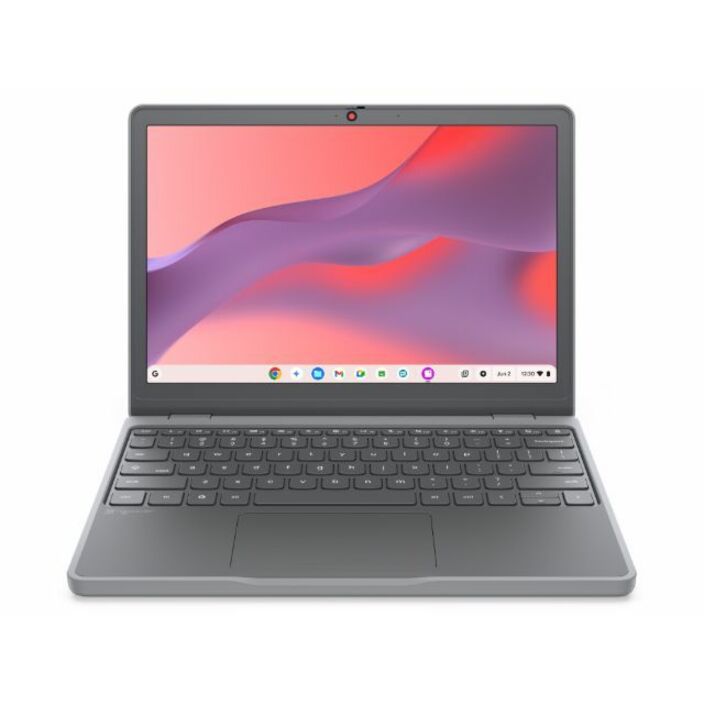
Lenovo
Lenovo Chromebook 100e Gen 5 M89 83T60006US 11.6" Chromebook
83T60006US
An 11.6-inch education Chromebook on a current MediaTek platform with 64 GB of storage — a newer platform is what buys the remaining years, not a newer purchase date.
Confirm this exact model designation against Google's published Auto Update policy tables before the order is placed.
$449.73Back-orderedConvertible, 12.2-inch
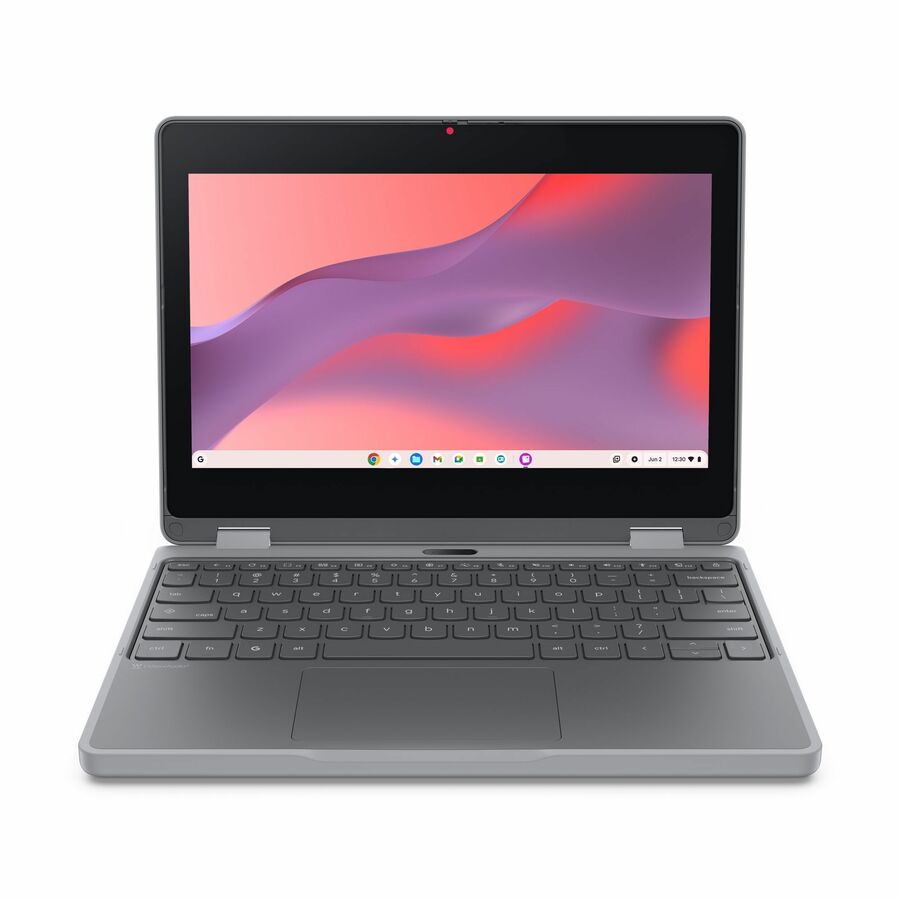
Lenovo
Lenovo Chromebook 500e Gen 5 M89 83TA0005US 12.2" Touchscreen…
83TA0005US
A 12.2-inch WUXGA touchscreen convertible on the same current platform generation, for rooms that need pen or tablet posture as well as a keyboard.
$555.90In stockIntel N100 convertible
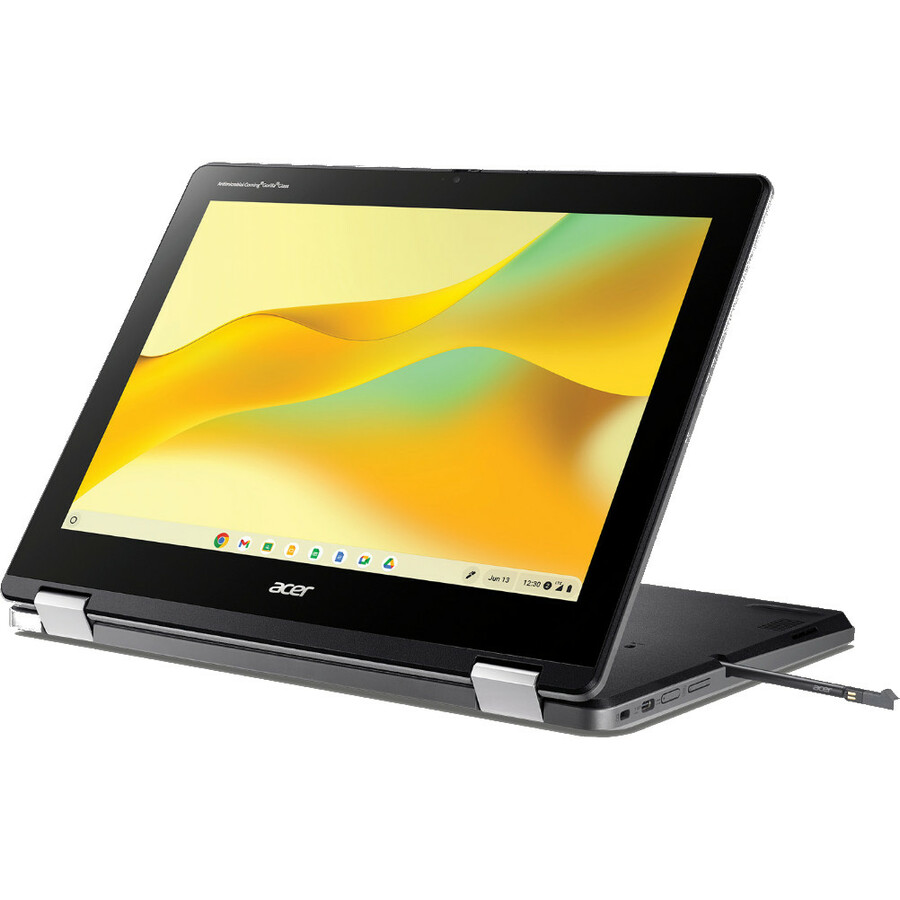
Acer
Acer Chromebook Spin 512 R856TN R856TN-C6T4 12" Touchscreen Convertible…
NX.KE4AA.001
A 12-inch touchscreen convertible on an Intel N100 with 64 GB of storage, for a fleet standardizing on x86 rather than ARM ChromeOS platforms.
$386.31Back-orderedFrequently asked
- Does a Chromebook stop working at its auto update expiration date?
- No. The device continues to boot and run, and Google notes it keeps its secure mode with automatic self-checks at startup. What stops is the supply of new updates: no further security fixes or features. Google also states that existing and future policies may not work as intended on an expired device and that technical support will not be provided, so the practical problems tend to be management drift and gradual web-compatibility failures rather than a device that suddenly dies.
- Do all Chromebooks now get ten years of updates?
- Ten years from the platform's release date is the policy, but how it reaches a device depends on age. Google states that all ChromeOS devices released in 2021 or later automatically receive extended updates. For a subset of older devices — marked with an asterisk in Google's published Auto Update policy tables — an administrator must opt in through the Extended Auto-update policy in the Admin console before the longer window applies.
- What do we lose by enabling extended updates on older devices?
- Android support. Google states that opting in erases all Android related data from the devices with no way to recover it, and removes the Google Play Store so that Android apps can no longer be installed remotely by an administrator. If your curriculum, accessibility tooling or assessment client depends on specific Android applications, inventory those before enabling the policy and pilot it on a small organizational unit first.
- Where do I check the expiration date before we buy?
- Google publishes its Auto Update policy as tables organized by manufacturer, giving the expiration date for each model and platform. Check the exact model designation there before the order is placed — manufacturers reuse family names across different platforms, so the marketing name is not sufficient. On a device already in hand, the path is Settings, then About ChromeOS, then Additional details, where the Update schedule section shows when the device will receive its last update.
- Does buying a management license extend the update window?
- No. Auto update expiration is a property of the hardware platform and is unaffected by which management upgrade is attached to the device. A Chrome Education Upgrade makes a device manageable; it does not make it supported for longer. Treat the license decision and the expiration date as two separate checks on the same quote.
Sources
- 1.Google Chrome Enterprise and Education Help — Auto Update policy (per-model AUE tables)support.google.com
- 2.Google Chrome Enterprise and Education Help — Extended updates support (2021-or-later devices, the administrator opt-in, and the Android data and Play Store consequences)support.google.com
- 3.Google Chrome Enterprise and Education Help — Managing your ChromeOS devicessupport.google.com
Keep reading