
Short answer
A KVM switch is a hardware box that lets one keyboard, video display and mouse control several computers, selected by a button, a hotkey or an on-screen menu — KVM is those three words. Buy a KVM when several machines have to share one set of peripherals; buy a docking station when one laptop needs more ports. They are not substitutes for each other.
Key facts
- The switch shares one console — keyboard, display, mouse — across the connected computers, and passes input to exactly one of them at a time.
- It works below the operating system, so it reaches BIOS/UEFI and still functions when a machine's OS or network is down.
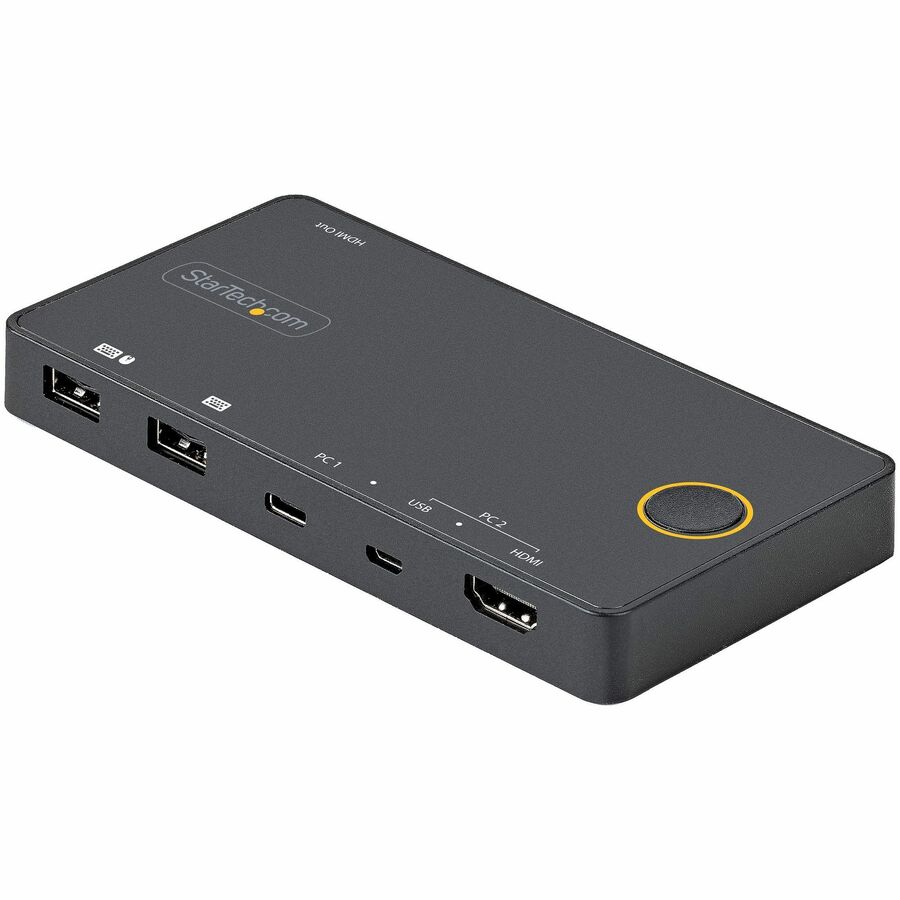
- Video capability is a per-model spec, not a category one: the StarTech SV221HUC4K is a two-port switch rated 4K 60 Hz over HDMI 2.0.
- A hybrid switch mixes host types — the SV221HUC4K takes one USB-C computer over DisplayPort Alt Mode and one USB-A plus HDMI computer.
- Secure KVMs for multi-network desks are evaluated against the NIAP Protection Profile for Peripheral Sharing Device, Version 4.0, published 19 July 2019.
By Uniqcli Team
A KVM switch is a hardware device that lets a single keyboard, video monitor, and mouse (the "KVM") control two or more computers or servers, with the operator switching between connected systems from one shared console. Instead of a dedicated keyboard, display, and mouse for each machine, the KVM switch routes those peripherals to whichever computer the operator selects — commonly by pressing a hotkey, tapping a button, or using an on-screen menu.
KVM switches are a long-standing staple of server rooms, data centers, control rooms, test benches, and secure operations centers, where administrators routinely manage many systems but have limited desk or rack space. By consolidating input and display down to one set of peripherals, a KVM reduces clutter, cost, and power draw while giving direct hardware-level access to each machine — access that works even when a computer's operating system or network connection is down.
How does a KVM switch work?
A KVM switch sits between your console peripherals and the connected computers. Each computer connects to the switch through cabling that carries its video output and keyboard/mouse signals, while the single shared keyboard, monitor, and mouse plug into the switch's console ports. At any moment, the switch passes the console's input to exactly one selected computer and displays that computer's video output — the others continue running in the background but are simply not shown or controlled.
Operators change the active computer using hotkey combinations, front-panel buttons, an on-screen display menu, or sometimes a remote client. Better KVM switches emulate a keyboard and mouse on every port continuously, so each connected computer always "sees" attached peripherals. This keeps machines from losing their input devices during boot and prevents the switching delays or detection errors that occur when a system thinks its keyboard or mouse was unplugged.
What are the main types of KVM switches?
KVM switches vary along a few axes. By connection method, local (analog) switches connect nearby computers directly with cables, while KVM-over-IP switches encode the console session and transmit it over a TCP/IP network so administrators can control machines from another room, building, or geography. By capacity, models range from compact 2- or 4-port desktop units to high-density enterprise matrix systems that let multiple operators reach hundreds of servers. Many models are rackmount and pair with a rack console (a slide-out drawer combining an LCD, keyboard, and touchpad).
Feature sets differ as well: video support spans legacy VGA up to modern DisplayPort and HDMI at high resolutions, and some units add USB peripheral sharing, audio switching, or multi-monitor support. A related but distinct category is the KVM extender, which stretches a single console's reach over long cable runs rather than switching between machines. In government, defense, and other high-assurance settings, purpose-built secure KVM switches enforce strict isolation between connected systems of differing classification or trust levels.
When do you need a KVM switch, and what are the common use cases?
A KVM switch makes sense whenever one person must operate several computers but does not need to see them all at once. In server rooms and data centers, administrators use KVMs — often over IP — to reach headless servers directly at the hardware level for BIOS/UEFI configuration, OS installation, and out-of-band troubleshooting when the network or operating system is unavailable. In control rooms, trading desks, broadcast, and industrial settings, KVMs let a single operator drive multiple workstations from one seat.
Secure KVM switches serve environments where multiple networks or classification domains meet a single operator position — for example, an analyst who must work across separate isolated networks from one desk. These devices are designed to prevent data from leaking between the connected systems through shared peripherals. Common protections include unidirectional data paths (optical data diodes) on keyboard and mouse lines, no shared memory or buffering between ports, tamper-evident enclosures, and restricted or disabled USB device types. Buyers in these environments typically look for units validated against recognized security standards such as the NIAP Common Criteria Protection Profile for Peripheral Sharing Device.
What should you consider when buying a KVM switch?
Start with the number and type of computers to connect, then add headroom for growth — port counts commonly come in 2, 4, 8, 16, and higher. Match the video interface (VGA, DVI, HDMI, DisplayPort, or USB-C) and the maximum resolution and refresh rate your displays require, and confirm multi-monitor support if operators use more than one screen per system. Verify peripheral compatibility as well: some switches handle only basic keyboards and mice, while others pass through USB devices, smart-card readers, or audio.
Decide whether you need local-only control or remote KVM-over-IP access, and factor in cabling distance, rack space, and whether a bundled rack console is useful. Look for continuous keyboard/mouse emulation for reliable switching, and consider management features like on-screen menus and access logging. For regulated or classified environments, confirm the required security validation and isolation properties before anything else, since a general-purpose switch is not a substitute for a certified secure model.
What is a monitor with a built-in KVM, and how does it differ from a standalone switch?
Some monitors include a built-in KVM feature, which is what people usually mean by a "KVM switch on a monitor." Instead of a separate box, the display itself does the switching: it carries two or more video inputs (typically a mix of HDMI, DisplayPort, and USB-C) plus a built-in USB hub. You connect each computer's video and a USB upstream cable to the monitor, then plug one shared keyboard and mouse into the monitor's downstream USB ports. The monitor then routes those peripherals — and the picture — to whichever source you select, generally from its on-screen display (OSD) menu, a dedicated shortcut, or automatically when you change the active video input. USB-C models can carry video, USB data, and charging power for a laptop over a single cable.
A built-in KVM is handy for a two-computer desk — a work laptop alongside a personal or lab machine, for example — because it removes an extra device and set of cables. Its limits are scale and assurance: it switches only as many computers as the monitor has inputs (commonly two), drives that single screen rather than a multi-monitor console, and offers none of the port density, rackmount options, remote KVM-over-IP access, or certified isolation that dedicated switches provide. For more than a couple of machines, multi-display seats, server-room access, or any classified or multi-network environment, a standalone KVM switch — or a secure, NIAP-validated model — remains the right tool.
Key takeaways
- A KVM switch controls multiple computers from one keyboard, monitor, and mouse — cutting hardware, desk space, and power use.
- It provides direct hardware-level access, so you can reach a machine's BIOS/UEFI or recover it even when its OS or network is down.
- Choose between local (analog) switching for nearby machines and KVM-over-IP for remote control across a network.
- Match port count, video interface (VGA/HDMI/DisplayPort/USB-C), resolution, and multi-monitor needs to your environment, with room to grow.
- Continuous keyboard/mouse emulation on every port gives reliable, error-free switching and boot behavior.
- For classified or multi-network use, only a certified secure KVM (e.g., NIAP Common Criteria PSD validated) enforces true isolation between systems — a standard switch does not.
Shop it at Uniqcli
Parts for this job
Two computers, one 4K screen
StarTech.com
StarTech 2 Port Hybrid USB-A + HDMI & USB-C KVM Switch, Single 4K 60Hz…
SV221HUC4K
A two-port hybrid switch: one USB-C computer over DisplayPort Alt Mode, one USB-A plus HDMI computer, on a single 4K 60 Hz HDMI 2.0 monitor. Cables included.
$53.35In stockCable KVM, no power brick
ATEN Technology
ATEN CS22HF 2-Port USB FHD HDMI Cable KVM Switch
CS22HF
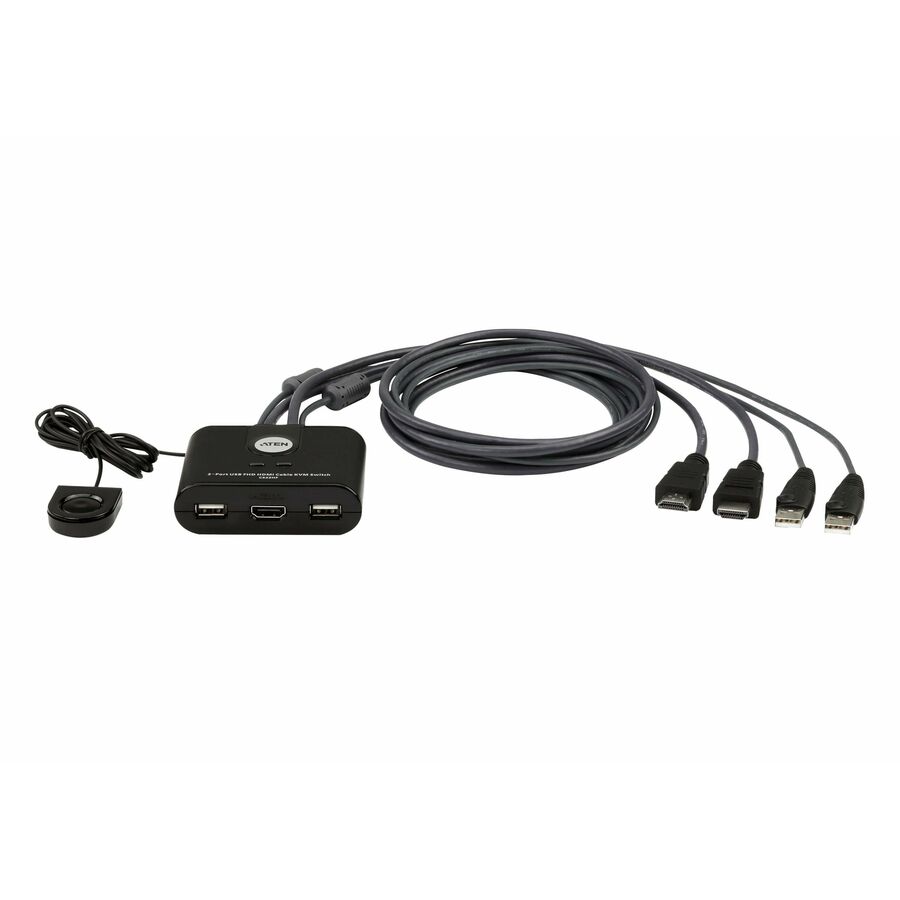
A two-port HDMI cable KVM with the console cables attached and 1920 x 1200 video — the simplest way to put two machines behind one keyboard and screen.
$61.74In stockEight computers, isolated
IOGEAR
IOGEAR GCS1218TAA3 Secure KVM Switchbox
GCS1218TAA3
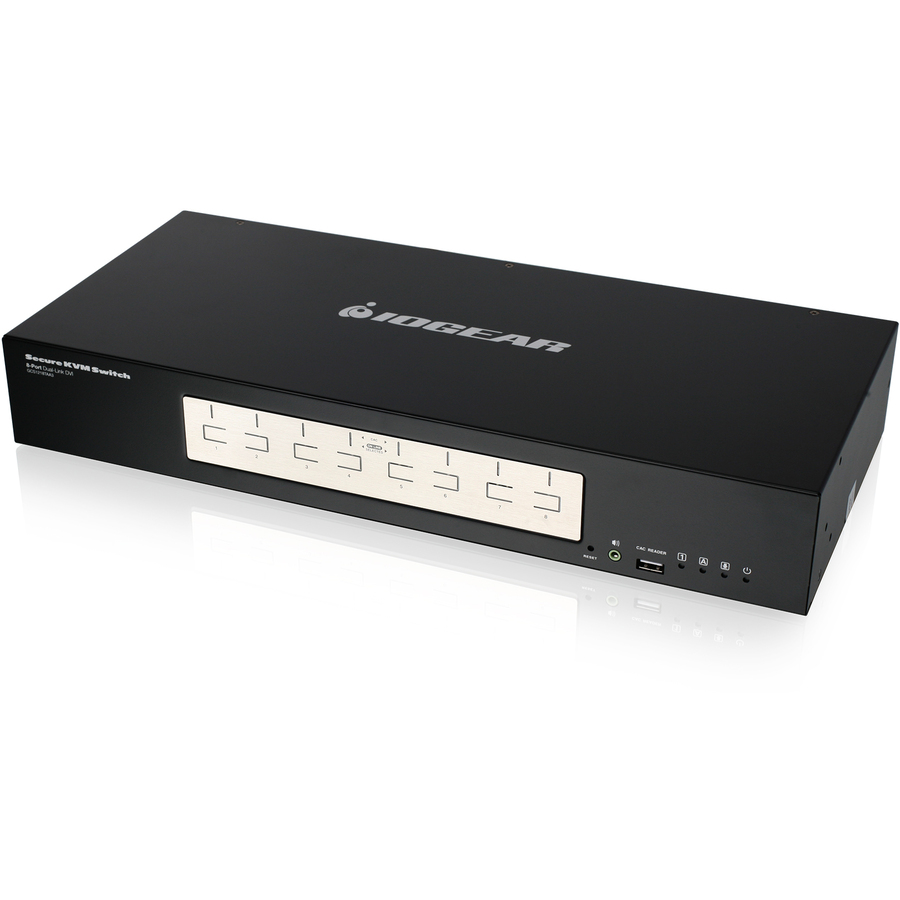
An eight-computer secure KVM switchbox with DVI video to 3840 x 2160, built for a desk that touches more than one network.
Confirm the model's own NIAP certification and Protection Profile version against the vendor's validation listing before it goes near a multi-network position.
$42.38*In stockFrequently asked
- Do I really need a KVM switch?
- Only if one person must operate several computers from one seat. If the problem is a laptop with too few ports, a docking station is the answer. If it is two or more machines competing for one monitor and keyboard — a workstation beside a second machine on a separate network, say — a KVM is the answer.
- What is the main difference between a docking station and a KVM switch?
- Direction. A dock connects one computer to many peripherals; a KVM connects many computers to one set of peripherals. A dock also carries power to the laptop, which a KVM does not.
- What are the downsides of using a KVM switch?
- Three, in practice. Switching adds a moment of delay and, on cheaper units without continuous keyboard and mouse emulation, occasional detection errors. Video is capped by the switch, so a 1080p KVM will not pass a 4K display. And the switch is a single point of failure for every machine behind it.
- Why are KVM switches so expensive?
- Because the price tracks what the switch has to reproduce. Passing 4K at 60 Hz, emulating a keyboard and mouse continuously on every port, adding remote access over IP, or meeting a security Protection Profile with separated data paths and tamper-evident housings each add real hardware. A basic two-port cable switch costs little; a secure or over-IP model is a different class of device.
- What does KVM stand for?
- KVM stands for keyboard, video, mouse — the three console peripherals a KVM switch shares across multiple connected computers. The switch lets you operate several machines from a single keyboard, display, and mouse rather than a dedicated set for each.
- What is the difference between a KVM switch and a KVM-over-IP device?
- A traditional (local) KVM switch connects nearby computers directly by cable and is operated at the console itself. A KVM-over-IP device encodes the session and sends it across a network, letting administrators control the connected machines remotely from another location, including full BIOS/UEFI and out-of-band access.
- Can a KVM switch control computers with different operating systems?
- Yes. Because a KVM operates at the peripheral and video level rather than through the OS, it works with computers running different operating systems such as Windows, Linux, and macOS. Confirm the switch supports the specific keyboard, mouse, and video interfaces each system uses.
- What makes a secure KVM switch different from a standard one?
- A secure KVM is engineered to prevent data from crossing between connected systems through shared peripherals, which matters when one operator works across isolated or differently classified networks. Typical safeguards include unidirectional keyboard/mouse data paths, no shared memory between ports, tamper-evident housings, and restricted USB support, often validated against standards like the NIAP Common Criteria PSD Protection Profile.
- What is a KVM switch on a monitor?
- It refers to a KVM feature built into the monitor itself rather than a separate switch box. The display carries two or more video inputs plus a USB hub, so you connect two computers and one shared keyboard and mouse to the monitor and switch which machine they control — usually through the on-screen menu or by changing the active input. It is a convenient way to run two computers from one display and one set of peripherals.
- How do you switch between computers on a monitor with a built-in KVM?
- Most monitors switch through the on-screen display (OSD) menu, a dedicated KVM shortcut or button, or automatically when you select a different video input. The monitor moves both the picture and the shared USB keyboard and mouse to the chosen computer. Some models let you tie a specific USB upstream port to each input so the peripherals follow the source; check the monitor's manual, since the exact method varies by maker.
Sources
- 1.NIAP — Protection Profile for Peripheral Sharing Device, Version 4.0niap-ccevs.org
- 2.Common Criteria Portal — Protection Profile for Peripheral Sharing Device, Version 4.0 (PDF, cover dated 2019-07-19)commoncriteriaportal.org
- 3.StarTech SV221HUC4K — USB-C and USB-A/HDMI 2-port KVM switchstartech.com
Keep reading