
Connecting 2–4 DGX Spark Systems: Cables, Setup and Network Checks
Planning a DGX Spark cluster? Learn how to choose a two-, three- or four-system layout, check cable and switch compatibility, and test the network before deployment.
By Uniqcli Team · · 10 min read
Key takeaways
- Choose the connection layout before buying cables or switches. Two, three and four DGX Spark systems have different networking requirements.
- Confirm exact cable, switch and port compatibility. Matching connectors or advertised speeds alone do not guarantee a working connection.
- Test physical links, network connectivity and RDMA communication before running distributed AI workloads.
On this page
Before connecting multiple DGX Spark systems, it's worth getting the network setup right. The cables, ports and connection layout all affect how reliably the machines communicate. A small mistake here can cause problems later, even when the hardware appears to be connected correctly.
For a two- to four-system cluster, start by choosing the network layout and checking cable compatibility. Then verify the connections, link speeds and communication between systems before running an AI workload. Working through these checks in order makes troubleshooting easier and helps avoid unnecessary equipment purchases.
This guide walks through what to plan, what to verify and what to document before deployment. It follows NVIDIA's published setup guidance rather than reporting tests performed by Uniqcli.
Choose your DGX Spark cluster topology first
Before ordering cables or switches, decide how many DGX Spark systems you want to connect and how they will communicate. A two-system setup has different cabling requirements from a three- or four-system cluster, so choosing the layout early can prevent unnecessary purchases.
For two systems, NVIDIA documents a direct connection using one compatible QSFP cable. Three systems can be connected in a ring, with each machine linked to the other two. Four systems can connect through a compatible Ethernet switch or use a manually configured ring.
The setup method matters too. NVIDIA Sync's Cluster Assistant supports direct connections for two or three systems and switched configurations for up to four. A four-system direct ring requires NVIDIA's manual setup procedure rather than the guided assistant.
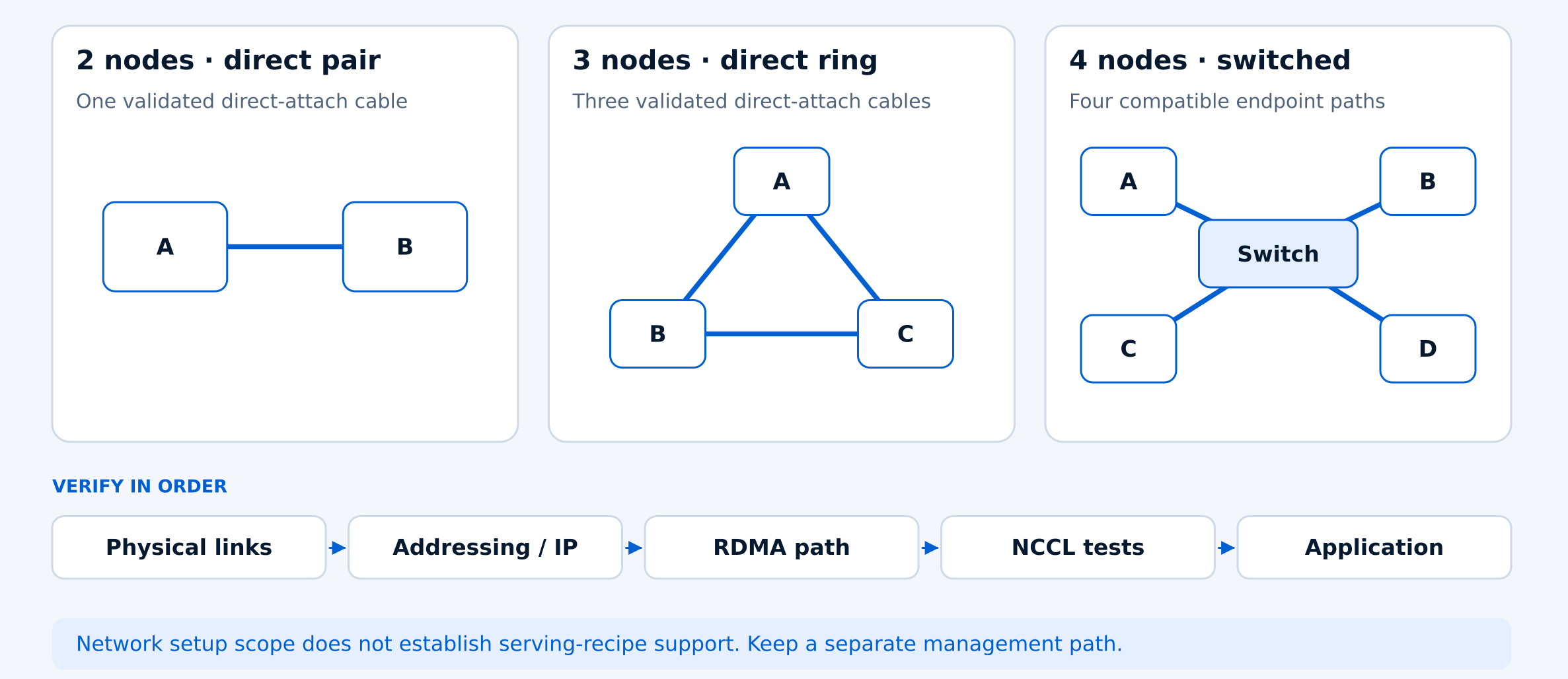
DGX Spark connection layouts
- 2 systems — direct connection
- One compatible QSFP cable between two systems. NVIDIA Sync or manual setup.
- 3 systems — direct ring
- Three compatible QSFP cables connecting all three systems. NVIDIA Sync or manual setup.
- 4 systems — switched
- Four compatible endpoint connections through a suitable Ethernet switch. NVIDIA Sync or manual setup.
- 4 systems — direct ring
- Four compatible QSFP cables in a ring. Manual setup required.
For a switched configuration, confirm the switch port settings and required cable assemblies before ordering. Some switches use breakout connections to provide the appropriate link speed to each DGX Spark. A cable that fits the connector is not necessarily compatible with the complete setup.
Draw a simple network diagram showing each system, cable and switch port. Label the connections and include the separate management network. This makes installation easier and gives your team a useful reference if a connection needs troubleshooting later.
Understand DGX Spark ports and network speeds
DGX Spark uses NVIDIA ConnectX-7 networking with high-speed QSFP Ethernet ports rated at up to 200 Gb/s each. That gives multiple systems a fast connection for supported distributed workloads, but the advertised port speed isn't the same as the performance you'll see when running a model.
Each physical QSFP port is represented by two Linux Ethernet interfaces and corresponding RoCE devices because of the system's internal connections. These are software-visible interfaces, not additional physical ports. It's an important distinction when checking network settings or matching interface names to cables.
RoCE stands for RDMA over Converged Ethernet. It allows supported applications to transfer data over the Ethernet network using RDMA. However, having RoCE available doesn't automatically mean that a model can run across several DGX Spark systems. The application and its distributed setup must support that configuration. For a direct two-system connection, NVIDIA's documented setup uses one compatible QSFP cable. Adding another cable doesn't automatically improve throughput, so it's better to follow the validated configuration and test performance before purchasing extra networking hardware.
Check cables, switches and compatibility before buying
Not every cable with the right connector will work in a DGX Spark cluster. Compatibility depends on the system, cable assembly, switch configuration and firmware. Checking these details before ordering can prevent installation delays and unnecessary replacements.
Start with a complete bill of materials that lists the exact hardware you plan to use. Include the system models, cable lengths, switch ports and any breakout assemblies. If you're connecting four systems through a switch, confirm that it can provide the required 200 Gb/s Ethernet connections to each DGX Spark.
It's also worth checking the equipment you already have. A compatible switch may still need specific port settings or firmware updates, while a cable that works in one setup may not be suitable for another. Ask the supplier to confirm the complete combination rather than checking each component separately.
DGX Spark hardware and compatibility checklist
Before placing an order, use these checks to confirm that the systems, networking equipment and installation requirements have been reviewed.
- Confirm each system's manufacturer, model, SKU and installed memory.
- Record the BIOS, operating system, network driver and NIC firmware versions.
- Verify the switch model, firmware, port speeds and required breakout settings.
- List exact cable or transceiver part numbers, lengths and quantities.
- Confirm the topology, port assignments and separate management connections.
- Check power requirements, available outlets, ventilation and cable routing.
For switched setups, NVIDIA recommends keeping the DGX Spark connections on the same Layer 2 network, such as a bridge or VLAN, and using the default MTU. The switch also needs the correct port and breakout settings to support the planned connections.
Cable length is another detail worth checking early. A short direct-attach cable may work for systems placed close together, but longer distances can require different cables or transceivers. Confirm the exact parts with the supplier before ordering.
Before installation, make sure there are enough power outlets, adequate ventilation and space for cable routing. Any unresolved compatibility questions should be cleared up before the equipment arrives, rather than leaving them for the installation team to figure out.
Configure the network without losing access
Before changing any network settings, make sure you can still access every DGX Spark through its regular management connection. Save the existing system and switch configurations, and confirm that someone can reach the equipment locally if remote access stops working.
For the cluster setup, use NVIDIA Sync's Cluster Assistant where your chosen topology is supported, or follow NVIDIA's matching manual procedure. Stick to one documented approach rather than combining settings from different guides. This helps keep the configuration consistent and makes troubleshooting easier.
Once the connections are configured, record how each system is connected. Include the hostname, physical QSFP port, Linux network interface, RoCE device, IP address and connected peer. These details will help your team identify the correct connection if something needs attention later.
DGX Spark network configuration checklist
Complete these checks before running distributed workloads. Keep a record of the final settings so the network can be restored or tested again later.
- Confirm that every DGX Spark is reachable through its management connection before changing cluster settings.
- Save the current network and switch configurations, including the settings needed to restore them.
- Choose NVIDIA Sync's Cluster Assistant or the appropriate manual setup procedure for the selected topology.
- Record each system's hostname, QSFP port, Linux interface, RoCE device, IP address and connected peer.
- Verify the negotiated speed of every cluster link and check for connection errors or unexpected port settings.
- Document the rollback procedure and confirm that local or remote recovery access is available.
After setup, check that each high-speed connection has negotiated the expected link speed. For switched configurations, verify the port settings and breakout configuration on the switch as well as the interfaces on each DGX Spark.
If a connection is down or running slower than expected, check the cable, port configuration and available error counters before changing other settings. ASUS also provides a four-GX10 cluster guide with link-speed checks and troubleshooting steps, but its switch-specific instructions should only be used with the equipment they apply to.
Keep the working configuration and port-mapping records somewhere the installation team can access them. If a later change causes problems, these records will make it easier to restore the last known working setup.
Test the network before running AI workloads
Once the cluster is configured, test the connections before loading a model. A link can appear active without delivering the expected speed or stability, and basic connectivity alone doesn't confirm that distributed workloads will run correctly.
Before testing, define the required stability period, acceptable error levels and performance baseline for the documented configuration.
Start with the physical connections. Check that every link stays up while traffic is running, and record negotiated speeds, errors, dropped traffic and forward error correction (FEC) counters where available. For a switched cluster, check each cable branch and switch port used in the final layout.
Next, verify IP addresses, routes and connectivity between the systems over the intended cluster network. Confirm that management traffic and workload traffic follow the expected paths. A successful ping is useful, but it doesn't prove that RDMA is working or that the network can sustain the required throughput.
DGX Spark network testing checklist
Run these checks in order and save the results. Each test should confirm a different part of the setup before you move on to distributed AI workloads.
- Check every physical link for the expected negotiated speed, stability, errors and dropped traffic under load.
- Verify cluster IP addresses, routing and connectivity between all participating DGX Spark systems.
- Test the documented RoCE/RDMA communication path in both directions and record the results.
- Run NCCL correctness and performance tests using the selected nodes and several message sizes.
- Repeat network tests with all participating systems generating traffic to identify shared-resource bottlenecks.
- Run the intended AI application and confirm that the selected model-serving or training recipe works across the configured systems.
For RDMA testing, use the procedure that matches your DGX Spark software and network configuration. RoCE and GPUDirect RDMA are not the same thing. NVIDIA's DGX Spark porting guidance states that GPUDirect RDMA is not supported and describes a host-pinned memory approach for the relevant Linux RDMA fallback. Avoid copying GPU networking settings from a different NVIDIA platform without checking compatibility.
NCCL testing provides another useful check. Run correctness and performance tests with the nodes you plan to use, save the software version and complete output, and review the transport logs for unexpected fallback to socket communication. Record algorithmic bandwidth and bus bandwidth separately. Both describe communication performance, not language-model token rates.
Finally, run the application your team actually intends to deploy. A network that passes its connection and NCCL tests may still need application-specific settings before a distributed model will work. Test the chosen model, serving framework and workload separately, and record any limitations you encounter.
Keep a record of the final configuration
Once the network and application tests pass, save the configuration that produced those results. Keep the topology diagram, bill of materials, cable and port assignments, firmware versions and network settings together so another team member can understand how the cluster was built. Include the test dates, commands or procedures used, NCCL logs and application results. If a connection fails or performance changes after an update, these records provide a starting point for troubleshooting instead of requiring the team to reconstruct the original setup.
Document how to restore the last working configuration as well. If a network change causes problems, stop the affected workload, restore the saved settings through the management connection and confirm that each system is reachable before testing again.
What to include in a DGX Spark cluster quote request
When requesting a quote for two to four DGX Spark systems, include more than the number of computers. The connection layout, cable distances, switch requirements and intended AI workload can all affect the equipment needed for the deployment.
Share the system models you're considering, whether you already own any of the hardware and whether you plan to connect the systems directly or through a switch. If you have an existing network, provide the switch model and available port details so compatibility can be reviewed.
It's also helpful to explain what the cluster needs to do. Running separate inference services is different from distributing one large model across several systems. The right configuration depends on the application, software support and performance requirements, not simply the number of DGX Sparks.
Uniqcli can use these details to help scope a system-and-cable bill of materials and identify compatibility questions that should be resolved before ordering.
Frequently asked questions
Can you connect two DGX Spark systems directly?
Yes. NVIDIA documents a direct connection between two DGX Spark systems using a compatible high-speed QSFP cable. The systems also need the appropriate network configuration and software setup before they can run supported distributed workloads.
Do you need a network switch for three DGX Sparks?
Not necessarily. NVIDIA documents a three-system ring topology that connects the systems directly. A switch may be useful for other network designs, but the correct choice depends on the documented setup method and equipment requirements.
What cables are needed for four DGX Spark systems?
It depends on the topology. A four-system switched setup needs compatible connections between each DGX Spark and the switch. A manually configured direct ring uses connections between neighboring systems. Confirm exact cable part numbers, lengths and port compatibility before ordering.
Does a 200 Gb/s DGX Spark connection guarantee faster AI inference?
No. The 200 Gb/s rating describes a network port's maximum link speed, not the application's throughput. Actual inference performance depends on the model, software, communication overhead and how the workload is distributed.
How do you test a DGX Spark cluster network?
Start by checking physical links, negotiated speeds, errors and IP connectivity. Then verify the supported RDMA path, run NCCL correctness and performance tests, and test the actual AI application. Save the results so future changes can be compared against the working configuration.
Planning a DGX Spark cluster?
Tell us how many systems you need, your cable distances and the AI workloads you plan to run. Uniqcli can help scope the hardware and identify compatibility questions before you order.