
Short answer
RAID (redundant array of independent disks) combines several physical drives into one logical volume so the set survives a drive failure, runs faster than a single drive, or both. The level decides which of those you get and what it costs: RAID 1 and RAID 10 leave half the raw capacity usable, RAID 5 leaves all but one drive's worth and RAID 6 all but two.
Key facts
- RAID 0 stripes across at least two drives with no parity and tolerates no failure; usable capacity is the smallest drive multiplied by the drive count.
- RAID 1 mirrors two drives, tolerates one drive failure and leaves half the total capacity usable.
- RAID 5 needs at least three drives, writes one parity segment per stripe and tolerates one failure; RAID 6 needs four, writes two and tolerates two.
- RAID 10 needs at least four drives, mirrors pairs and stripes across them, tolerates one failure per span and leaves half the capacity usable.
- RAID is not a backup: deletion, corruption and ransomware are written to every member drive, and losing the chassis loses the array with it.
By Uniqcli Team
RAID (Redundant Array of Independent Disks) is a method of combining two or more physical drives into a single logical unit to improve data redundancy, performance, or both. The specific behavior depends on the RAID level chosen, which defines how data is distributed across the drives using techniques such as striping, mirroring, and parity.
RAID matters because individual drives fail, and a failure without protection means downtime and potential data loss. By spreading data across multiple disks with built-in redundancy, most RAID levels let a system keep running through a drive failure and rebuild onto a replacement. It is important to understand what RAID does not do: it is not a backup. RAID protects against hardware failure of a drive, not against accidental deletion, ransomware, file corruption, or site-level disasters, so it complements a backup strategy rather than replacing one.
How does RAID work?
RAID relies on three core techniques, combined differently at each level. Striping splits data into blocks and writes them across multiple drives at once, which increases throughput because several disks read and write in parallel — but striping alone adds no protection. Mirroring writes an identical copy of data to two or more drives, so a full copy survives if one fails. Parity stores mathematically derived information — single parity is computed with an XOR operation — that lets the array reconstruct the data from a failed drive using the surviving drives and the parity blocks.
A RAID array is presented to the operating system as one volume, so applications see a single disk regardless of how many physical drives sit behind it. The controller — whether a dedicated hardware card or a software layer — handles the distribution of data, the parity math, and the reconstruction of a failed drive. Different levels place these functions differently, which is what produces the trade-offs between redundancy, speed, and usable capacity.
What are the common RAID levels?
RAID 0 stripes data across drives for maximum performance and full capacity but has zero redundancy — one drive failure loses the entire array, so it suits scratch or temporary data only. RAID 1 mirrors data across two (or more) drives; it survives a drive failure and reads quickly, but usable capacity is halved. RAID 5 stripes data with distributed parity across three or more drives, tolerating one drive failure while sacrificing only a single drive's worth of capacity to parity — a common balance of protection, performance, and efficiency.
RAID 6 extends RAID 5 with a second, independent parity block, so it survives two simultaneous drive failures at the cost of two drives' worth of capacity; this matters as drive counts and capacities grow and rebuild windows lengthen. RAID 10 (a nested level, 1+0) mirrors pairs of drives and then stripes across those mirrors, delivering strong performance and fast rebuilds while tolerating a failure in each mirror set — but usable capacity is again roughly half the raw total. Higher redundancy and performance generally cost usable capacity, and no single level is best for every workload.
What happens during a RAID rebuild?
When a drive fails in a redundant array, the array runs in a degraded state — still accessible, but with reduced or no remaining fault tolerance. After the failed drive is replaced, the controller rebuilds it by reconstructing its data from the mirror copy or from parity and the surviving drives. During this window the array is more vulnerable: in RAID 5 a second failure before the rebuild completes loses the array, which is a key reason RAID 6 exists for large, high-capacity arrays.
Rebuild time scales with drive capacity and the array's activity level, and large modern drives can take many hours to rebuild while the whole array reads under load. The rebuild also stresses the remaining drives, which is when latent faults sometimes surface. Practical mitigations include hot spares that begin rebuilding automatically, monitoring and alerting so failures are caught early, and choosing a redundancy level appropriate to drive size and how quickly failed drives can be replaced.
Hardware RAID or software RAID?
Hardware RAID uses a dedicated controller card with its own processor to manage the array, offloading parity calculations from the host CPU. Controllers often include battery- or flash-backed write cache, which improves write performance and protects in-flight data during a power loss. The trade-offs are cost, and dependence on the controller — recovering an array can require a compatible controller, so a spare or documented replacement path is worth planning for.
Software RAID is implemented by the operating system or a filesystem/volume manager and runs on the host CPU, avoiding dedicated hardware cost and controller lock-in. Modern CPUs handle parity easily for most workloads, and software or filesystem-integrated approaches can add data-integrity features such as checksumming. The main considerations are host CPU and memory use under heavy load and, for boot volumes, ensuring the platform can start from a software array. Both approaches are valid; the right choice depends on workload, budget, and operational preferences.
Key takeaways
- RAID is not a backup — it protects against drive hardware failure, not deletion, corruption, ransomware, or disaster; keep separate backups regardless of RAID level.
- Match the level to the workload: RAID 1 or 10 favor performance and fast rebuilds, RAID 5 balances capacity and protection, RAID 6 adds a second parity drive for large arrays.
- Redundancy and performance cost usable capacity — mirroring roughly halves it, and parity levels reserve one (RAID 5) or two (RAID 6) drives' worth.
- Plan for rebuilds: large drives can take many hours to rebuild, and the array is more vulnerable during that window — consider RAID 6 or hot spares for high-capacity arrays.
- Hardware RAID offloads parity and can cache writes but adds cost and controller dependence; software RAID avoids that lock-in and leans on the host CPU.
- Redundancy reduces downtime, not the need for monitoring — early failure alerts and prompt drive replacement are what keep a degraded array from becoming a lost one.
Shop it at Uniqcli
Parts for this job
Cached controller
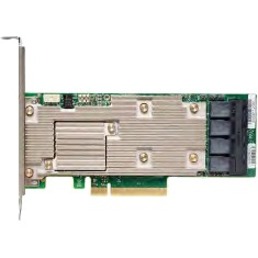
Broadcom
Broadcom MegaRAID 9460-8i SAS Controller
05-50011-02
The same eight-port 12 Gb/s SAS platform with 2 GB of onboard cache, for parity arrays where the read-modify-write penalty on small writes matters.
$2,456.99Back-orderedMirror or stripe only
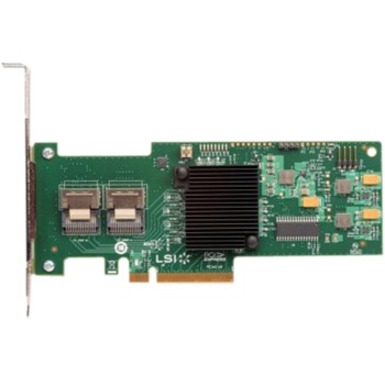
Lenovo
Lenovo ServeRAID M1115 SAS/SATA Controller
81Y4448
A 6 Gb/s SAS/SATA controller supporting RAID 0, 1 and 10 — the option when the array is a mirrored boot pair rather than a parity set.
$213.94Back-orderedFrequently asked
- Is RAID a substitute for backups?
- No. RAID protects against the physical failure of one or more drives, but it does not protect against accidental deletion, file corruption, ransomware, or site-level disasters — those changes are written across the array like any other data. A complete strategy uses RAID for uptime and availability alongside independent, ideally offsite, backups for recovery.
- How many drives can fail without losing data?
- It depends on the level. RAID 0 tolerates zero failures. RAID 1, 5, and 10 each survive a single drive failure (RAID 10 can survive more if the failures land in different mirror sets). RAID 6 survives two simultaneous drive failures. Once a level's fault tolerance is exceeded before a rebuild finishes, the array's data is lost.
- Which RAID level is best?
- There is no universally best level — it depends on your priorities. For maximum redundancy and rebuild speed, mirrored levels like RAID 10 are common. For a balance of protection and usable capacity, RAID 5 is typical, and RAID 6 is preferred as drives get larger because it survives a second failure during a long rebuild. Weigh redundancy, performance, and capacity against your workload and budget.
- Should I choose hardware or software RAID?
- Both are valid. Hardware RAID uses a dedicated controller to offload parity work and can cache writes for better performance, at added cost and with dependence on a compatible controller. Software RAID runs on the host and avoids controller lock-in, which modern CPUs handle well for most workloads. The right fit depends on performance needs, budget, and operational preferences.
- What is RAID in an operating system?
- RAID in an operating system — often called software or OS-level RAID — is a redundant disk array assembled and managed by the operating system itself rather than by a dedicated controller card. On Linux it is handled by mdadm or LVM; Windows Server provides Storage Spaces; and filesystems such as ZFS and Btrfs build RAID-style mirroring and parity directly into the volume manager. The parity and mirroring math runs on the host CPU, which modern processors handle easily for most workloads, so no add-in card is required.
- Can you boot from an OS-level software RAID array?
- Usually yes, but it depends on the platform and how the system volume is arranged. Mirrored RAID 1 is the common choice for a boot or OS disk because firmware and bootloaders can start from either mirror member, whereas parity levels like RAID 5 are harder to boot from directly. On many systems the bootloader (GRUB or Windows Boot Manager) is written to each mirror, and some designs keep a small separate, non-parity boot partition. Confirm your OS and firmware support the level you intend to use for the system drive.
- Is motherboard or BIOS RAID the same as OS software RAID?
- Not quite. Motherboard or BIOS RAID — sometimes called firmware or "fake" RAID — presents an array through the chipset, but the parity and mirroring work is still done by a driver inside the operating system, so its CPU cost resembles pure software RAID without the data-integrity features of a true controller or a filesystem like ZFS. A genuine hardware RAID card has its own processor and cache. For portability, OS-native software RAID such as mdadm or Storage Spaces is often easier to recover than chipset RAID tied to one specific board.
- What are the differences between RAID 0, 1, 5, 6, and 10?
- They differ in how many drives they need, how they store redundancy and how much capacity you get back. RAID 0 stripes across two or more drives with no parity, tolerates no failure and gives back the smallest drive multiplied by the drive count. RAID 1 mirrors two drives, tolerates one failure and gives back half. RAID 5 needs three or more, writes one parity segment per stripe and tolerates one failure, giving back all but one drive's worth. RAID 6 needs four or more, writes two parity segments and tolerates two failures, giving back all but two. RAID 10 needs four or more, mirrors pairs and stripes across them, tolerates one failure per span and gives back half.
- What are the four types of raids?
- In storage the question almost always means RAID levels rather than four fixed categories. The four used most in business systems are RAID 0 (striping with no redundancy), RAID 1 (mirroring), RAID 5 (single parity across three drives or more) and RAID 10 (mirrored pairs striped together). RAID 6 is a fifth in wide use and adds a second parity segment so the array survives a second drive failing during a rebuild. A separate distinction, sometimes miscounted as a type, is where the level is implemented: on a hardware controller, in the operating system, or in firmware on the motherboard.
Sources
- 1.Lenovo Press — Lenovo RAID Introduction (RAID level comparison table)lenovopress.lenovo.com
- 2.NIST glossary — Redundant Array of Independent Diskscsrc.nist.gov
- 3.CISA — #StopRansomware Guide (maintain offline, encrypted backups)cisa.gov
Keep reading