
Computer lab refresh kits: displays, input and cable standards
Build school computer lab refresh kits around applications, display readability, input needs and cables that technicians can replace consistently.
By Uniqcli Team · · 4 min read
On this page
A computer lab refresh should make the intended learning tasks easier to run and easier to support. The right display, keyboard, mouse and connection standard depend on the applications students use, the desk layout and the support process. A larger monitor or a more expensive workstation is not automatically the best improvement for every lab.
Begin with a representative station and the curriculum it serves. Identify browser-based work, coding, design applications, specialist input devices and accessibility requirements. Then build a complete kit that can be repeated across the room, with clear exceptions for tasks or students that need a different setup.
Standard display candidate
LG Electronics
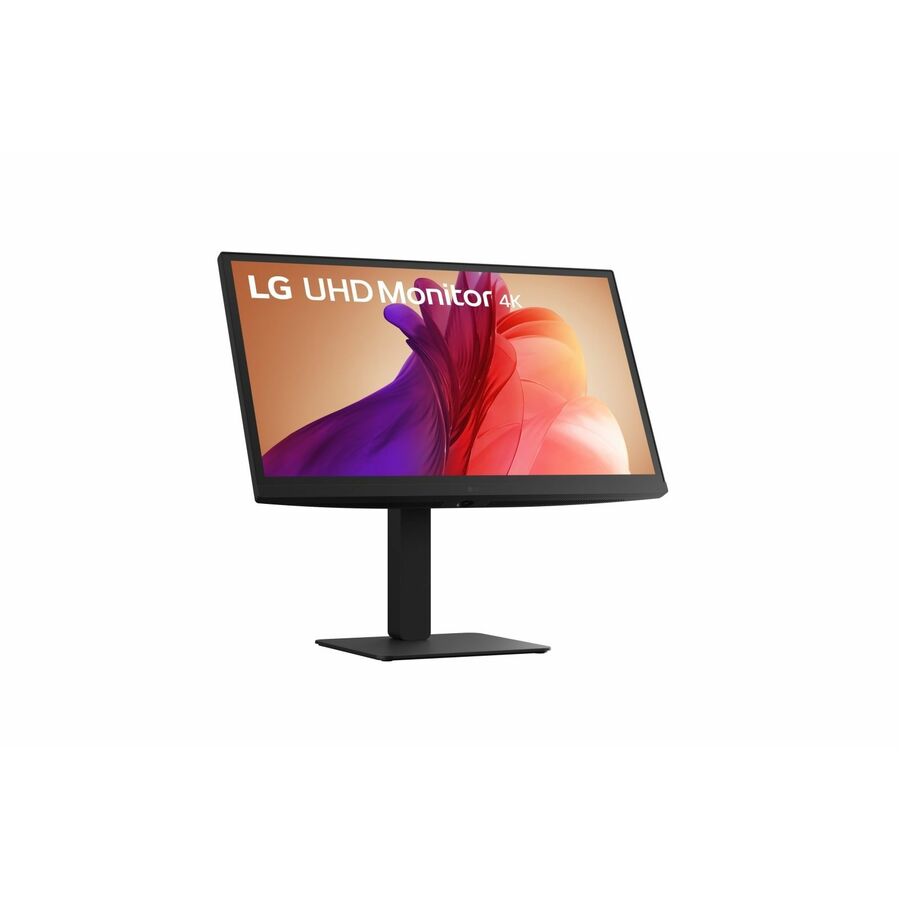
LG 27BA45U-B 27" Class LCD Monitor
27BA45U-B
The LG 27BA45U-B is a 27-inch monitor candidate for a lab evaluating a repeatable display standard.
Review the complete specifications and test the teaching applications at the intended scaling and viewing distance.
$510.00*Back-orderedFixed-station input

Logitech
MK200 Media Corded Keyboard and Mouse Combo
920-002714
The Logitech MK200 corded keyboard and mouse combo provides a defined input set for compatible fixed lab stations.
Check available ports, layout and individual accessibility needs. Keep accepted alternatives for users who require another form factor.
$29.02In stockTechnical lab candidate
Lenovo
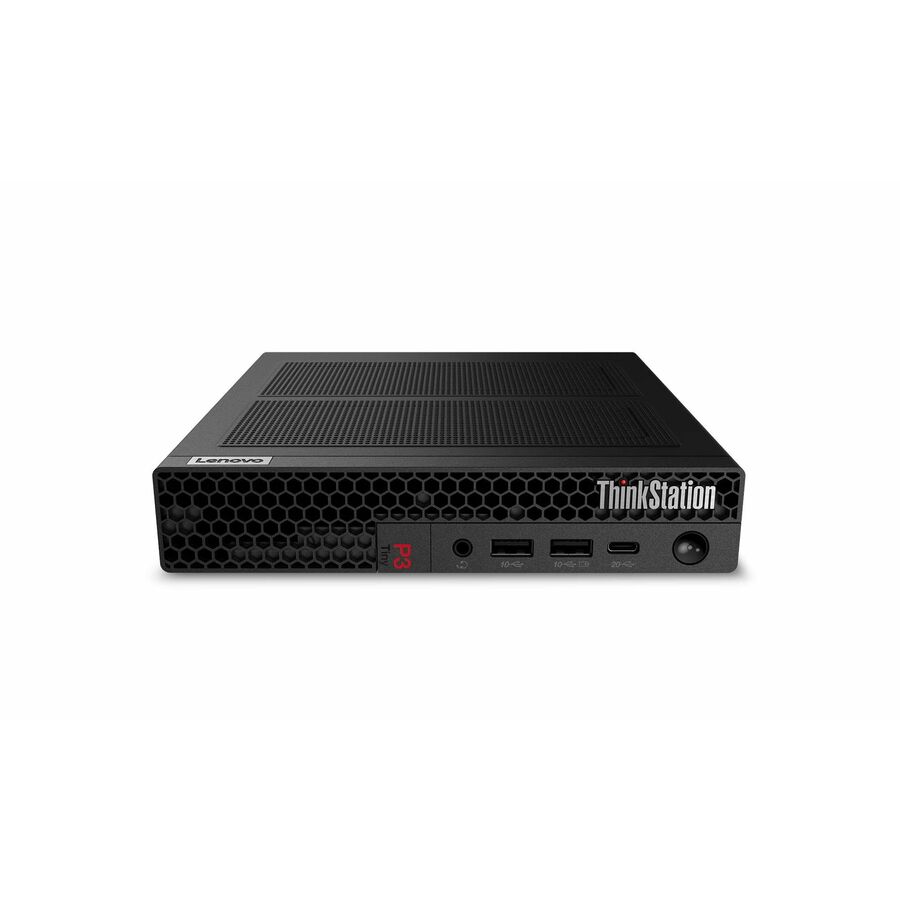
Lenovo ThinkStation P3 Gen 2 30K5001YUS Workstation
30K5001YUS
The Lenovo ThinkStation P3 Gen 2 Tiny configuration offers a workstation option to evaluate for a technical curriculum.
Its listed 16 GB memory and 512 GB SSD are configuration facts, not a universal lab recommendation. Validate graphics, application support and representative project demands.
$3,117.64In stockChoose displays for the applications and room
Check how the actual software appears at the proposed screen size, resolution and scaling. Dense tool panels, code editors and split-screen exercises can benefit from more usable workspace, but students must still be able to read the interface comfortably at the desk. Evaluate the viewing arrangement with the responsible teaching and accessibility staff.
Measure the desks and confirm stand placement, cable reach and any mounting requirement. A wider screen can affect neighboring stations and sightlines. Do not infer suitability from diagonal size alone. If existing displays remain useful, a connection or input upgrade may address the lab’s main problem at a lower complete cost.
Standardize the connections technicians must maintain
Record the computer output, display input and exact cable for each station type. If the lab uses laptop docks, validate the supported host models and required charging behavior. Keep a small stock of accepted replacement cables with clear labels rather than relying on visually similar parts.
Choose input devices by the tasks and users. A numeric keypad may matter for some lessons, while specialized design work may require a different pointing device. Provide approved alternatives where needed. Standardization should simplify routine support without treating every student’s physical interaction with the computer as identical.
Recommended configuration
- General learning and coding
- Kit decision: Readable display and reliable input · Pilot evidence: Required applications usable at chosen scaling
- Design or technical software
- Kit decision: Workstation matched to the application · Pilot evidence: Representative project completes correctly
- Shared fixed stations
- Kit decision: Documented cable and input set · Pilot evidence: Replacement restores the station quickly
- Accessibility or specialist work
- Kit decision: Approved individual configuration · Pilot evidence: Actual task accepted with responsible staff
Distinguish workstation capacity from classroom need
A compact office desktop may be enough for some labs, while a technical program can require a professional workstation configuration. Use the application’s current requirements and any certification guidance to make that distinction. Quote installed memory, storage and graphics explicitly instead of relying on a family name.
Include software preparation, licensing where applicable, network access and support arrangements in the deployment plan. If the curriculum uses large local projects, decide where work is stored and how students move between stations. A hardware purchase does not resolve that workflow by itself. Confirm the expected recovery process for a failed station during a scheduled class.
Acceptance test: run a class exercise across the pilot row
Prepare several representative stations using the intended managed accounts and software. Run a normal class exercise, including opening materials, saving work, displaying instructions and using any required peripherals. Observe whether students can follow the lesson at the selected display settings and whether the teacher can support the room layout.
Then replace a cable, keyboard or mouse using the lab spare kit and restore one station through the approved process. Record the accepted hardware and software configuration with the curriculum owner’s feedback. Use that record to approve the room-wide order. Recheck the kit when the main teaching application, host platform or display standard changes.
Questions before you order
Should we replace every component at once?
Replace the parts that fail the new lab requirements or support plan. Test retained equipment as part of the complete kit. A staged refresh can preserve useful components while focusing spending on the current constraint.
How many pilot stations do we need?
Use enough to represent the lab’s different applications, connection types and user needs. The district should choose the scope based on variation and risk, then retain the results as the basis for the full order.
Build the right equipment list
Send your quantities, required configurations and delivery needs for a quote.
Sources
- 1.USB-IF: cable performance and power markingsusb.org
- 2.LG Electronics 27BA45U-B — catalog specificationsgetuniqcli.com
- 3.Logitech 920-002714 — catalog specificationsgetuniqcli.com
- 4.Lenovo Group Limited 30K5001YUS — catalog specificationsgetuniqcli.com
Manufacturer catalog image · 27BA45U-B