
Short answer
Microsoft 365 Education is Microsoft's licensing program for schools, sold in three tiers — A1, A3 and A5 — across two families: Office 365 Education covers the cloud services, while Microsoft 365 Education adds a Windows edition and the management stack. A1 is web-only; A3 adds installed desktop apps, Windows 11 Enterprise and Intune for Education; A5 adds security, compliance and analytics.
Key facts
- Office 365 Education A1 includes Microsoft 365 for the web but not Microsoft 365 Apps for enterprise, so there is no installed desktop suite at that tier.
- Microsoft 365 A1 for devices carries Windows 11 Pro Education; Microsoft 365 Education A3 and A5 carry Windows 11 Enterprise.
- Intune for Education is listed as included with every Microsoft 365 Education plan and with none of the Office 365 Education plans.
- A3 adds Defender Antivirus and Defender for Endpoint Plan 1; A5 adds Defender for Endpoint Plan 2, Defender for Identity and Entra ID Plan 2.
- A5 alone carries Power BI Pro, Audio Conferencing, Phone System, Purview eDiscovery (Premium) and endpoint data loss prevention.
- Student Use Benefit columns are narrower: Microsoft lists Learning tools, Take a Test and Set up School PCs as unavailable on those lines.
By Uniqcli Team
Microsoft 365 Education is Microsoft's licensing program for schools, districts and higher-education institutions, sold in three ascending tiers — A1, A3 and A5. In short: A1 is web-based Office with no installed desktop suite and, in its base Office 365 form, no Windows edition and no Intune entitlement; A3 adds the installed desktop applications, Windows 11 Enterprise and Intune for Education; A5 adds a security, compliance and analytics layer on top of A3 rather than new functionality a teacher would notice. The tier an institution licenses therefore determines whether users get browser-based Office or installed desktop applications, which Windows edition the fleet is entitled to run, and how much of the management and security stack arrives in the box rather than as a separate purchase.
Two product families share the A1/A3/A5 naming, and confusing them is the most common source of scoping errors. Office 365 Education covers the cloud productivity services — Exchange Online, SharePoint Online, Teams, OneDrive and the Office applications. Microsoft 365 Education wraps that same Office 365 tier together with a Windows edition and the device-management and security components, chiefly Intune for Education plus the Microsoft Entra ID and Defender tiers. Microsoft publishes the two as separate comparison tables in its Microsoft 365 Education service description, and a requisition that says only "A3" has not yet said which family it means.
This page is a structural explainer, not a price list. Uniqcli supplies hardware; we do not resell Microsoft academic licensing and we quote no plan pricing here. What the plan decision does affect on our side is the device order that follows it — the Windows edition the fleet has to run, whether machines need to arrive ready for zero-touch enrollment, and the endpoint security baseline the chosen tier assumes is already in place.
What Office 365 Education A1 includes
A1 is the entry tier, and Microsoft donates Office 365 A1 to eligible institutions at no cost for educators and students. Per Microsoft's service description it provides the Office 365 platform and Microsoft 365 for the web — meaning Word, Excel, PowerPoint and OneNote run in a browser rather than as installed applications — alongside Exchange Online, SharePoint Online, OneDrive for Business, Microsoft Teams, Microsoft Stream, Planner and Forms. Classroom tooling such as Teams classroom experiences, OneNote Class Notebook, Sway, Forms and the accessibility checker is included at every tier, A1 upward.
What A1 does not include is the part district IT usually needs. Microsoft 365 Apps for enterprise — the installable desktop Office suite — is listed as not included at Office 365 A1. Neither is Intune for Education, so A1 on its own carries no Microsoft device-management entitlement. There is no Windows edition attached, no Defender antivirus or endpoint tier, no Litigation Hold or eDiscovery beyond basic content search, and no Bookings, audio conferencing or phone system. A1 is a solid collaboration and identity floor; it is not a management platform.
There is one important exception to the A1 pattern. Microsoft's Microsoft 365 table lists a separate A1 line — Microsoft 365 A1 for devices — which does include Microsoft 365 Apps for enterprise, Windows 11 Pro Education, Intune for Education, Remote Help and Minecraft Education. If someone in the procurement chain says "we are on A1" and also says the devices are Intune-managed, that distinction is almost certainly what they mean, and it is worth confirming before you spec anything.
What A3 adds: desktop applications, Windows Enterprise and device management
At the Office 365 layer, A3 is chiefly about installed software and records management. It adds Microsoft 365 Apps for enterprise, upgrades Exchange Online and SharePoint Online from Plan 1 to Plan 2, and turns on Microsoft Bookings, Skype Meeting Broadcast, Litigation Hold, Microsoft Purview eDiscovery (Standard) including hold and export, and Office 365 Cloud App Security. For a school whose only complaint about A1 is that staff want Excel installed locally and legal wants a defensible hold capability, Office 365 A3 is the answer.
Microsoft 365 Education A3 is a materially bigger step, because it adds the whole device layer. It carries Windows 11 Enterprise, Intune for Education, Microsoft Entra ID Plan 1, Microsoft Defender Antivirus and Device Guard, Microsoft Defender for Endpoint Plan 1, Purview Information Protection Plan 1, Advanced Threat Analytics, Microsoft Endpoint Configuration Manager, Windows Server CALs, Universal Print, Clipchamp and Remote Help. It also enables the two education-specific deployment tools — the Take a Test app and Set up School PCs — that Microsoft lists as absent from every A1 line and from the Student Use Benefit columns.
In practical terms, A3 is the tier at which a district stops assembling management from parts. Enrollment, configuration profiles, application deployment, disk encryption policy, antivirus policy and conditional access all become one console rather than four. That is usually the reason districts move up, more than the desktop Office entitlement.
What A5 adds: advanced security, compliance and analytics
A5 is a security, compliance and analytics tier rather than a functionality tier — almost nothing a teacher touches changes between A3 and A5. On the Office 365 side, A5 turns on Audio Conferencing and Phone System, Power BI Pro, MyAnalytics, Purview eDiscovery (Premium), Purview Audit (Premium), Communication Compliance, Communications DLP for Teams chat, Customer Key, Customer Lockbox, Advanced Message Encryption and Privileged Access Management.
On the Microsoft 365 side, A5 raises identity to Microsoft Entra ID Plan 2, endpoint protection to Microsoft Defender for Endpoint Plan 2, and adds Microsoft Defender for Identity, Microsoft Defender for Office 365 Plan 2, Microsoft Defender XDR for Cloud Apps, Purview Information Protection Plan 2, endpoint data loss prevention and Insider Risk Management. Read as a list it looks like a security-operations product catalog, because that is essentially what it is.
The honest question for a district evaluating A5 is not whether the components are good but whether anyone is going to operate them. Defender for Endpoint Plan 2, Insider Risk Management and eDiscovery Premium generate work; they do not absorb it. Districts that already run a security operations function, or that buy managed detection and response, get value from A5 immediately. Districts whose security staffing is one person wearing three hats often get more out of A3 plus a managed service than out of A5 sitting unconfigured.
Web applications versus installed desktop applications
The single distinction that decides most A1-versus-A3 conversations is web versus desktop. Every tier from A1 up includes Microsoft 365 for the web, so Word, Excel, PowerPoint and OneNote are usable in a browser on any device with a supported browser and a network connection. Microsoft 365 Apps for enterprise — the installed suite that runs offline and supports the full desktop feature set, add-ins and VBA — appears from Office 365 A3 upward, and on the Microsoft 365 A1 for devices line.
That matters unevenly across a district. Elementary classrooms working in Teams and OneNote on shared devices rarely notice the difference. Business office staff running complex workbooks, special-education teams working with add-ins, and anyone who needs to work with a flaky or absent connection notice immediately. The usual outcome is a mixed estate: web-tier licenses for the student body, a desktop-capable tier for staff who need it. Microsoft's plan structure supports that split rather than forcing one tier across every seat.
Faculty licensing versus students: the Student Use Benefit
Microsoft's education plans are not licensed identically for staff and students, and the mechanism is the Student Use Benefit. Microsoft's service description publishes separate comparison columns for Office 365 A3/A5 Student Use Benefit and for Microsoft 365 Education A3 and A5 Student Use Benefit, and the contents differ from the equivalent faculty plan.
The differences are specific rather than cosmetic. In the Microsoft 365 tables, the A3 and A5 Student Use Benefit columns carry Windows 11 Enterprise, Intune for Education, Microsoft 365 Apps for enterprise, Entra ID Plan 1 (Plan 2 at A5) and Clipchamp — but Microsoft lists Learning tools, Take a Test and Set up School PCs as not available in the Student Use Benefit columns, along with Microsoft Defender Antivirus, Device Guard and both Defender for Endpoint plans. Universal Print appears in the Student Use Benefit columns with a footnote reading zero print jobs included. In the Office 365 tables, Microsoft notes that Defender for Office 365 Plan 2 is not available with the Office 365 A3 Student Use Benefit.
The planning consequence is that a district cannot assume the security controls it configured for staff devices apply automatically to student devices covered under a Student Use Benefit. Check the specific column, not the plan letter, before you write an endpoint-security standard into a device specification — and confirm current entitlements with Microsoft or your licensing partner, because the tables are revised.
How the plan decision changes the device order
Once the tier is settled, three hardware questions follow directly from it. The first is Windows edition: Microsoft 365 A1 for devices carries Windows 11 Pro Education, while A3 and A5 carry Windows 11 Enterprise. Devices ordered with Windows 11 Pro or Pro Education are the normal starting point for upgrade entitlement, and buying a Home-edition consumer machine into a managed fleet creates avoidable rework. Whatever edition you land on, the hardware still has to meet Windows 11 system requirements, including TPM 2.0 and Secure Boot — a constraint that quietly disqualifies a slice of older estates.
The second is enrollment. If the plan includes Intune for Education, the fleet should arrive registered for zero-touch provisioning so devices enroll on first boot rather than being touched individually by staff. That is a purchasing decision made at order time with the manufacturer and reseller, not something that can be retrofitted cheaply across a thousand machines.
The third is the specification floor. A web-first tier tolerates modest memory and storage; a desktop-applications tier does not. If A3 or A5 puts installed Office, Teams and a security agent on the same machine, 8 GB of memory is the realistic minimum for staff devices and 16 GB is the comfortable one, with SSD storage rather than eMMC. Send us the plan you have settled on along with the seat counts and we will spec and quote the matching hardware — the licensing itself stays with Microsoft or your licensing partner.
Key takeaways
- Microsoft 365 Education sells in three tiers — A1, A3 and A5 — across two families: Office 365 Education (cloud productivity) and Microsoft 365 Education (that plus a Windows edition and the management and security stack).
- A1 is web-first: Microsoft 365 for the web, Teams, Exchange and SharePoint, with no installed Office suite, no Windows edition and no Intune for Education entitlement.
- A3 adds installed Microsoft 365 Apps for enterprise, Windows 11 Enterprise, Intune for Education, Defender Antivirus and Defender for Endpoint Plan 1 — the tier where device management becomes one console.
- A5 is a security, compliance and analytics tier: Entra ID Plan 2, Defender for Endpoint Plan 2, Defender for Identity, Purview premium tooling, Power BI Pro, audio conferencing and phone system.
- Student licensing runs through the Student Use Benefit, which Microsoft lists with a reduced feature set — do not assume staff-device security entitlements extend to student devices.
- The plan decision drives the device order: Windows edition, zero-touch enrollment readiness, and whether the specification has to carry installed desktop applications.
Shop it at Uniqcli
Parts for this job
Web-first tier
Lenovo
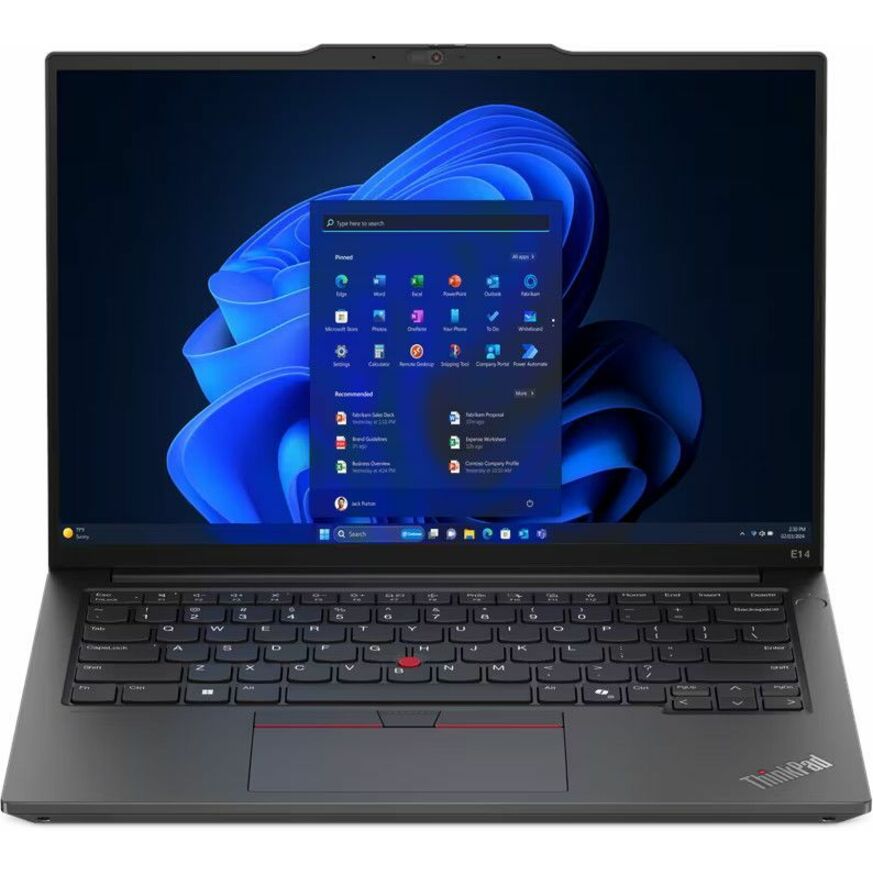
Lenovo ThinkPad E14 Gen 6 21M3000RUS 14" Notebook
21M3000RUS
A 14-inch Windows 11 Pro notebook with 8 GB of memory and a 256 GB SSD — the specification floor for a fleet running browser-based Office rather than the installed suite.
$1,076.97Back-orderedInstalled apps and a security agent

Lenovo
Lenovo ThinkPad E16 Gen 2 21MAS0BW00 16" Notebook
21MAS0BW00
A 16-inch Windows 11 Pro notebook with 16 GB of memory and a 1 TB SSD, sized for the installed desktop suite plus the endpoint agent an A3 or A5 tier assumes is running.
Order devices registered for zero-touch enrollment at purchase; it is not a retrofit.
$1,135.78Back-orderedFrequently asked
- What is Microsoft 365 A3 license?
- Microsoft 365 Education A3 is the middle tier, and it is where a school's fleet becomes centrally manageable. On Microsoft's own comparison table it carries Microsoft 365 Apps for enterprise (the installed desktop suite), Windows 11 Enterprise, Intune for Education, Microsoft Defender Antivirus, Microsoft Defender for Endpoint Plan 1, Microsoft Entra ID Plan 1, Purview Information Protection Plan 1, the Take a Test and Set up School PCs classroom apps, and the Windows Server CAL and Configuration Manager rights. Note the family distinction: Office 365 Education A3 is the cloud productivity half of that list and carries no Windows edition and no Intune entitlement.
- What is Microsoft 365 A5 license?
- Microsoft 365 Education A5 is the top tier, and it adds a security, compliance and analytics layer rather than new classroom functionality. Against A3, Microsoft's table gives A5 Microsoft Entra ID Plan 2, Defender for Endpoint Plan 2, Defender for Identity, Defender for Office 365 Plan 2, Defender XDR for Cloud Apps, Purview Information Protection Plan 2, eDiscovery (Premium), Audit (Premium), Insider Risk Management, Communication Compliance, Customer Key and Customer Lockbox, endpoint data loss prevention, Power BI Pro, Audio Conferencing and Phone System. A teacher would not notice the difference; a security team and a records officer would.
- How much does an Office 365 A3 license cost?
- Microsoft sets and publishes education licensing prices itself, and eligibility is verified by Microsoft rather than by a supplier, so the figure to work from is the one on Microsoft's own education plan pages or the quote from your licensing partner. Uniqcli does not resell Microsoft academic licensing and quotes no plan pricing. What we can help scope is the hardware the plan decision drives — the Windows edition the fleet has to run, whether devices should arrive registered for zero-touch enrollment, and the memory and storage floor an installed desktop suite plus a security agent implies.
- What is the difference between Office 365 Education and Microsoft 365 Education?
- Office 365 Education covers the cloud productivity services — Exchange Online, SharePoint Online, Teams, OneDrive and the Office applications. Microsoft 365 Education includes that same Office 365 tier and adds a Windows edition plus the device-management and security components, notably Intune for Education, Microsoft Entra ID and the Defender tiers. Microsoft publishes the two as separate comparison tables in its service description, so a purchase order that only says A3 is ambiguous until you name the family.
- Is Microsoft 365 Education A1 free?
- Microsoft donates Office 365 A1 to eligible institutions at no cost for educators and students. Eligibility is verified by Microsoft, and the free tier is the web-based one: it provides Microsoft 365 for the web, Teams, Exchange Online, SharePoint Online and OneDrive, but not the installed desktop Office suite, not a Windows edition and not Intune for Education. Confirm current eligibility terms with Microsoft directly, as program terms change.
- Which Microsoft 365 Education plan includes Intune for Education?
- Per Microsoft's service description, Intune for Education is listed as included with Microsoft 365 A1 for devices, Microsoft 365 Education A3 and A5, and the A3 and A5 Student Use Benefit lines. It is listed as not included with Office 365 Education A1, A3 or A5 — those are cloud productivity plans without the device-management layer.
- Do students get the same features as faculty under an A3 or A5 license?
- No. Student entitlements run through the Student Use Benefit, which Microsoft publishes as its own set of columns with a reduced feature set. In the Microsoft 365 tables the Student Use Benefit lines carry Windows 11 Enterprise, Intune for Education and Microsoft 365 Apps for enterprise, but Microsoft lists Learning tools, Take a Test, Set up School PCs, Defender Antivirus and both Defender for Endpoint plans as unavailable there. Check the specific column before writing an endpoint standard.
- Does the plan we choose affect what devices we should buy?
- Yes, in three concrete ways. The plan determines the Windows edition the fleet runs — Windows 11 Pro Education on the A1 for devices line, Windows 11 Enterprise at A3 and A5. It determines whether devices should be ordered registered for zero-touch enrollment, which is an order-time decision rather than a retrofit. And it sets the specification floor, because a tier with installed desktop applications and a security agent needs more memory and real SSD storage than a web-first tier does.
Sources
- 1.Microsoft Learn — Microsoft 365 Education service descriptionlearn.microsoft.com
- 2.Microsoft Learn — Office 365 Education service descriptionlearn.microsoft.com
Keep reading