
All-in-One PCs for Business: A Buying Guide for IT Teams
An all-in-one clears desk space, but the best fleet choice depends on the display, ports, service plan and daily work. Use this guide to write a specification that will survive the rollout.
By Uniqcli Team · · 14 min read
Key takeaways
- Choose the screen, stand and ports for the actual desk before comparing processor tiers.
- Check the exact SKU: memory access, storage bays, HDMI input and warranty vary even within one all-in-one family.
- A 23.8-inch Full HD model can suit a front desk; a 27-inch QHD model gives an analyst more useful workspace.
- Budget the entire service life, including deployment, spare units, display failures and end-of-life handling.
- Pilot one unit with the real software, peripherals, network and support process before a fleet order.
On this page
An all-in-one PC makes a crowded desk look solved in one demonstration: one screen, one power cable, no small tower underneath. The harder questions emerge over a fleet's service life. Can staff add a second display? Can a room use the panel as an input? If the panel fails, does IT replace the whole unit or one part? Those belong in the specification before the cartons arrive.
The right all-in-one PC can simplify a fixed workstation. It can also lock a good computer to a mediocre screen, or leave IT waiting for a whole-unit repair when one part fails. This guide is for teams choosing business desktops in quantity. The goal is a short list and an acceptance test, not a fashionable processor name.
Start with the job the desk must do
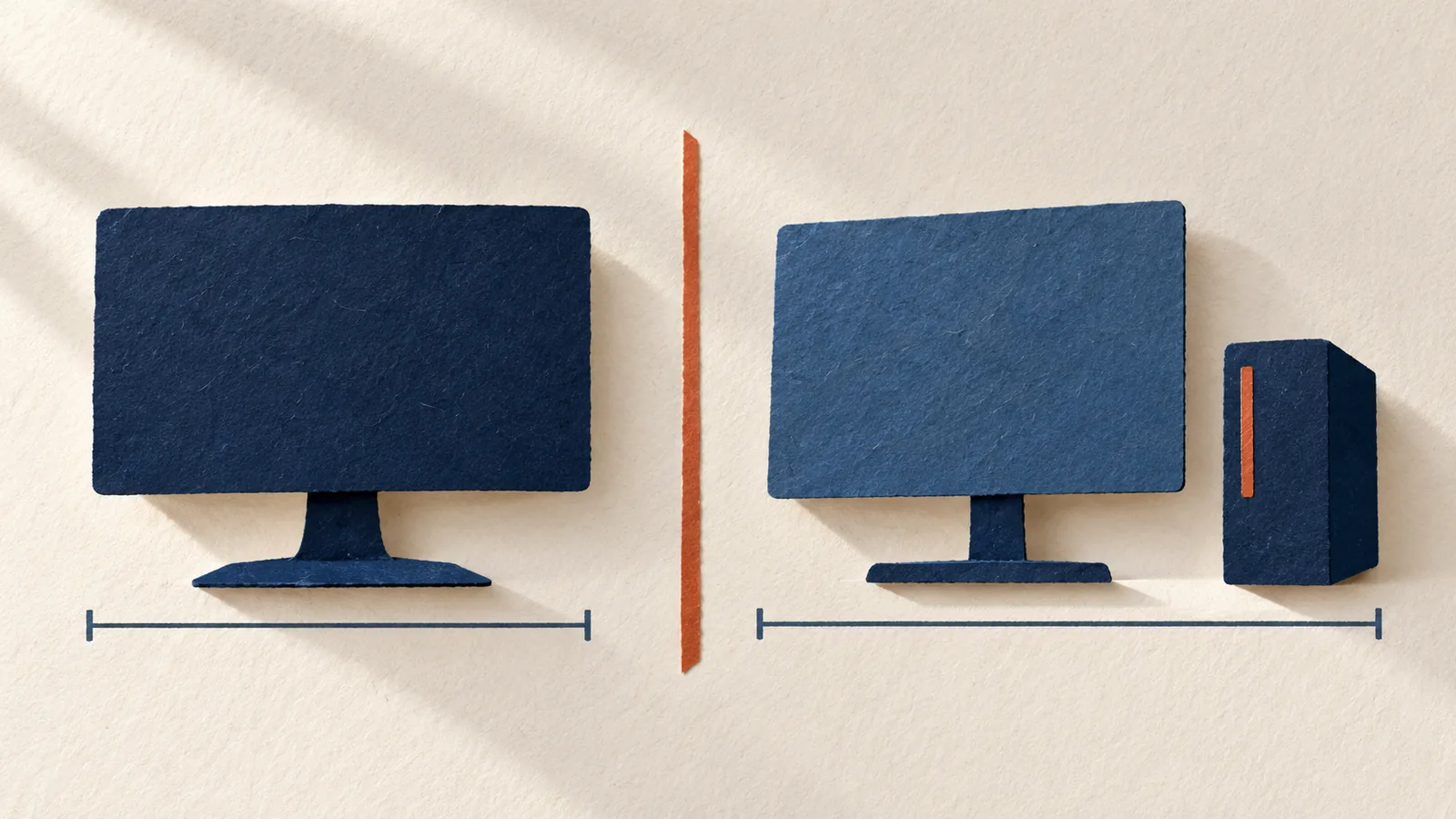
An all-in-one combines the computer and display in one housing. It still needs a keyboard, mouse, power, networking and often a headset or second monitor. Its advantage is the fixed footprint: fewer boxes to mount, inventory and cable. That is valuable at a reception counter, a branch office or a shared desk with little room behind the screen. It is less compelling when the computer and monitor have different replacement cycles or when users need specialized graphics.
Write down the work before asking for quotes. Does the employee spend the day in a browser and office suite, run a large electronic record or financial application, edit media, or keep a video call open beside several dashboards? How many windows need to be visible at once? What devices must stay plugged in: badge reader, scanner, label printer, headset, external camera, security key, or second display? Does the desk need touch, and is the application actually designed for touch?
The 50-seat example should be split into groups. Perhaps 20 reception desks need a compact screen and wired network; 20 office desks need reliable conferencing and an external display; 10 analysts need more pixels and memory. Buying one premium configuration for all 50 wastes money where its features are unused. Buying the cheapest configuration for all 50 pushes inconvenience onto the people with demanding work. A three-profile bill of materials is usually easier to support than 50 one-off requests.
Be cautious with labels such as AI PC. An onboard neural processor may accelerate supported local features, but the label does not say whether your line-of-business application uses it. Ask the software owner to name the feature and test it. For a browser-based workflow, memory, display space and stable conferencing may matter more than a peak AI number in a product brief.
Compare the whole workstation, not only the box
The real alternative to an all-in-one is often a small desktop attached behind a separate monitor. Both can keep the desk clear. The difference is what happens at refresh and repair time. With separate parts, IT can replace the computer while keeping a good display, or replace a damaged display while keeping the computer. With an all-in-one, the screen and computer are normally one service unit. That does not make all-in-ones a poor choice; it means the warranty and spare strategy belong in the initial comparison.
Use one worksheet per desk profile. Record the purchase configuration, mounting hardware, second display, keyboard and mouse, support term, expected repair turnaround, spare pool, energy policy, installation labor and secure disposal process. Do not compare an all-in-one quote that includes a camera and stand with a mini desktop quote that omits the monitor. The resulting five-year cost is an estimate, but it is at least an estimate of the same working desk.
The selection is also physical. Measure counter depth and cable exits. Check whether a height-adjustable stand fits under shelves, whether a fixed stand places the webcam too low, and whether the VESA mount pattern matches the arm your facilities team already uses. An all-in-one can look tidy in a photograph yet leave a power brick, two monitor cables and a scanner cable hanging over a customer-facing edge. Request a rear-port photo and a sample unit before approving the layout.
Select the display as carefully as the processor
Screen size alone is not enough. A 23.8-inch Full HD panel gives a familiar office canvas and fits smaller counters. On a 27-inch panel, the same 1920 by 1080 pixels are spread over more area. That can make text physically larger, but it does not create more room for columns or windows. A 27-inch 2560 by 1440 QHD panel is often the more useful step for analysts who keep spreadsheets, reference documents or two applications side by side. Confirm the application's scaling behavior before ordering either size.
For a shared office, check glare, brightness and viewing angles in the actual lighting. A specification saying IPS or anti-glare is a starting point, not a guarantee that the screen works under the reception lights. Ask a user to read their normal forms from the distance and angle they will actually sit. An external monitor may still be the best solution for users who need a very tall screen, a calibrated color display or a particular ergonomic arm.
OSHA's workstation guidance puts the top line of the display at or below eye level and recommends a comfortable viewing distance. That makes stand adjustment a work requirement, not a cosmetic feature. The MSI Modern AM273Q AI 1UM-037US, for example, lists a fixed stand but a 75 by 75 mm VESA pattern. The MSI PRO AP242P 14M family lists an adjustable stand and the same VESA pattern. Those are family specifications; confirm the exact unit and its stand package on the quote. Test the position with the shortest and tallest users in the pilot group.
Touchscreens deserve a specific reason. A visitor sign-in desk or a point-of-service application may benefit from touch. A user typing all day in a spreadsheet usually gains little from reaching across the keyboard to tap the display. Touch can also change panel finish, weight, cleaning practice and price. Specify the workflow first; then compare touch and non-touch units running it.
Check memory, storage and service access by SKU
The old habit of buying the smallest memory option and upgrading later is risky for a fleet. Some current all-in-ones provide accessible memory slots. Others use memory on the processor package or another fixed design. Even within one family, a processor change can alter what can be serviced. Lenovo's ThinkCentre M70a Gen 6 platform reference describes two DDR5 SODIMM slots and support for two M.2 drives. Its separate 24-inch neo 50a Gen 6 LNL specification lists 16 GB of soldered memory on package with no upgrade slots. Neither fact proves what is inside every listing called an all-in-one. It proves why the exact model code matters.
For general office work, 16 GB of memory and a 512 GB SSD are a reasonable starting specification to test, not a universal minimum. Give analysts or users of large local applications a 32 GB pilot and measure whether it changes their work. For a fixed-memory model, buy the capacity the intended service life needs from day one. For a serviceable model, ask whether opening the chassis affects the warranty, who can supply approved parts, and whether the service desk is allowed to do the upgrade.
Storage size is another workload question. A 256 GB drive may be plenty for a tightly managed cloud desktop and a poor fit for local media or data extracts. An SSD is the sensible default for current business deployments. The relevant choice is capacity, endurance for the workload, encryption support, replacement procedure and whether a second drive is actually available in the quoted configuration. A family data sheet that says two slots may include a qualification elsewhere in the document; check the exact build before promising future expansion.
The processor label alone is a weak shortcut. A Core Ultra 7 part can be configured with different memory and power limits across products. An older Core i7 name does not settle a comparison with a newer Core Ultra 5. Ask for the exact processor, then test the slowest real task: opening the case-management application, switching between a video call and an analytic dashboard, or exporting a large report. If a user needs CAD, intensive media work or GPU compute, compare a proper workstation as well. An all-in-one may have a graphics option, but many use integrated graphics and share the display's thermal envelope.
Make a port map before ordering
Ports are easy to count and easy to misread. USB-C can mean data, video output, charging, or some combination. HDMI-out sends a picture to a second display; HDMI-in lets another device use the built-in panel. They are different jobs. Lenovo's M70a Gen 6 platform describes an HDMI input/output combo and a monitor mode. Dell's Pro 24 All-in-One specifications also list separate HDMI input and output. The MSI Modern AM273Q AI 1UM-037US data sheet lists both. Do not infer that another all-in-one has the same feature from the connector shape alone.
Draw the desk. Put the scanner, printer, badge reader, headset, keyboard, mouse and any external screen on the diagram, then count occupied ports. Mark which are rear-facing and which a user can reach without turning the whole computer. Check a wired Ethernet port if the office standard needs it, and verify the Wi-Fi configuration if the desk cannot be wired. Ask whether the external display port supports the resolution and refresh rate you plan to buy. A USB hub is a useful accessory, but it is not a substitute for checking power and data requirements of attached devices.
For video-heavy positions, check the camera resolution, low-light behavior, microphones, privacy shutter, speaker placement and sign-in method in the meeting app you actually use. A camera spec may describe an optional upgrade, not the shipped camera. A camera that retracts or has a physical shutter may matter at a public counter. If sign-in depends on Windows Hello face recognition, verify that the quoted camera is the required IR configuration, not simply a standard webcam.
Specify management and security before deployment day
Windows 10 reached its standard end of support in October 2025. Extended Security Updates and specific long-term servicing editions have their own rules, so check the lifecycle of existing devices rather than making a blanket assumption. For a new Windows fleet, write down the edition, supported lifecycle, firmware update process, endpoint protection, drive encryption, identity policy and recovery method. Windows 11 requires TPM 2.0 and Secure Boot-capable firmware, but meeting those minimum requirements is only the start of a managed build.
If your organization uses Windows Autopilot, ask whether the supplier can register the exact devices for your tenant and supply the identifiers your enrollment process needs. Microsoft's documentation explains that Autopilot can prepare an OEM-installed Windows device with policies and applications without maintaining a separate image for each model. That promise still depends on your network, licensing, identity and management setup. A pilot should run through the same first-boot and reset process as a production unit, with the service desk watching for driver or firmware surprises.
Remote management features are configuration dependent. A family may support Intel vPro while the specific SKU does not enable the feature your administrators expect. Check the quote and test the manageability task that matters: remote power control, BIOS updates, device recovery or inventory reporting. Record who owns BIOS passwords and how a failed unit's SSD is handled. A beautiful desktop is difficult to support if the repair process requires a local administrator password nobody has documented.
Energy use belongs in the fleet worksheet as measured operating behavior, not a slogan. ENERGY STAR's current computer program covers integrated desktops and tests operation across off, sleep and idle modes with power-management requirements. Ask whether the exact configuration is certified, then apply your own sleep policy during the pilot. Also consider whether a built-in display must run after hours for signage or whether that creates an avoidable power and security problem.
Three practical profiles for a 50-seat order
For the 20 reception positions, start with a 23.8-inch Full HD business all-in-one, 16 GB of memory, a 512 GB SSD, Windows 11 Pro, wired Ethernet and the exact ports used by the scanner and printer. Require a stand or mount that meets the counter layout. Add touch only if the software and cleaning procedure call for it. The Lenovo ThinkCentre M70a Gen 6 and MSI PRO AP242P 14M listings are examples to inspect, not preapproved replacements for an application test.
For the 20 office positions, keep the same basic memory and storage pilot, then test camera quality, microphone pickup, external display output and enrollment. If most staff connect a second screen, include that monitor and its cable in the quoted desk. If some staff work remotely, a laptop and dock might fit their mobility needs better than any fixed all-in-one. Do not buy a fixed PC just because it makes the floor plan neat on installation day.
For the 10 analyst positions, try a 27-inch QHD panel, 32 GB of memory and an SSD sized to the actual data footprint. The MSI Modern AM273Q AI 1UM-037US is a catalog example with a 27-inch QHD panel and 32 GB configuration. Put the user's largest workbook or application in the pilot, attach the expected second display, and check the viewing distance. If that still feels cramped or the workload needs a stronger GPU, compare a separate workstation and monitor instead of stretching the all-in-one category beyond its useful range.
These are buying hypotheses. The pilot may show that one profile can cover two groups, or that a single scanner driver rules a particular model out. Record that result; it is more valuable than a processor ranking copied from a generic buying list.
Quote a working desk and a repair path
Ask each supplier for the manufacturer's exact part number, operating-system edition, panel resolution, touch status, memory arrangement, drive capacity, camera option, stand, wireless module, support term and included peripherals. A short title in a reseller catalog can hide a meaningful difference. The manufacturer reference sheet is the check against a product-page shorthand. Have the supplier identify substitute SKUs separately; an apparently equivalent substitute may change the camera or stand.
Ask how long a failed unit takes to return to service. If the display breaks, is there an onsite panel repair, a depot repair or a replacement unit? What can your own technicians replace? How many spares are reasonable for the site count and the support contract? How is a storage device secured during a return? Those questions make service cost visible before the first failure.
For the 50-seat project, put at least one unit from each proposed profile into the real environment for two weeks. Enroll it, run the line-of-business application, exercise the ports, place the normal video calls and simulate a hardware failure. The acceptance sheet should name the person who signs off each test, not merely say that IT found the machine fast. Capture any accessory or driver that was missing from the first quote.
Business all-in-one configurations to compare
Lenovo
Lenovo ThinkCentre M70a Gen 6 13AY000DUS All-in-One Computer
$3,131.84In stockLenovo
Lenovo ThinkCentre M90a Gen 6 13AT0008US All-in-One Computer
$2,823.12In stockMSI
MSI Modern AM273Q AI 1UM-037US All-in-One Computer
$1,440.04In stockMSI
MSI PRO AP242P 14M-643US All-in-One Computer
$1,220.55In stock
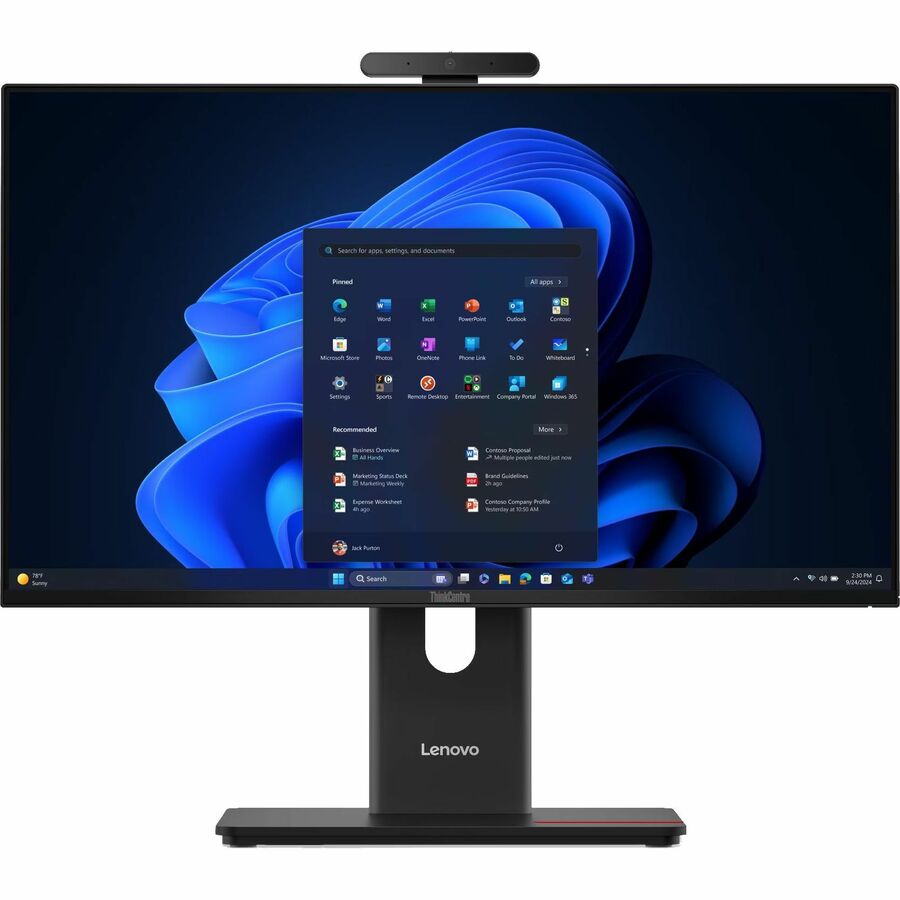
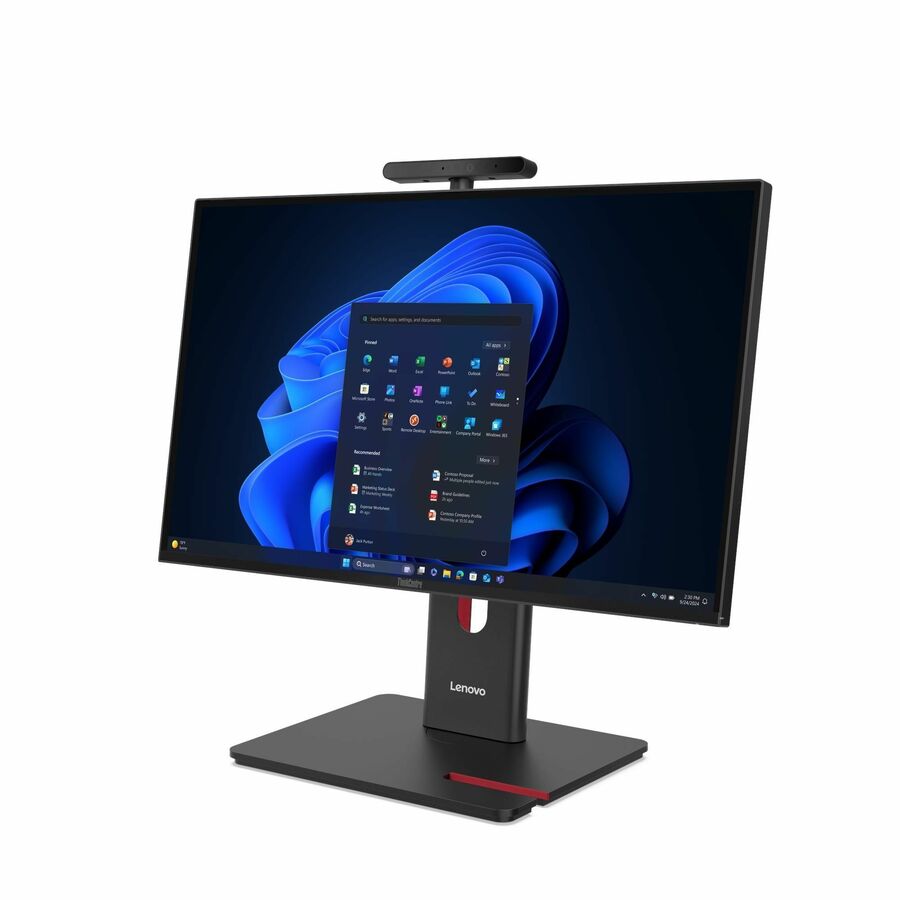
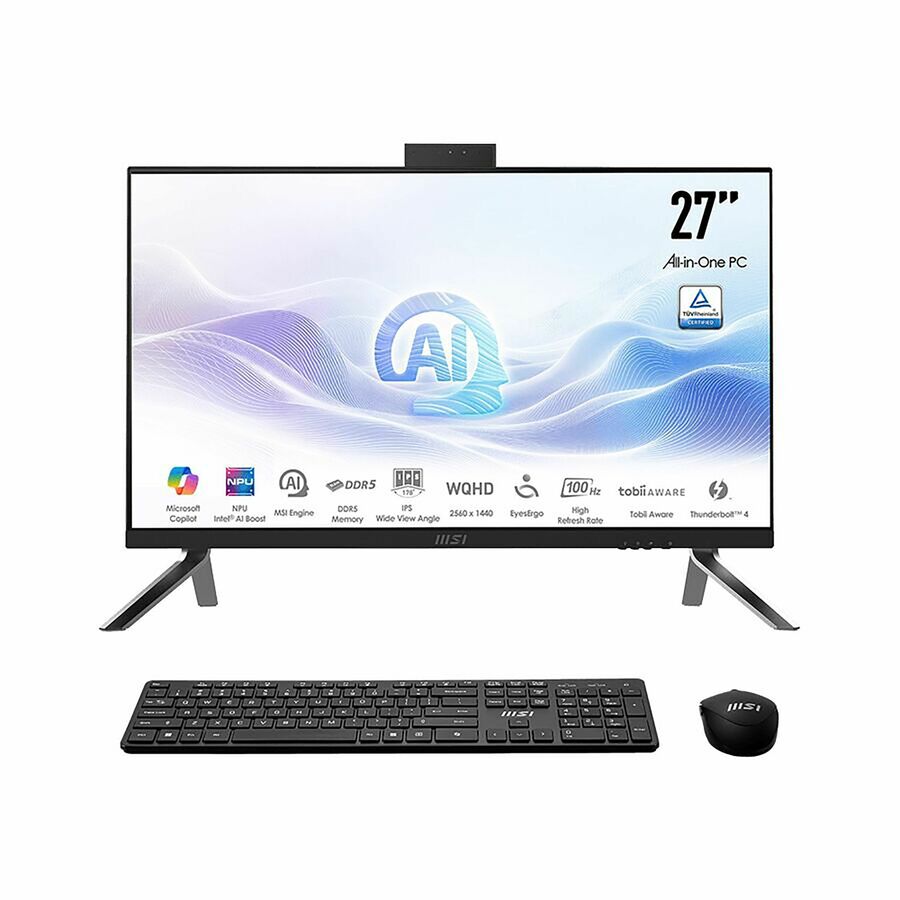
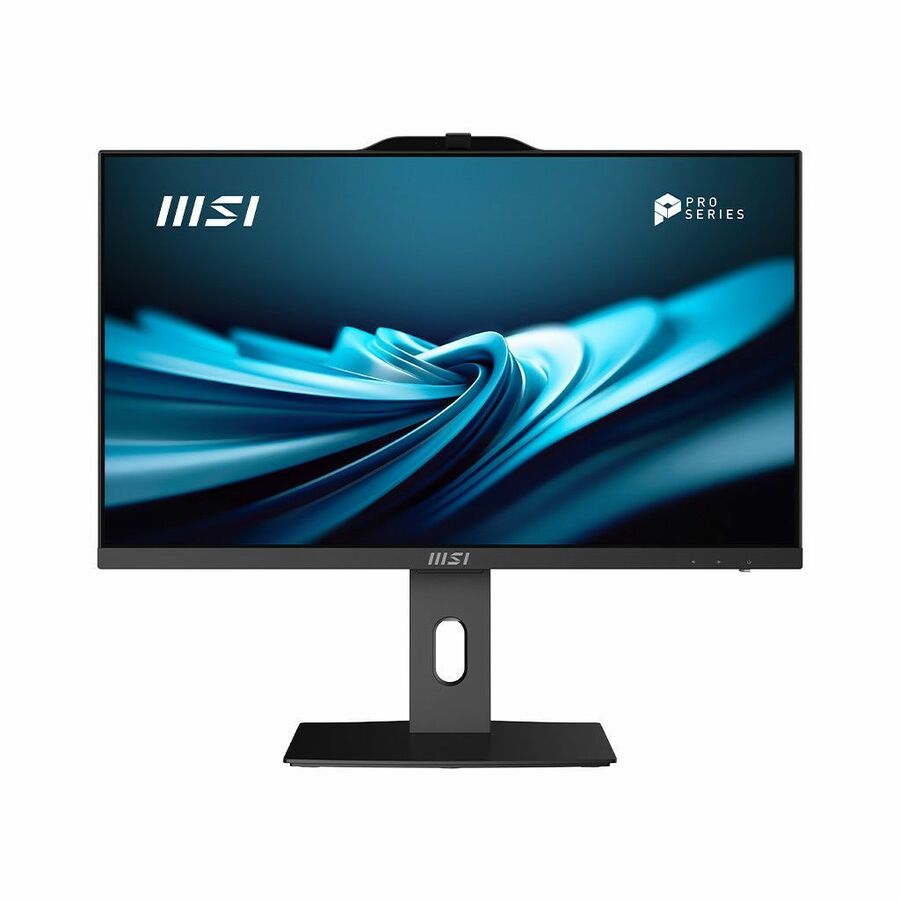
These are individual catalog listings. Confirm the exact display, OS, memory, stand, ports and support terms for each SKU before a fleet order.
Keep the comparison grounded
FAQ
Is an all-in-one better than a small desktop and monitor?
It can be for a fixed desk where a compact setup, fewer loose parts and simpler installation are valuable. A small desktop with a separate monitor usually offers more freedom to replace the screen and computer at different times. Compare the complete desk, service plan and replacement cycle, not just the price of the computer.
Can an all-in-one PC be used as a monitor for another computer?
Some can. You need an HDMI input or another explicitly supported input mode, not merely an HDMI connector. Lenovo's M70a Gen 6 and some Dell and MSI models document monitor input. Check the exact SKU and test the desired external device; HDMI output alone will not do it.
Can IT upgrade the RAM later?
It depends on the model and configuration. Some business all-in-ones have accessible SODIMM slots; others have fixed memory. Confirm the manufacturer's service document, maximum supported capacity, warranty terms and who will perform the work before treating an upgrade as part of the buying plan.
Should every business all-in-one have a touchscreen?
No. Touch is useful when the application and physical workflow are built around it, such as a visitor or service counter. For keyboard-centered office work, a non-touch panel may be simpler to maintain. Test the touch application, panel finish, cleaning procedure and mounting height together.
Is 27 inches always better than 24 inches?
No. A larger Full HD screen may make objects physically bigger without showing more information. A 27-inch QHD panel offers more pixels, but needs enough desk depth and suitable application scaling. A 23.8-inch Full HD panel often fits a narrow counter better. Let a pilot user work on both with normal content.
What should the pilot prove before we order 50 units?
It should prove application performance, display comfort, every peripheral connection, camera and audio quality, enrollment, firmware updates, external display support, and a realistic repair or swap procedure. Record pass criteria for each desk profile and ask the supplier to quote only configurations that pass them.
Turn the pilot into a clean purchase request
Send the supplier the number of seats by role, the required applications, monitor and stand needs, peripheral map, management method, support window and replacement plan. Ask for exact SKUs with no silent substitutions. Uniqcli can help assemble a comparison that includes the hardware around each desk and the test that makes the selected configuration acceptable.
Scope a business all-in-one rollout
Share your seat counts, desk profiles and pilot checklist. We can quote exact configurations and identify the accessories and support terms that complete each workstation.
Sources
- 1.Lenovo ThinkCentre M70a Gen 6 platform specificationspsref.lenovo.com— Memory, storage, monitor mode and display options.
- 2.Lenovo ThinkCentre M90a Gen 6 platform specificationspsref.lenovo.com— Ports and serviceable configurations.
- 3.Lenovo ThinkCentre neo 50a 24 Gen 6 LNL platform specificationpsref.lenovo.com— Soldered memory on package and no upgrade slots in this platform.
- 4.MSI Modern AM273Q AI 1UM-037US specificationstorage-asset.msi.com— Exact 27-inch catalog configuration.
- 5.MSI PRO AP242P 14M specificationus.msi.com— Display, stand and port options by model.
- 6.Dell Pro 24 All-in-One technical specificationsdell.com— Example of separate HDMI input and output.
- 7.Microsoft Windows 11 hardware requirementslearn.microsoft.com— TPM and firmware requirements.
- 8.Microsoft Windows Autopilot overviewlearn.microsoft.com— Managed provisioning workflow.
- 9.Microsoft Windows 10 end-of-support guidancesupport.microsoft.com— Lifecycle context and exceptions.
- 10.OSHA computer workstation monitor guidanceosha.gov— Viewing position and comfort.
- 11.ENERGY STAR computer programenergystar.gov— Integrated desktop efficiency criteria.
Product configurations and source documents reviewed October 25, 2026. Recheck the exact manufacturer part number and warranty at quote time.