
Short answer
A NAS (network-attached storage) is a dedicated appliance with its own processor, memory and operating system that serves files over Ethernet with SMB or NFS, so several machines read and write the same shares. Choose a NAS when more than one person needs the same files or you want a backup target on site; choose direct-attached storage for one machine, and a SAN when servers need block volumes.
Key facts
- NAS is file-level storage over Ethernet using SMB or NFS; a SAN serves raw blocks over Fibre Channel or iSCSI; DAS attaches to one host and shares nothing.
- NFS version 4.1 is specified in RFC 8881. SMB is the Windows file-sharing protocol, and most appliances speak both, so mixed clients mount the same share.
- RAID protects against a failed drive only. Deletion, corruption and ransomware write through every mirror and every parity copy at the same moment.
- CISA's backup guidance is 3-2-1: three copies of important files, two different types of storage media, one copy stored off-site.
- NAS-rated drives are built for 24x7 operation and publish an annual workload rate — Seagate rates IronWolf drives at up to 180 TB per year.
By Uniqcli Team
A NAS (network-attached storage) is a dedicated file-storage appliance that connects to your network and lets multiple users and devices read and write shared files over standard protocols. It holds one or more drives plus its own processor, memory, and lightweight operating system, and presents storage to the network as shared folders that clients reach over the LAN using protocols such as SMB (Windows file sharing) and NFS (common on Linux and virtualization hosts).
In practice, a NAS is the middle ground between plugging a drive into a single computer and running a full storage network. It centralizes files that would otherwise be scattered across workstations and USB drives, adds user permissions and redundancy, and is usually accessed by a drive-letter mapping or mount point rather than by installing anything. Devices range from two-bay units for a small team to multi-bay, rack-mounted systems for larger organizations.
How does a NAS work?
A NAS operates at the file level: clients ask it for whole files or folders, and the NAS handles how those files are physically stored across its drives. It runs a purpose-built OS that manages the drives, a filesystem, user accounts and permissions, and network file-sharing services. Because it is always on and independent of any one PC, files stay reachable even when individual workstations are shut down.
Connectivity is standard Ethernet — typically 1, 2.5, or 10 gigabit — often with the option to bond multiple ports for more throughput or failover. On top of file sharing, most units add features such as scheduled snapshots, backup jobs, encryption, and secure remote access, and higher-end models can run containers or virtual machines. Real-world speed is bounded by the network link, the drives, and the RAID layout, so plan the network alongside the box.
NAS vs DAS vs SAN: what's the difference?
DAS (direct-attached storage) is storage connected straight to one computer — internal disks, a USB drive, or an external enclosure — with no network in between. It is simple and fast for that single host but cannot be shared natively and offers no built-in multi-user access. A NAS, by contrast, is shared file storage reached over the ordinary network by many clients at once.
A SAN (storage area network) is a different animal: it serves storage at the block level over a dedicated high-speed network — commonly Fibre Channel or iSCSI — presenting raw volumes that servers treat as if they were local disks. SANs deliver high performance for databases and large virtualization clusters but are more complex and costly to run. A rule of thumb: DAS serves one machine, NAS shares files to many users, and SAN provides block storage to servers in a data center.
What is RAID, and is it a backup?
RAID (redundant array of independent disks) combines several drives into one logical unit for redundancy, performance, or both. Common levels include RAID 1 (a mirror across two drives), RAID 5 (single parity across three or more drives, surviving one failure), RAID 6 (double parity, surviving two failures), and RAID 10 (mirrored pairs that are then striped). Parity levels trade some raw capacity for the ability to keep running through a drive failure and rebuild onto a replacement.
Crucially, RAID is not a backup. It protects against disk hardware failure, but it does nothing against accidental deletion, file corruption, ransomware, theft, or a fire that takes the whole unit. Those threats write to every mirrored or parity copy at once. Treat RAID as uptime insurance and keep a separate backup — ideally following the 3-2-1 rule: three copies, on two types of media, with one copy off-site or offline.
When does a business need a NAS?
The usual trigger is outgrowing informal storage: files living on individual PCs or passed around on USB drives, no central place for shared projects, and no reliable permissions or version history. A NAS consolidates that into one managed location with per-user and per-group access control, making it easier to onboard staff, protect sensitive folders, and know where the authoritative copy lives.
Common workloads include a central file share for a team, a target for automated PC and server backups, media and asset libraries, on-site recording for IP surveillance cameras, private file sync and remote access, and shared storage for a small virtualization setup. If several people need the same files, you need scheduled backups, or you want data kept in-house rather than solely in a cloud service, a NAS is usually the right tool.
What should you look for when buying a NAS?
Start with capacity and growth: the number of drive bays sets both usable space (after RAID overhead) and headroom to expand. Match that to drive choice — use NAS-rated drives built for continuous 24/7 operation and multi-drive vibration, and decide whether hard drives, an SSD cache, or all-flash fits your performance and budget needs. Then size the network: faster ports (2.5 or 10 gigabit) and link aggregation matter once several users hit the box at once.
Beyond the basics, weigh CPU and memory if you plan to run backups, media transcoding, containers, or VMs; ECC memory and snapshot-capable filesystems for data integrity; supported RAID levels and rebuild behavior; protocol and OS compatibility; encryption and access controls; and support for a UPS to ride out power blips. Finally, remember that a single NAS is a single point of failure — plan a backup destination and, for critical data, an off-site or offline copy from day one.
Is a NAS a single device, or can you build your own?
A NAS storage device is a self-contained box: drives, a processor, memory, network ports, and a purpose-built operating system in one enclosure. Most organizations buy a turnkey NAS device — a prebuilt appliance that arrives ready to configure, carries a manufacturer warranty and firmware support, and is managed through a single focused interface. These NAS devices span compact two-bay units for a small team up to multi-bay, rack-mounted systems, so the same appliance approach scales from a wiring closet to a data center.
You can also build your own network-attached storage device from standard PC or server hardware running a dedicated NAS operating system. A do-it-yourself build can lower cost per terabyte and add flexibility, but you take on the assembly, hardware compatibility, security patching, and support yourself. For federal and enterprise buyers who need vendor support, documented security, and a predictable hardware lifecycle, a purpose-built appliance is usually the safer choice; DIY builds tend to suit labs, home users, and teams with storage expertise in-house.
Key takeaways
- A NAS is shared, network-attached file storage — file-level access over Ethernet using protocols like SMB and NFS, reachable by many users at once.
- It sits between DAS (storage for a single computer) and SAN (block-level storage for data-center servers); NAS shares files, SAN serves raw volumes.
- RAID adds fault tolerance against drive failure but is not a backup — accidental deletion, corruption, and ransomware still require a separate copy (follow 3-2-1).
- Size the unit by drive bays and growth, and pair it with NAS-rated drives designed for 24/7 operation and multi-drive environments.
- Match network speed and CPU/RAM to the workload — file sharing is light, but transcoding, backups, and virtualization need more headroom.
- A single NAS is a single point of failure; critical data needs an off-device and ideally off-site or offline backup.
Shop it at Uniqcli
Parts for this job
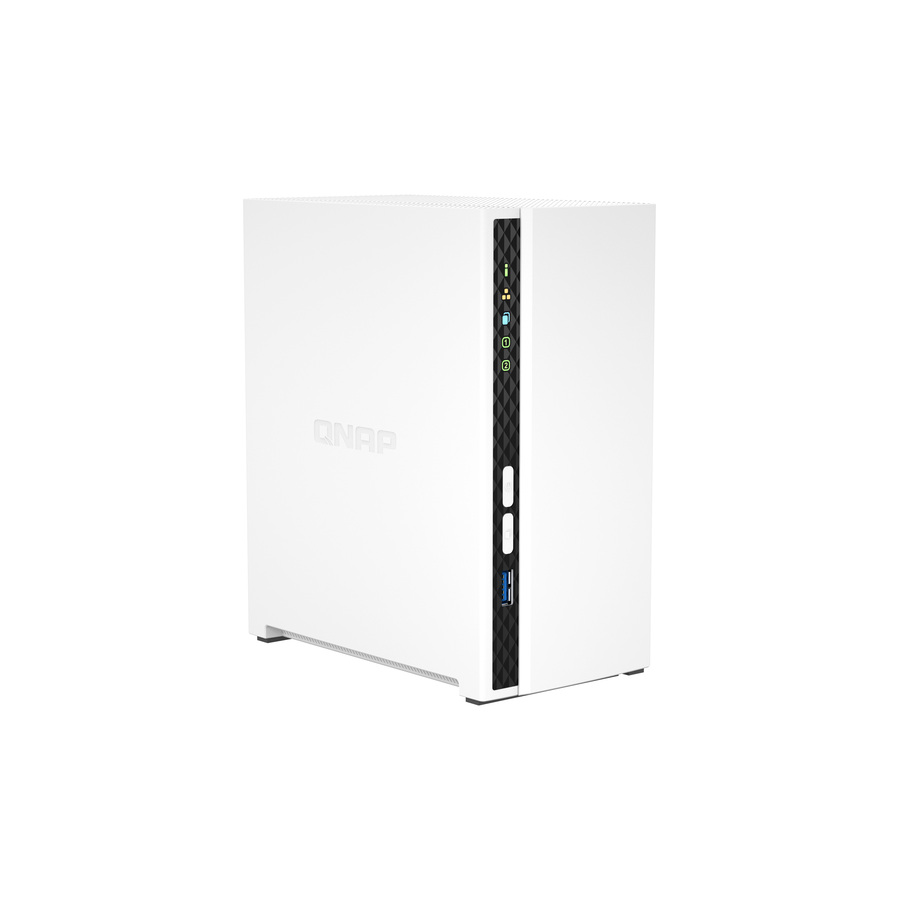
Two bays, the practical minimum
QNAP Systems
QNAP TS-233 SAN/NAS Storage System
TS-233-US
A two-bay diskless appliance with gigabit Ethernet and RAID 0, 1 and JBOD. Two bays is the smallest configuration that lets one drive fail without losing the share.
$281.31In stockFour bays, parity
QNAP Systems
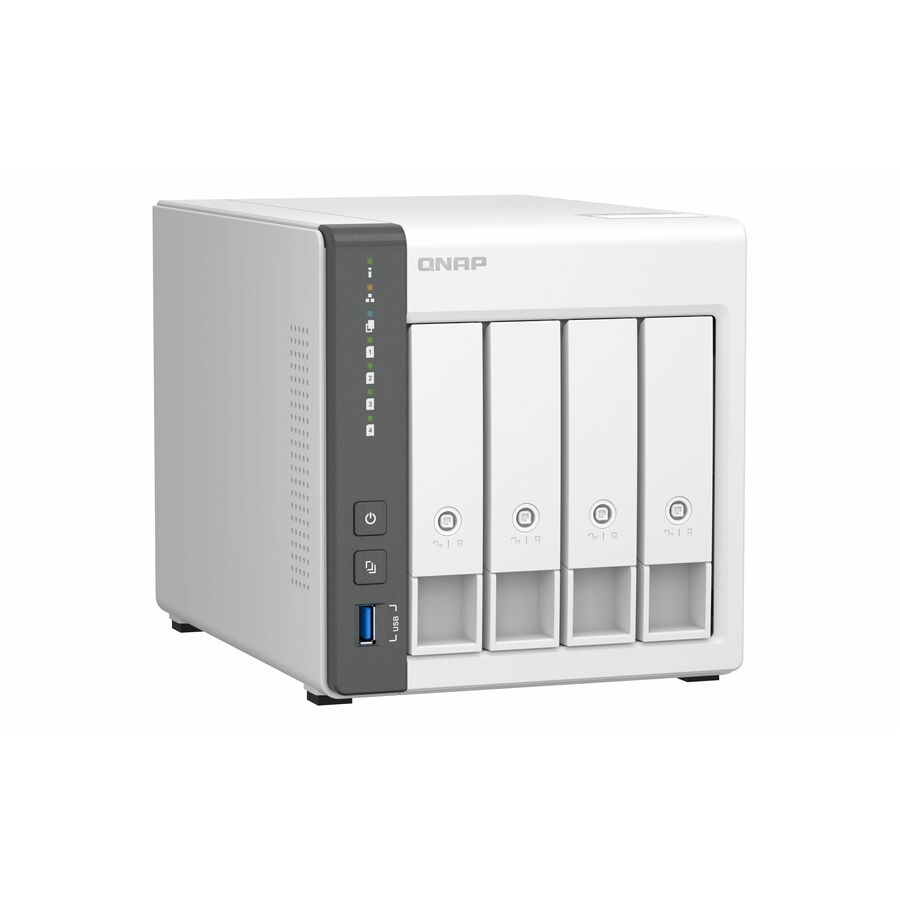
QNAP TS-433-4G SAN/NAS Storage System
TS-433-4G-US
Four bays, 4 GB of memory and 2.5-gigabit Ethernet, with RAID 5, 6 and 10 available — the step up when you want parity protection and room to grow rather than a mirror.
$501.41Back-orderedThe drive to put in it
Seagate Technology
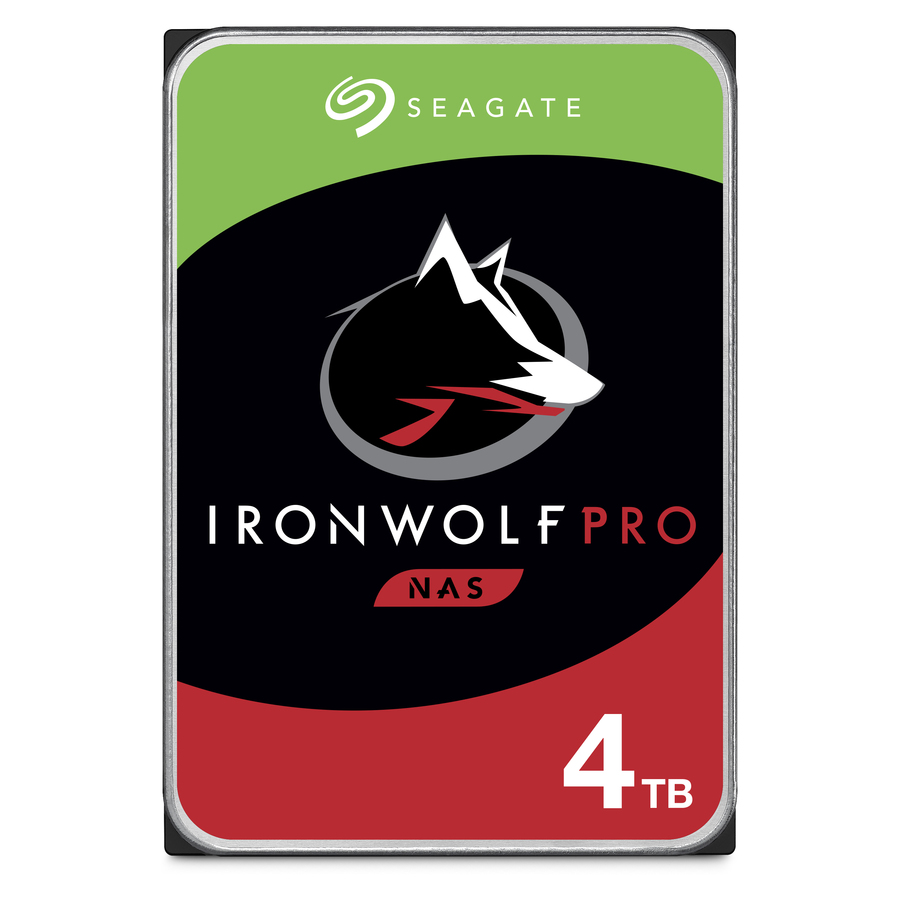
Seagate IronWolf Pro ST4000NE001 4 TB Hard Drive
ST4000NE001
A 4 TB 7200 rpm NAS-class drive using conventional magnetic recording, rated for continuous multi-drive operation. Buy drives to match the bays; appliances ship empty.
CMR, not SMR. Shingled drives rebuild slowly in a parity array.
$1,248.71Back-orderedFrequently asked
- Is a NAS the same as cloud storage?
- No. A NAS is on-premises hardware you own and control, storing data locally on your network. Cloud storage is hosted off-site by a provider and reached over the internet. Many NAS devices do offer secure remote access and file sync, giving you a private-cloud experience, and the two are often combined in a hybrid setup where the NAS backs up to the cloud.
- Can a NAS replace my backups?
- Not on its own. A NAS is shared primary storage, and RAID only protects against a failed drive — it does not guard against accidental deletion, file corruption, ransomware, theft, or a site disaster, all of which affect every copy at once. Keep a separate backup following the 3-2-1 rule: three copies, on two media types, with one off-site or offline.
- How many drives do I need in a NAS?
- It depends on the capacity you need and the redundancy you want. Two bays is the practical minimum to allow a RAID 1 mirror so one drive can fail without data loss. For more usable space with parity protection, four or more bays is common. Remember that RAID overhead reduces usable capacity below the raw total, so plan for that when sizing.
- Do I need a NAS or a full file server?
- A NAS is a purpose-built appliance: simpler to set up, lower power, and managed through a focused interface. A general file server is a full operating system on server hardware — more flexible and extensible, but more administration and cost. Many small and mid-size organizations find a NAS covers shared files, backup, and remote access without the overhead of a full server.
- What is a NAS storage device?
- A NAS storage device is a dedicated appliance that holds one or more drives and shares files across your network, so multiple users and devices can read and write them at once. Unlike a drive plugged into a single PC, a NAS device runs its own processor, memory, and operating system and presents storage as shared folders over protocols like SMB and NFS. NAS devices range from compact two-bay units to rack-mounted systems.
- What is a network-attached storage device?
- A network-attached storage device — a NAS — is the physical unit that plugs into your network switch or router and serves shared files to everyone on the LAN. It stays powered on independently of any workstation, so files remain reachable when PCs are off. Clients usually reach it as a mapped drive or mounted folder, with nothing to install on each machine.
- What are the downsides of using a NAS?
- The three real ones are that a single appliance is a single point of failure, that throughput is capped by the network link and the RAID layout rather than by the drives alone, and that it is one more device to patch, monitor and power. It also needs its own backup, because RAID survives a failed drive and not a deleted folder, a corrupted file or ransomware. Budget for drives, a UPS and a backup destination, not just the enclosure.
Sources
- 1.NIST SP 800-209 — Security Guidelines for Storage Infrastructurecsrc.nist.gov
- 2.RFC 8881 — Network File System (NFS) Version 4 Minor Version 1 Protocolrfc-editor.org
- 3.Microsoft Learn — SMB file sharing on Windows Serverlearn.microsoft.com
- 4.CISA — Back up business data (the 3-2-1 rule)cisa.gov
- 5.Seagate — IronWolf NAS hard drivesseagate.com
Keep reading